Reusing layouts with templates and saved sections
Insert ready-made templates and sections, save your own sections and pages, and find them again on the My Templates tab of the Templates Library.
Templates are ready-made page layouts. Saved sections are sections you built once and kept to use again. Both live in the Templates Library inside the page builder, so you do not have to build every page from scratch.
Considerations
- Save as Section only appears in Pro mode. Click Pro in the page builder header first.
- A section you save appears on the My Templates tab of the Templates Library. It does not appear under Sections.
- The Name field is filled in with the word "Section" when you save. Rename it, or your library fills with things called Section.
- Inserting a template can replace your current layout. Save your work first.
Insert a ready-made template
- From your Orbit dashboard, go to Storefront, then Themes, then Customize. The page builder opens.
- In the toolbox on the far left, click Templates.
- Find a layout you like and click Insert now. Click Preview first if you want a closer look.
- In the Insert this template box, leave Insert under current layout in editor ticked to add it below what you have. Untick it to replace the page.
- Leave Keep the template's typography ticked to bring its fonts with it. Untick it to use your store's fonts.
- Click Insert. The message Template inserted appears.
- Click any element inside it to change the text, images, colours and links.
Note: Images in a template are for preview only. Replace them with your own after you insert it.
Insert a ready-made section
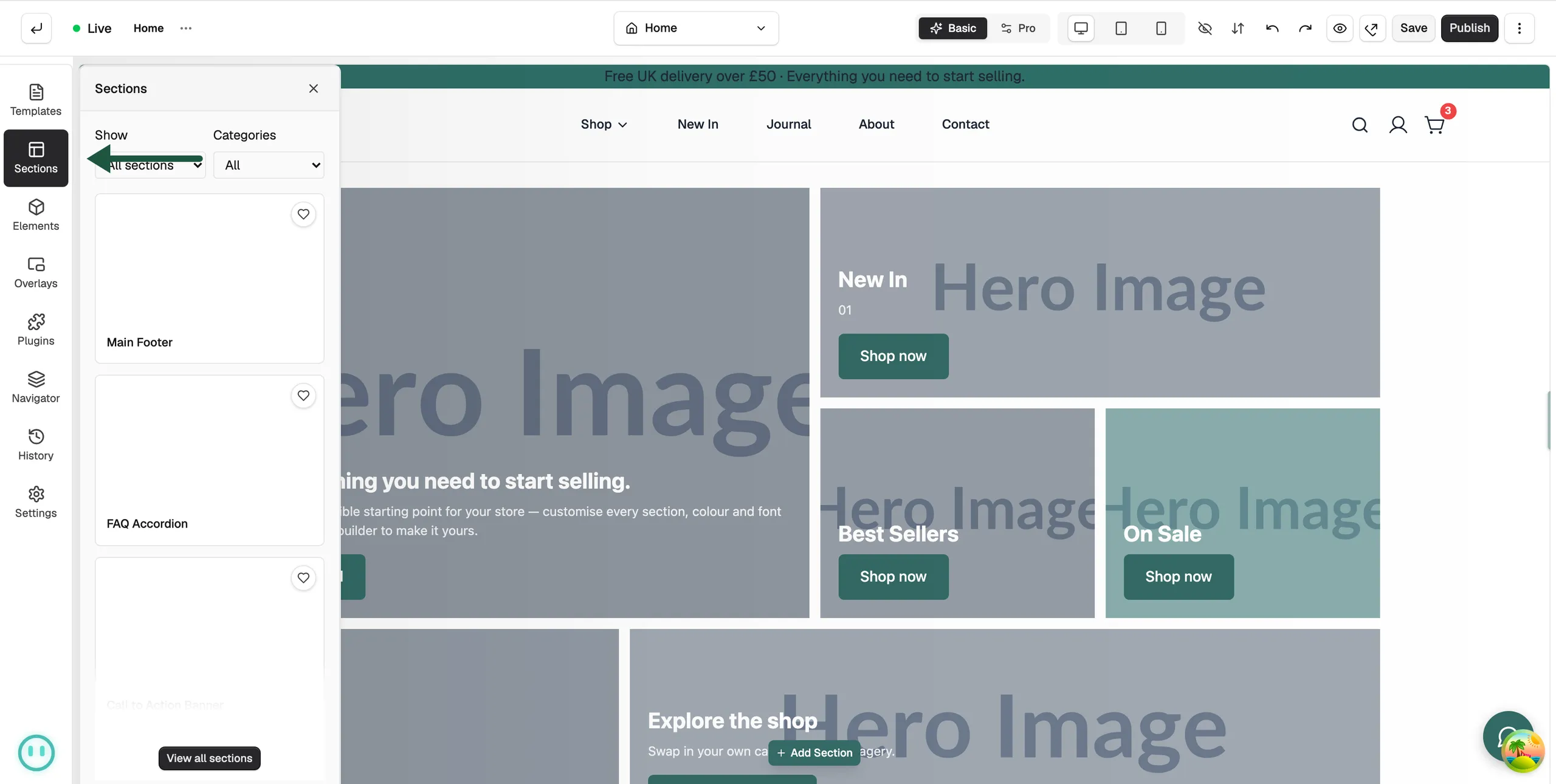
- In the toolbox, click Sections.
- Use Show to switch between All sections and Free sections, and Categories to narrow the list, for example Hero, Features or Testimonials.
- Click Insert now on the section you want, then Insert.
- Click View all sections to browse the full list in the Templates Library.
Save a section to use again
- In the page builder header, click Pro.
- Click the section on the canvas. A teal outline shows you have it.
- On its toolbar, click the three dots (More actions), then Save as Section.
- In Save as section template, clear the Name field and type a name you will recognise, such as Product buy box.
- Pick a Category and add a Description if you want. Both are optional.
- Click Save. The message Section template saved successfully appears.
Find and insert a saved section
- In the toolbox, click Templates, then View all templates. The Templates Library opens.
- Click the My Templates tab. Your saved sections and pages are listed newest first, with their Type and when they were Updated.
- Click Insert next to the one you want. It is added to the page you are building.
On the same row, Edit changes the name and description. The bin icon deletes the saved section after you confirm.
Save a whole page as a template
- In the Templates Library, on the My Templates tab, click Save my templates.
- In Save as page template, type a Name and click Save.
Tip: You can also open the three-dot menu in the page builder header and click Save as Template or Open Templates Library.
Related guides
- Building pages with sections and columns
- Saving, previewing and publishing a page
- Getting started with the page builder
Design each page type
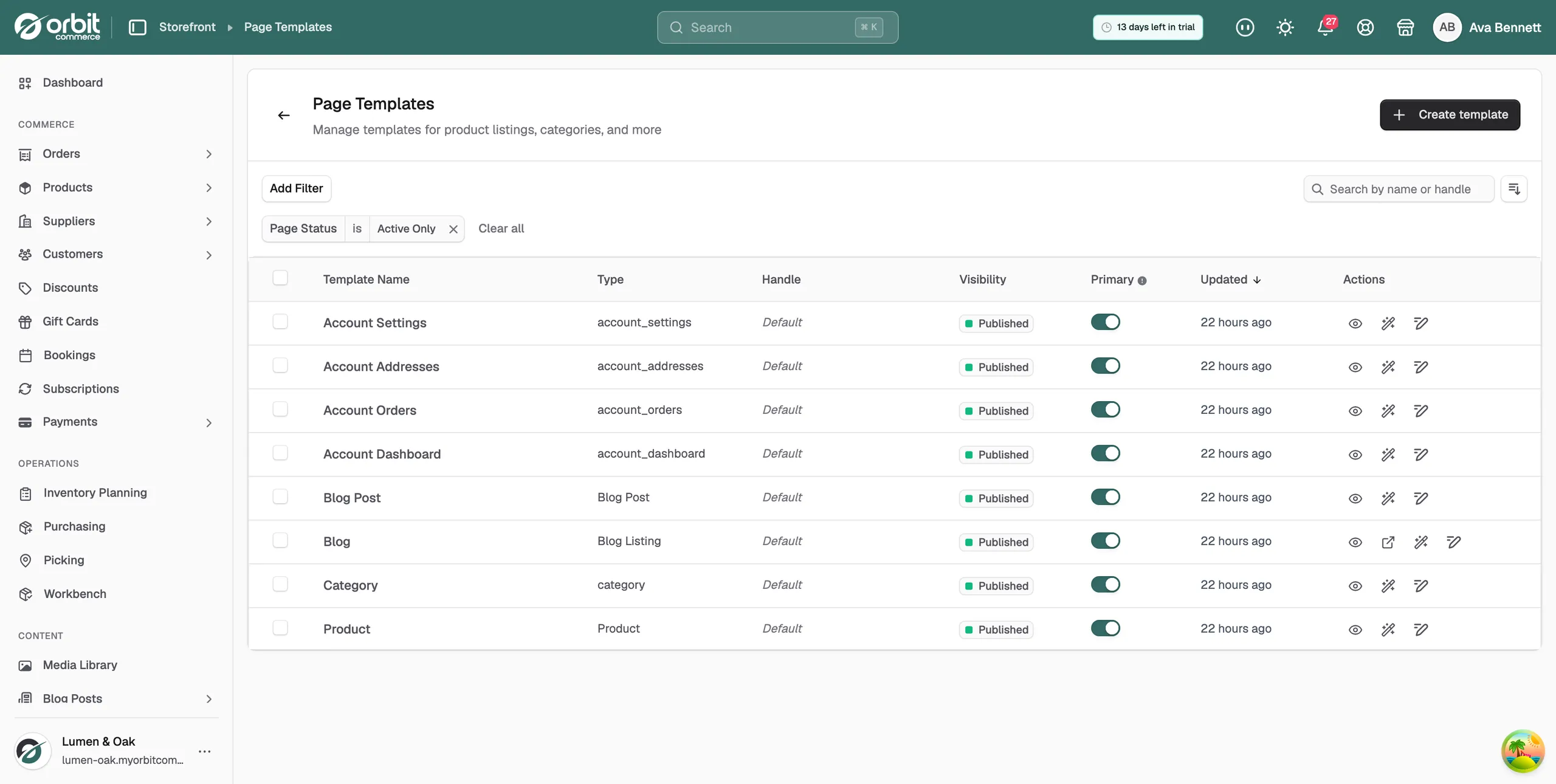
Orbit gives every store a template for each page type. Open them under Storefront, then Templates. The one marked Primary is the one your shoppers see. These guides cover each page type.
Was this helpful?
0 people found this helpful