Designing your search results page
Open the search template, add the Search Results and Search elements, set how results are sorted and laid out, then publish.
You can design the page customers see after they search your store. The search template opens in the page builder with sample results, so you can see the layout as you work.
Considerations
- The search results page is a template. Any change applies to every search on your store.
- The Search Page group of elements only appears in the Elements panel while you are editing a search template.
- Customers who search are often ready to buy. Keep the results high on the page and the search box easy to find.
Open the search results template
- From your Orbit dashboard, go to Storefront, then Templates.
- Click the Search tab to show only your search templates.
- Hover the template and click Edit design. The template opens in the page builder with sample results.
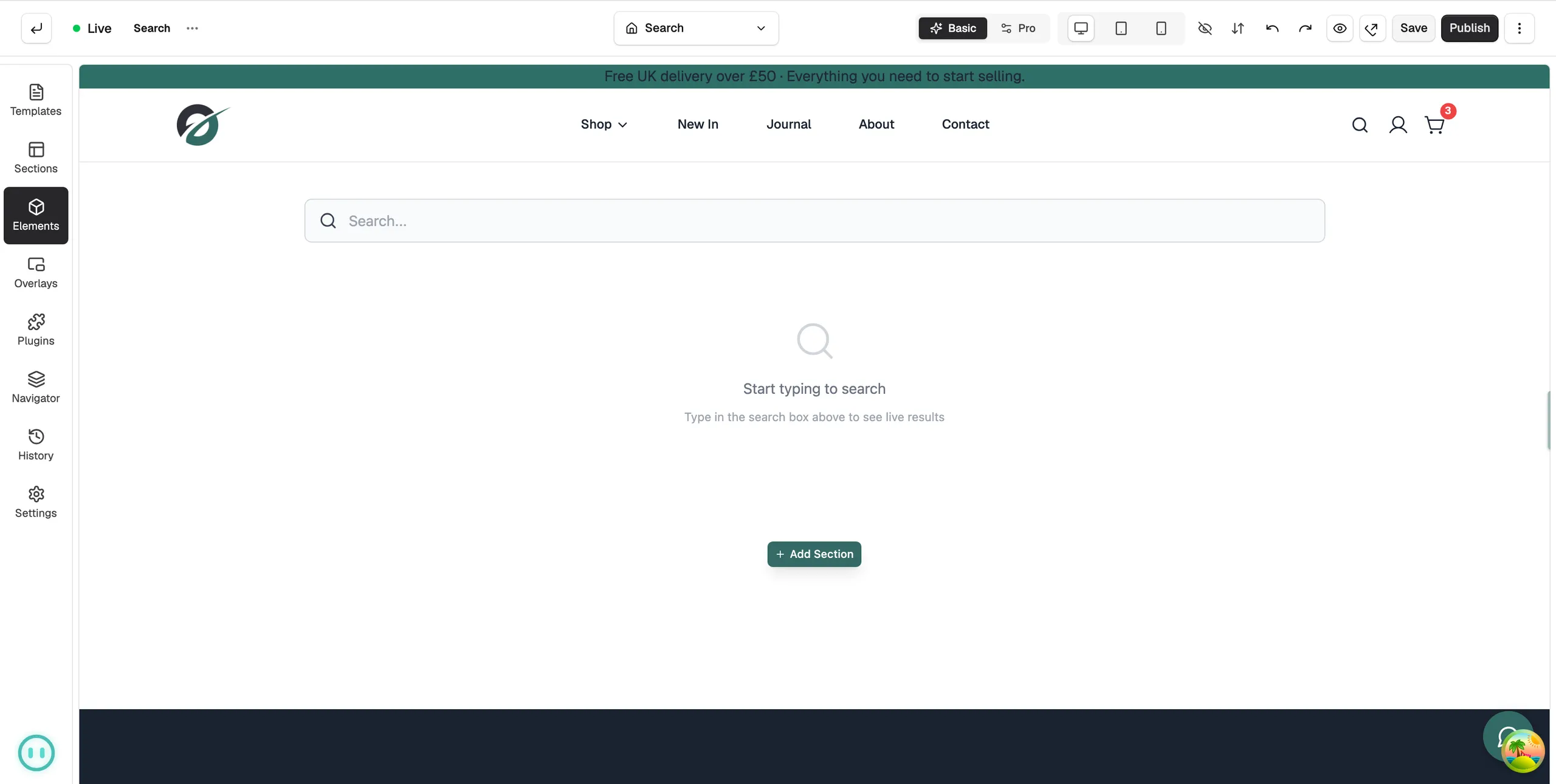
Add the search elements
- In the toolbox on the far left, click Elements.
- Click the Search Page group.
- Drag Search Results onto the canvas. This is the grid of products and content that match what the customer typed. It updates on its own for every search.
- Click the Ecommerce group and drag a Search box near the top of the page, so customers can change their search without leaving the page.
- Add a Heading from the Basic group if you want a title above the results.
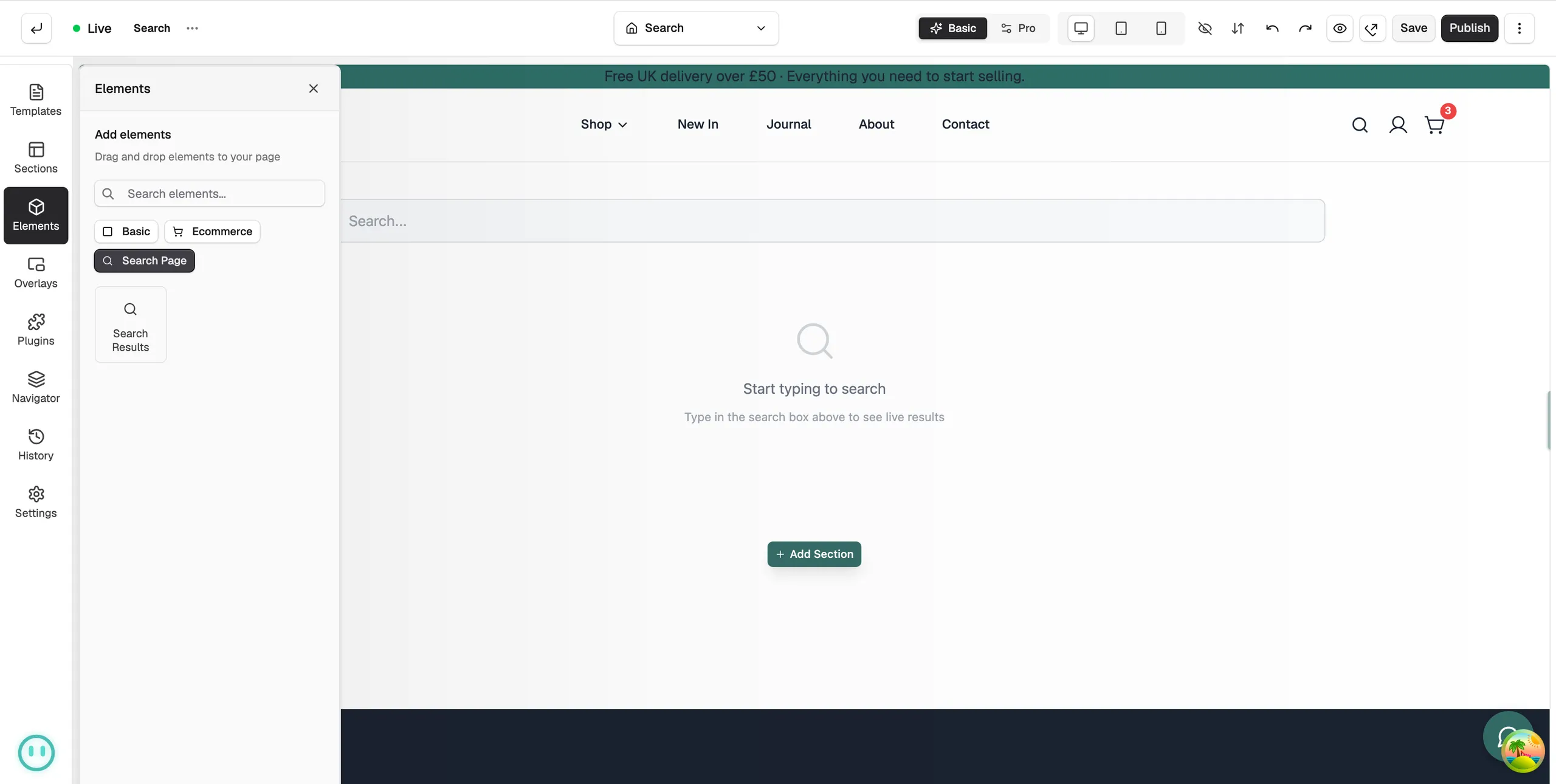
Search Results settings
Click the Search Results element to open its settings on the right. On the Content tab:
- Show Search Input: show a search box inside the element, with its own Placeholder Text.
- Results Per Page: how many results show before the customer moves to the next page.
- Default Sort By: the order results appear in until the customer changes it.
- Preview search term: the sample search used to show results while you edit.
On the Design tab:
- Grid Columns and Grid Gap: how many results sit in a row and the space between them.
- Card Density: how much room each result card takes.
- Search Input Style: colours, border and size of the search box.
- Type Filter Tabs: the look of the tabs that filter results by type.
Save and publish
- Click Save. Your changes are kept as a draft.
- Click Publish to put the new page live for shoppers.
Related guides
Was this helpful?
0 people found this helpful