Saving, previewing and publishing a page
Save writes a draft, Publish makes it live. Learn what the orange Unpublished changes tag means, how to preview on each device, and how to publish.
In the page builder, Save and Publish do two different jobs. Save keeps your work as a draft. Publish makes it live on your store. Preview lets you check a page before shoppers see it. All three controls sit in the page builder header.
Considerations
- Saving does not change your store. Shoppers keep seeing the old page until you publish.
- There is no autosave. Your changes wait in the builder until you click Save. If you leave without saving, they are lost.
- Publishing shows no message. The orange Unpublished changes tag going away is your confirmation.
- The status at the top left reads Live with a green dot when the page is published, or Draft with a yellow dot when it is not.
Save your work
- From your Orbit dashboard, go to Storefront, then Themes, then Customize. The page builder opens.
- Click the element you want to change. Its settings open on the right.
- Make your change. The Save button turns black as soon as you edit.
- Click Save. The button reads Saving..., then the message Page content saved successfully appears.
- An orange Unpublished changes tag appears in the header. Your page is saved as a draft. Shoppers still see the old page.
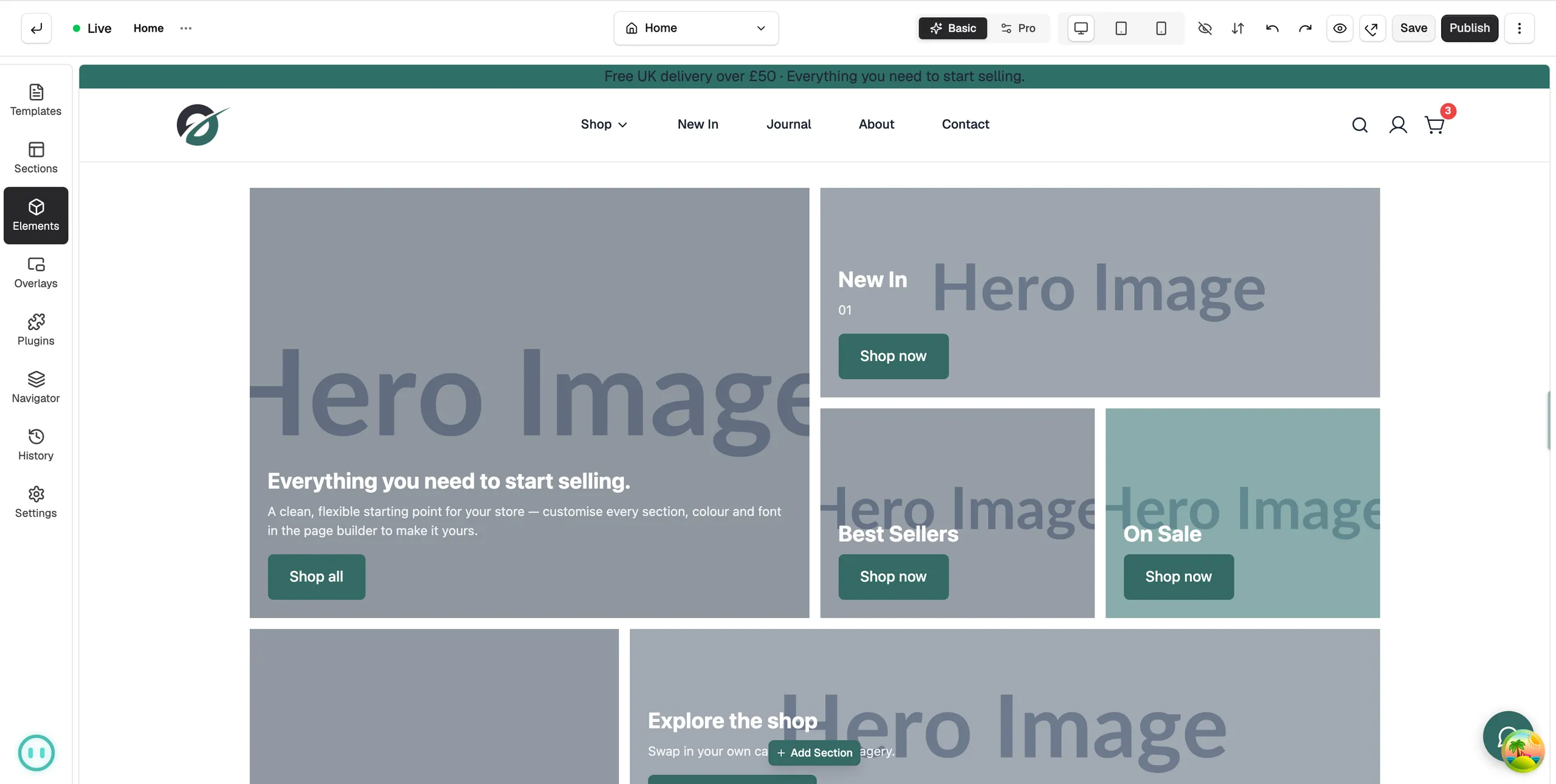
Note: Once the save lands, Save greys out again. That is normal. It only lights up when you have unsaved changes.
Preview your page
- In the header, click the eye icon (Toggle preview mode). The toolbox and settings panel step aside and you see the page as a shopper would.
- Click the eye again to carry on editing. Nothing is selected when you come back, so click an element to open its settings again.
- Click the Desktop, Tablet and Mobile icons to check the page at each screen size.
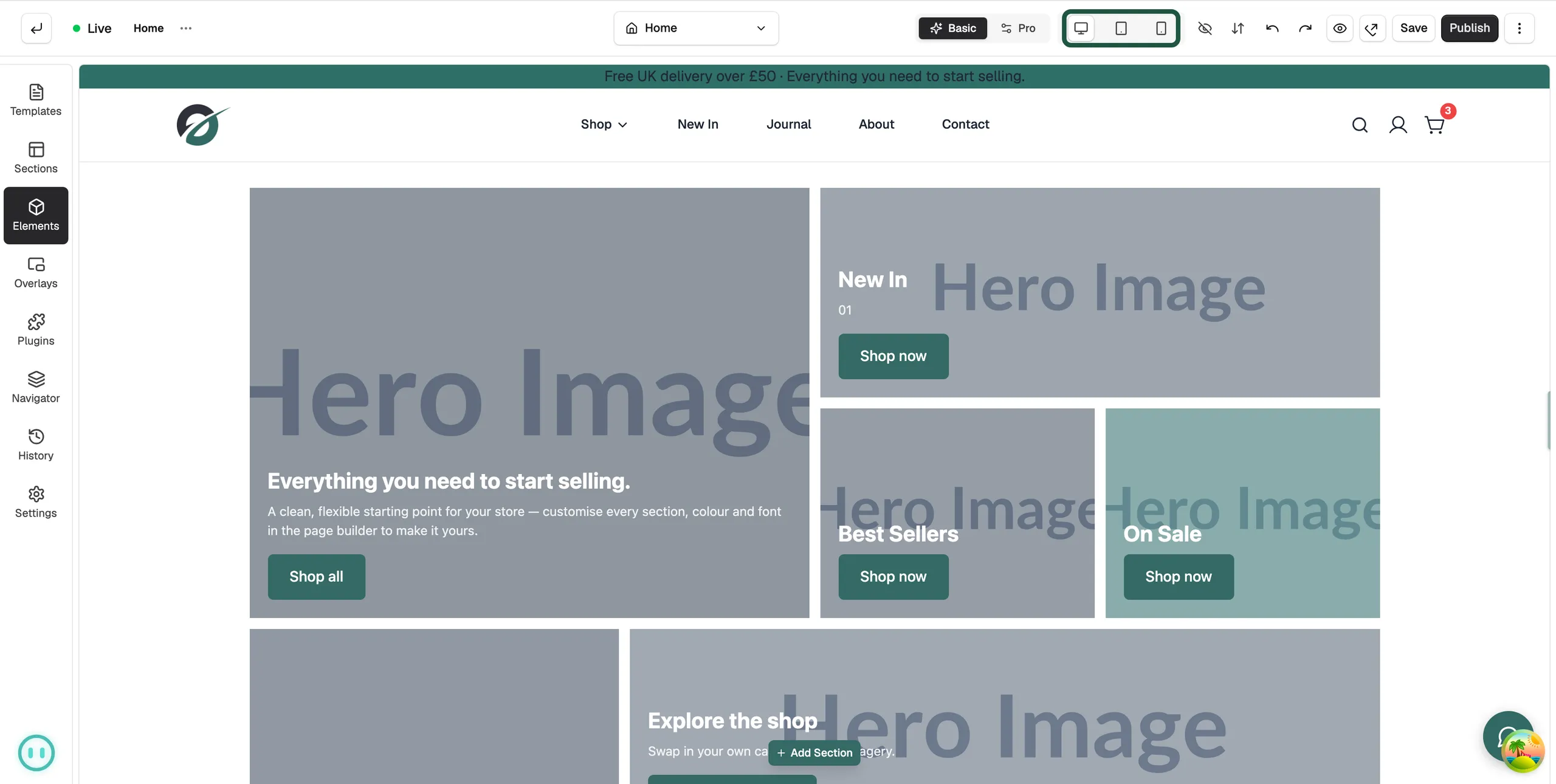
To see the version shoppers see right now, click Open on live site, the arrow icon next to the eye. The live page opens in a new tab. It does not show unsaved or unpublished changes.
Publish your page
- Click the orange Unpublished changes tag, or click Publish. A box opens. Its name matches the page, for example Publish Homepage or Publish Page.
- Check the Page title.
- On a regular page, you can also edit the Page slug, the last part of the page's link. The homepage and other fixed pages have no slug field.
- Leave the Publish switch on. Turning it off takes the page off your store.
- Click Save & Publish. The button reads Processing..., the box closes and the orange tag disappears. Your change is live.
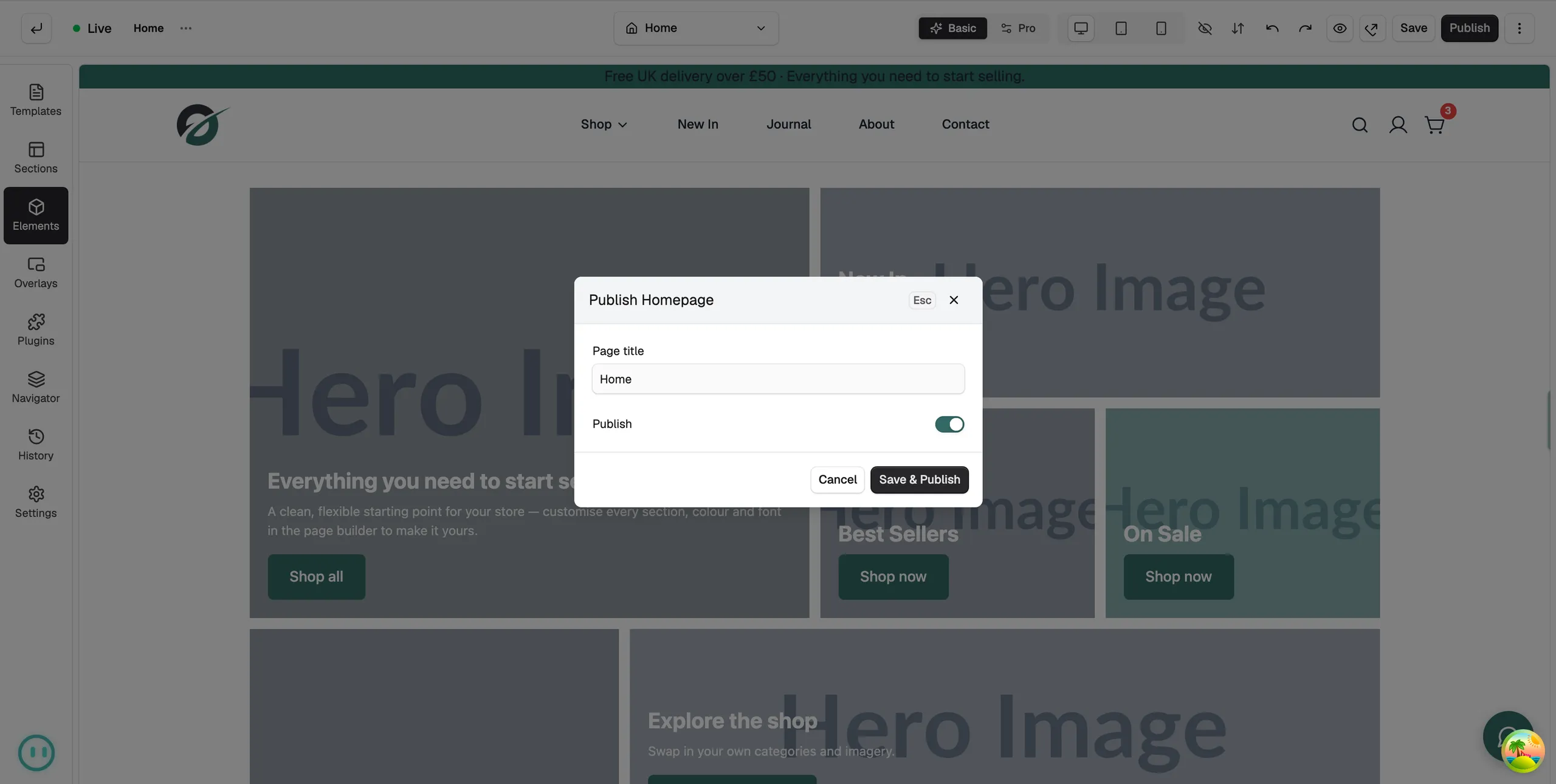
The button at the bottom of the box changes to match what will happen:
- Save & Publish: your saved draft goes live.
- Publish: a page that is not yet live goes live.
- No Changes: nothing to push. The button is greyed out.
- Unpublish or Save & Unpublish: the switch is off, so the page comes off your store.
Draft and published, side by side
- Save: writes a draft. Shoppers see nothing new.
- Unpublished changes: you have a saved draft that is not live. Click the tag to publish it.
- Publish: points your store at the draft. Shoppers see the change.
- Live with no orange tag: what shoppers see and what you see are the same.
Because the two steps are separate, you can work on a page over several sessions and publish only when it is ready.
Basic and Pro modes
The Basic and Pro toggle in the header sets how many controls the builder shows. Basic is the default and keeps the panels short. Pro adds the advanced settings tab, size and margin controls, and options such as Save as Section. Switch at any time.
Related guides
Was this helpful?
0 people found this helpful