Designing your order confirmation page
Open the Order Acknowledgement template, add the order elements that show each customer's items, totals, addresses and tracking, then publish it.
The order confirmation page is the thank-you page a customer sees after they place an order. In Orbit it is the Order Acknowledgement template. You design it once in the page builder, and order elements fill in each customer's own order details.
Considerations
- Every store starts with an Order Acknowledgement template. It is already published.
- The page has a fixed address. There is no slug box when you publish it.
- Order elements only appear in the Elements panel while you are editing this template.
Open the order confirmation template
- From your Orbit dashboard, go to Storefront, then Templates.
- Click the Order Acknowledgement tab to show only that template.
- Hover the template row and click Edit design. The template opens in the page builder.
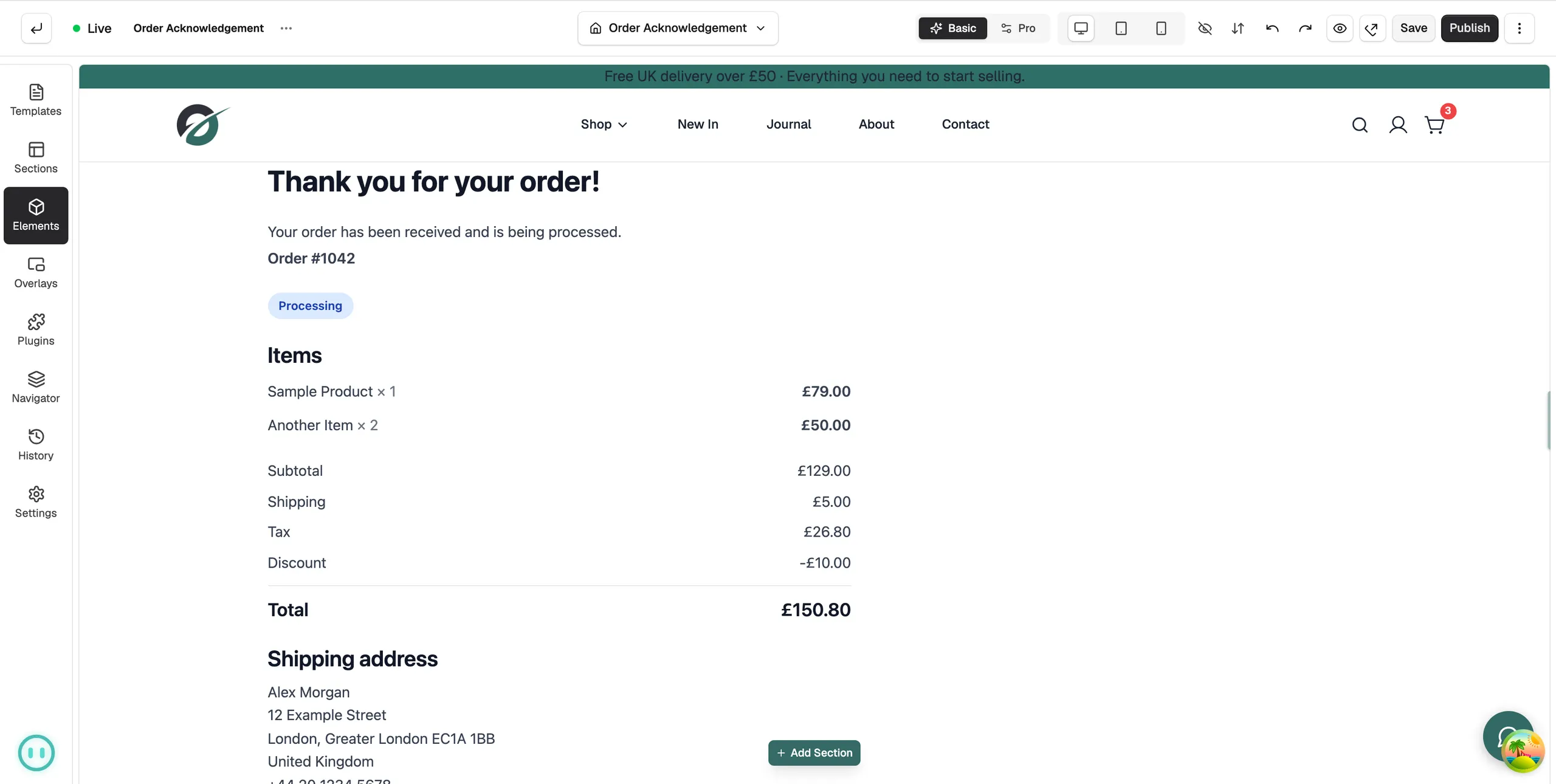
Add order elements
- In the toolbox on the far left, click Elements.
- Click the Order Acknowledgement group.
- Drag the elements you want onto the canvas, then style each one in the settings panel on the right.
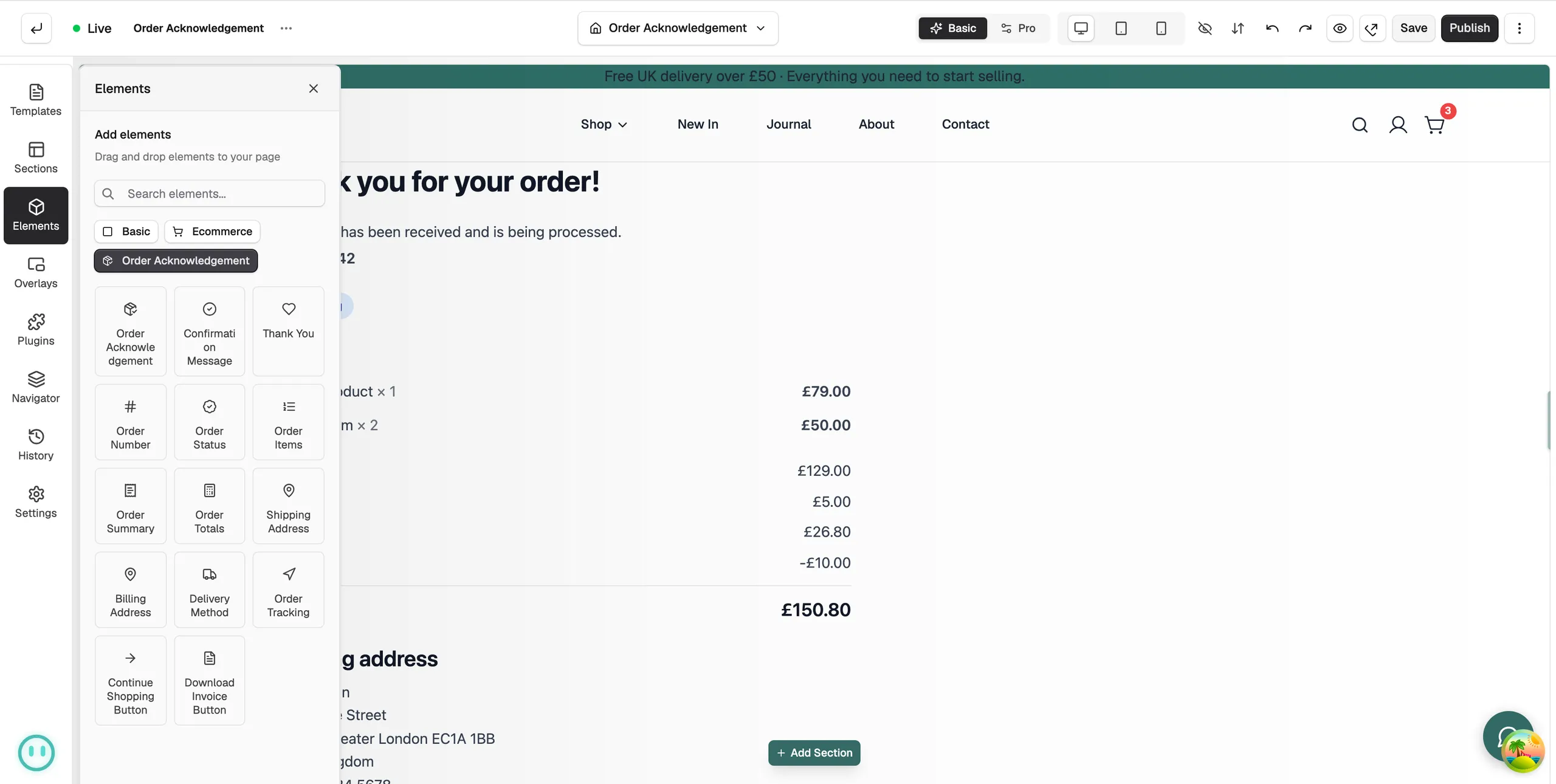
These elements are filled in for each order:
- Order Acknowledgement: the all-in-one block. It combines the thank-you message, order summary, totals, addresses and tracking. Start with this for a complete page, then swap in single elements where you want more control.
- Confirmation Message: a thank-you heading and confirmation text with the order number.
- Thank You: a large thank-you heading. It can include the customer's name.
- Order Number: the reference for the order.
- Order Status: the order or payment status as a coloured badge.
- Order Items: the products bought, with image, quantity and price.
- Order Summary: items and totals in one card.
- Order Totals: subtotal, shipping, tax, discount and grand total.
- Shipping Address and Billing Address: the customer's delivery and billing details.
- Delivery Method: the shipping method chosen and its description.
- Order Tracking: the tracking number and a track-order button.
- Continue Shopping Button: sends the customer back to your shop.
Tip: You can mix order elements with normal ones. A Text element under the totals is a good place for delivery times or a returns note.
Publish your changes
- Click Save in the toolbar. An orange Unpublished changes tag appears.
- Click Publish, then Save & Publish. The tag disappears when the page is live.
For the full detail, see Saving, previewing and publishing a page.
Related guides
Was this helpful?
0 people found this helpful