Building pages with sections and columns
Add sections to a page, set their width, background and spacing, split them into columns, and move, copy or save them for reuse.
Every page you build in Orbit is a stack of sections. A section is a full-width band across the page. Columns split a section so content can sit side by side. Every element you add lives inside a section, so a tidy structure makes a page easier to build and edit.
Considerations
- The page builder opens in Basic mode. In Basic mode you cannot drag elements around the canvas, and the Structure group is hidden from the Elements panel. Click Pro in the header to unlock both.
- If you drop an element onto the page outside any section, Orbit wraps it in a new section of its own.
- When you hover or click a section, it gets a teal outline. Columns get a dashed violet outline. That is how you tell which one you have selected.
- Your header and footer are not part of the page. You edit them under Storefront, then Templates.
Add a section
- From your Orbit dashboard, go to Storefront, then Themes, then Customize. The page builder opens.
- Scroll to the bottom of the canvas and click Add Section.
- Choose a layout. The new section is added under the last one.
There are two other ways to add a section:
- Click a section you already have. On its toolbar, click Add section above or Add section below.
- In the toolbox on the far left, click Sections. Pick a ready-made design, such as a hero or a row of features, click Insert now, then Insert.
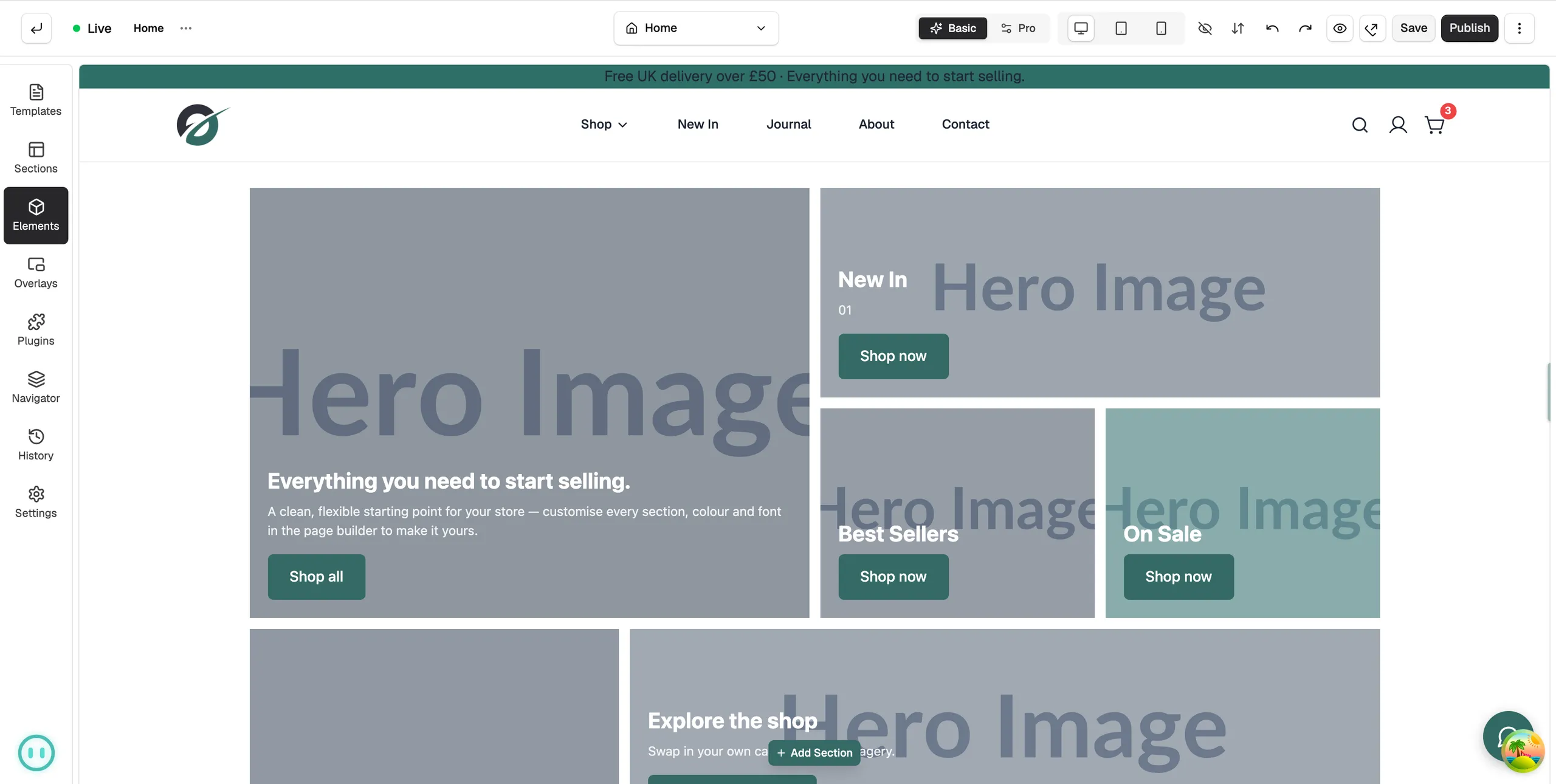
Tip: In Pro mode you can also click Elements, open the Structure group and drag a Section tile onto the canvas.
Change section settings
- Click the section on the canvas. The settings panel opens on the right.
- Click the Layout tab to change its shape, or the Design tab to change how it looks.
- Click Save when you are done.
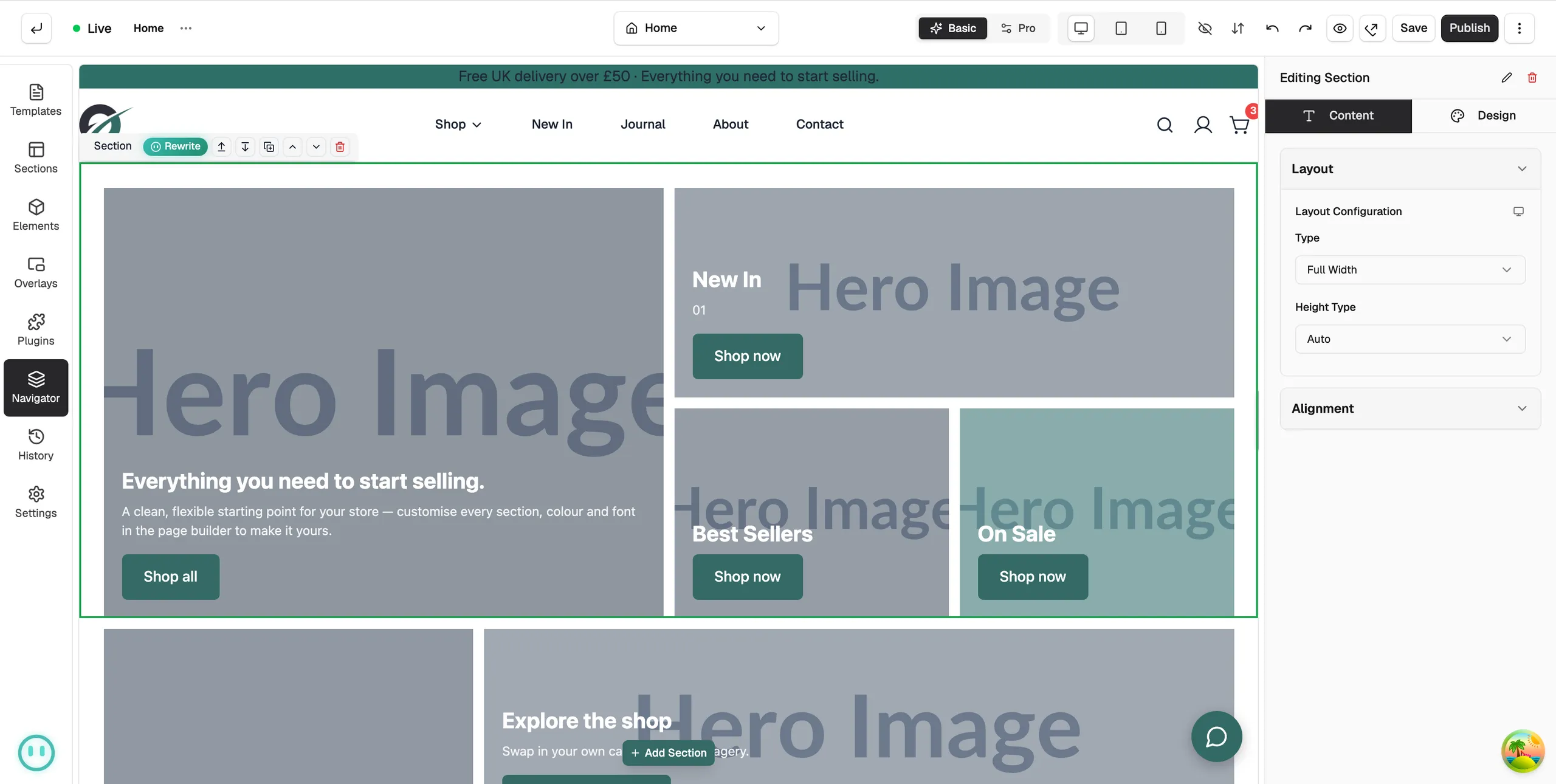
On the Layout tab:
- Type: Full Width runs edge to edge. Boxed centres the content inside a set width.
- Max content width: the widest the content can be in a boxed section.
- Height Type and Min Height: how tall the band is, for example Fit to Screen for a hero.
- Content Alignment: where the content sits inside the band.
On the Design tab:
- Background: a colour or an image for the whole band.
- Spacing: the Padding inside the section. Margin around it is only shown in Pro mode.
- Border and Shadow: an edge or a drop shadow for the band.
Add columns
Columns place content side by side, such as an image next to text or three features in a row.
- In the header, click Pro.
- In the toolbox, click Elements, then Structure.
- Drag Columns into a section.
- Click the Columns element. On its toolbar, click Add Column for each extra column you need.
- Drop any element into a column.
- Click one column to set its Width Type and Width on the Layout tab.
Note: You cannot delete the only column in a row, or the only section on a page. Add another first.
Move, copy and delete a section
- Click the section. A toolbar appears above it.
- Click Move up or Move down to change its place on the page. These work in Basic mode too.
- Click Duplicate to make a copy under it.
- Click Delete to remove it.
The page is built as a tree: elements sit inside columns, columns inside sections, and sections make up the page. To see that tree, click Navigator in the toolbox. The Page Structure list shows every section and what it holds, and you can click any item to select it.
Save a section to use again
- In the header, click Pro.
- Click the section, then click the three dots (More actions) on its toolbar.
- Click Save as Section, give it a name and click Save.
Your saved section appears under My Templates in the Templates Library. See Reusing layouts with templates and saved sections.
Related guides
Was this helpful?
0 people found this helpful