Designing your 404 page
Open the 404 Page template under Storefront, Templates, add or edit the Not Found Page element, choose which parts show, then save and publish.
Your 404 page is what a customer sees when they open a link that no longer exists, such as a deleted product or a mistyped address. You design it in Page Builder from the Templates page in your Orbit dashboard. The template comes with a ready-made Not Found Page element that you can change to suit your shop.
Considerations
- The 404 page has a fixed web address. You cannot change its handle.
- Saving keeps your work as a draft. Shoppers only see the new design once you publish it.
- The header and footer around the page are separate templates. Edit them under Templates, on the Header and Footer tabs.
Open the 404 page template
- From your Orbit dashboard, go to Storefront, then Templates.
- Click the 404 Page tab.
- Click the template row. The template opens in Page Builder.
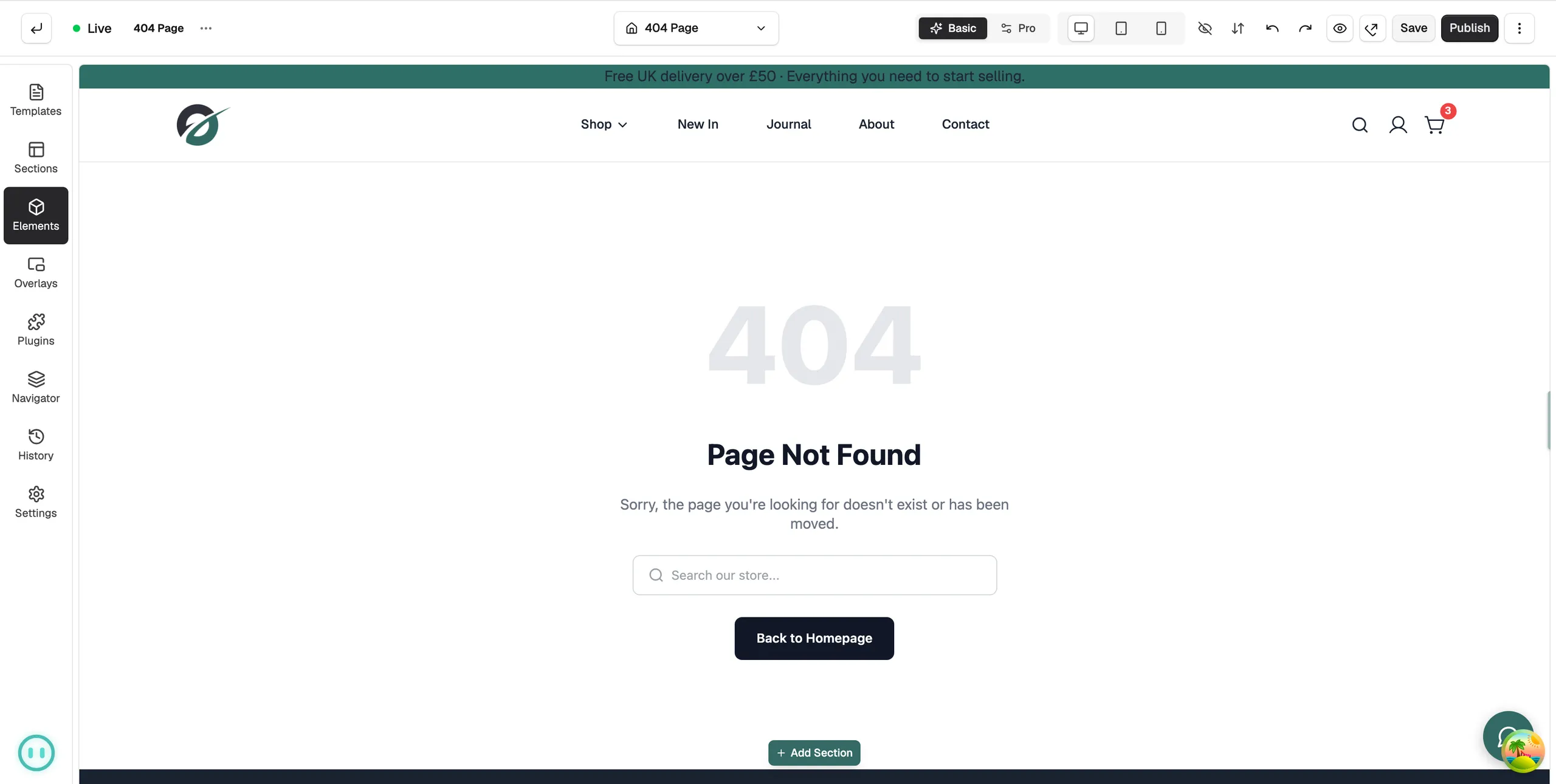
Add the Not Found Page element
Most themes already include this element. If your template is empty, add it like this.
- In the toolbox on the left, click Elements.
- Click the 404 Page chip. This chip only appears when you are editing a 404 template.
- Drag Not Found Page onto the canvas, or click the tile to add it.
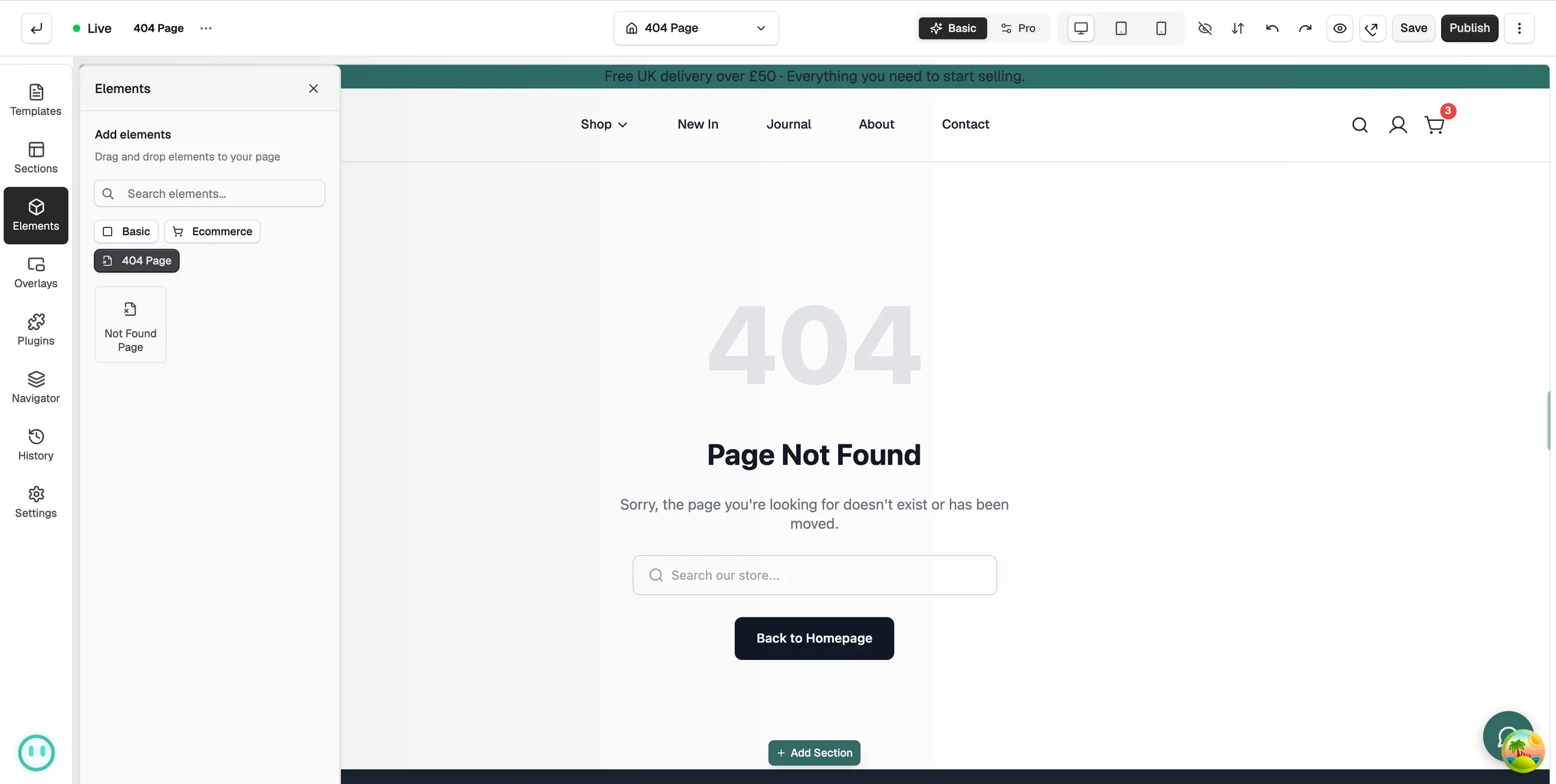
You can add any other element around it, such as a Product Grid or Category Grid from the Ecommerce chip, to give visitors somewhere to go next.
Change what the element shows
Click the element on the canvas to open its settings on the right. On the Content tab, the Sections group lets you turn each part on or off:
- Error Code (404): the large 404 number.
- Heading: the main heading, such as Page Not Found.
- Message: the short explanation under the heading.
- Search Bar: a search box so visitors can look for what they wanted.
- Primary Button and Secondary Button: buttons back to your homepage or another page.
- Popular Products: a row of products to keep visitors shopping.
- Image / Illustration: a picture above the text.
The Layout group sets Content Alignment, Content Max Width and Section Gap. Use the Design tab for background, typography and colours.
Save and publish
- Click Save. Your changes are saved as a draft.
- Click Publish, then Save & Publish. The new 404 page is live.
Tip: Keep the search box and a button to your homepage. They give a lost visitor two quick ways back into your shop.
Related guides
Was this helpful?
0 people found this helpful