Managing your customer list
Search, filter and sort the Customers page, and tag, segment, export or delete several customers at once.
The Customers page lists everyone who has shopped with you or registered at your store. From here you search the list, filter it, sort it, and act on several customers at once. The CSV tasks have their own guide: see Importing and exporting customers.
Open your customer list
- From your Orbit dashboard, go to Customers. The list opens.
- Click a customer's name to open their profile.
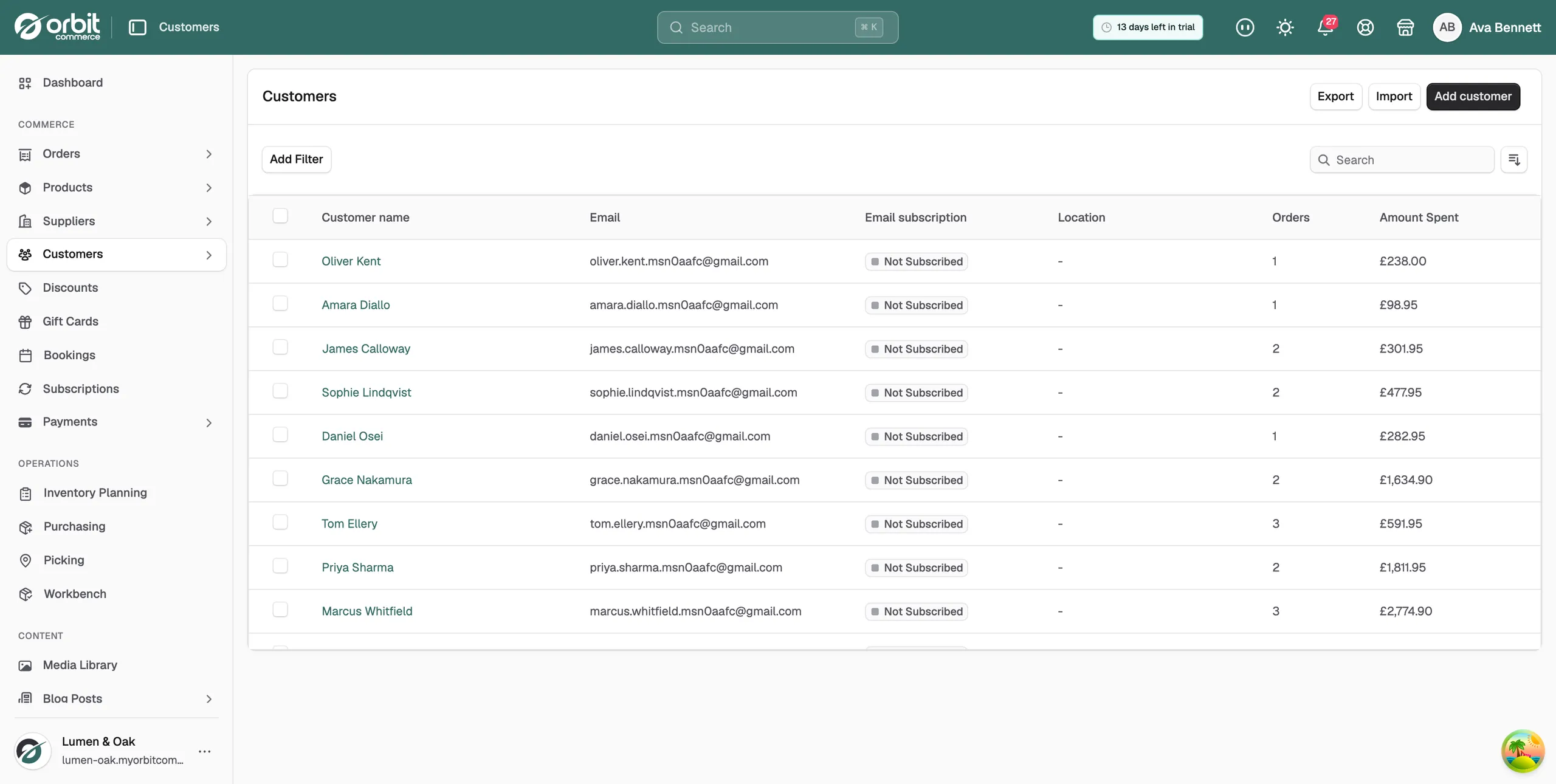
What the columns show
- Customer name: their full name. Click it to open their profile.
- Email: the email address on the record.
- Email subscription: Subscribed or Not Subscribed for marketing emails.
- Orders: how many orders they have placed.
- Amount Spent: the total value of those orders.
Search for a customer
- Click the Search box above the list.
- Type part of a name or email address. The list narrows as you type.
Filter the list
- Click Add Filter.
- Pick what to filter by: Segments, Tags, Account Status, Subscription Status or Amount Spent.
- Choose the value you want. The filter appears above the list.
- Add more filters the same way. Click Clear all to remove them.
Account status is Registered or Guest. Subscription status is Subscribed or Unsubscribed.
Sort the list
- Click the sort button to the right of the Search box.
- Sort by Created, Updated, First Name or Last Name.
- Choose Ascending or Descending.
Act on several customers at once
- Tick the box next to each customer you want. Tick the box in the header row to select everyone on the page.
- The header row changes to show how many are selected, for example 3 selected.
- Click the three dots menu at the right of that row.
- Choose the action you want.
The menu holds these actions:
- Apply tags: add one or more tags to every customer you picked. See Adding tags to a customer.
- Add to segment: put them all in a customer segment. See Building customer segments.
- Export selected: download only those customers as a CSV file.
- Delete customers: remove those customer records.
Warning: Delete customers cannot be undone. Check what you have ticked before you confirm. To tidy two records for the same person, merge them instead of deleting one. See Merging duplicate customers.
You see an action only if your role allows it. A member who cannot delete customers does not see Delete customers.
Related guides
Was this helpful?
0 people found this helpful