Building customer segments
Group customers with rules such as total spent, refresh the members when your data changes, and add or remove people by hand.
A segment is a group of customers. You can build one from rules, such as everyone who has spent more than 1000, or add customers to it by hand. Segments live under Customers in your Orbit dashboard.
Considerations
- Every segment needs a name of its own. Orbit will not save two segments with the same name.
- A condition group must hold at least one condition before the segment can be saved.
- You can add one condition group to a segment. The Add condition group button goes away once a group exists.
- Type values as plain numbers, in your store's currency, with no currency symbol and no thousands separator.
The Segments page
- From your Orbit dashboard, go to Customers.
- Click Segments.
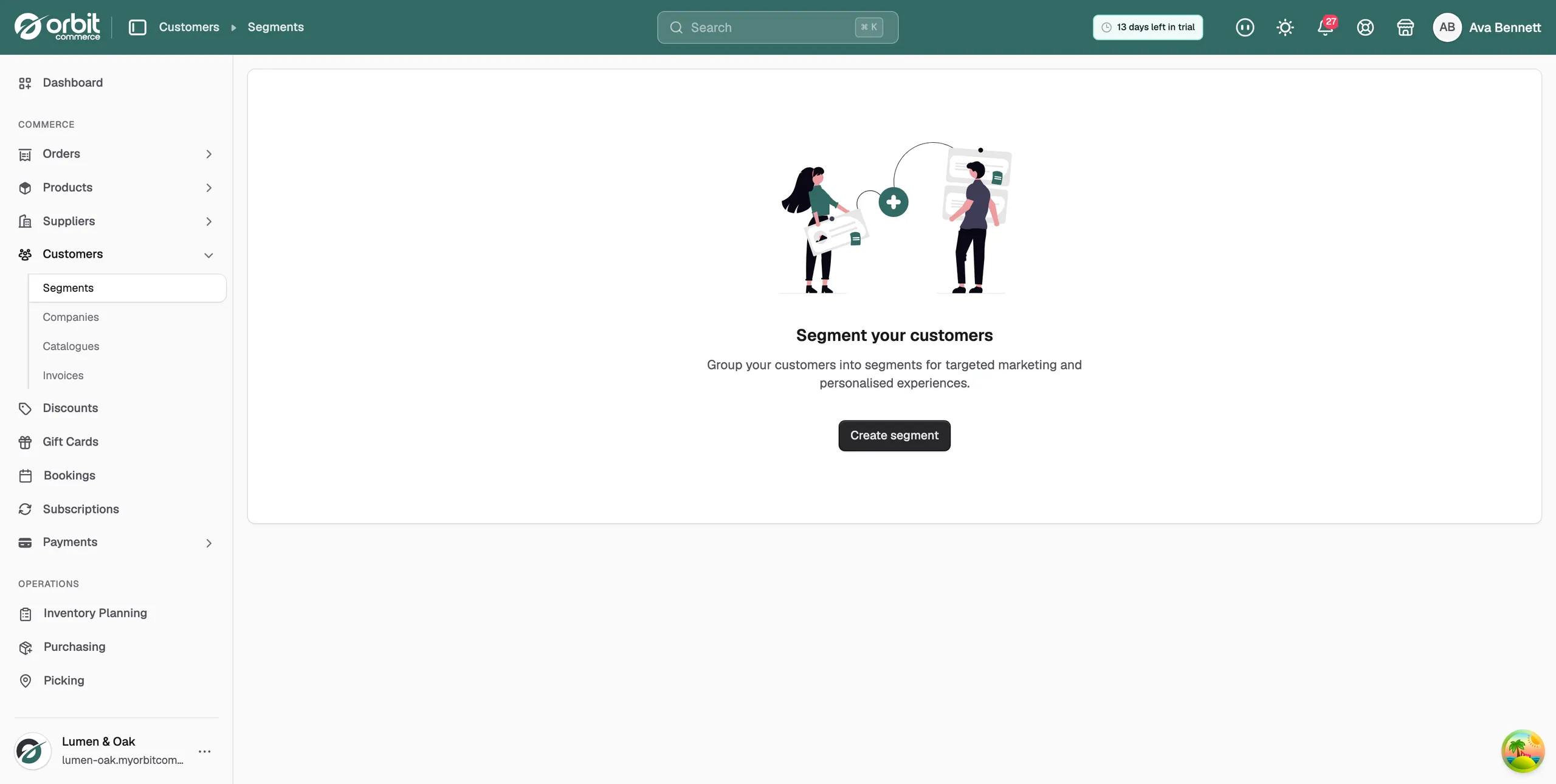
The page lists every segment you have, with a Search box above the table and an All and a Trash tab. Each row shows:
- Name: the segment name. Click it to open the segment.
- Description: your own note about what the segment is for.
- Status: Active or Inactive.
- Members: how many customers are in the segment now.
- Last Updated: when the segment itself was last changed.
Create a segment
- On the Segments page, click Create segment at the top right.
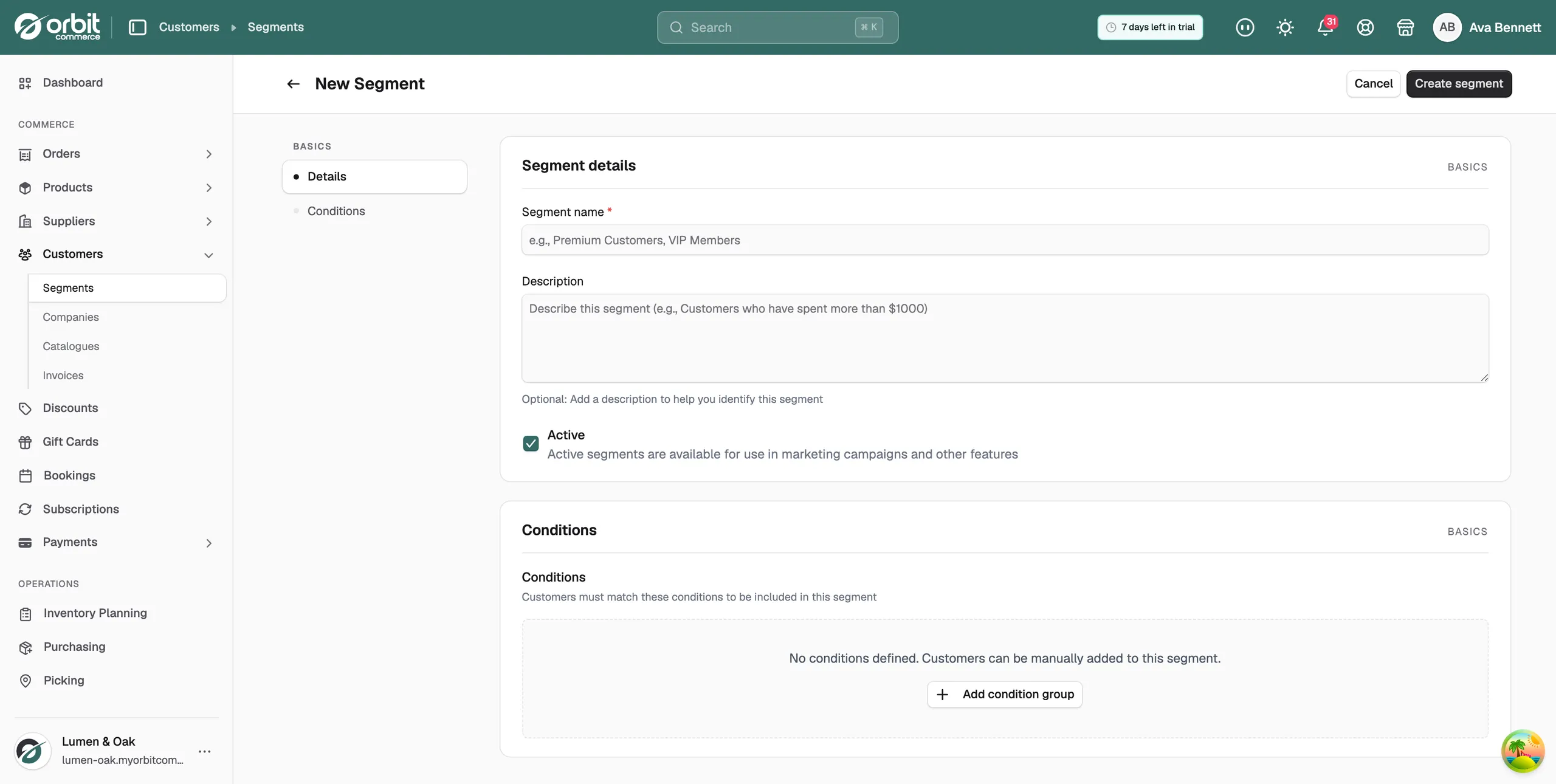
- Enter a Segment name. This is the only field you have to fill in.
- Enter a Description if you want one. It helps you tell segments apart later.
- Leave Active ticked so the segment can be used in marketing campaigns and other features.
- Add conditions if you want the segment to fill itself. The steps are below.
- Click Create segment at the top right. The message Segment created appears and the segment opens.
Note: Orbit works out who is in the segment while it saves, so the members are already there when the segment opens.
Add conditions
Conditions decide who belongs in the segment. Without them the Conditions card reads No conditions defined. Customers can be manually added to this segment.
- In the Conditions card, click Add condition group.
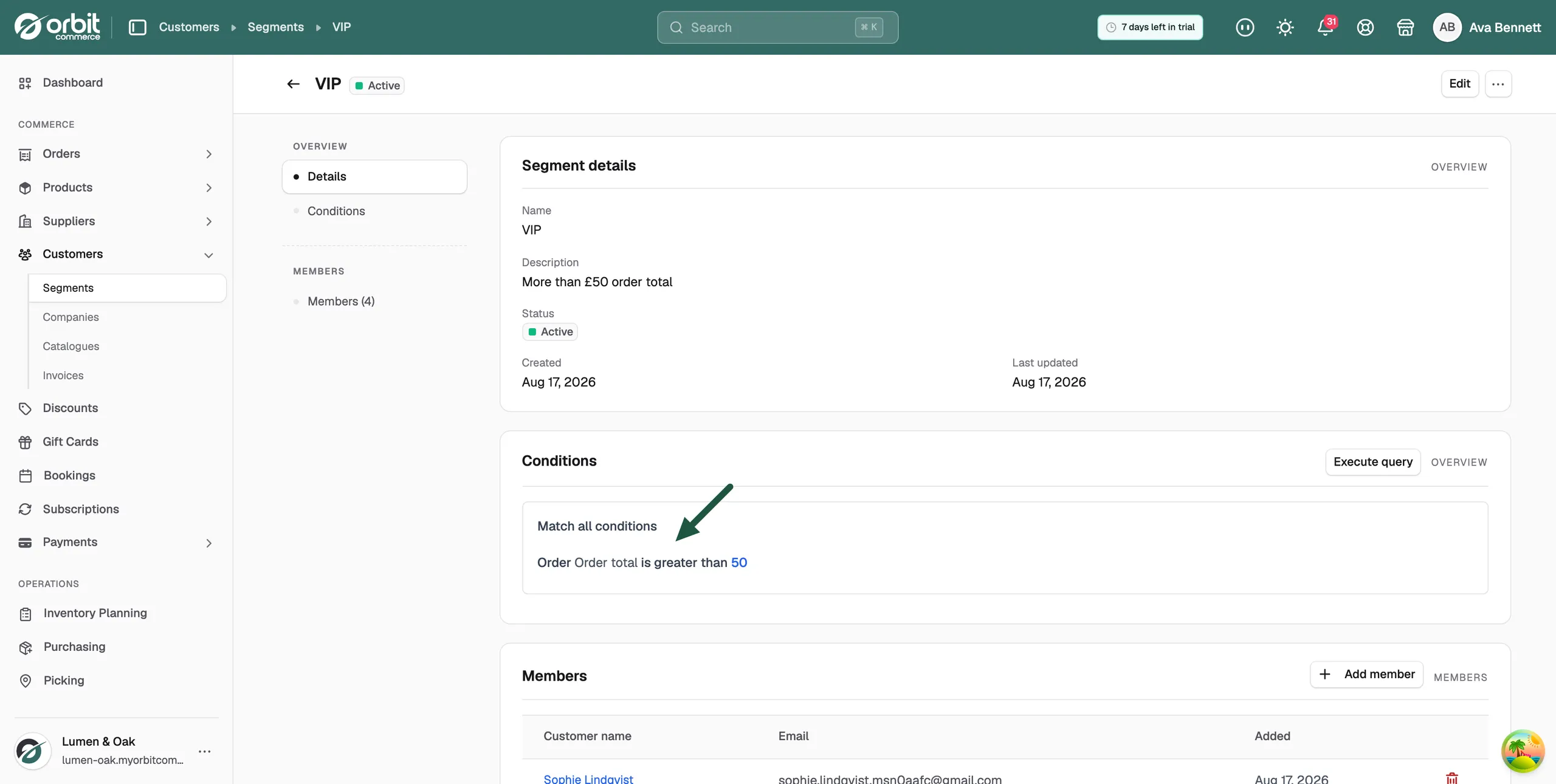
- Choose how the group matches. Match all conditions means a customer has to pass every rule. Match any condition means one rule is enough. A new group starts on Match all conditions.
- Click Add condition. A rule appears, already reading Customer and is equal to.
- Pick what the rule looks at: Customer, Order or Cart.
- Pick the field, for example Total spent.
- Pick the operator, for example is greater than.
- Type the value, for example 1000.
- Click Add condition for another rule, or save the segment.
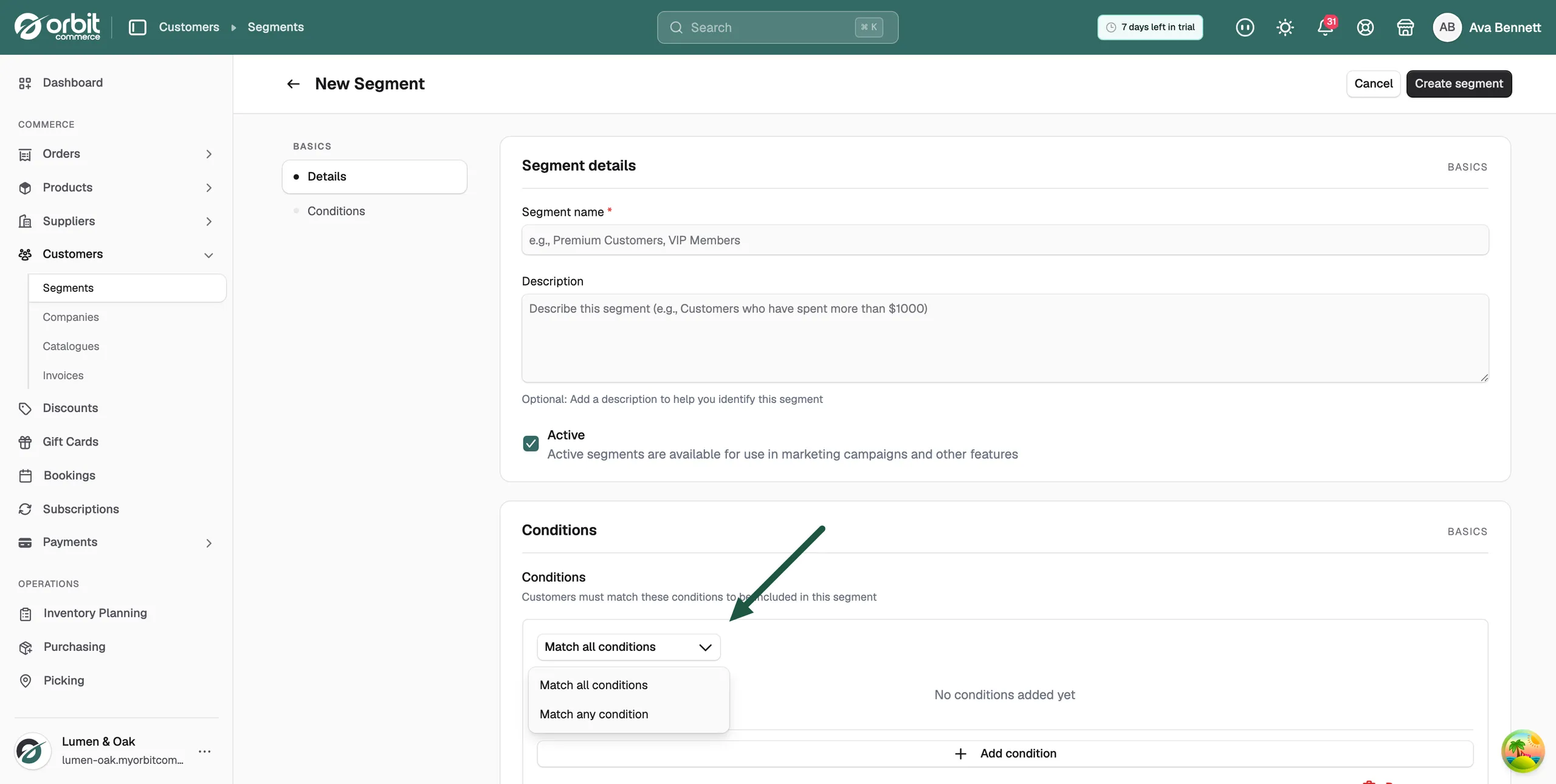
To take a rule out, click the bin at the end of its row. To take the whole group out, click Remove group.
What you can build a rule on
- Customer: Email, First name, Last name, Phone, Marketing email consent, Total spent, Order count, Max order value, Average order value, Last order date, Customer since, Country, City, Tag.
- Order: Order total, Order status, Order date, Item count, Shipping country.
- Cart: Cart total, Item count, Cart created.
The operators are: is equal to, is not equal to, is greater than, is greater than or equal to, is less than, is less than or equal to, contains, does not contain, is one of, is not one of, is between, is empty and is not empty.
The field you pick changes the value box. A date field gives you a date picker, a money or count field gives you a number box, and Marketing email consent gives you a True or False list. is empty and is not empty need no value at all, so the box goes away.
Refresh who is in a segment
Members do not update on their own after the segment is saved. Run the query again to pick up new customers and new orders.
- Open the segment.
- In the Conditions card, click Execute query.
- A blue line reads Evaluating conditions... while Orbit checks each customer.
- A green line reports the result, for example Computation complete: 2 added, 0 removed, 6 total members.
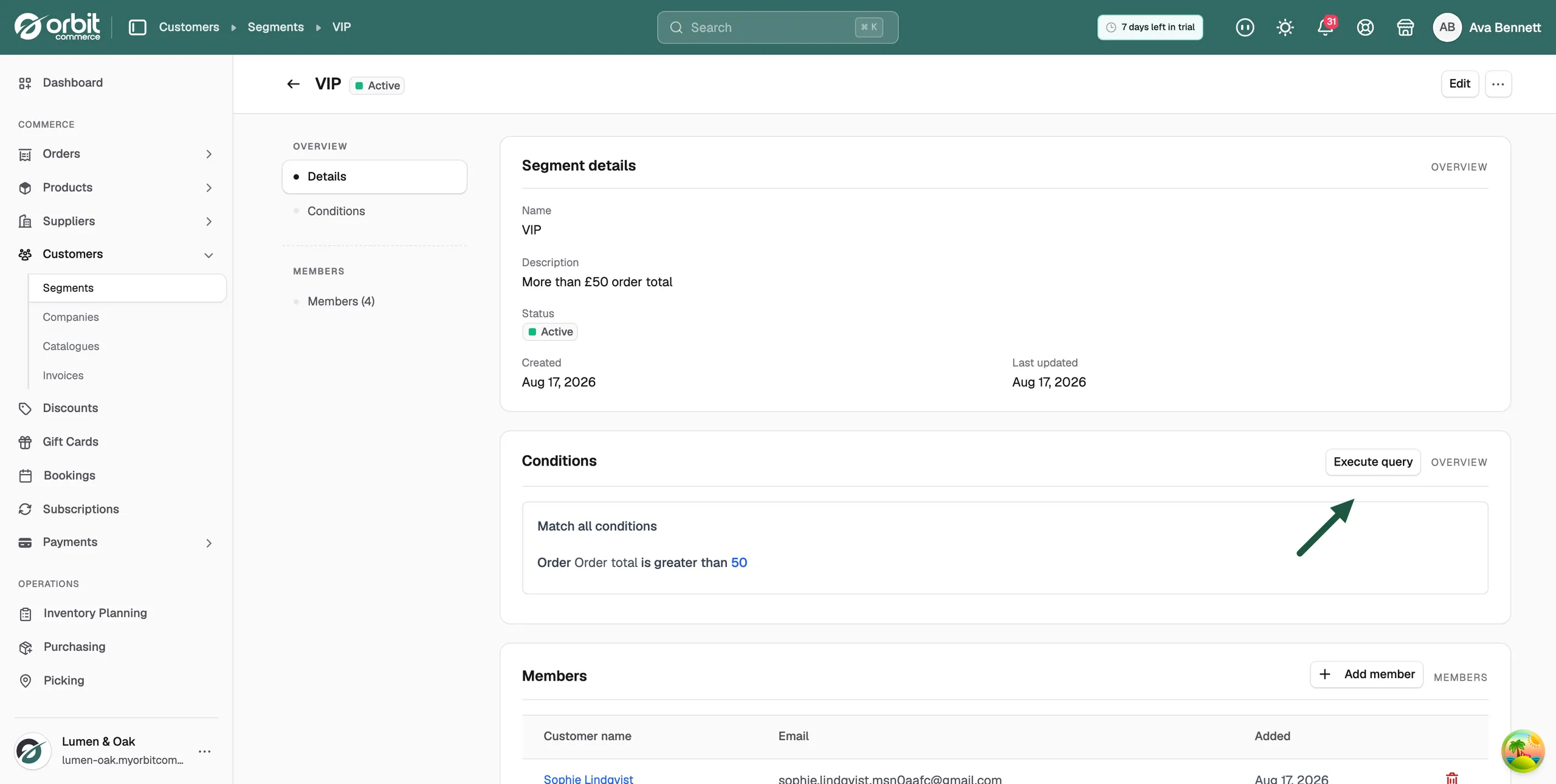
Execute query only appears on a segment that has at least one condition.
Add and remove members by hand
- Open the segment and go to the Members card.
- Click Add member.
- In Add Customers to Segment, search for customers by name or email.
- Tick each customer you want.
- Click Add.
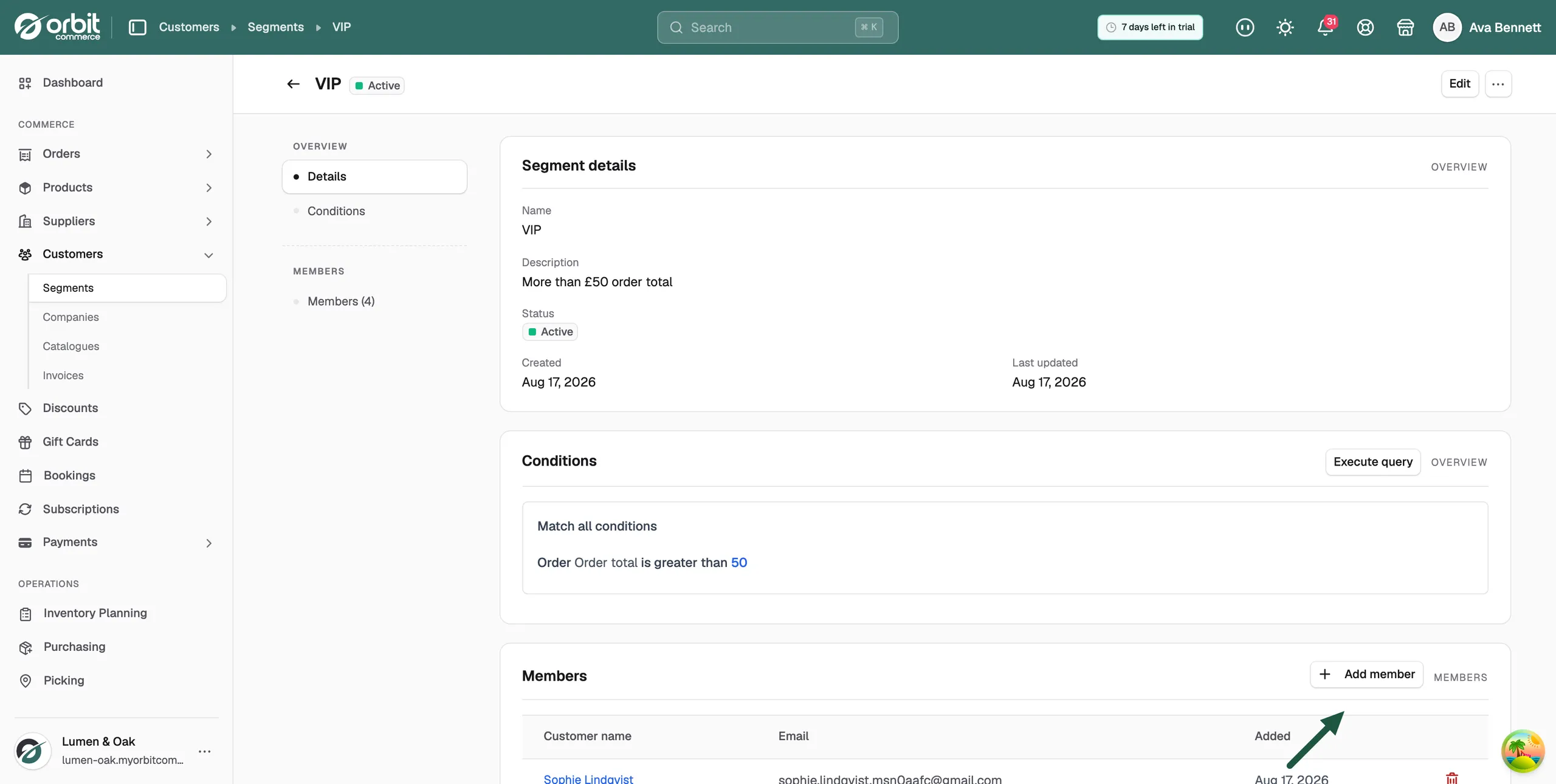
The Members card lists each member's Customer name, Email and the date they were Added. Click a name to open that customer. To take someone out, click the bin at the end of their row, then confirm on Remove customer.
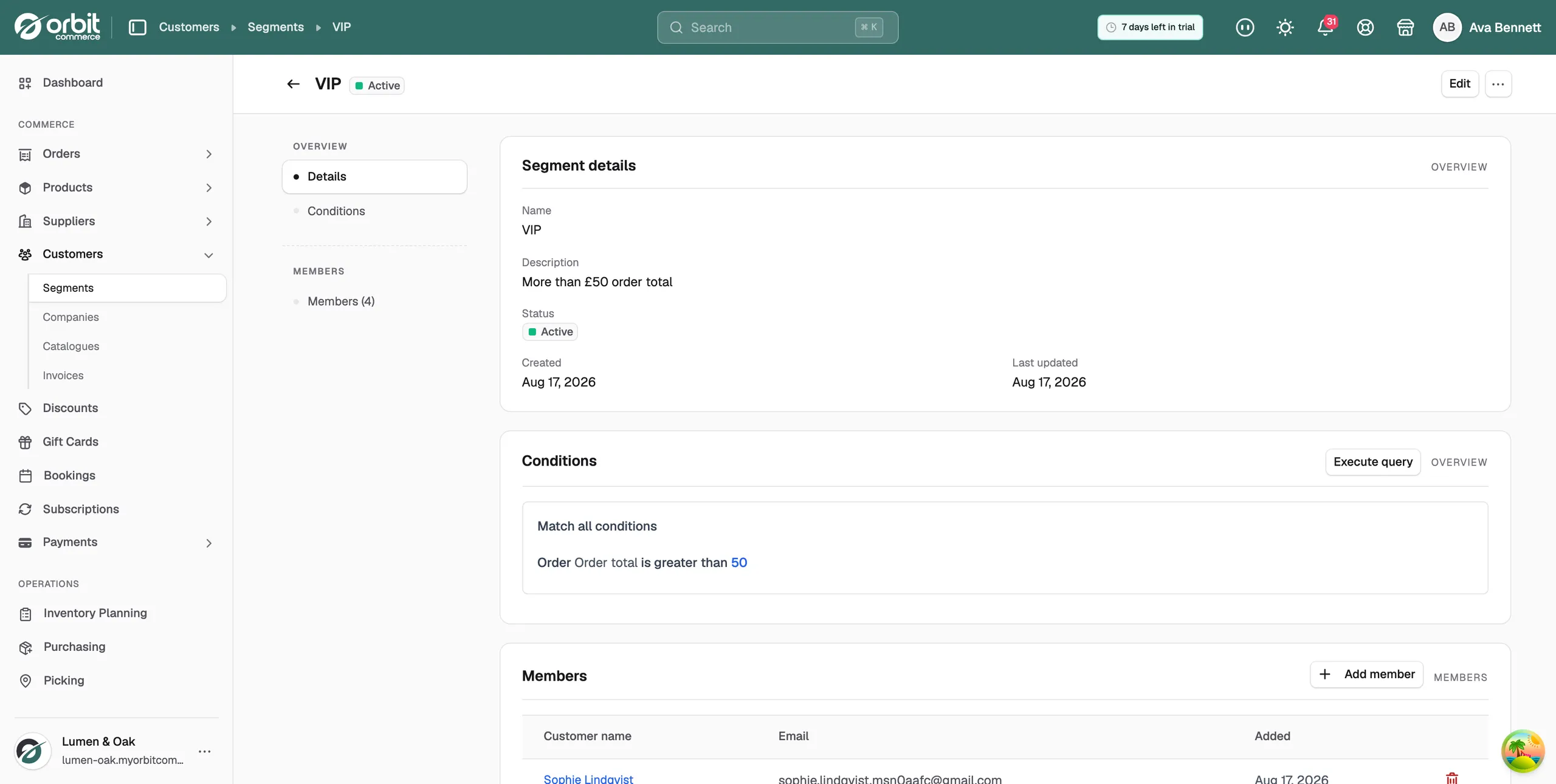
Warning: On a segment that has conditions, members you add by hand are taken out again the next time the query runs. Add members by hand only to a segment with no conditions.
Edit a segment
- Open the segment.
- Click Edit at the top right.
- Change the name, description, Active setting or conditions.
- An Unsaved changes bar appears. Click Save to keep your changes, or Discard to drop them.
Active and inactive segments
- Active: the segment can be used in marketing campaigns and other features.
- Inactive: the segment stays in Orbit, but it is not offered for use elsewhere.
Delete a segment
- Open the segment.
- Click the three dots at the top right.
- Click Delete segment, then confirm.
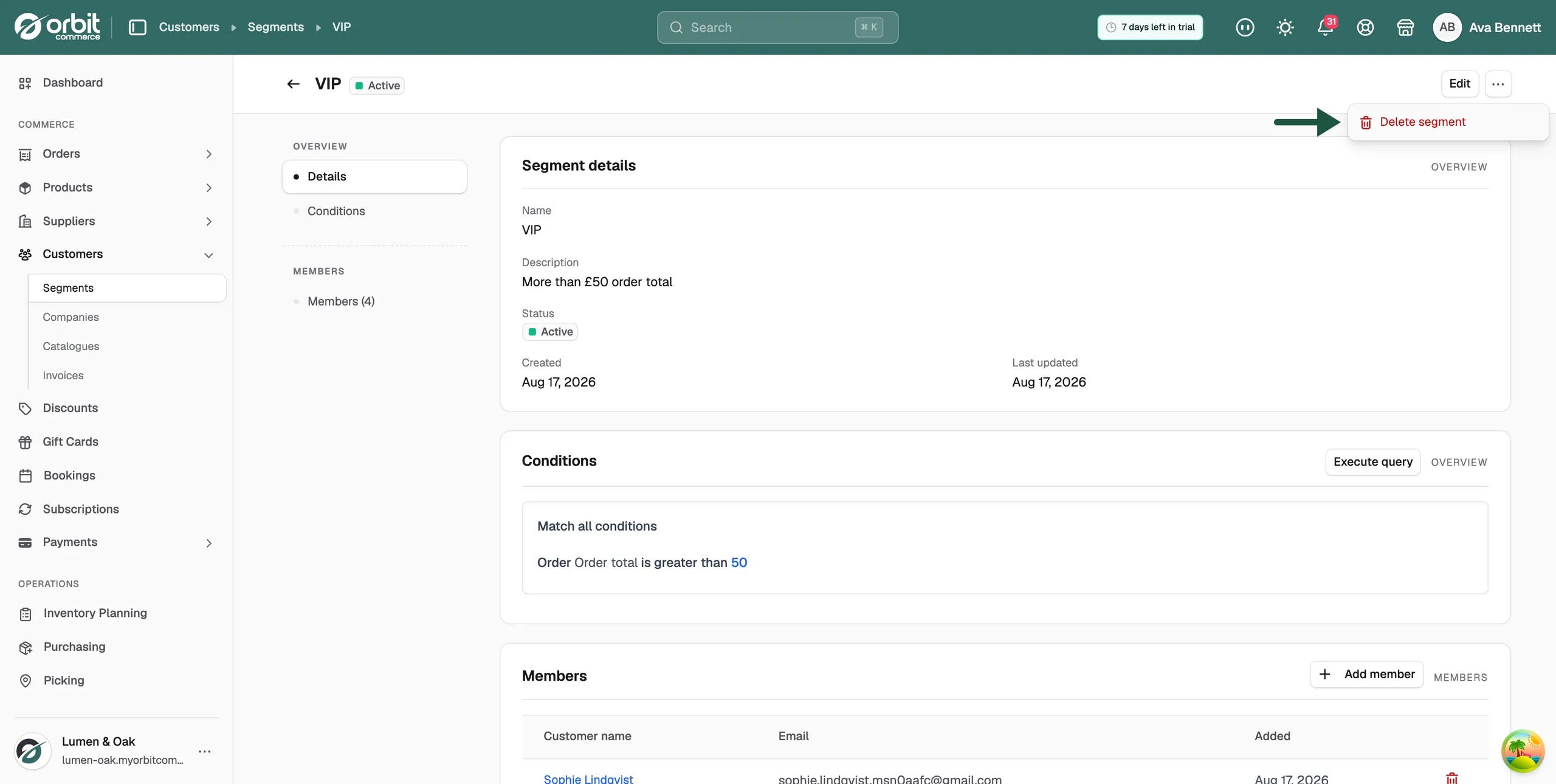
The segment moves to the Trash tab on the Segments page. From there you can Restore it, or remove it for good with Delete permanently. Deleting a segment does not delete the customers in it.
Related guides
Was this helpful?
0 people found this helpful