Payments & Payouts

Payments | General Overview

The Payments section in Orbit gives you an overview of your payments, balance, and payouts in one place. From here you can connect your Orbit Payments account, see the money flowing through your store, and review your transactions, payouts, and financial documents.

5 min read2viewsUpdated 18 June 2026Orbit Support Team

The Payments section in Orbit gives you an overview of your payments, balance, and payouts in one place. From here you can connect your Orbit Payments account, see the money flowing through your store, and review your transactions, payouts, and financial documents.

Orbit Payments is powered by Stripe, so your customer payments are processed securely and your earnings are paid out to your bank on a regular schedule. Before any data appears in this section, you need to connect your Orbit Payments account.

Accessing Payments

To access Payments:

  • From the left-hand menu, go to Payments.

  • Select the area you want to view, such as Transactions, Payouts, Purchases, or Documents.

The Payments page will open, showing an overview of your payments, balance, and payouts.

Connecting your Orbit Payments account

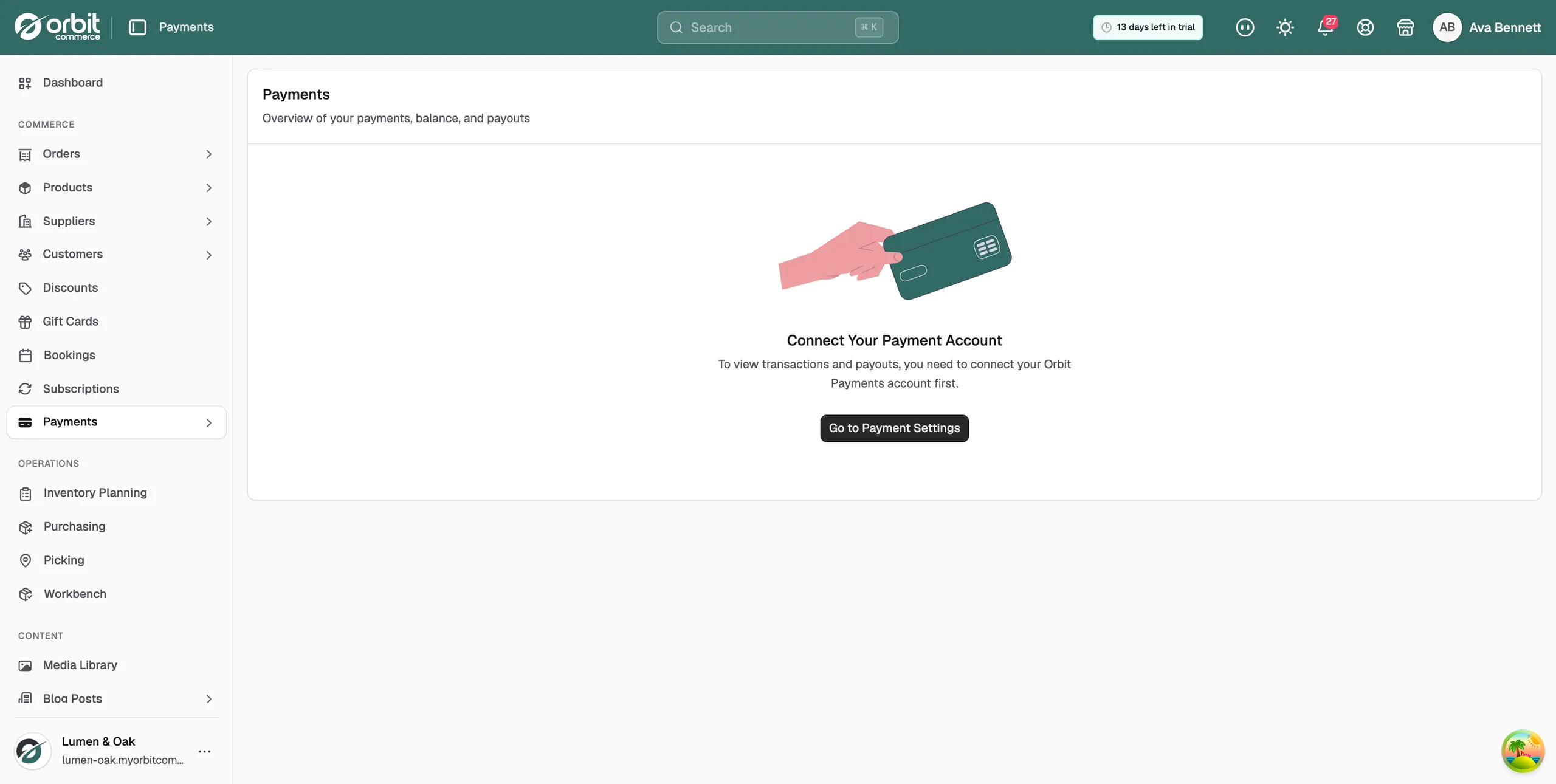
Before you can take payments and view your transactions and payouts, you need to connect your Orbit Payments account. Until you do, the Payments overview shows a Connect Your Payment Account prompt explaining that, to view transactions and payouts, you need to connect your Orbit Payments account first.

To get started, click Go to Payment Settings. This takes you to your payment settings, where you can set up and connect your Orbit Payments account. Connecting your account is a one-time step, and once it is complete your balance, transactions, payouts, and documents will begin to populate as your store takes payments.

Your balance and overview

Once your account is connected, the Payments overview shows a summary of your payments, balance, and payouts. This gives you an at-a-glance view of the money moving through your store, including the funds available in your Orbit Payments balance and the payouts on their way to your bank.

The overview is the starting point for understanding your store's finances. From here you can move into each sub-page for a more detailed breakdown.

The Payments sub-pages

The Payments section is split into several sub-pages, so you can focus on each part of your store's finances in turn:

  • Transactions — the individual customer payments and charges processed through your store, along with any refunds. This is where you review each payment in detail.

  • Payouts — the funds transferred from your Orbit Payments balance to your bank account. Payouts are made on a payout schedule, and this page shows what has been paid out and when.

  • Documents — the financial statements and tax forms for your Orbit Payments account, ready for you to download for your records and reporting.

  • Purchases — the themes and plugins you have bought from the marketplace. This is your own purchase history rather than your customers' payments, and it is covered in a separate article.

Select a sub-page from the Payments menu to view it. Remember that Transactions, Payouts, and Documents will only show data once your Orbit Payments account is connected and your store has started taking payments.

Why the Payments section is important

The Payments section keeps everything to do with money in one place, so you can see what your customers have paid, what is available in your balance, and what has been paid out to your bank. Keeping your Orbit Payments account connected ensures these records stay accurate and up to date.

By using the Payments section, you can:

  • Connect your Orbit Payments account to start taking payments

  • See your balance and an overview of your payments and payouts

  • Review individual transactions and refunds

  • Track payouts to your bank and download financial documents

If you have any questions, please contact us at support@orbitcommerce.net

Was this helpful?

0 people found this helpful