Setting up instalment plans
Let customers pay for a product across several scheduled payments. Create, edit and delete plans for a product.
An instalment plan lets a customer pay for a product across several scheduled payments instead of all at once. Each plan creates a finite-term Stripe Subscription at checkout, so the customer is charged on schedule until the plan is paid off. Instalment plans are for Service products only, and each plan is set up on the product.
Considerations
- Instalment plans are only available on Service products. Physical products, digital products, subscriptions, gift cards and bundles cannot be sold in instalments.
- Plans are charged through Stripe, so your Orbit Payments account must be connected first.
- Save the product before you add a plan. Until you do, the editor shows Save the product first to add instalment plans.
- A plan needs a name and at least two instalments.
- A product can have more than one plan. The customer picks one at checkout.
Add a plan from the product editor
- From your Orbit dashboard, go to Products.
- Open the product you want to sell in instalments.
- In the menu on the left, under Type extras, click Service details. This section only appears on Service products.
- Set Payment type to Instalments (scheduled payments). An Instalment plans box appears.
- Click + Add instalment plan and fill in the form.
- Any plans the product already has are listed above the form.
Open the Instalment plans page
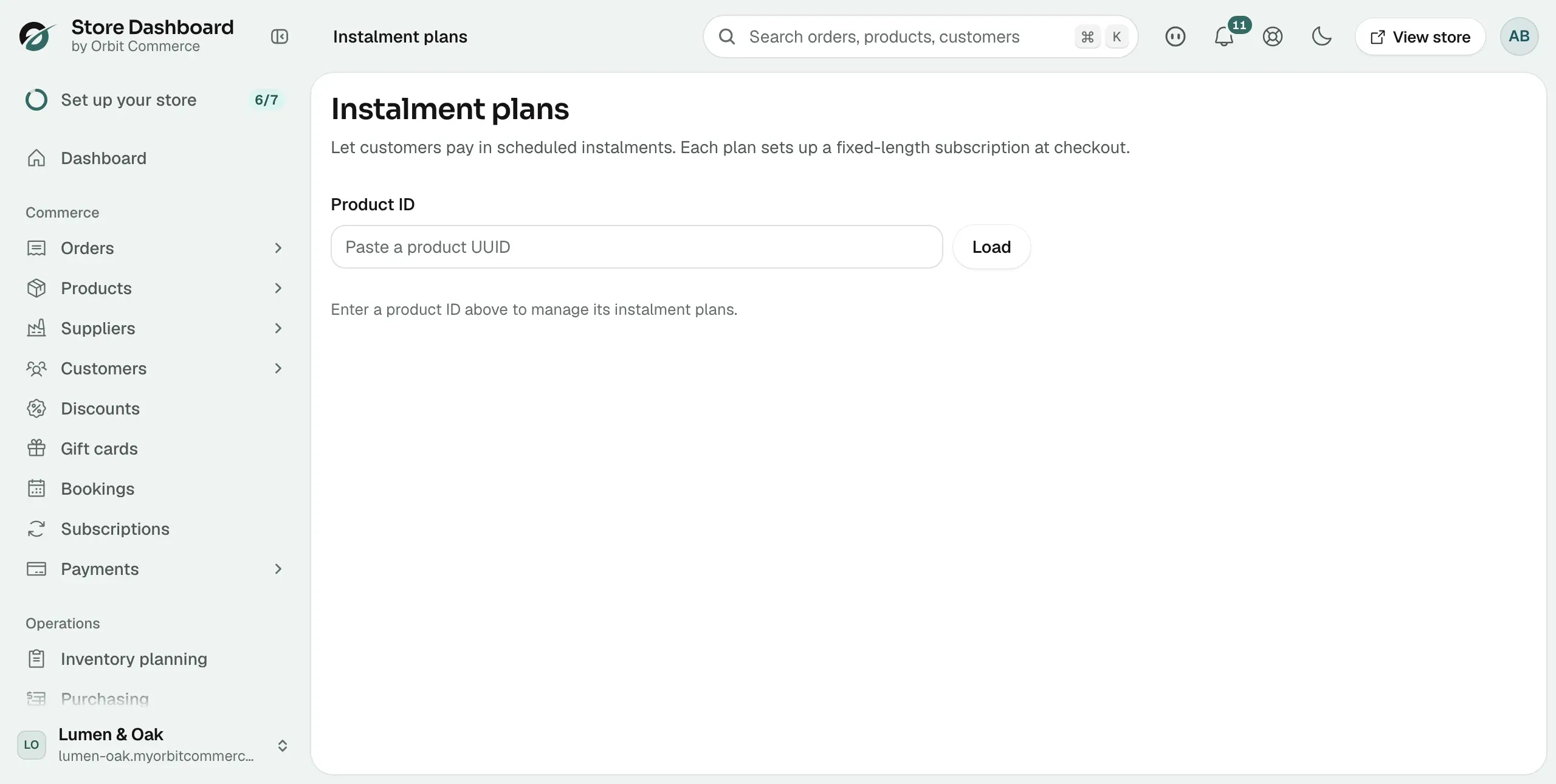
The full page lists every plan on a product and lets you edit and delete them.
- In the Instalment plans box in the product editor, click Manage all plans. The page opens with that product already loaded.
- To switch to another product, paste its ID into the Product ID field and click Load.
- Until a product is loaded, the page shows Enter a product ID above to manage its instalment plans.
Create a plan
- On the Instalment plans page, click New plan. The Create instalment plan form opens.
- Fill in the fields below.
- Click Create plan. The message Instalment plan created appears and the plan joins the list.
Plan fields
- Plan name: what the plan is called, for example 12 monthly payments. Required.
- Number of instalments: how many payments the customer makes. Two or more.
- Every: how many interval units sit between payments. Enter 1 for every unit, 2 for every other.
- Interval unit: Day, Week, Month or Year.
- Setup fee (optional): a one-off charge on top of the instalments. Leave it blank for none.
- Allow early settlement: with this on, customers can clear the remaining balance in one charge.
Each plan in the list shows its schedule in short form, such as 12 × every 1 month, followed by any setup fee and whether early settlement is allowed.
Edit or delete a plan
- Find the plan in the list on the Instalment plans page.
- Click Edit to change it. The same form opens with the current values. Click Update plan to save, or Cancel to drop the change.
- Click Delete to remove it. A confirmation asks Delete plan "your plan name"? before anything happens.
Warning: Deleting a plan cannot be undone. Check whether customers are still paying on it before you remove it.
What happens at checkout
When a customer picks a product with an instalment plan, Orbit creates a finite-term Stripe Subscription. Stripe then takes each payment on the agreed schedule. Once the last payment is made, the subscription ends on its own, so the customer is never billed beyond the plan.
Related guides
Was this helpful?
0 people found this helpful