Getting the Orbit Commerce app
What you need for the Orbit Commerce app, and how to install it on an iPhone, iPad or Android phone, sign in for the first time, find your way around and keep it up to date.
The Orbit Commerce app is your Orbit dashboard on an iPhone, an iPad or an Android phone or tablet. You sign in with the same email and password and work on the same orders, products and customers. This page covers what you need, installing the app, signing in, finding your way around and keeping the app up to date.
Considerations
- The app is for store owners and their team members. Each person signs in with their own login and sees what their role allows.
- The app is free to download from the App Store and Google Play.
- You need an iPhone or iPad on iOS or iPadOS 15.1 or later, or an Android phone or tablet on Android 7.0 or later. Home screen widgets need iOS or iPadOS 17 or later.
- The app comes in 20 languages: English, Chinese (Simplified and Traditional), Czech, Danish, Dutch, Finnish, French, German, Italian, Japanese, Korean, Norwegian, Polish, Portuguese (Brazil and Portugal), Spanish, Swedish, Thai and Turkish. It starts in your phone's language when that is one of them, and uses the language saved on your Orbit account once you sign in. To change it, tap the menu button, then Settings, My preferences and Language.
- New to Orbit? Get started on the app's first screen creates your account and your first store. See Creating your account.
Install the app
- On your iPhone or iPad, open Orbit Commerce on the App Store. On Android, open Orbit Commerce on Google Play. You can also search either store for Orbit Commerce.
- Install the app, then open it.
Sign in for the first time
- Open the Orbit Commerce app. The first screen offers Get started and Log in.
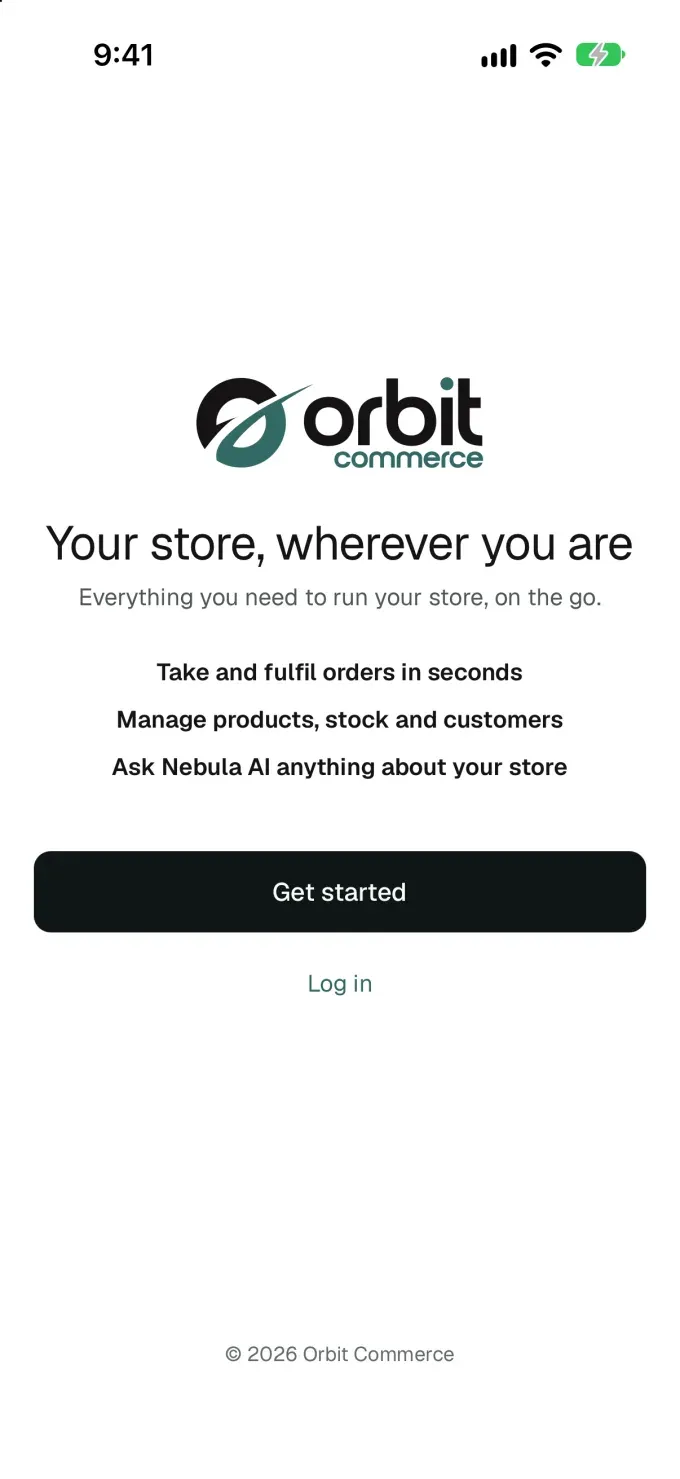
- Tap Log in. The Welcome back screen opens.
- Type your Email address and Password, then tap Sign in. If two-factor authentication is on, the app asks for your passkey or your code next.
- If you have more than one store, the app lists them. Tap the store you want to work in.
- The Dashboard opens. A moment later, if your phone asks to let Orbit Commerce send you notifications, tap Allow.
- If the Secure your account screen opens, set up two-factor authentication there, or tap Remind me later when it is offered.
The app keeps you signed in and reopens on the store you last used. For passkeys, codes and signing out, see Signing in to the Orbit Commerce app.
Find your way around
- The tab bar along the bottom holds Home, Orders, Products, Nebula AI and Search. On iPhone it shows icons only. On Android, the tab you are on also shows its name.
- Everything else is in the menu: tap the menu button at the top left. It holds the same sections as your dashboard's sidebar, with Settings under Configuration.
- The store you are working in is named at the top of the menu. With more than one store, tap the name, then tap the store you want under Switch store. See Adding and switching between stores.
- The bell at the top right opens your notifications.
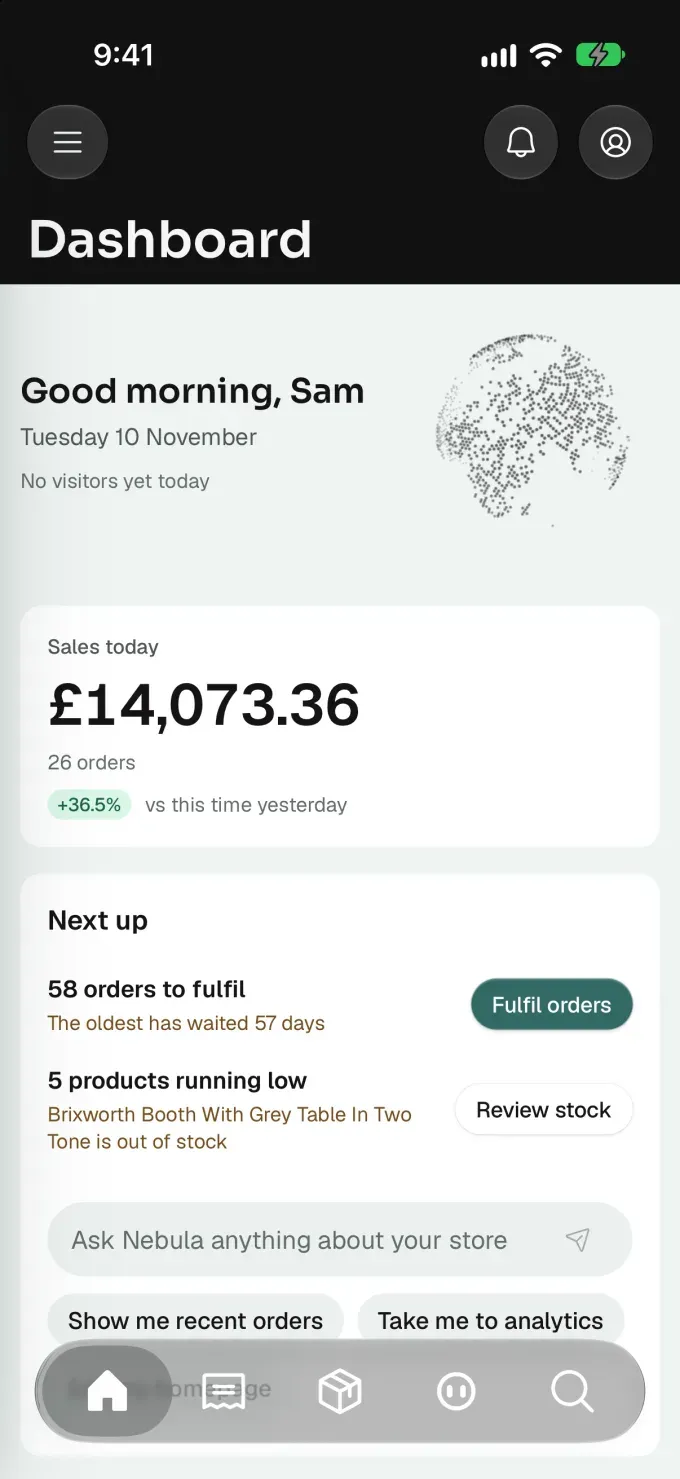
For the detail, see Finding your way around the dashboard.
Note: On iPad, a sidebar on the left replaces the tab bar and the menu button. See Using the app on iPad.
Keep the app up to date
- Open the App Store or Google Play and search for Orbit Commerce.
- If the app's page shows Update, tap it.
To see which version you have, tap the menu button in the app, then Settings, and scroll to the bottom.
Related guides
Was this helpful?
0 people found this helpful