Adding Orbit widgets to your home screen
The Orbit Commerce widgets for iPhone, iPad and Android, how to add one to your home screen or lock screen, what a tap opens and how often the figures refresh.
Widgets put your store's figures on your home screen, so you can check today's sales or the orders waiting to be sent without opening the Orbit Commerce app. This page lists the widgets and covers adding one on iPhone, iPad and Android, and what a tap opens.
Considerations
- A widget reads Open Orbit Commerce to sign in until you sign in to the app, after you sign out, and while your role cannot see analytics. With nothing to report, it says so, such as Nothing waiting.
- On iPhone and iPad, the widgets need iOS 17 or iPadOS 17, or later.
- Widgets show the store you last opened in the app. Switch store there and the widgets follow.
- On iPhone and iPad, a role that cannot see orders gets Hidden for your role in place of order details.
- Figures refresh about every 15 minutes on iPhone and iPad, every 30 minutes on Android, and when you open the app. A widget that cannot refresh keeps its last figures and says when they are from, such as Updated 12:43. On iPhone and iPad, Recent orders, Store today and Sales this week always show it.
Choose a widget
iPhone and iPad have nine, each in two sizes:
- Today's sales: today's takings and orders, compared with the same time last week.
- Live now: how many people are on your store right now.
- Low stock: the products closest to running out.
- Orders to fulfil: paid orders waiting to be sent, and how long the oldest has waited.
- Store today: sales, orders, visitors and conversion at a glance.
- Recent orders: your latest orders and where each one stands.
- Returns to review: return requests waiting for you, oldest first.
- Top sellers: today's best-selling products.
- Sales this week: takings for the last 7 days, day by day.
Android has four: Today's sales, To fulfil, which counts the paid orders waiting to be sent, Orders to fulfil and Store today.
Add a widget to your home screen
- On your iPhone or iPad, touch and hold an empty part of the home screen until the apps jiggle.
- Tap the button at the top left. If a menu opens, tap Add Widget.
- Type Orbit in Search Widgets, then tap Orbit Commerce.
- Swipe to the widget and size you want, then tap Add Widget.
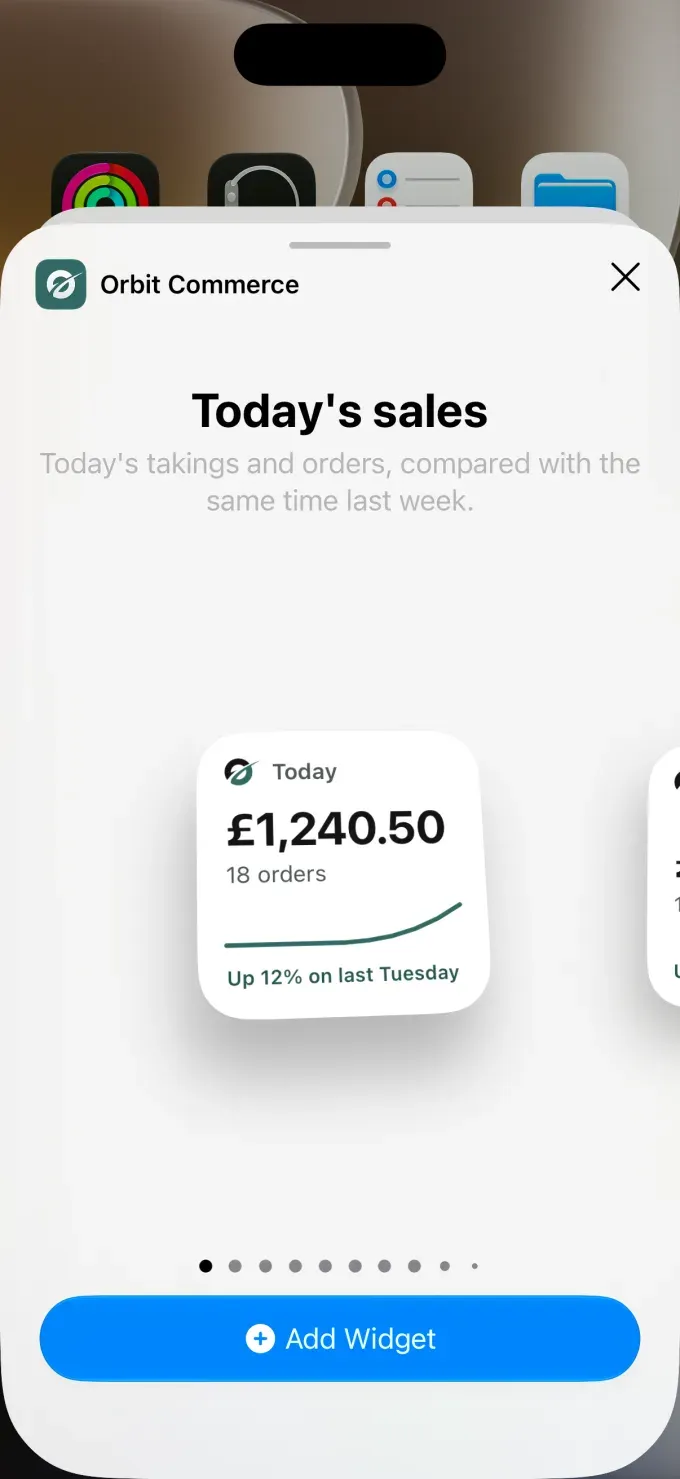
- To finish, tap the button at the top right.
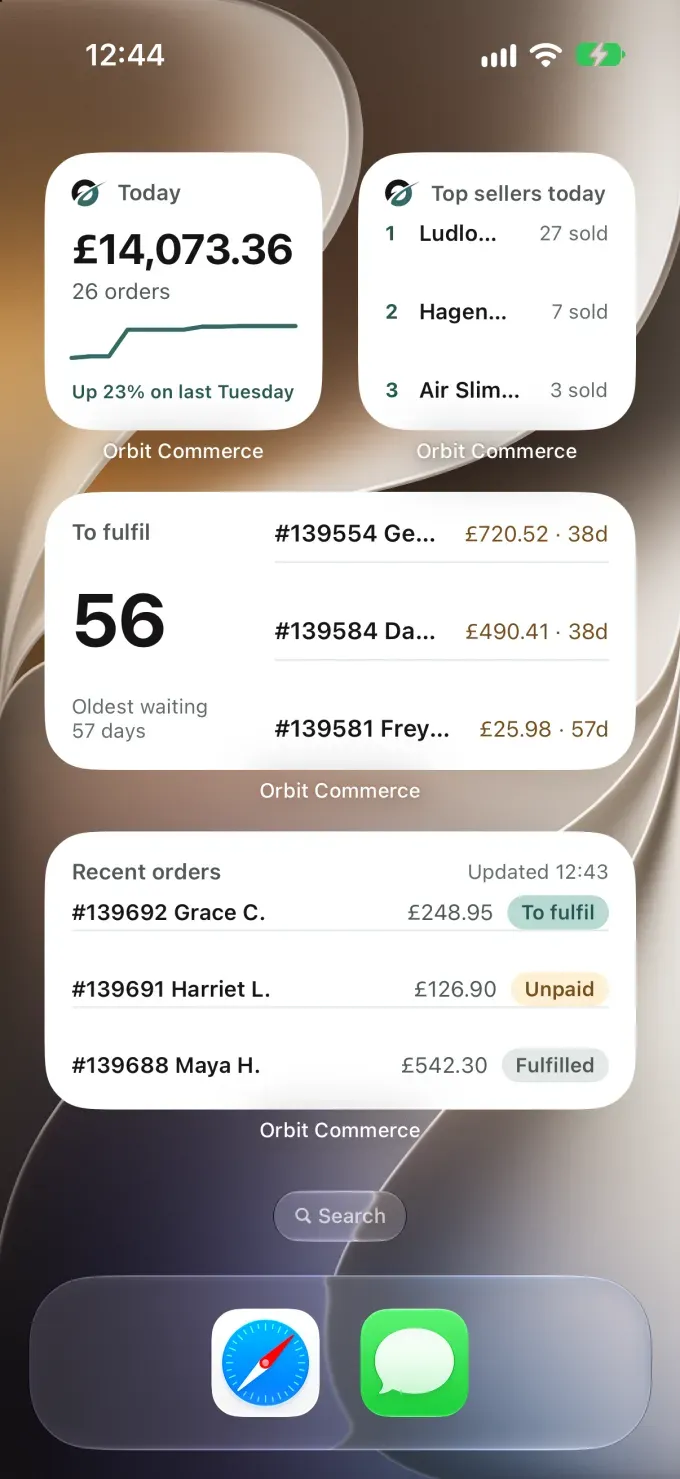
On Android, touch and hold an empty part of the home screen and tap Widgets. Find Orbit Commerce, then touch and hold a widget and drag it into place. To resize it, touch and hold it and drag its edges: a taller Orders to fulfil lists three orders instead of two.
Add a widget to your lock screen
- On your iPhone or iPad, touch and hold the lock screen, then tap Customise.
- Tap the ADD WIDGETS box, then scroll the list of apps to Orbit Commerce and tap it.
- Tap a widget, or drag it into place, to add it.
- Close the Orbit Commerce page and the list, tap Done at the top right, then tap the lock screen to finish.
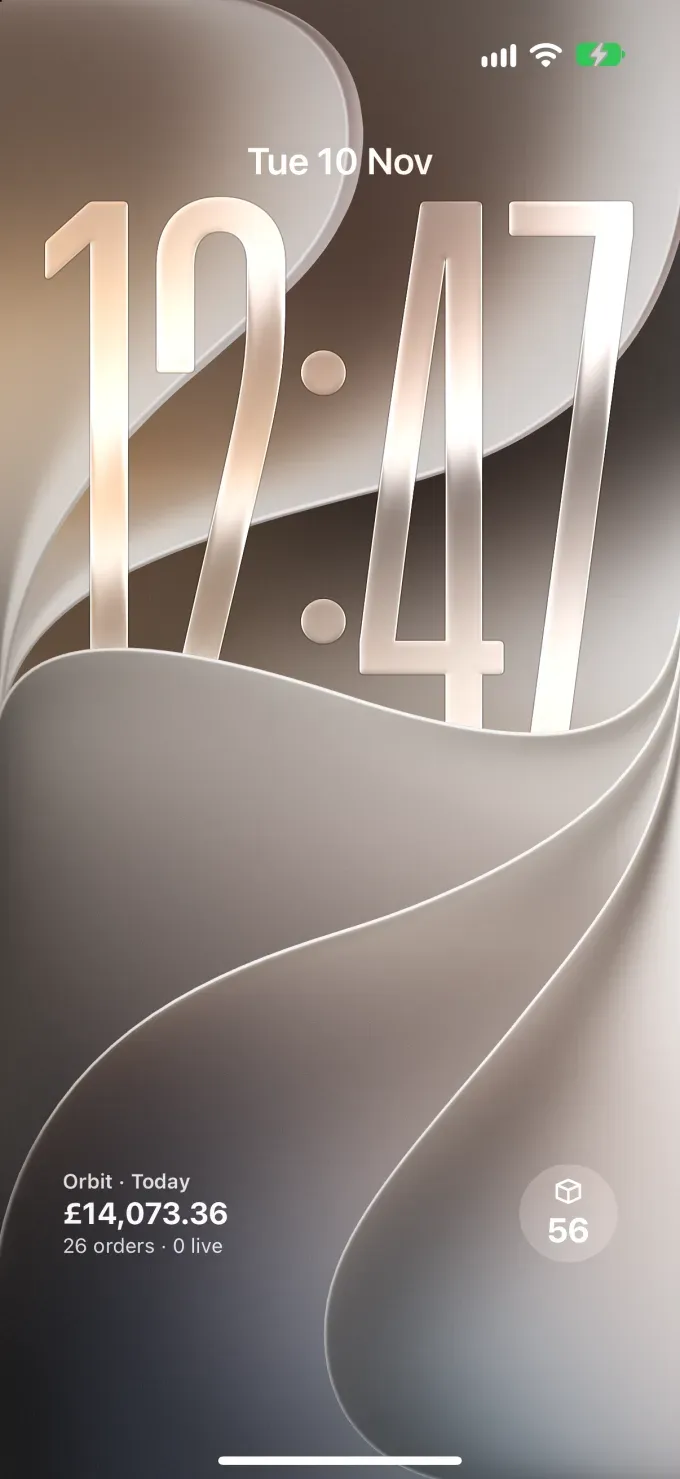
Orbit Commerce shows today's sales, and Orders to fulfil the orders waiting. For the count above the clock, such as 7 to fulfil, tap the date while you customise, then tap Orbit Commerce. Lock screen widgets are for iPhone and iPad.
Open the app from a widget
Tap a widget to open the matching screen in the app:
- Orders to fulfil, To fulfil and the count above the lock screen clock open Orders, filtered to Unfulfilled.
- Low stock, and the low stock line in Store today, open Inventory, filtered to low stock.
- Live now opens Live View.
- Returns to review opens Returns.
- The others open the Dashboard.
In a wider widget, tap one order, or one product in Top sellers, to open it.
Related guides
Was this helpful?
0 people found this helpful