Signing in to the Orbit Commerce app
Sign in to the Orbit Commerce app with your email and password, confirm with a passkey and Face ID or with a code, add a passkey on your phone, and sign out.
You sign in to the Orbit Commerce app with the same email and password as your dashboard. If two-factor authentication is on, the app then asks for a passkey or a code. This page covers signing in, adding a passkey on your phone and signing out.
Considerations
- In the app, a passkey is a second step: you type your password first, then confirm with the passkey.
- A passkey needs iOS 16 or later, or Android 9 or later.
- The app keeps you signed in, so protect your phone with a passcode, Face ID or a fingerprint.
Sign in with your email and password
- Open the Orbit Commerce app. If the welcome screen shows, tap Log in. The Welcome back screen opens.
- Type your Email address and Password, then tap Sign in.
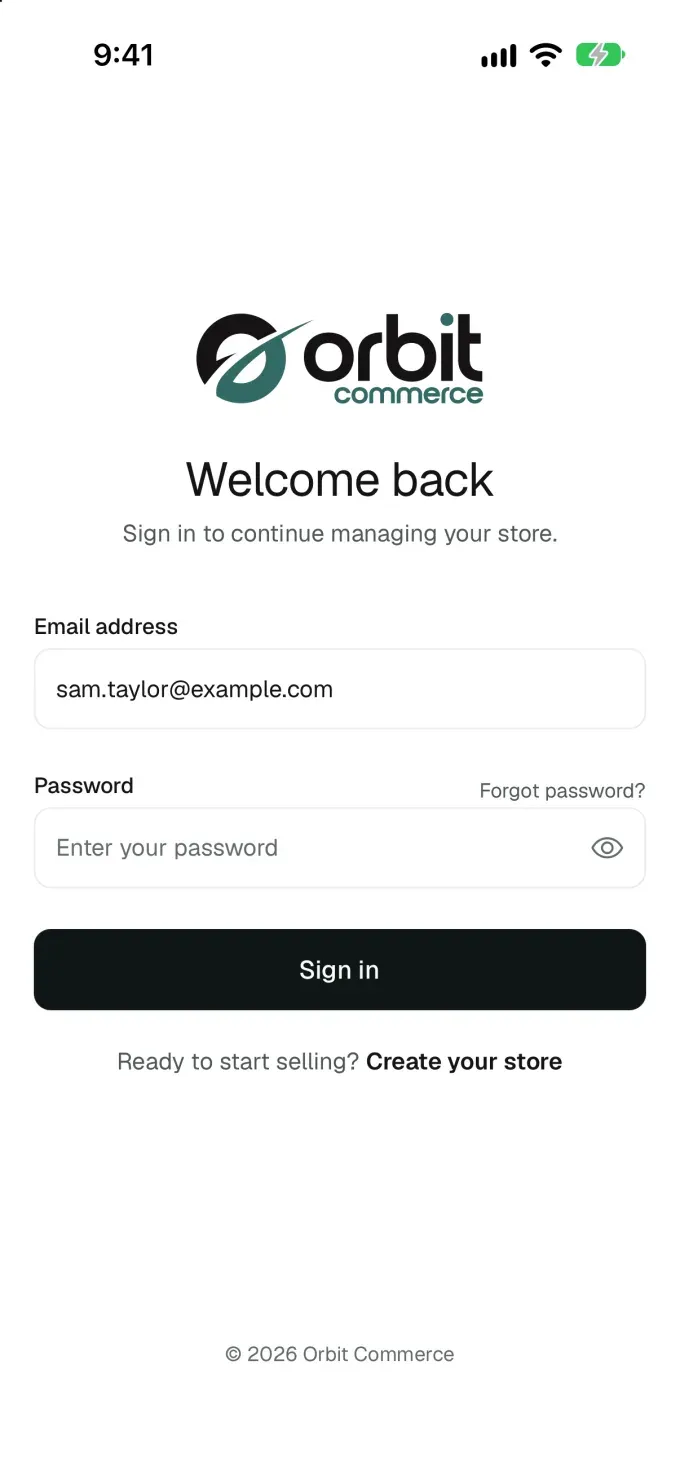
- If your iPhone offers to save the password, save it or tap Not Now, whichever you prefer.
- If you have more than one store, tap the store you want to work in.
Continue with Google and Continue with Microsoft show above the fields when Orbit offers them. See Signing in with Google or Microsoft. For a forgotten password, tap Forgot password? and see Fixing sign-in and two-factor problems.
Confirm with a passkey or a code
If two-factor authentication is on, the Two-step verification screen opens next. It asks for your passkey if your account has one, otherwise for a code. To skip this step on this phone for the next 90 days, switch on Trust this device first.
- With a passkey, tap Use a passkey, then confirm with Face ID or Touch ID. On Android, use your fingerprint, face or screen lock.
- With a code, type the six digits from your authenticator app or your text message in Verification Code, then tap Verify.
The links at the bottom switch to another method your account has, such as Use a backup code.
Add a passkey on this phone
- In the Orbit Commerce app, tap the menu button at the top left, then tap Settings.
- Under Team & access, tap Security.
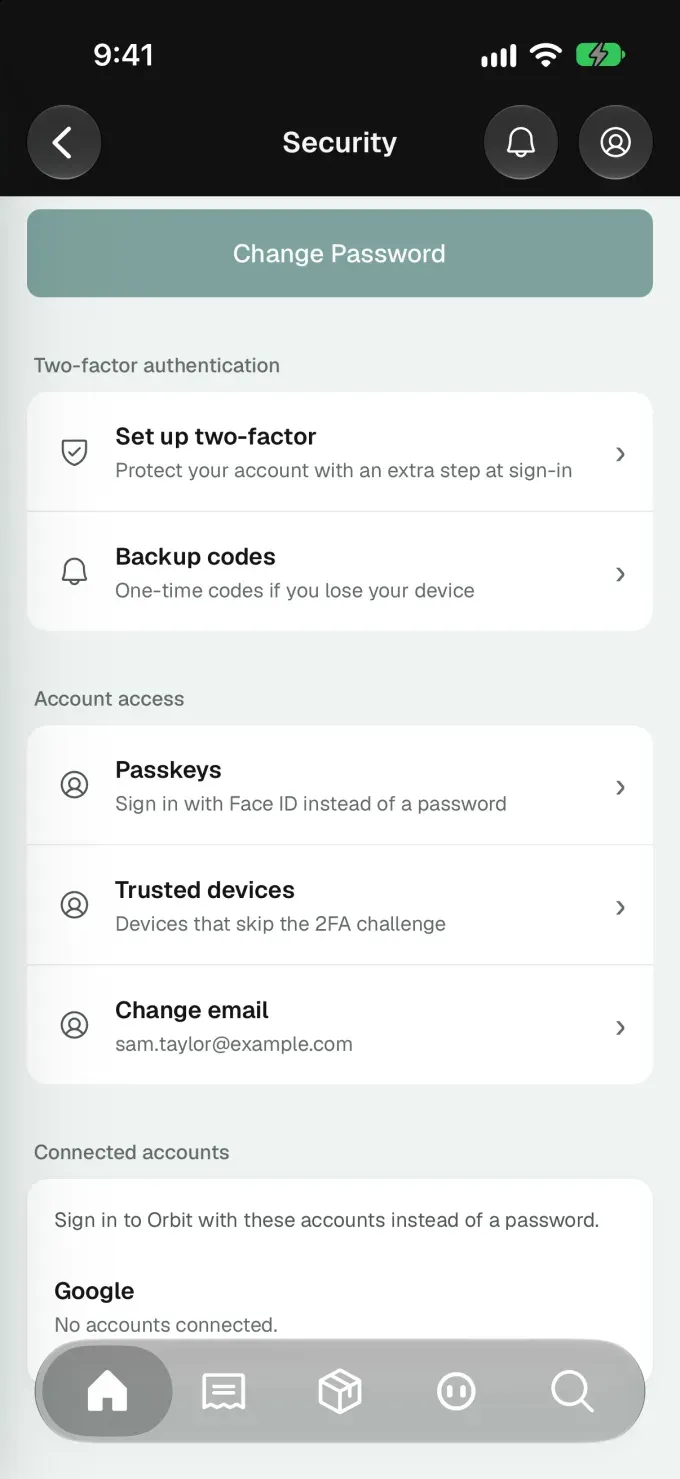
- Under Account access, tap Passkeys.
- Type a name in Device name (optional), such as Work iPhone, then tap Add passkey.
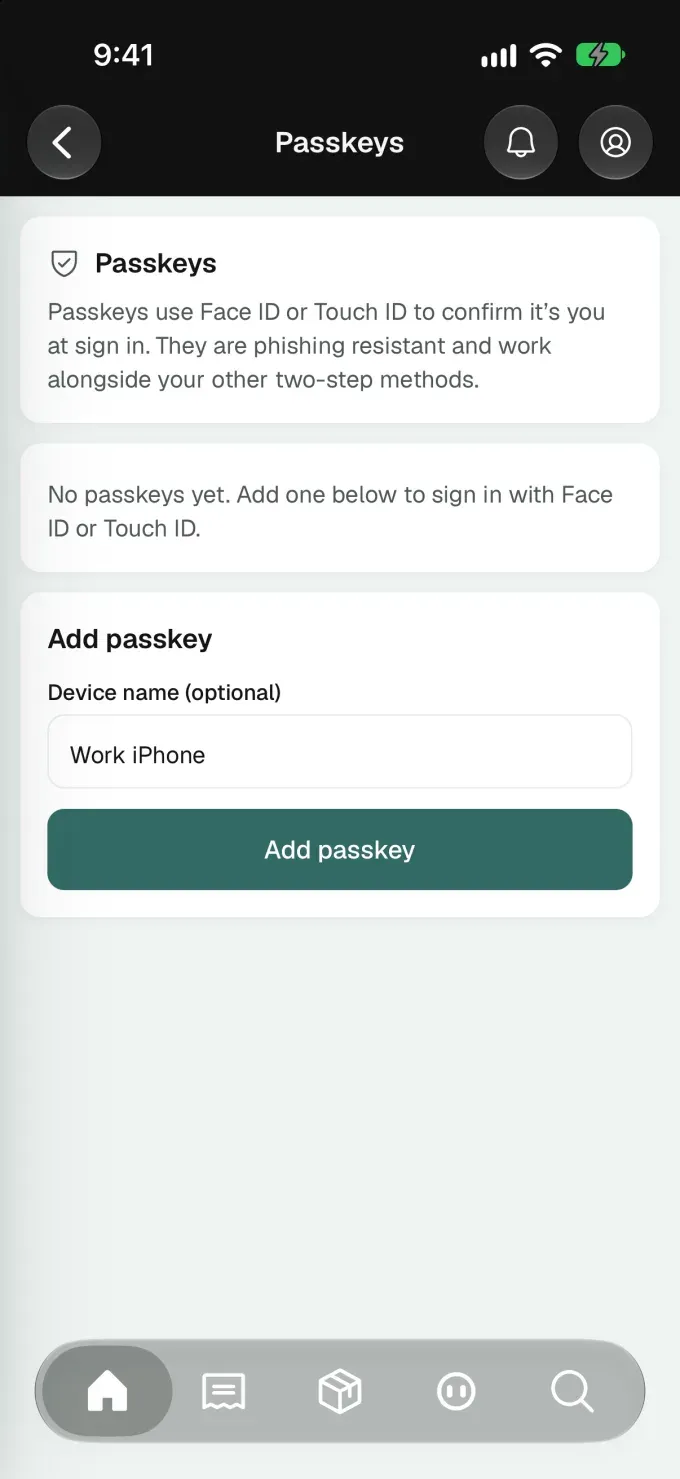
- Your phone asks to save the passkey. Confirm with Face ID or Touch ID. On Android, use your fingerprint, face or screen lock. The message Passkey added appears at the bottom of the screen.
- If Save your backup codes appears, tap Copy or Share, keep the codes somewhere safe, then tap I’ve saved them.
Adding your first passkey turns two-factor authentication on. If the Secure your account screen opens after you sign in, you can add a passkey there too: tap Passkey (recommended). For authenticator apps, text message codes, backup codes and trusted devices, see Setting up two-factor authentication and passkeys.
Note: On iPad, the menu is the sidebar on the left.
Sign in again when your session ends
The app keeps you signed in for up to 90 days since you last used it. If your session ends while the app is open, an alert titled Session Expired appears. Tap OK, then sign in again on the Welcome back screen.
Sign out
Note: Signing out here also signs you out of Orbit on your other devices and in your web browser.
- In the Orbit Commerce app, tap the menu button at the top left, then tap Settings.
- Scroll to the bottom. Under Session, tap Sign out.
- An alert asks Are you sure you want to sign out? Tap Sign out.
The welcome screen opens. A phone you trusted stays trusted until its 90 days run out.
Related guides
Was this helpful?
0 people found this helpful