Using the app on iPad
What is different in the Orbit Commerce app on an iPad: the sidebar, a list beside the record you tap, the store button, the full page builder and keyboard shortcuts.
On an iPad, the Orbit Commerce app uses the larger screen. A sidebar replaces the tab bar and the menu button, a list can sit beside the record you tap, and pages open in the full page builder. This page covers what is different from the app on a phone.
Considerations
- It is the same app and sign-in as on a phone. Where another guide says to tap the menu button or the tab bar, use the sidebar.
- The app turns with your iPad, upright or on its side.
- In a narrow window, such as half the screen beside another app, the app switches to the phone layout and the phone's page editor. What you were doing stays open.
- On Android, a tablet with a wide enough screen gets the same layout. The keyboard shortcuts are for iPad only.
Find your way around with the sidebar
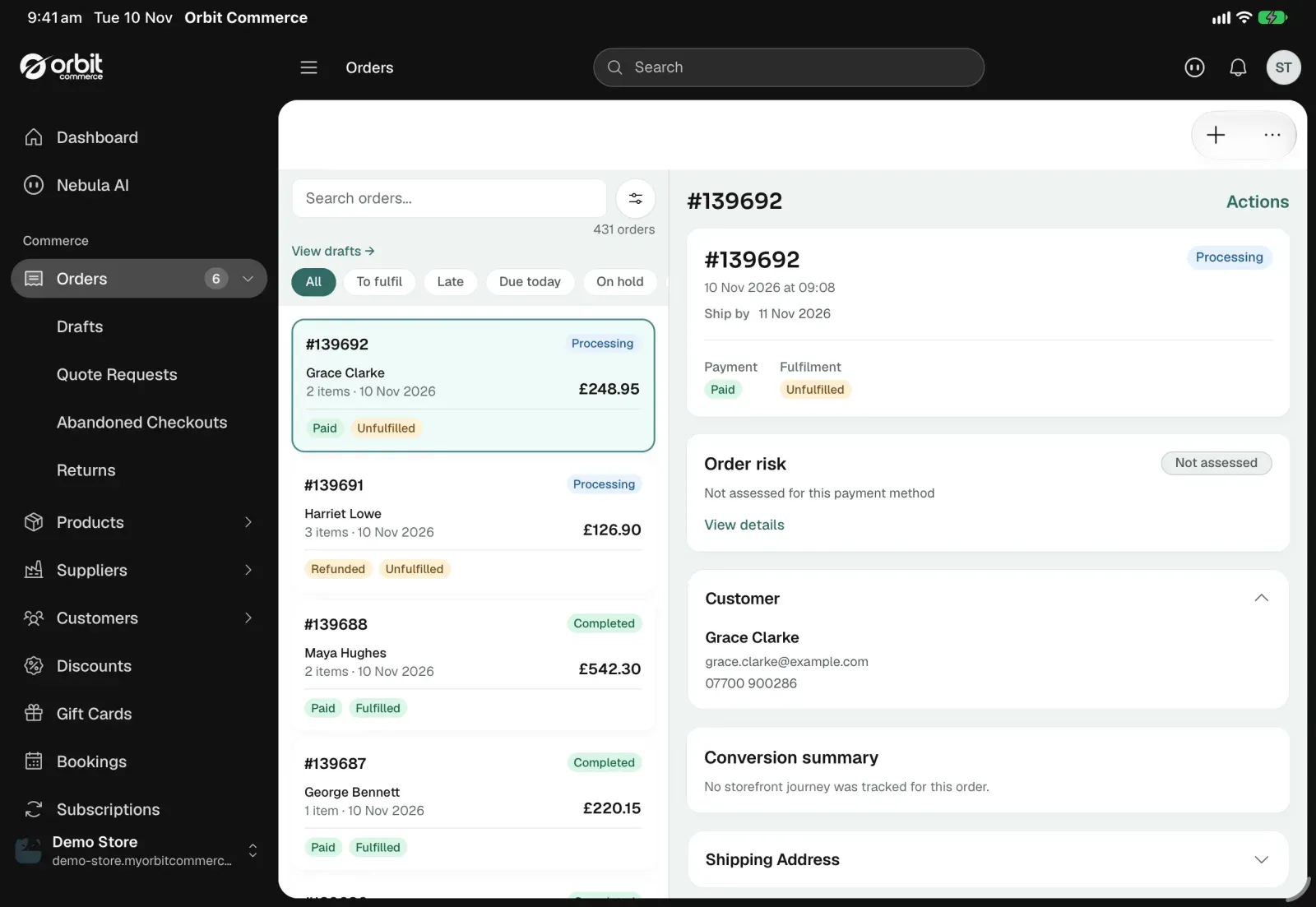
- Tap a row in the sidebar on the left to open it, such as Orders or Customers. The sidebar stays open. A row with sub-pages also shows them under it, such as Returns under Orders.
- To show or hide a row's sub-pages without opening it, tap the arrow at the end of the row.
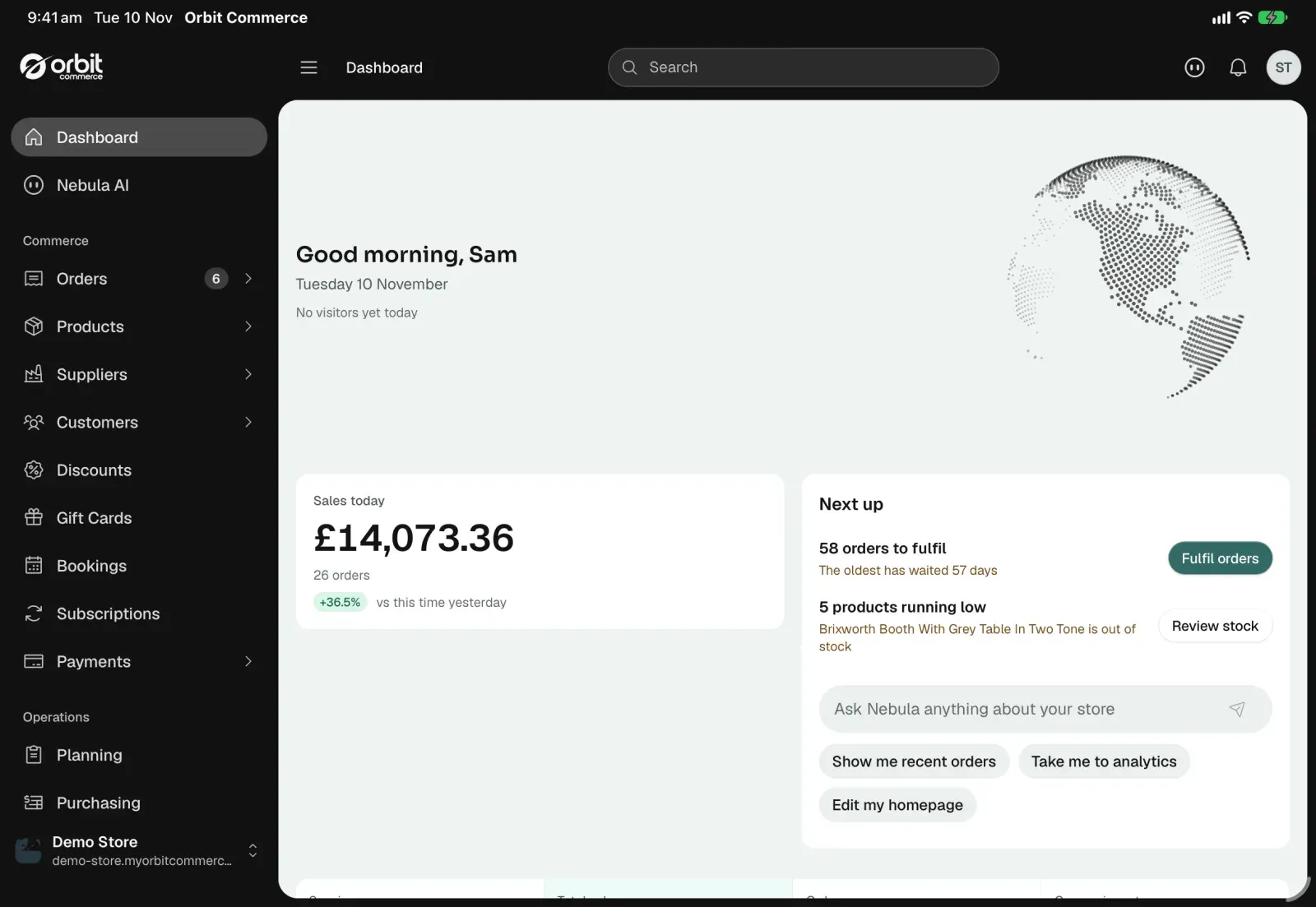
The bar along the top holds the Search box, Nebula, the bell, which opens a panel of your latest notifications, and the account button, which opens Edit Profile. At its left it shows the path to the page you are on. Tap an earlier name in the path to go back there.
Fold and unfold the sidebar
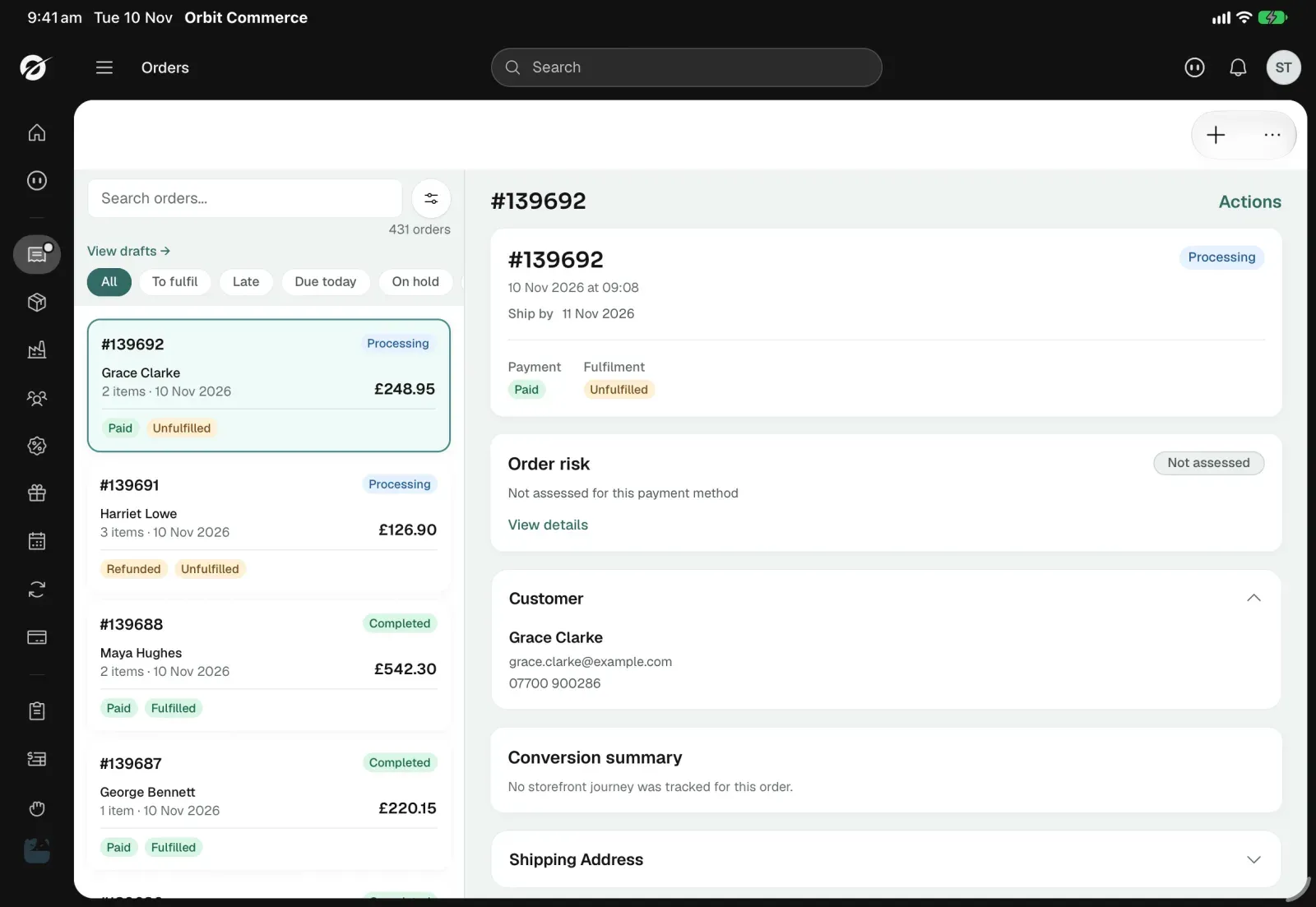
- Tap the button with three lines at the left of the top bar. The sidebar folds down to a strip of icons.
- Tap an icon to open that part of the app.
- Tap the button again to bring the full sidebar back. The app remembers how you left it.
See a list and a record side by side
- Turn your iPad on its side, then tap Orders in the sidebar. The list is on the left and the first order opens on the right.
- Tap another order to show it. Tap Actions beside the order number to work on it.
Products and Live Chat conversations work the same way. A product has the pencil button beside its name to edit it.
On its side, an iPad always shows the list and the record side by side. Upright, there is room for both only on the larger iPads, and on some of those only with the sidebar folded. When there is no room, the record opens on its own screen, as on a phone.
Switch store
- Tap the store button at the bottom of the sidebar. It shows the store's name and web address. Its menu lists Store settings and Visit store above Switch store.
- Under Switch store, tap the store you want, or tap All stores.
See Adding and switching between stores.
Edit pages in the full page builder
- In the sidebar, tap Storefront, then tap Pages under it.
- Tap the page, then tap Edit content. The page builder opens over the whole screen, the same one as on your dashboard in a web browser.
- Tap Done at the top right to close it.
Headers, footers, popups and banners open in the page builder too: tap Templates under Storefront, then a tab such as Header at the far right of the tabs (swipe them sideways if it is not in view). Tap the template, then Edit page in the short list that opens. See Getting started with the page builder.
Use keyboard shortcuts
With a keyboard connected, hold the Command key to see the shortcuts:
- Command+1 to Command+5 open Dashboard, Orders, Products, Customers and Settings.
- Command+N starts a new order while you are in orders, and a new product anywhere else.
- Command+F puts the cursor in the search field of the list on screen.
- Command+K opens Nebula AI.
Related guides
Was this helpful?
0 people found this helpful