Finding your way around the dashboard
The sidebar sections, the search box and its keyboard shortcut, notifications, What's new, the store card and the dashboard home page.
Your Orbit dashboard has three ways to get around: the sidebar on the left, the search box in the header, and the store card at the bottom of the sidebar. This guide covers all three, plus notifications and the What's new list.
The sidebar
The sidebar groups every page into sections. Items with a chevron open into sub-pages. Click the button next to the Orbit logo to tuck the sidebar away and leave the icons.
- Commerce: Orders, Products, Suppliers, Customers, Discounts, Gift cards, Bookings, Subscriptions and Payments. Orders holds Drafts, Quote requests, Abandoned checkouts and Returns.
- Operations: inventory planning, purchasing, picking and the workbench. It appears on plans that include it.
- Content: Media library, Blog posts and Storefront.
- Insights: Analytics, Marketing and AI shopping.
- Configuration: Plugins and Settings.
- Installed plugins: plugins you install get their own section at the bottom.
Note: Sections and items you do not have on your plan are not shown at all. There is no locked row to click.
Search for anything
- Click the Search box in the header, or press Ctrl+K on Windows or ⌘K on a Mac.
- Type a name, an order number or an email address.
- Results appear grouped under headings, such as Pages, Orders, Products and Customers. Use the arrow keys to move, enter to open a result and esc to close.
- Click a result to open that record.
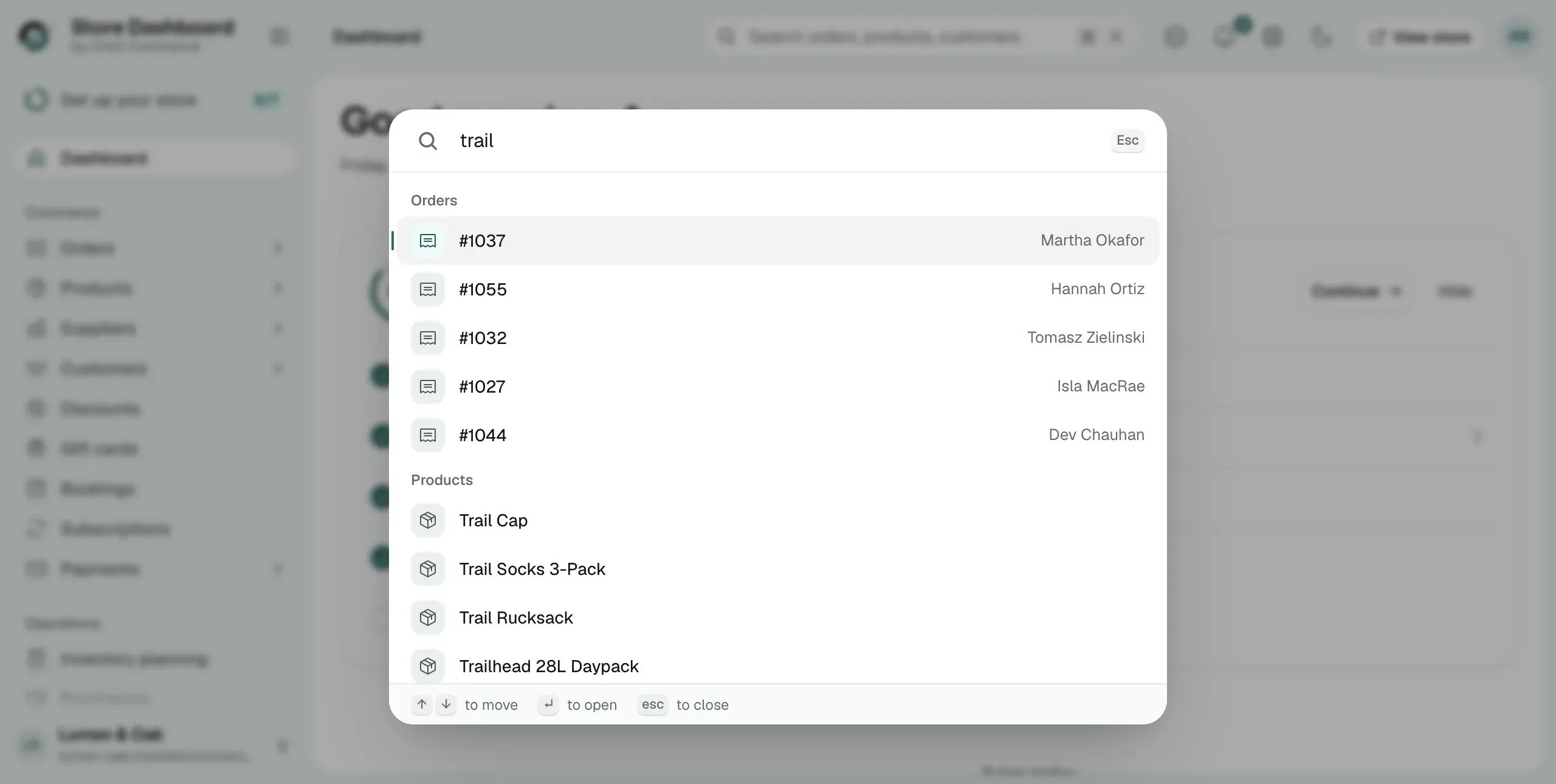
Tip: Before you type, search lists Quick actions, so you can create a new product, order or customer, or open your settings, without leaving the box.
Check your notifications
- Click the bell in the header. Unread activity shows on it.
- Click View all notifications to open the full list.
- Filter by All, Unread or Read, or by area: Orders, Payments, Returns, Inventory, Suppliers, Live Chat, Customers, System and Plugins.
- Click Mark all as read when you are caught up.
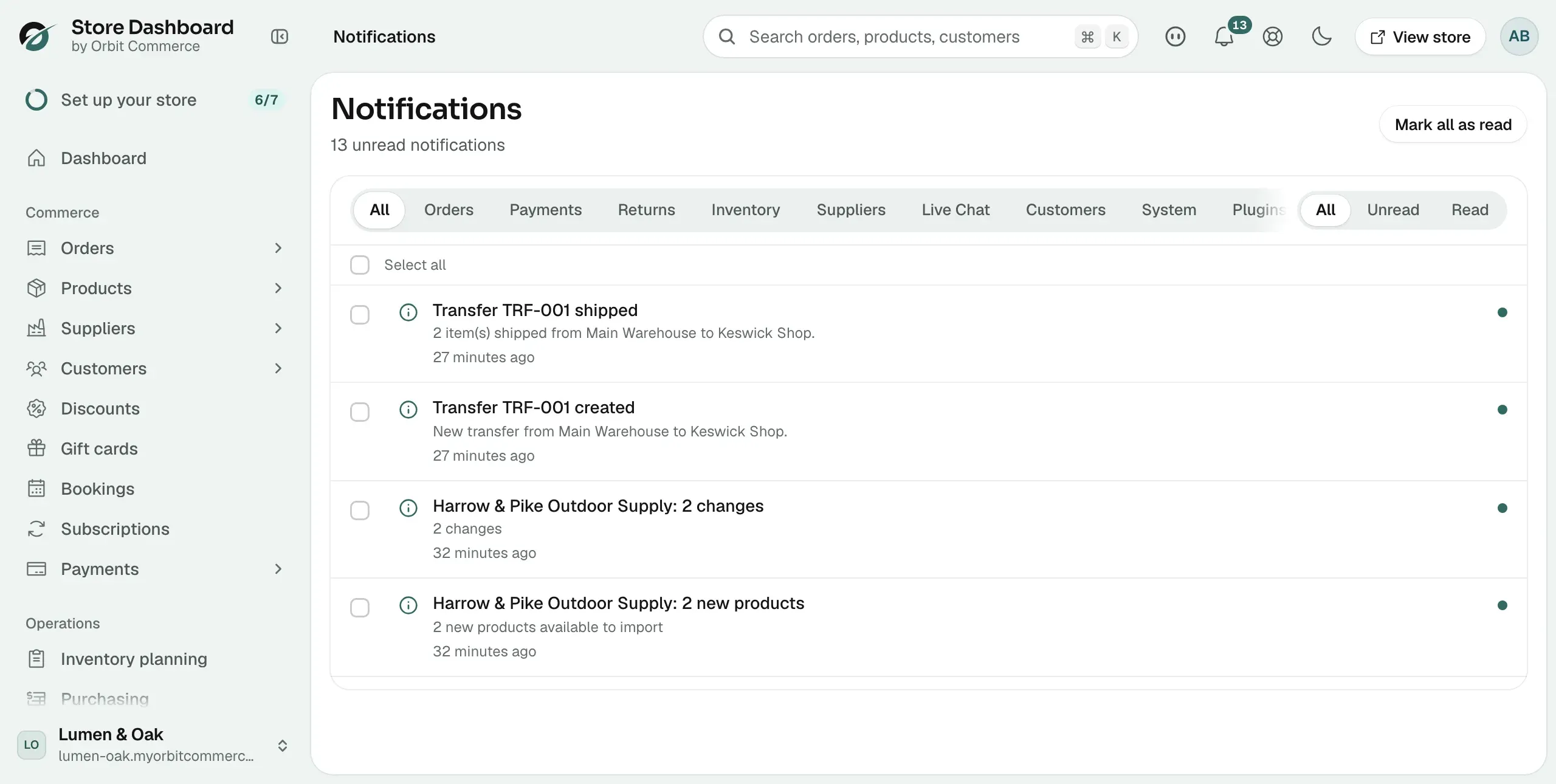
New orders, customer chats and due CRM tasks all land here.
See what changed in Orbit
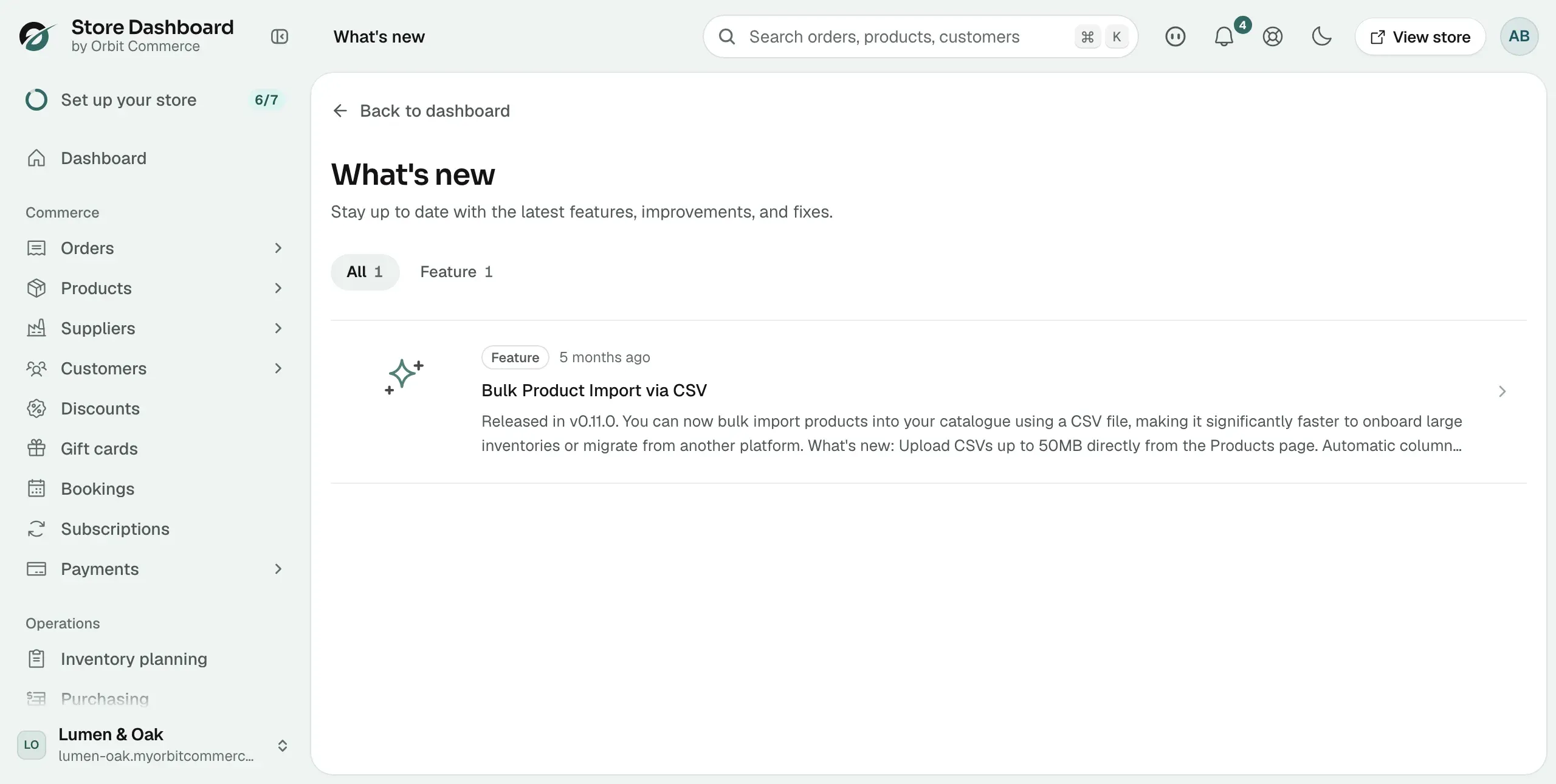
The What's new block on your dashboard lists new features, improvements and fixes. Entries you have not seen carry a New badge. Click All updates for the full list, where you can filter by category, such as Feature. You can also open it from What's new in the Support menu.
The store card and the header
The card at the bottom of the sidebar names the store you are working in. Everything you see in the dashboard belongs to that store, so check it before you start. Click the card to open its menu: Store settings, Visit store and Add store.
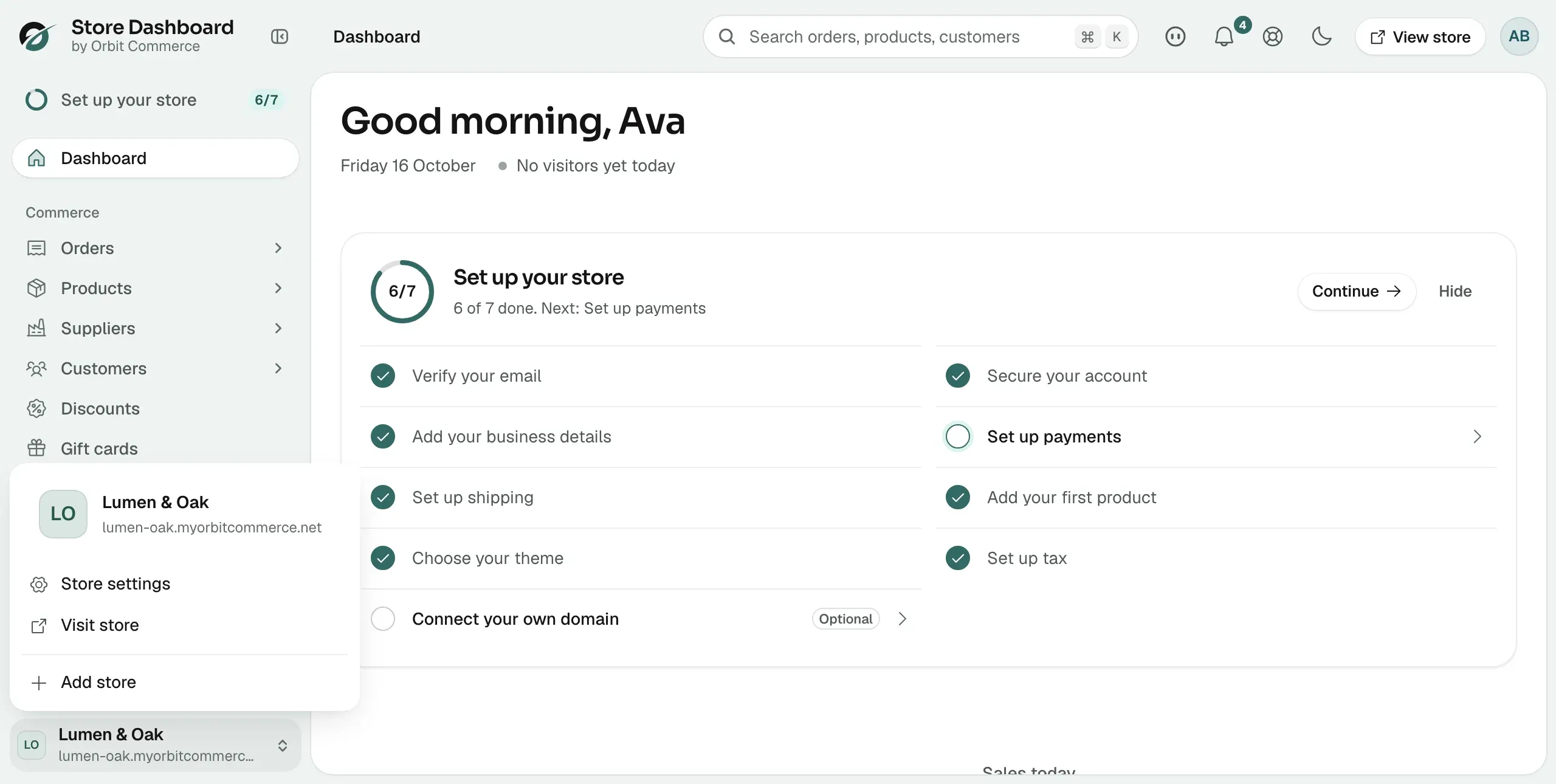
The header holds the search box, the Nebula button, the bell, Support, the light and dark theme toggle, View store and your account menu, which has Profile, Settings, Appearance and Sign out.
The dashboard home page
Dashboard sits at the top of the sidebar and answers "what needs me today". It shows:
- Set up your store, the setup checklist for a new store.
- Sales today and Next up, with the Nebula ask bar, where you ask questions about your shop in plain English.
- Performance: Total sales, Orders, Sessions and Conversion rate, set to 30 days to start with. Click another period to change it.
- Latest orders, Top products and What's new.
Related guides
Was this helpful?
0 people found this helpful