Setting up push notifications
Allow notifications from the Orbit Commerce app, choose which ones reach your phone, pick the new order sound, send yourself a test, and turn notifications back on or off.
The Orbit Commerce app can send a notification to your phone when something happens in your store, such as a new order. This page covers allowing notifications, choosing which ones you get, the new order sound and a test.
Considerations
- Which notifications you get is your own choice, set store by store. It covers every phone you use for that store.
- Your phone gets notifications for one store at a time: the store you last opened in the app.
- Push notifications are separate from the emails and texts your store sends. See Setting up email and SMS notifications.
- The Notifications row in Settings shows only when your role includes notifications.
Allow notifications
- Open the Orbit Commerce app and sign in. With more than one store, choose a store.
- Your phone asks whether Orbit Commerce may send you notifications. Tap Allow. On Android 12 and earlier, notifications are on from the start.
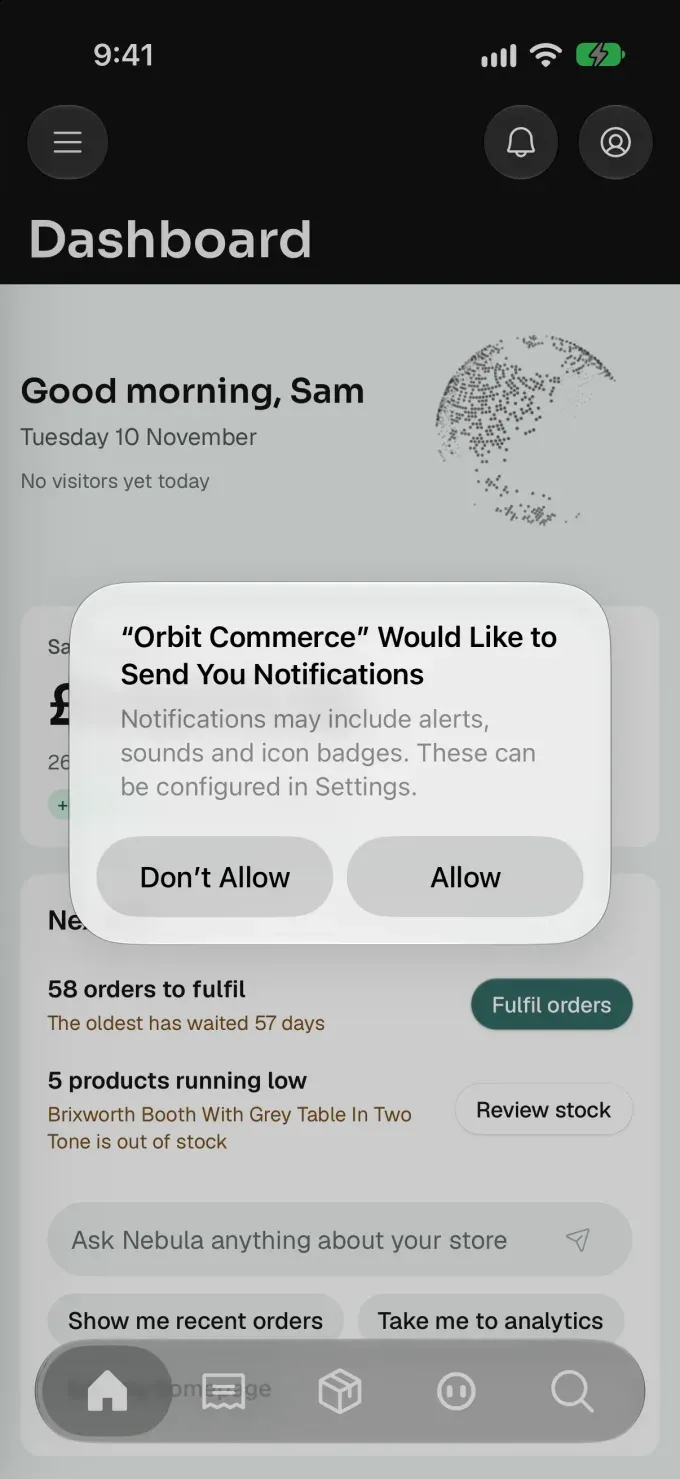
If you refuse, see Turn notifications back on, below.
Choose which notifications you get
- In the Orbit Commerce app, tap the menu button at the top left, then tap Settings, then Notifications, then Push notifications.
- Under This phone, check that the row reads Notifications allowed.
- Scroll down to the switches. There is one for each kind of notification, grouped under headings such as Orders, Payments and Returns.
- Switch off each kind you do not want on your phone, such as Order Paid. Each change saves at once.
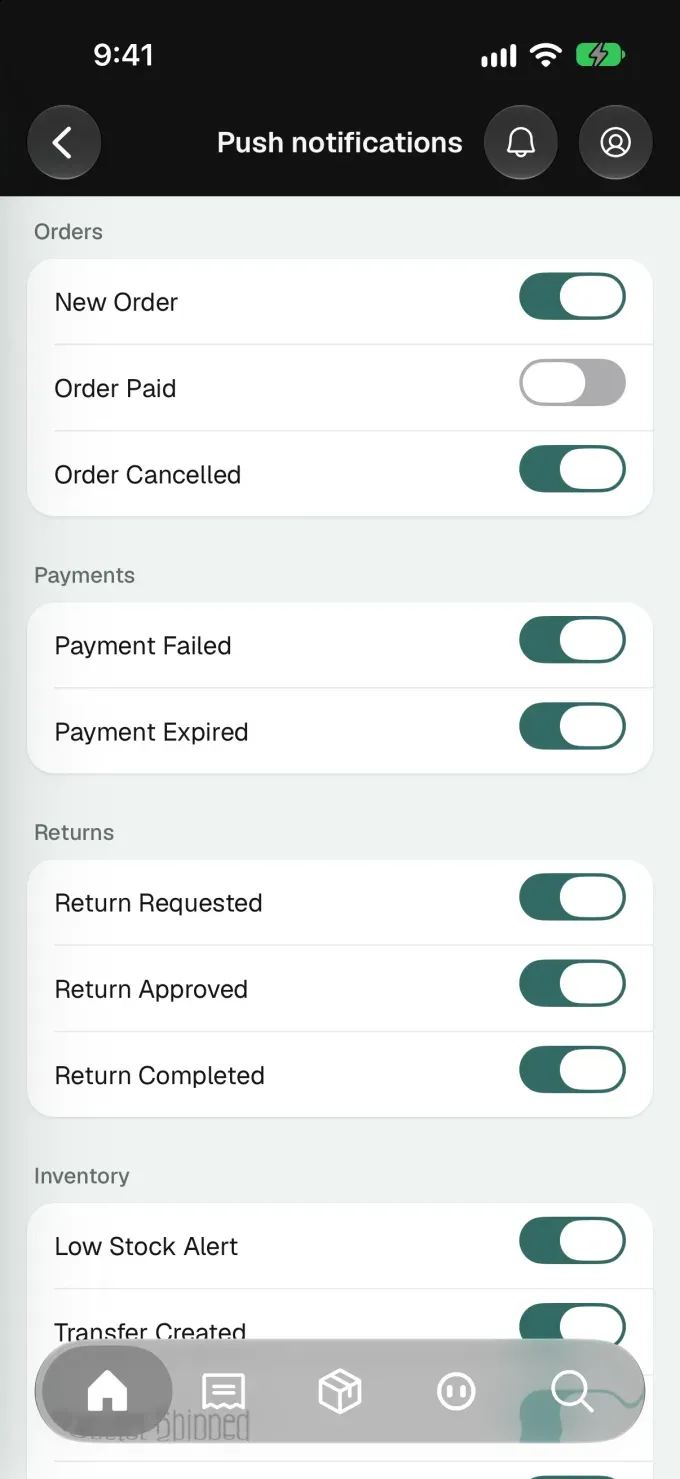
A kind you switch off here still shows in the bell's list in the app. A switch marked Turned off in the bell is set in the bell's own settings: go back one screen, tap Bell notifications, switch that kind on and tap Save Changes.
Note: On iPad, the menu is the sidebar on the left.
Choose the new order sound
- On the Push notifications screen, under New order sound, tap the play button beside Cha-ching, Standard or Silent to try it. A sample notification appears.
- Tap the sound you want. A tick marks it, and it plays on all your phones for this store.
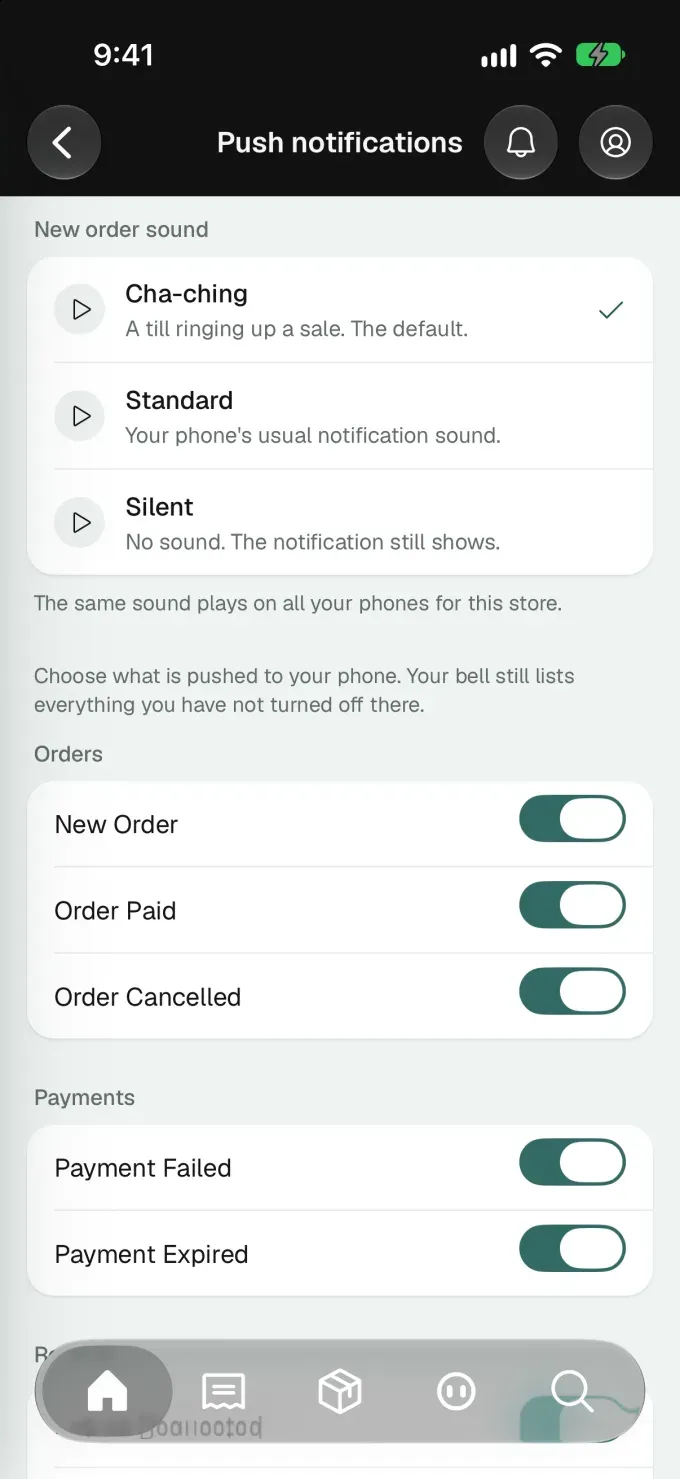
Send yourself a test
- On the Push notifications screen, scroll down to Test and tap Send a test push. A message at the bottom of the screen confirms it, such as Sent to 1 phone, and a sample new order notification arrives.
Open a notification
- Tap a notification on your phone. The Orbit Commerce app opens.
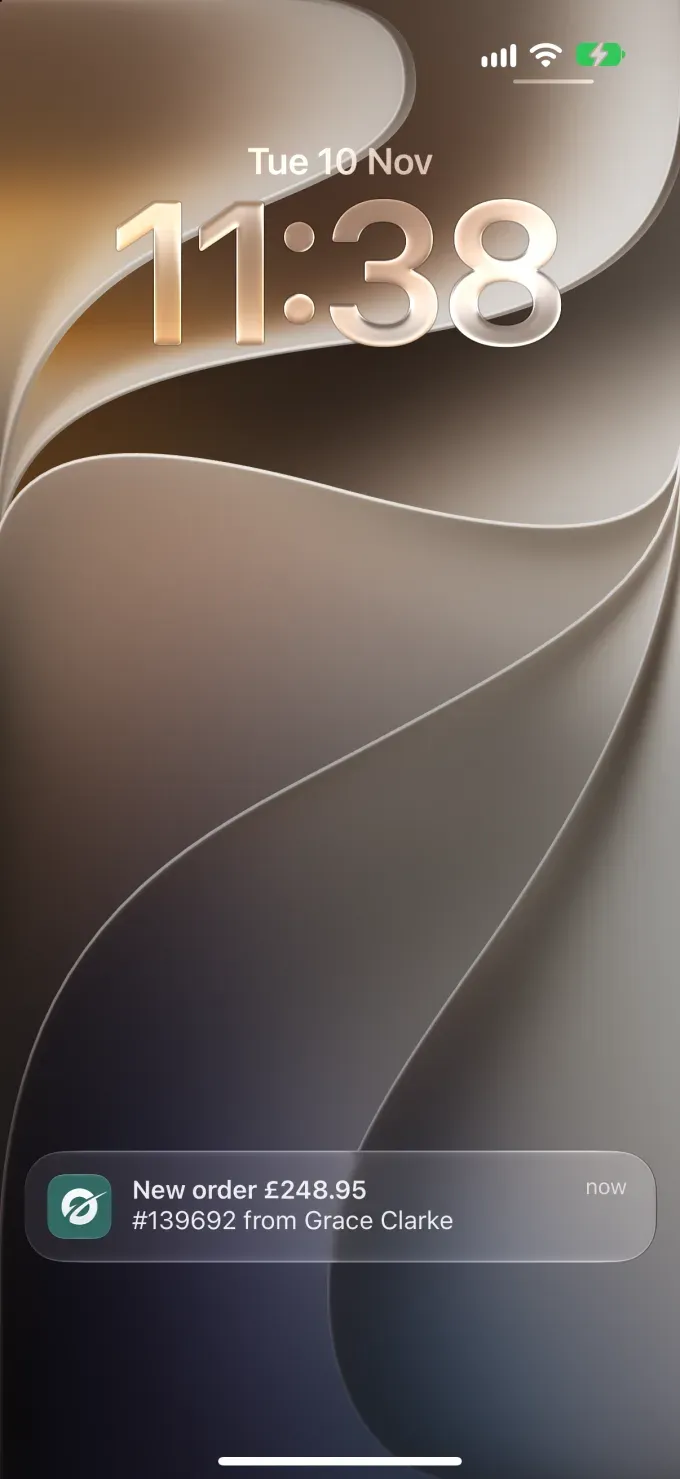
- An order notification opens the order, a return opens the return and a Live Chat message opens the conversation. Others open their own record when the app has a screen for it, or else the Notifications list.
The bell in the app lists the same notifications. See Using the notification centre.
Turn notifications back on
- In the Orbit Commerce app, tap the menu button at the top left, then tap Settings, then Notifications, then Push notifications. Under This phone, the row reads Notifications not allowed.
- Tap Open Settings. Your phone's Settings app opens. If it is not on the Orbit Commerce page, tap Apps near the bottom, then Orbit Commerce.
- In your iPhone's Settings app, tap Notifications, then switch on Allow Notifications. On Android, tap Notifications and switch them on.
- Go back to the app. The row now reads Notifications allowed.
Turn notifications off on one phone
Notifications for one phone are switched off in that phone's Settings app.
- In your iPhone's Settings app, tap Apps near the bottom, then Orbit Commerce, then Notifications. On Android, find Orbit Commerce in the Settings app and tap Notifications.
- On iPhone, switch off Allow Notifications. On Android, switch the notifications off.
A phone also stops getting them while you are signed out of the app on it.
Related guides
Was this helpful?
0 people found this helpful