What your customers can do in their account
A tour of the signed-in account area on your shop: the sections your customer gets, the ones that only show for some, and the parts you control.
Customers who sign in to your shop get an account area. It holds their orders, addresses, saved items and settings. It is the first place to send a customer who asks where their order is or how to change an address. This guide covers what your customer sees there, what reaches you, and what you can change.
What your customer sees
Signing in opens Overview. It greets your customer by first name and shows a card for each section they can open. Every store gets these sections:
- Orders: their past orders, newest first, ten to a page. They can track a shipment, download an invoice and ask for a return from here.
- Wishlist: the items they saved for later.
- Addresses: their shipping and billing addresses.
- Subscriptions: their recurring orders and renewal dates.
- Bookings: upcoming appointments and past visits.
- Settings: their name, phone, password and notification choices.
The ready-made account menu also carries a Log out item.
Sections that only show for some customers
- Loyalty: their points balance, history and rewards. Shows when the Loyalty Points plugin is installed on your store.
- Quote requests: the quotes they asked for and the status of each. Shows when quoting is turned on for your store.
- Company orders: orders placed across their company. Shows only for a customer who belongs to a company account.
- Company: shows only for a company contact who is allowed to manage the company. A plain buyer at that company never sees it.
What your customer can do
- Orders: open an order to see what they bought, ask to cancel it, request a return, or reorder the same items. Each row shows the order number, the date, the total, a status badge and the number of items.
- Addresses: click Add Address to add one. Each saved address has Edit, Set Default Shipping, Set Default Billing and Delete. Name, address, country, state or province, city, postal code and phone are all required.
- Subscriptions: Pause, Resume or Cancel a subscription, change the quantity, and pick another plan under Change plan. Cancelling asks for an optional reason, then ends the subscription at the next billing date.
- Settings: three tabs. Profile holds first name, last name and phone. Security holds Change Password and two-factor sign-in. Notifications holds switches for Marketing Emails, Transactional Updates (SMS) and Marketing SMS.
Note: Your customer cannot change their email address here. The field is locked. Order emails are marked Always on and cannot be switched off.
Stores that sell digital files also have a downloads page, at your store address followed by /account/downloads. It lists each file with its version, how many downloads are left, any expiry date, and a Download button. A file reads Available, Expired, Limit reached or Revoked. This page is not in the account menu, so link to it yourself if your customers need it.
What happens in your dashboard
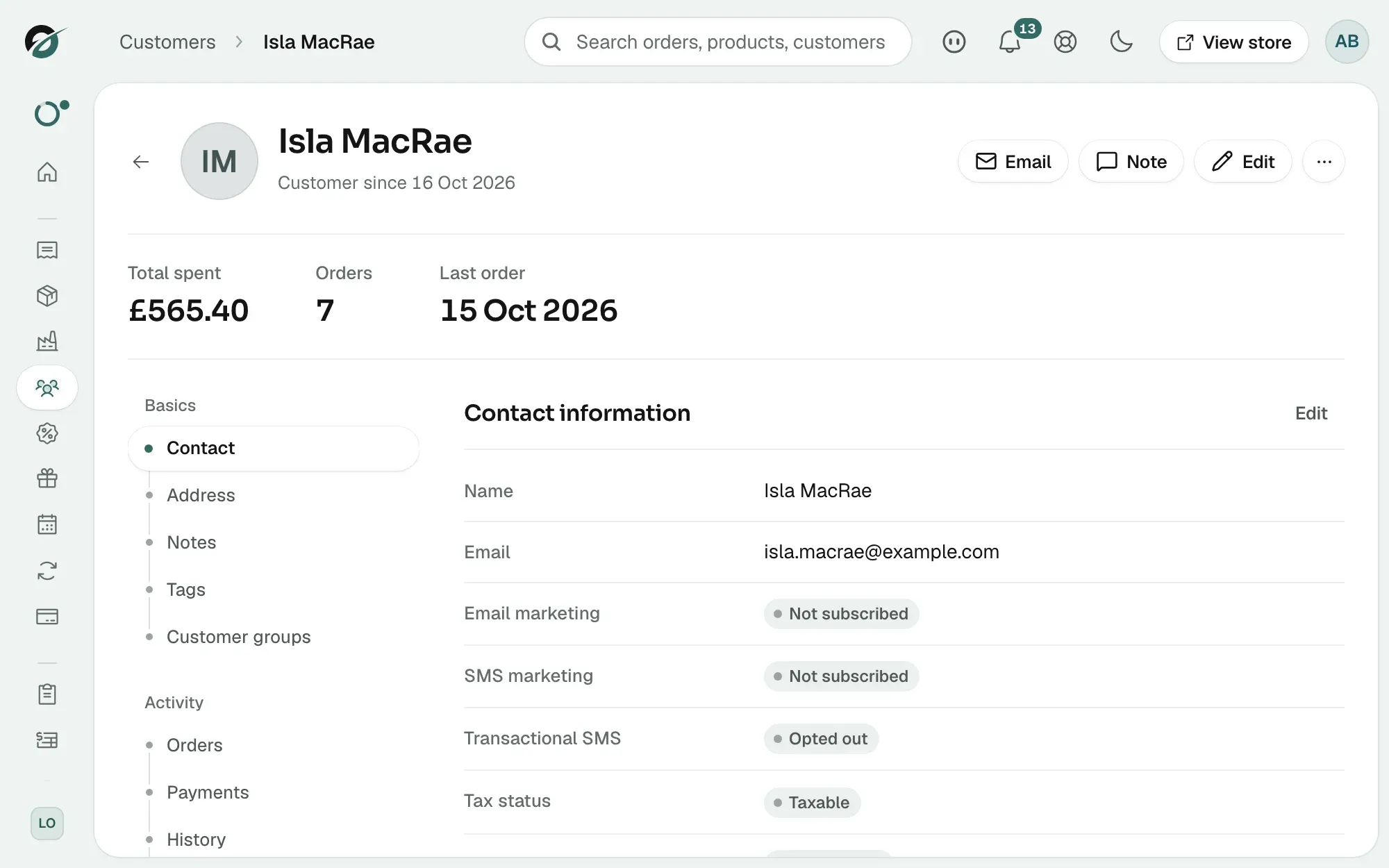
- Signing up creates a customer record. From your Orbit dashboard, go to Customers and open it to see their spend, their orders, their contact details and their account status.
- Addresses they add or edit sit on that same customer record.
- Orders they place arrive on your Orders page like any other order. A return they ask for shows as a return against the order.
- A subscription they pause, resume or cancel changes status on your Subscriptions page.
- Appointments they booked appear on your Bookings page.
- The marketing switches they set become the marketing consent held on their customer record.
What you can change
- The look of the account pages, and which items the account menu holds. See Designing your account dashboard.
- Which sections exist at all. Install the Loyalty Points plugin for Loyalty, and turn quoting on for Quote requests.
- What subscribers are allowed to do without asking you. See Letting customers manage their own subscriptions.
- Who has an account in the first place. See Inviting customers to create an account.
Tip: New account sections added to Orbit appear in the built-in account area and in the account menu you build in the page builder. You do not have to add them by hand.
Related guides
Was this helpful?
0 people found this helpful