Subscriptions

Subscriptions | General Overview

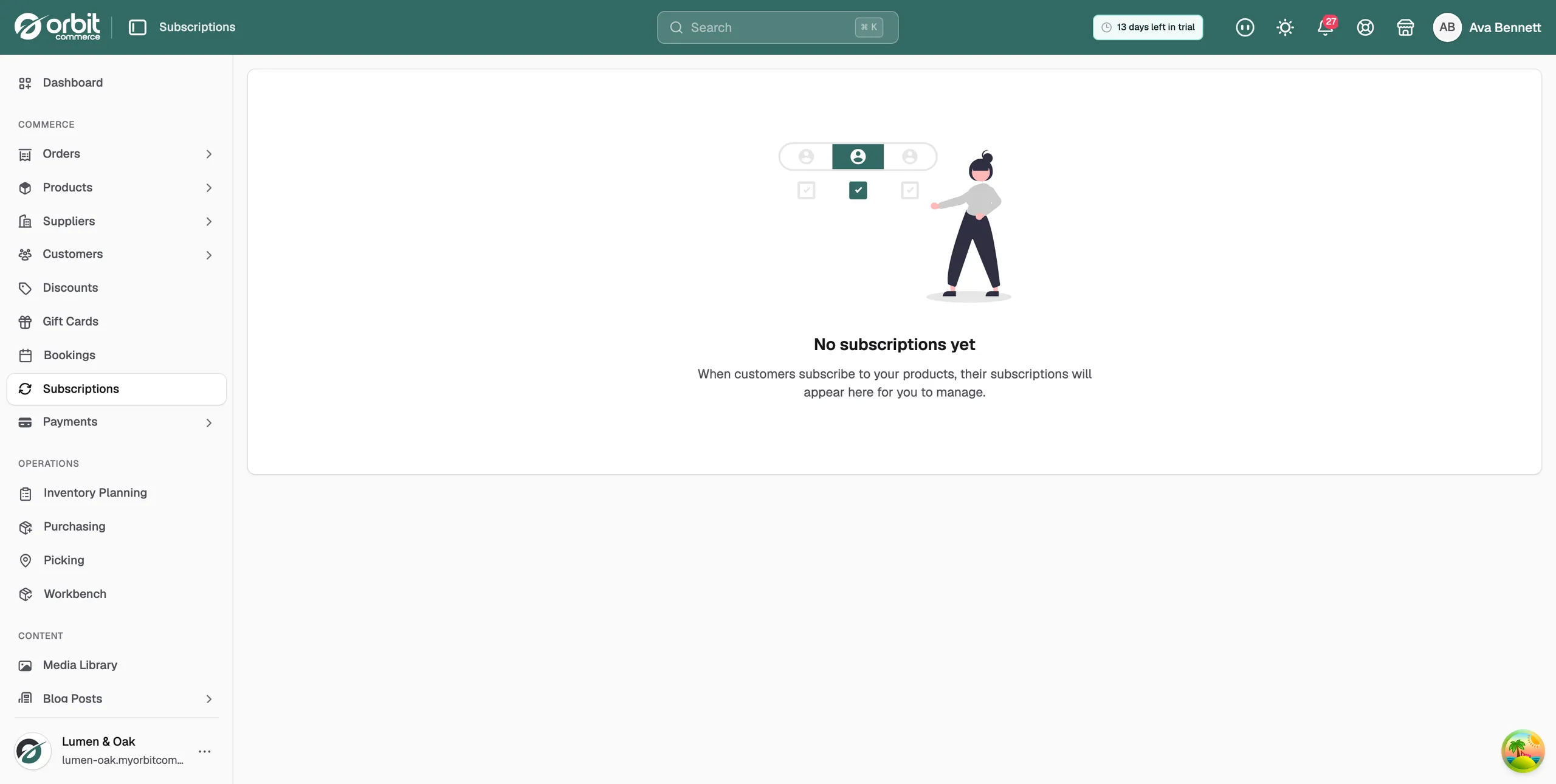
The Subscriptions section in Orbit allows you to monitor and manage your customers’ recurring orders in one place, track key revenue and retention metrics, and take action on individual or multiple subscriptions.

5 min read2viewsUpdated 18 June 2026Orbit Support Team

The Subscriptions section in Orbit allows you to monitor and manage your customers’ recurring orders in one place, track key revenue and retention metrics, and take action on individual or multiple subscriptions.

From here you can review headline analytics, follow revenue and churn trends over time, see why customers cancel, deal with failed payments, and search, filter, or update the subscriptions your customers hold. This is the store owner’s view of customer subscriptions, not your own Orbit billing plan.

Accessing Subscriptions

To access Subscriptions:

  • From the left-hand menu, go to Commerce.

  • Select Subscriptions.

The Subscriptions page will open, showing your analytics and the subscriptions table.

Analytics cards

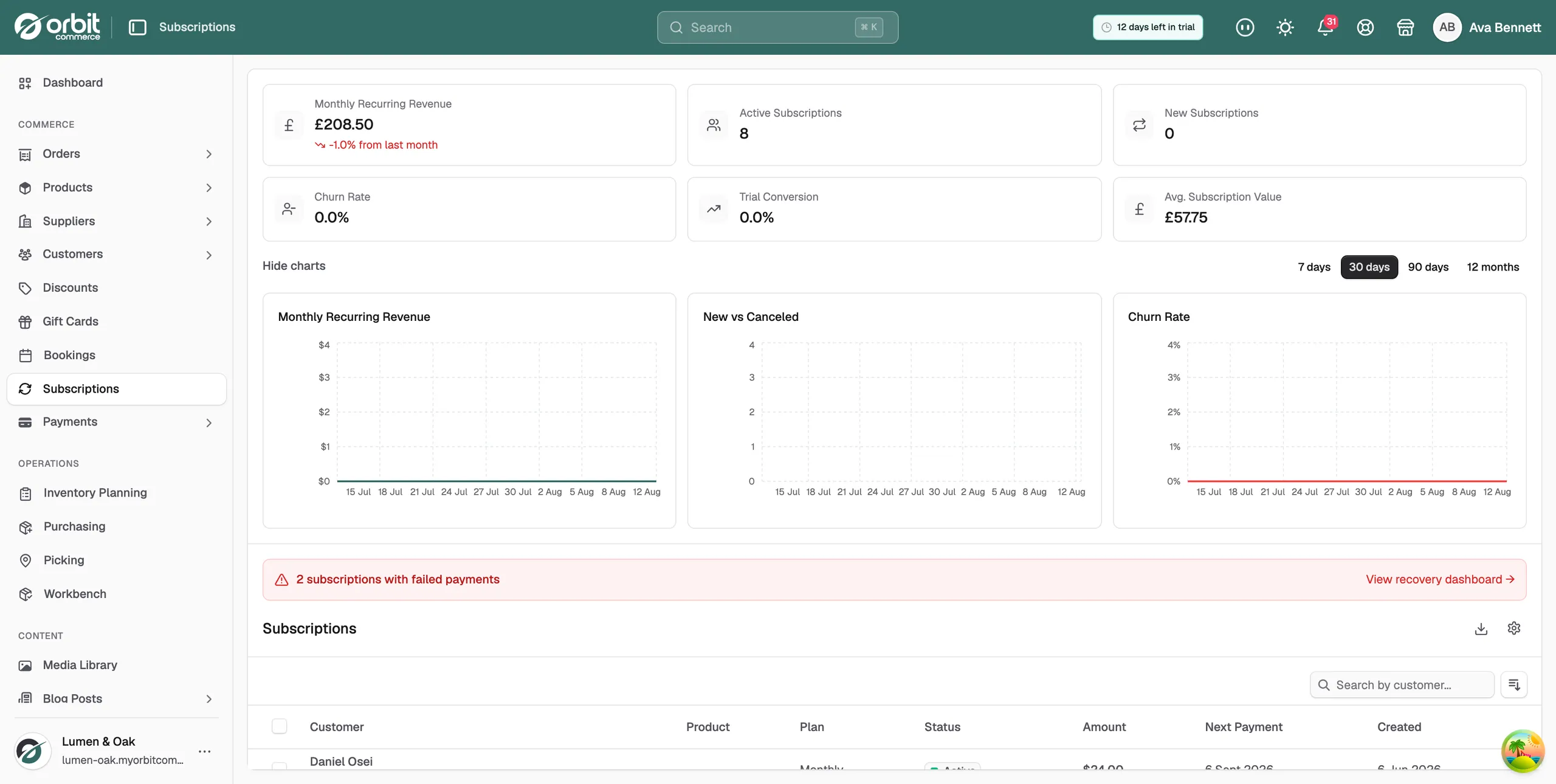
At the top of the page, a row of cards summarises how your subscriptions are performing:

  • Monthly Recurring Revenue — the predictable revenue your active subscriptions generate each month, with the change from last month.

  • Active Subscriptions — the number of subscriptions currently active.

  • New Subscriptions — the number of subscriptions started recently.

  • Churn Rate — the percentage of subscriptions lost over the period.

  • Trial Conversion — the percentage of trials that convert into paying subscriptions.

  • Avg. Subscription Value — the average value of a subscription.

Trend charts and date range

Below the cards, a set of trend charts shows how your subscriptions move over time: Monthly Recurring Revenue, New vs Canceled, and Churn Rate. Use the date-range toggle to switch the charts between the last 7 days, 30 days, 90 days, or 12 months. You can use Hide charts to collapse this area and Show charts to bring it back.

Cancellation Reasons

The Cancellation Reasons insight lists the reasons customers gave when cancelling, ranked by how often each was chosen, with a count and percentage for each. This helps you understand why customers leave and where you might improve.

Past-due alert

If any subscriptions have failed payments, a past-due alert appears showing how many are affected. Select it to open the Payment Recovery dashboard, where you can work through subscriptions whose payments need recovering.

Subscriptions overview

The subscriptions table lists every customer subscription. Each row shows:

  • Customer — the customer’s name and email address.

  • Product — the product the customer is subscribed to.

  • Plan — the subscription plan the customer is on.

  • Status — the current status, such as Active, Trialing, Past Due, Paused, Canceled, or Expired.

  • Amount — the recurring amount charged.

  • Next Payment — the date of the next scheduled payment.

  • Created — the date the subscription started.

Searching subscriptions

Use the Search field to find a subscription by customer. This is useful when you have a large number of subscriptions to look through.

Filtering by status

Use the status filter to narrow the table to a single status, such as Active or Past Due, or choose All Statuses to see everything.

Bulk actions

Tick the checkbox on one or more rows to reveal the bulk actions bar. Depending on the statuses you have selected, you can:

  • Pause — pause active subscriptions.

  • Resume — resume paused subscriptions.

  • Cancel — cancel active, trialing, or paused subscriptions.

You can also export the selected rows from the bulk actions bar using Export CSV.

Exporting

To export your subscriptions, click the download icon at the top of the page. The export honours your current search and status filter, so the file matches what you see in the table.

Subscription details

To manage a single subscription in more depth, select its row to open the subscription detail page. Detailed actions, such as changing a plan or viewing payment history, live there.

Why subscriptions are important

Recurring subscriptions give your store predictable, repeat revenue and a closer ongoing relationship with your customers. Keeping an eye on this section helps you spot problems early and act before they affect your revenue.

By using the Subscriptions section, you can:

  • Track recurring revenue, growth, and churn at a glance

  • Follow trends over time to see how your subscriptions are performing

  • Understand why customers cancel and act on it

  • Recover failed payments before subscriptions lapse

  • Pause, resume, or cancel subscriptions individually or in bulk

The Subscriptions section gives you a single place to keep your recurring revenue healthy and your customers’ subscriptions up to date.

If you have any questions, please contact us at support@orbitcommerce.net

Was this helpful?

0 people found this helpful