Editing products
Open a product, change its details, and save. Learn what each section of the product editor holds and the quick actions at the top.
You can change any detail of a product from the product editor. Open it from the Products page in your Orbit dashboard. Nothing changes on your storefront until you save.
Edit a product
- From your Orbit dashboard, go to Products.
- Click the product to open it.
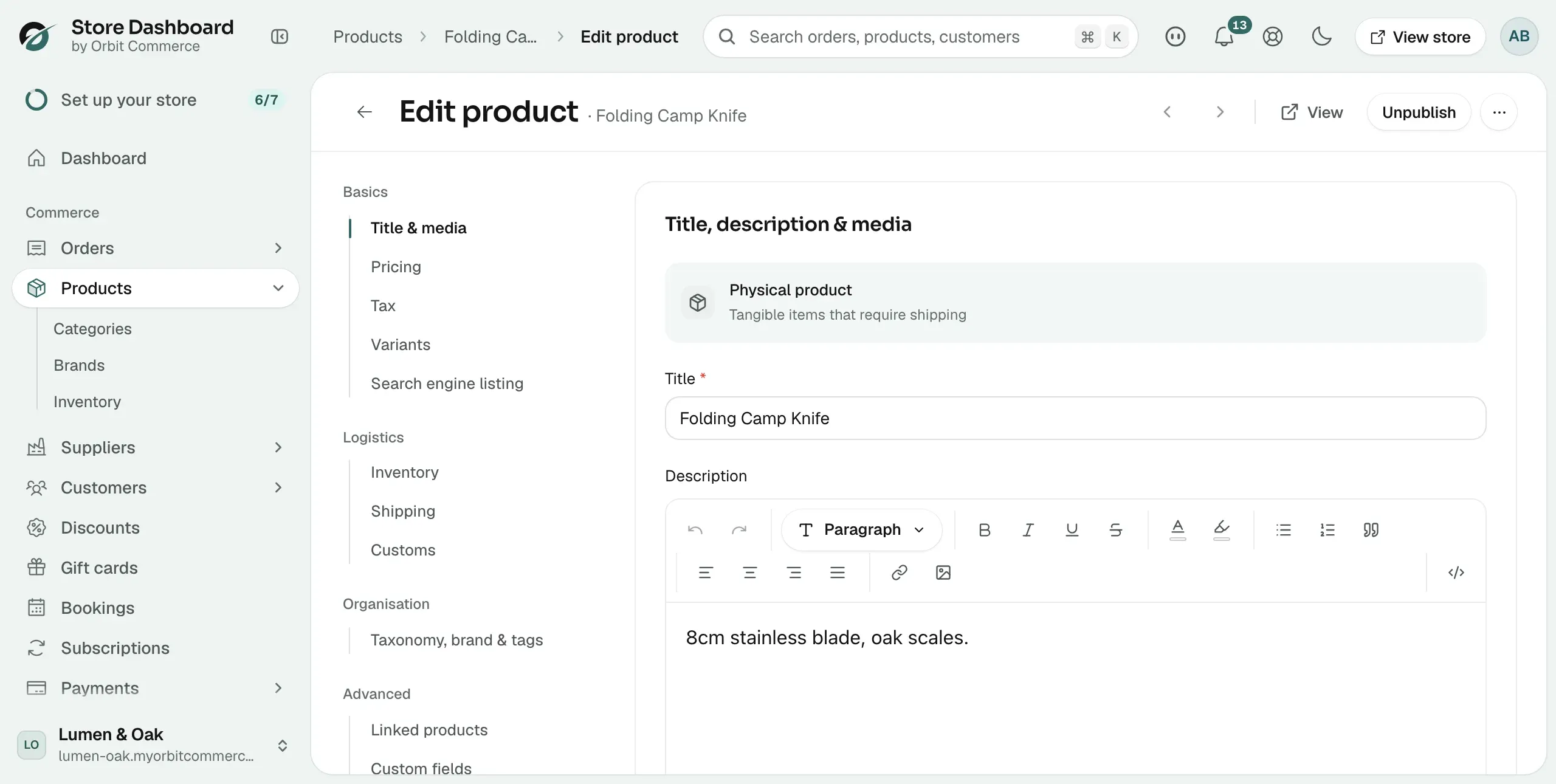
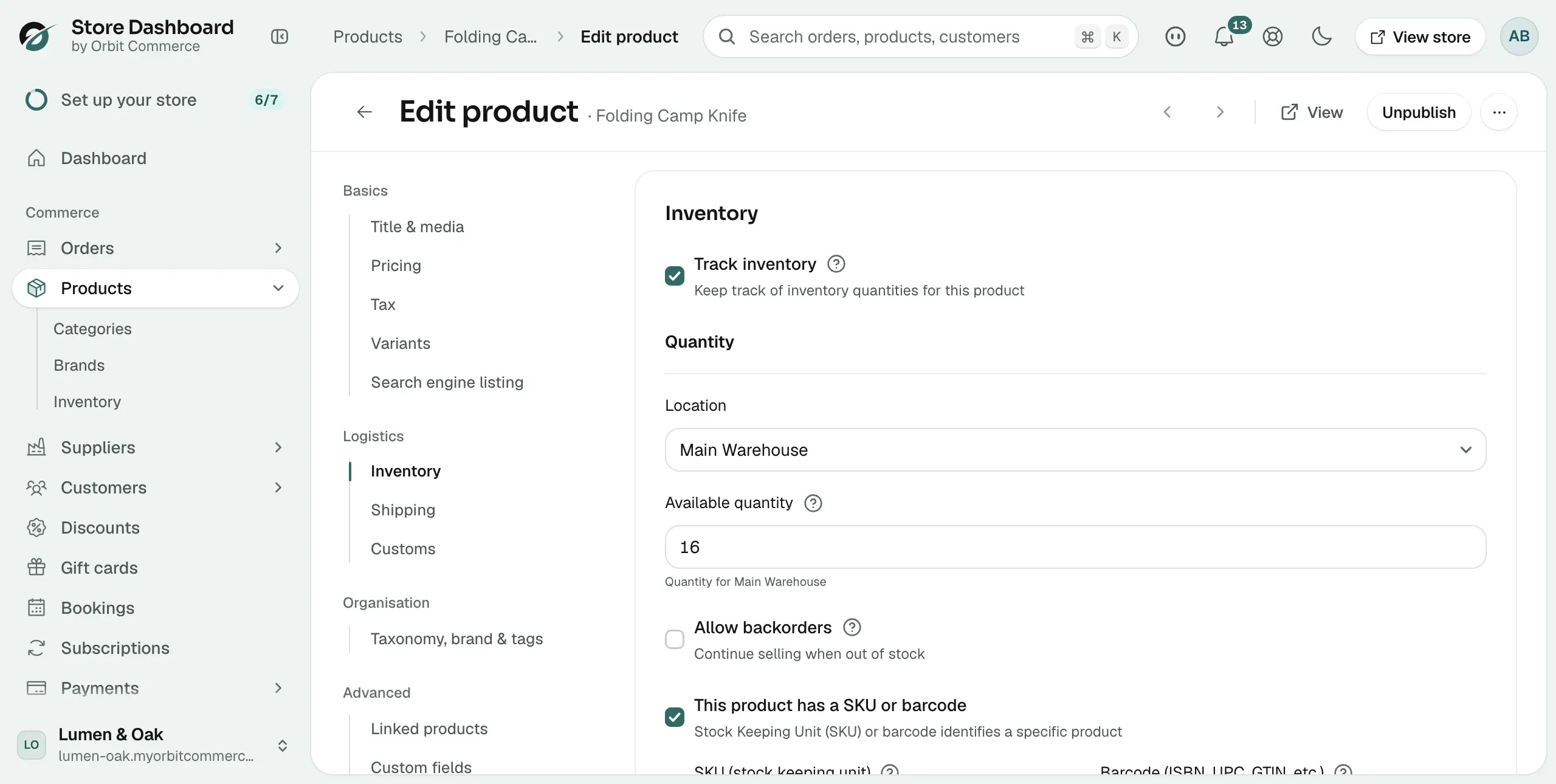
- In the left-hand menu, click the section you want to change, for example Inventory.
- Change the fields.
- An Unsaved changes bar appears. Click Save. To undo your changes instead, click Discard.
A message confirms the product was updated.
Sections of the product editor
The left-hand menu groups the product's details into sections:
- Basics: Title & media, Pricing, Variants, Tax and Search engine listing.
- Logistics: Inventory, Shipping and Customs.
- Organisation: Taxonomy, brand & tags.
- Advanced: Linked products, Custom fields and Activity.
- Type extras: only for digital, subscription, service and bundle products. See Choosing a product type.
- Plugins: sections added by installed plugins. Only shown when a plugin adds one.
Note: Pricing is hidden when a product has variants. Set the price on each variant instead. See Adding variants.
Quick actions at the top of the editor
- View or Preview: opens the product on your storefront. The button reads View when the product is active and Preview when it is a draft.
- Publish or Unpublish: puts the product on sale or takes it off sale. Prices, photos and stock stay as they are. See Product statuses and visibility.
- The left and right arrows: move to the previous or next product without going back to the list.
- The … menu: Schedule publish, Copy to new draft and Delete product. See Duplicating, scheduling and deleting products.
- The back arrow: returns to the product list.
Edit several products at once
- From your Orbit dashboard, go to Products.
- Tick the box next to each product. A bar of actions appears in place of the column headings.
- Click Bulk edit to change fields on all of them. Or click Set as active or Set as draft to change their status.
See Bulk editing products for the bulk editor.
Related guides
Was this helpful?
0 people found this helpful