Bulk editing products
Change a price, stock level or other field across many products at once in the Bulk editor, then check the grid and save everything together.
You can change one field across many products at once in the Bulk editor. It lays your products out as a spreadsheet, with a row for each product and a row for each variant. You open it from the Products page after you select the products you want to change.
Considerations
- The Bulk editor has no entry in the side menu. You open it from the Products page after you tick at least one product.
- Products with more than one variant open with their variant rows showing. Price, Compare at, Cost, SKU, Barcode and Qty sit on the variant rows, not on the product row.
- The editor sorts products by name, A to Z, whatever order you had on the Products page.
- A column edit applies to every product in the editor. Select only the products you mean to change before you open it.
- Nothing reaches your store until you click Save changes and then Close.
Open the Bulk editor
- From your Orbit dashboard, go to Products.
- Tick the box next to each product you want to edit. The column headings are replaced by a bar of bulk actions.
- To edit every product in your store, click the Select all link in the bar. It shows the number of products, for example Select all 7 in store. Every row is ticked. Click Unselect all to go back to a smaller selection.
- Click Bulk edit. The Bulk editor opens with the products you selected, sorted by name.
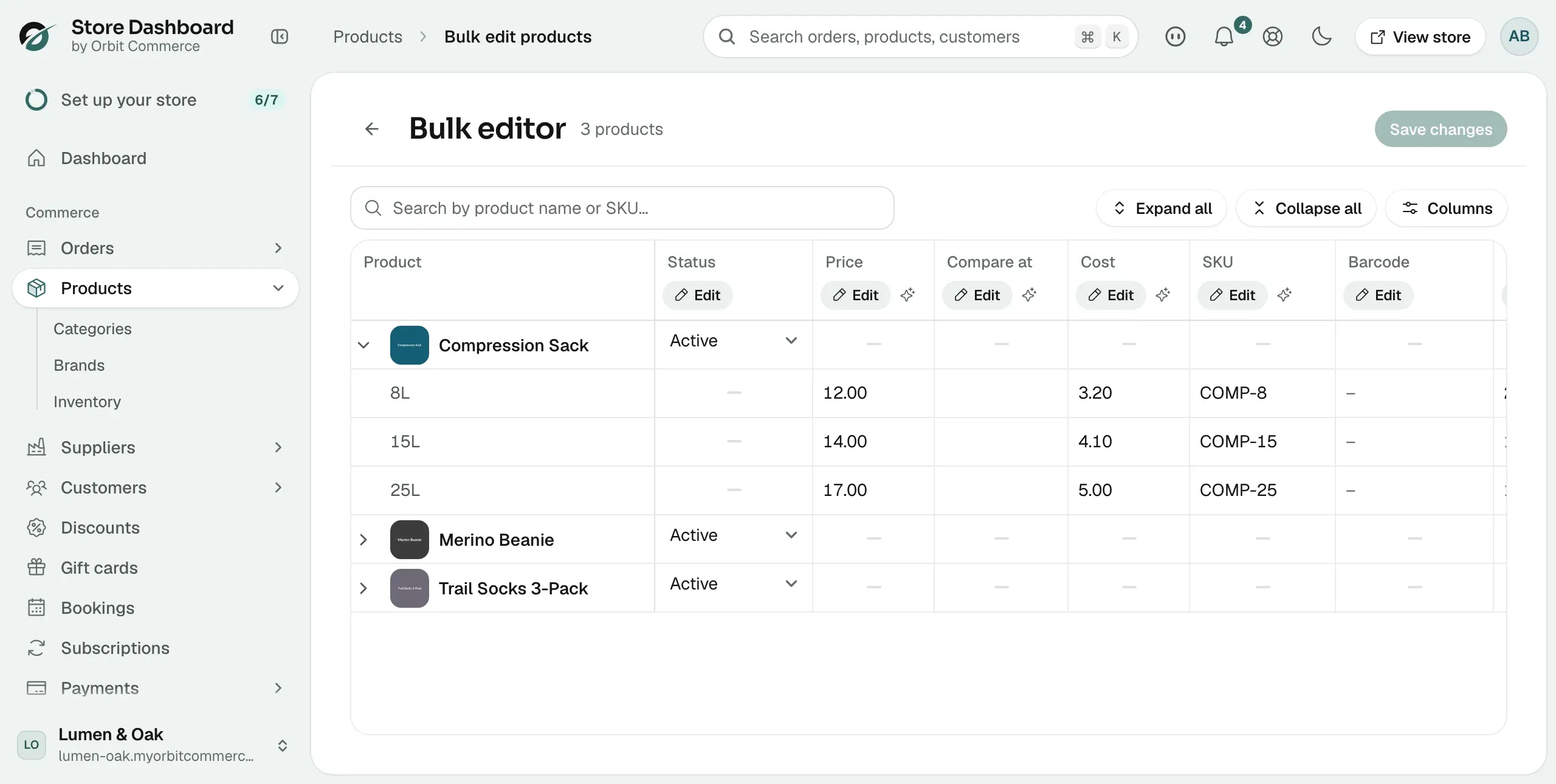
Find your way around the grid
The header shows how many products are loaded. Above the grid you can:
- Search by product name or SKU: type to narrow the grid to matching rows. A count of matches appears beside the box.
- Expand all and Collapse all: show or hide the variant rows under each product.
- Columns: tick the columns you want to see and drag them into order. The Product column is pinned. Click Reset to defaults to put them back.
The columns, from left to right:
- Product: the product name, with a chevron to open or close its variants.
- Status: Active, Draft or Archived.
- Price: the selling price.
- Compare at: the higher price shown crossed out next to the selling price.
- Cost: what the item costs you.
- SKU: your stock code.
- Barcode: the barcode number.
- Qty: the stock quantity.
- Track inventory: Tracked or Not tracked.
- Inventory policy: Deny or Continue selling when stock runs out.
- Weight: the shipping weight.
- Brand: the brand the product belongs to.
- Custom type: a type label of your own.
- Shipping class: the shipping class the product uses.
- Tax class: the tax class the product uses.
- Charge VAT: whether VAT is charged on the product.
- Taxonomy: where the product sits in your catalogue tree.
- Tags: the tags on the product.
- SEO title and SEO desc: the title and description search engines show.
- Search visibility: Visible or Hidden in your store's search.
A short grey dash means that cell cannot be edited on that row. For example, a product with several variants has no price of its own.
Change one field across every product
Each column heading except Product has an Edit button. It sets that field on every product or variant in the editor in one go.
- Click Edit under the column heading, for example under Price. A dialog opens.
- Choose what to change. For prices, pick Regular price, Sale price or Cost price.
- Choose how to change it. For prices the options are Set new, Increase by %, Decrease by %, Increase by value and Decrease by value.
- Enter the amount, for example 10 for a 10% rise.
- Check the line that reads This will affect. It tells you how many products and variants will change.
- Click Update. The changed cells are highlighted, and the header shows how many changes are waiting to be saved.
Note: The count in the header is the number of cells changed, not products. A price change on seven products with 214 variants shows 214 unsaved changes.
Other columns have their own options in the dialog:
- Stock: Replace, Increase by or Decrease by an amount.
- SKU and Barcode: Replace all, Add prefix or Add suffix.
- Weight: Set to, Increase by or Decrease by.
- Tags: Add tags, Remove tags or Replace all tags.
- SEO title and SEO desc: Replace all, Find and replace or Clear all.
- Status, Track inventory, Inventory policy, Search visibility, Brand, Custom type, Shipping class, Tax class and Taxonomy: pick one value to set on all products.
Edit a single cell
The grid works like a spreadsheet, so you can also change one value at a time.
- Click the cell you want to change.
- Type the new value. For a column like Status, pick from the list instead.
- Press Enter. The cell is highlighted. Press Escape to put the old value back.
Tip: You can change a column with Edit, then fix the odd cell by hand before you save. Editing a cell you already changed does not add to the count.
Save your changes
- Click Save changes. The button shows the number of changes in brackets.
- Wait while the dialog reads Saving changes. When it reads Save complete, your products are updated.
- Click Close. The highlights clear and the grid shows the saved values.
Until you click Close, the header still counts the changes as unsaved.
To throw away every unsaved change, click Discard changes. If you leave the page with unsaved changes, Orbit warns you first.
Warning: Discard changes clears all your unsaved edits at once. There is no confirmation step.
Related guides
Was this helpful?
0 people found this helpful