Adding variants
Set up sizes, colours and other options on one product, so each variant has its own price, SKU and stock. Covers adding, editing and bulk editing variants.
You can add variants to a product that comes in more than one version, such as size or colour. Each variant has its own price, SKU, barcode and stock. You set them up in the Variants section of the product editor in your Orbit dashboard.
Considerations
- An option is a way the product can vary, such as Size. A value is one choice within an option, such as 1000mm. A variant is one combination of values that a customer can buy.
- Orbit makes a variant for every combination of values. Two sizes and eight colours make 16 variants.
- A product with variants has no single price. When you tick This product has variants, the Pricing section leaves the page. Each variant carries its own price.
- New variants copy the price you typed before you ticked the box. Their SKU and barcode start empty and their stock starts at 0.
- Stock for a product with variants is set per variant in the Variants section, not in the Inventory section. All variants use the same inventory location.
Add variants to a product
- From your Orbit dashboard, go to Products.
- Click Add product, or open a product you already have.
- Enter a Title and a Price. Every variant copies this price.
- In the left-hand list, click Variants.
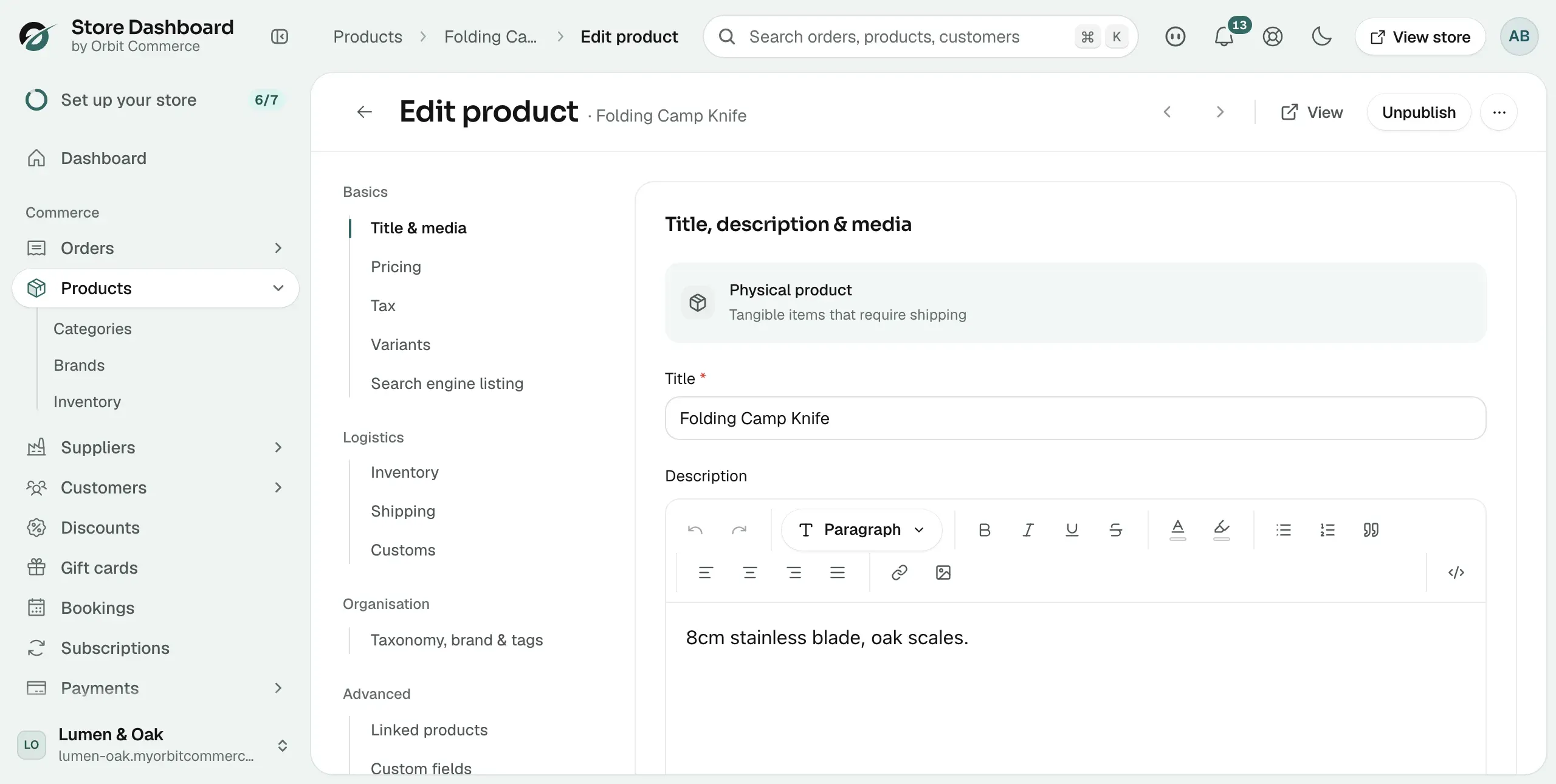
- Tick This product has variants. The Pricing section disappears from the page.
- Click Add options like size or colour. The first option is already named Size. Change the Option name if you need a different one.
- Under Option values, type a value and press Enter, or click +. Repeat for each value, for example 1000mm and 2000mm.
- To add a second option, click Add another option. The second option is named Colour. Change it if you prefer, then add its values.
- Scroll down to the Variant options table. Orbit has made a row for every combination. Rows are grouped by your first option. Click a group to open it.
- Enter a SKU and the stock you hold in Inventory for each row. Change the Price or Compare at price on any row that needs it.
- Click Publish, or Save draft to come back later. Shoppers can now pick a size and colour on the product page.
Note: Option values can use letters, numbers, spaces, commas, hyphens and brackets. Other characters, such as &, are removed when you type them.
The Variant options table
The table lists every variant. It has these columns:
- Image: the picture shown when a customer picks this variant.
- Variant: the combination of values, for example 1000mm / White.
- Price and Compare at: what the customer pays, and the higher price shown crossed out next to it.
- SKU and Barcode: the codes that identify this variant. See Adding SKUs and barcodes.
- Inventory: the stock you hold for this variant.
Above the table, use Group by to group the rows by a different option. Expand all and Collapse all open or close every group. The search icon opens a box that finds a variant by name, SKU or barcode. Add variant adds a row that the option values do not already cover.
Add values to an existing option
- From your Orbit dashboard, go to Products.
- Open the product.
- In the left-hand list, click Variants.
- Click the option to open it. Under Option values, type the new value and press Enter, or click +.
- Orbit adds a row to the Variant options table for each new combination. Your existing variants keep their SKU, price and stock.
- Enter the price, SKU and stock for each new row.
- Click Save on the Unsaved changes bar at the bottom right.
To remove a value, click Remove value next to it. To remove a whole option and its values, click Delete option.
Warning: A variant you delete is removed when you click Save. Until then you can click Undo delete on its row.
Edit a single variant
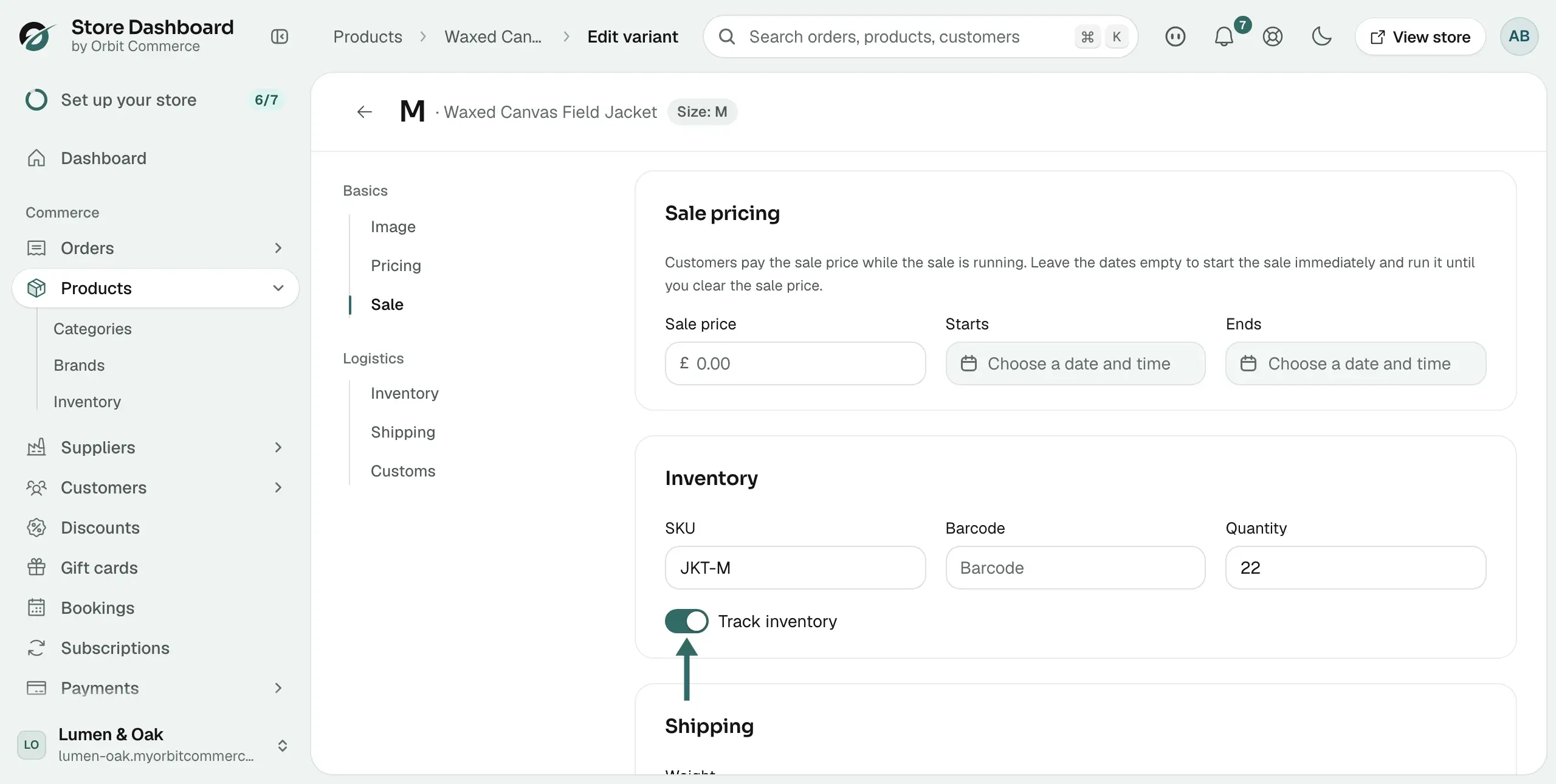
Each variant has its own page. Use it when one variant needs its own image, sale price, weight or customs details.
- From your Orbit dashboard, go to Products.
- Open the product, then click Variants in the left-hand list.
- In the Variant options table, click the variant's name. The variant page opens.
- Edit the sections you need:
- Image: the picture for this variant.
- Pricing: Price, Compare at price and Cost per item.
- Sale: a Sale price and the dates it Starts and Ends.
- Inventory: SKU, Barcode, Quantity and Track inventory.
- Shipping: Weight, Dimensions and Shipping class.
- Customs: customs details for this variant, if they differ from the product.
- Click Save.
Note: The variant name only opens a page once the product has been saved. On a new product, edit the row in the table instead.
Bulk edit variants
There are three ways to change many variants at once.
- Set all: each group row in the Variant options table has a Set all box for Price and Compare at. Type a value there to apply it to every variant in that group.
- Apply price to all and Apply compare-at price to all: the buttons under the table copy the product price to every variant.
- Bulk edit: tick the box on each row you want to change, then click Bulk edit. The Bulk editor opens with those variants in a grid. See Bulk editing products.
Related guides
Was this helpful?
0 people found this helpful