Duplicating, scheduling and deleting products
Archive a product, move it to the Trash, restore it within 7 days or delete it for good. Also covers what Copy to new draft and Schedule publish do today.
You can schedule a product to go live later, and archive or delete products from the product list in your Orbit dashboard. Deleted products go to the Trash for 7 days, where you can restore them. Copying a product is not yet available.
Considerations
- Deleted products stay in the Trash for 7 days. After that they are deleted for good.
- Deleting a product does not change past orders. Your order history is kept.
- Archiving hides a product from your storefront and from the product list. All its data is kept.
- You can tick more than one product and archive, delete or restore them together.
Copy a product
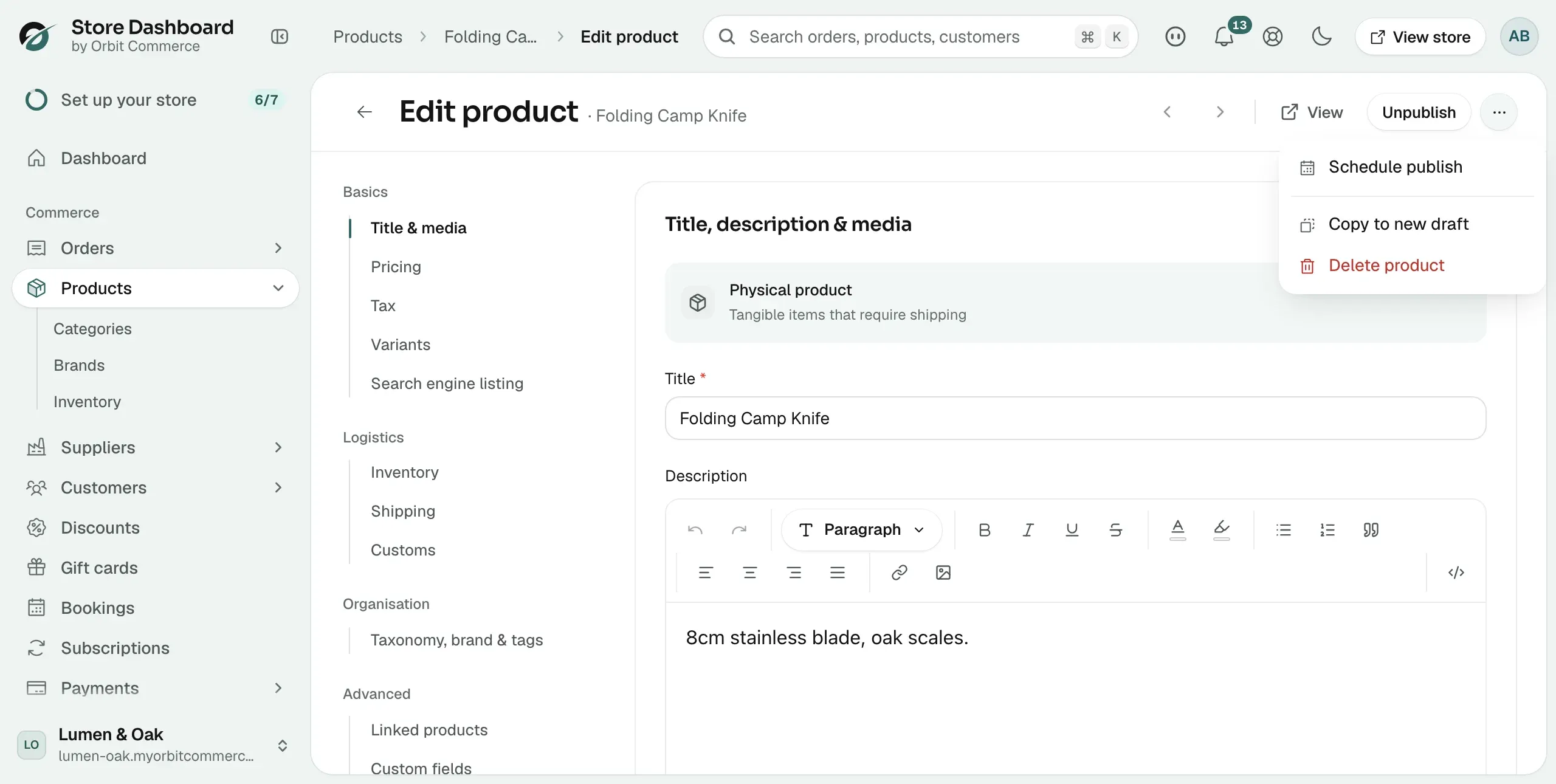
The … menu at the top right of the product editor has a Copy to new draft option. It is not yet available. If you click it, you see the message "This functionality is not yet implemented." and no copy is made.
Tip: To make a similar product, create a new product and enter the details again. See Creating a product.
Schedule a product
The same menu has a Schedule publish option. It sets a date and time for the product to go live.
- From your Orbit dashboard, go to Products and open the product.
- Click the … button at the top right of the product editor, then click Schedule publish.
- Pick the date and time you want the product to go live.
- Click Schedule. The product is saved and its status changes to Scheduled.
The product goes live at that time without any more work from you. See Product statuses and visibility.
Archive a product
- From your Orbit dashboard, go to Products.
- Tick the box next to the product. A bar of actions appears in place of the column headings.
- Click the … button at the right of the bar.
- Click Archive products.
- Click Archive product to confirm.
The product's status changes to Archived. It is hidden from your storefront and from the product list. To find it again, click Add filter and filter by status.
Delete a product
- From your Orbit dashboard, go to Products.
- Tick the box next to the product you want to delete.
- Click the … button at the right of the bar.
- Click Delete products.
- Click Move to trash to confirm.
The product leaves the list. The Trash button at the top of the list now shows a count, for example Trash (1).
Restore a deleted product
- From your Orbit dashboard, go to Products.
- Click Trash at the top of the list. The Trashed column shows the date each product was deleted.
- Tick the box next to the product.
- Click Restore.
- Click Restore again to confirm.
The product returns to your catalogue with the same status, images, variants, pricing and stock as before. Click Products to go back to the main list.
A restored product keeps the status it had when you deleted it. If it was a draft, it is still a draft. To put it on sale, tick it and click Set as active, then click Set as active to confirm.
Delete a product permanently
Warning: This cannot be undone. Your order history is kept, but the product and its variants, images, pricing and stock records are deleted forever.
- From your Orbit dashboard, go to Products.
- Click Trash at the top of the list.
- Tick the box next to the product.
- Click Delete permanently.
- Click Delete forever to confirm.
To clear the whole Trash at once, click Empty trash above the list, then click Empty trash to confirm.
Related guides
Was this helpful?
0 people found this helpful