Creating a product
Add a new product from the Products page, fill in each section of the New product page, then save it as a draft or publish it to your store.
You can add a new product to your store from the Products page in your Orbit dashboard. A product needs a title and a price to go live. You can add photos, variants, stock, shipping details and search settings on the same page, then save it as a draft or publish it.
Considerations
- Only Title and Price are required to publish. A draft can be saved without a price. You can fill in the rest later.
- Choose the product type with care. You cannot change it after the product is created.
- The sections on the page change with the product type. This guide covers a physical product.
- A product with variants has no Pricing section. Each variant carries its own price.
Add a new product
- From your Orbit dashboard, go to Products.
- Click Add product. The New product page opens.
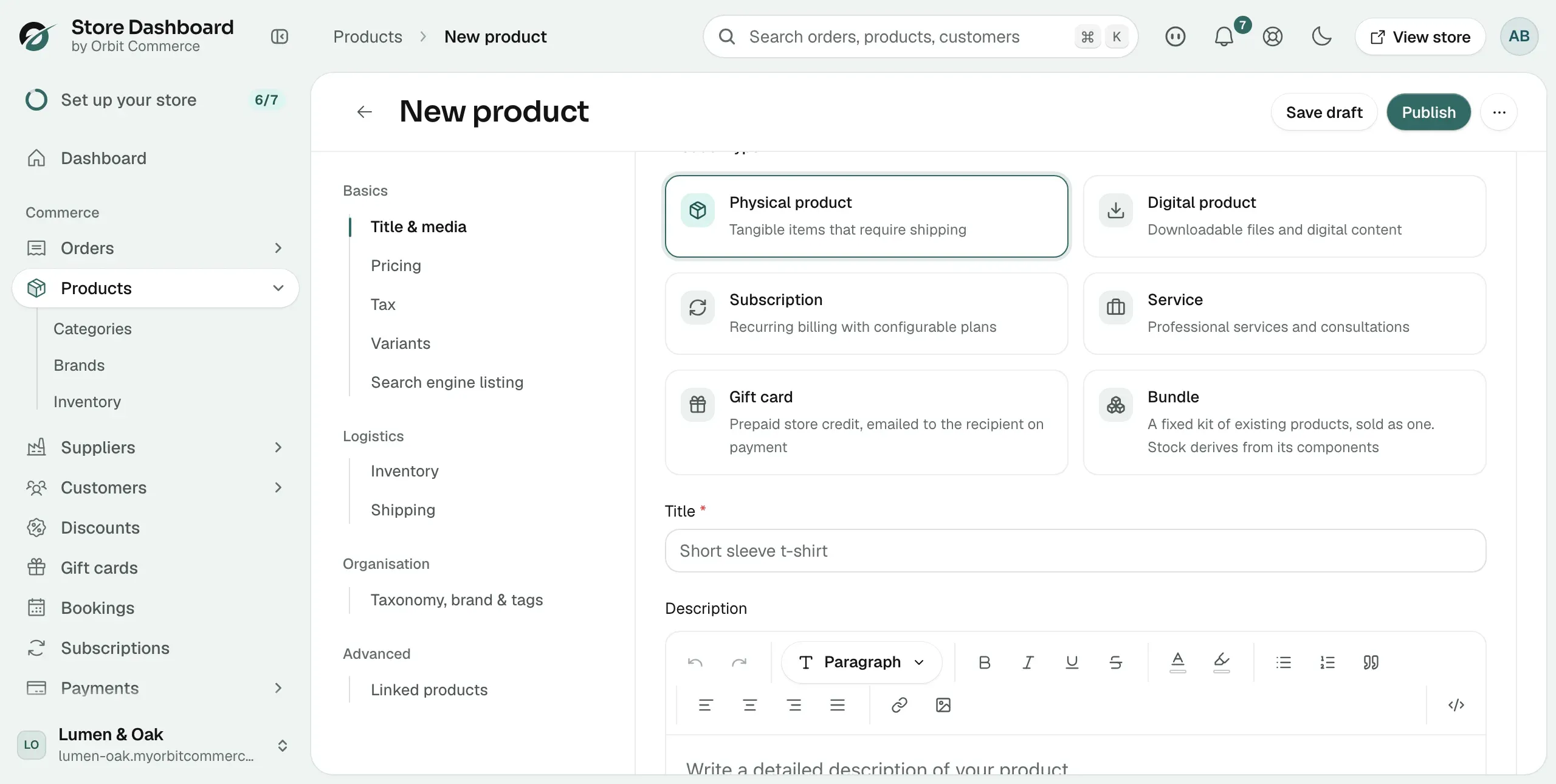
- Under Product type, check that Physical product is selected. It is selected by default.
- Enter a Title. Use the name a shopper would search for.
- Enter a Description. Say what the product is and why a shopper would want it.
- Under Media, click Upload new and choose your photos. The first image is the cover image.
- Open Pricing and enter the Price.
- Fill in the other sections you need. Each one is described below.
- Click Publish to make the product live, or Save draft to come back to it later.
Sections of the New product page
The sections are listed down the left of the page under Basics, Logistics, Organisation and Advanced. Click a name to jump to that section.
Title & media
- Product type: what you are selling. Choose from Physical product, Digital product, Subscription, Service, Gift card or Bundle.
- Title: the product name shown in your store. Required.
- Description: the full product text. You can add headings, lists, links and images.
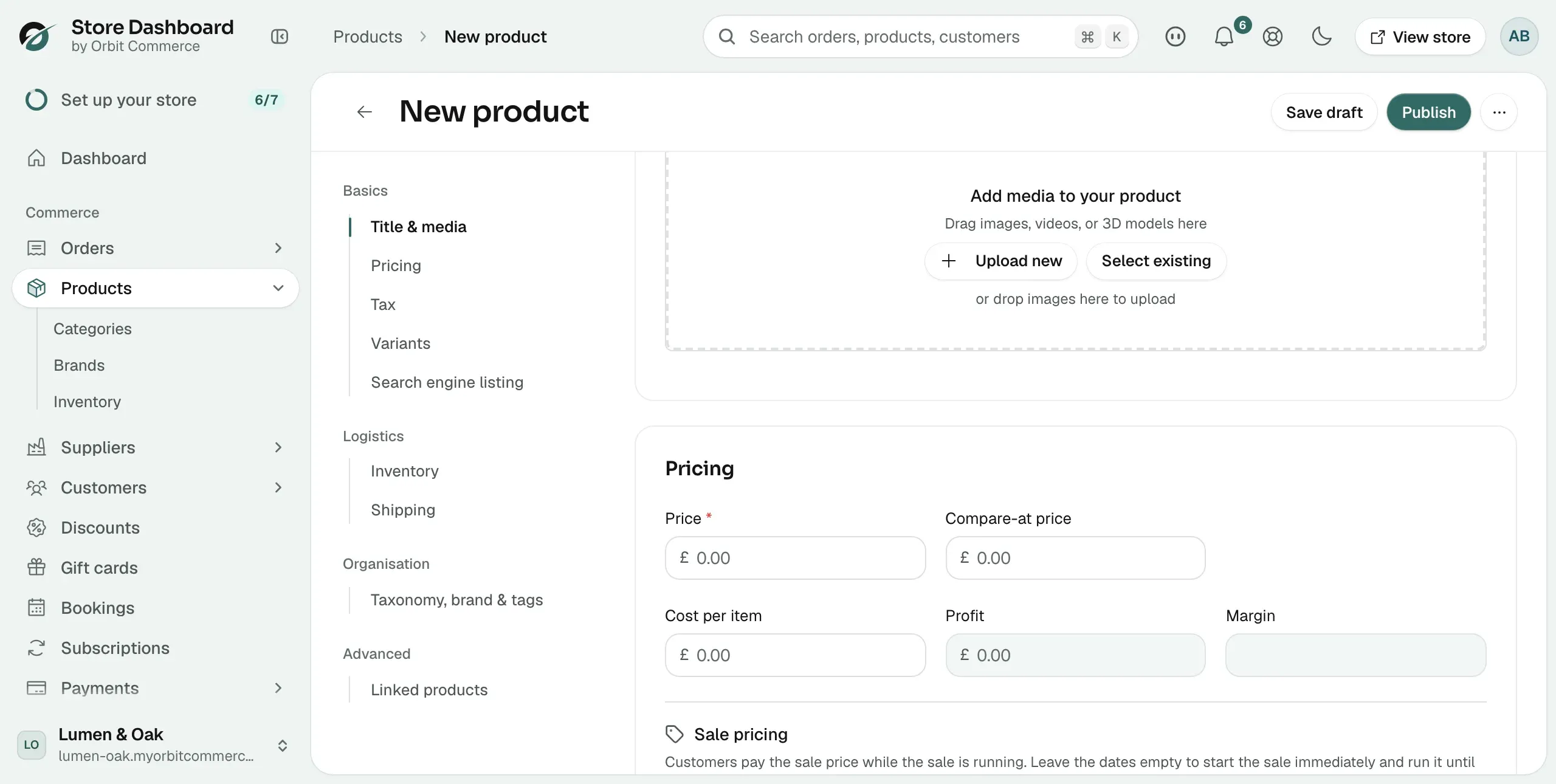
- Media: photos, videos or 3D models. Click Upload new to add files, or Select existing to pick from your media library. You can also drop images onto the box.
Pricing
- Price: what the customer pays. Required.
- Compare-at price: the old or usual price. It shows next to the price so customers see the saving.
- Cost per item: what the product costs you.
- Profit and Margin: worked out for you once you enter a cost per item.
- Sale price, Starts and Ends: run a sale for a set time. Leave the dates empty to start the sale straight away.
Tax
- Charge VAT on this product: on by default. Turn it off only for products you never charge VAT on, such as VAT-exempt items.
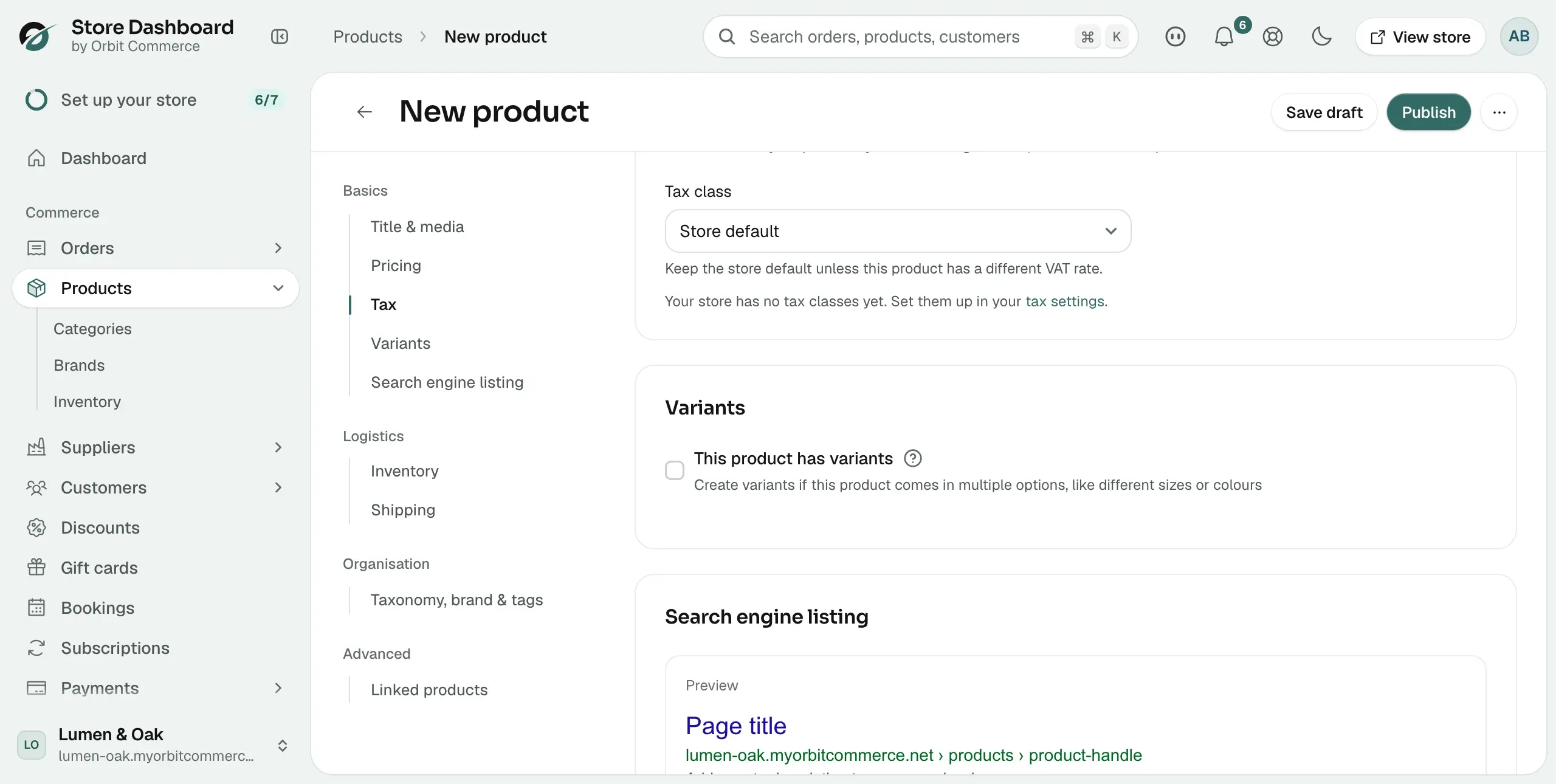
- Tax class: decides which VAT rate is charged at checkout. Keep the store default unless the product has a different rate.
Variants
Tick This product has variants if the product comes in more than one option, such as size or colour. Click Add options like size or colour, then enter an Option name and its Option values. Orbit creates a variant for each choice. Each variant can have its own price, image and stock level.
Search engine listing
- Page title: the heading shown in search results. Up to 70 characters.
- Meta description: the summary shown under the heading. Up to 160 characters.
- URL and handle: the last part of the product's web address.
- Hide from search results: keeps the product out of your store's search. It still shows on category pages and by direct link.
A preview at the top of the section shows how the listing looks on Google.
Inventory
- Track inventory: counts stock down as orders come in. It is on by default.
- Available quantity: how many you have. For a product with variants, set the quantity on each variant instead.
- Location: where the stock is held.
- Allow backorders: keep selling when stock reaches zero.
Note: The SKU and Barcode fields appear when you tick This product has a SKU or barcode, and only when the product has no variants. With variants, set them on each variant.
Shipping
- This is a physical product: ticked for a physical product. It shows the fields below. To sell something you do not post, choose another product type, such as Digital product or Service.
- Weight: in kg, g, lb or oz. Used to work out delivery rates.
- Dimensions: the Width, Length and Height of the parcel.
- Shipping class: groups products that ship the same way.
Taxonomy, brand & tags
- Product taxonomy: the standard product group it belongs to.
- Custom type: your own type label.
- Brand: the maker. Search for a brand or create one.
- Tags: short labels that help with filters and search.
- Categories: where the product sits in your store's menu.
Linked products
- Upsells: products you suggest instead of this one, such as a better or dearer version.
- Cross-sells: products you suggest in the cart to go with this one.
Save as a draft or publish
The buttons at the top right of the page control whether the product is live.
- Save draft: saves your work. The product is not shown in your store. You can come back and finish it later.
- Publish: makes the product live in your store straight away.
- Schedule publish: click the three dots next to Publish and pick a date and time for the product to go live, then click Schedule.
After you click Publish, a Product created message appears and the Edit product page opens. From there you can click View to see the product in your store, or Unpublish to take it down.
Tip: You can edit and republish a product at any time. Nothing you enter here is final.
Related guides
Was this helpful?
0 people found this helpful