Adding columns
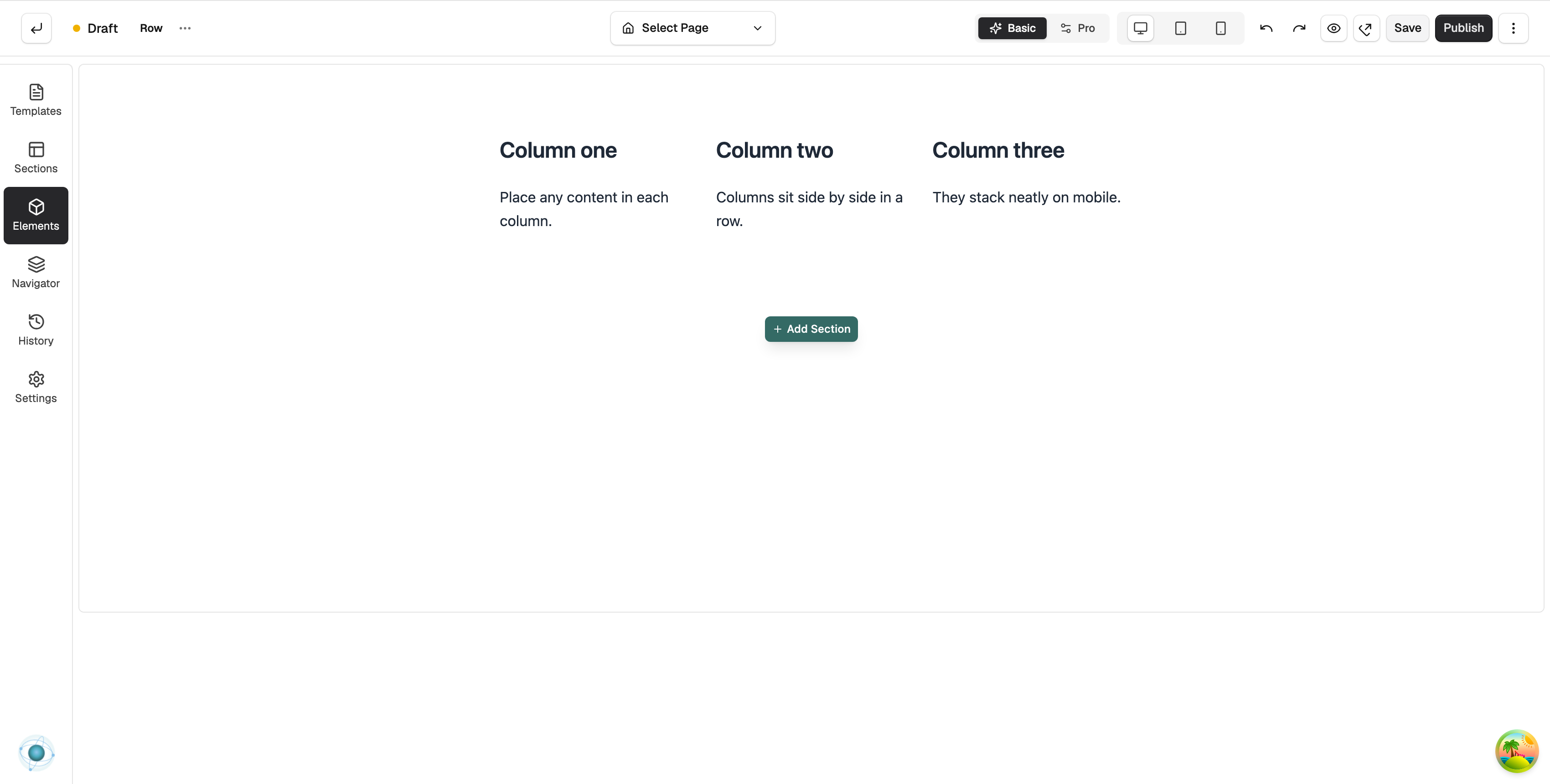
Place content side by side with the Columns element. Pick a column structure, drop elements into each column and set how they line up.
2 min read14viewsUpdated 12 October 2026Orbit Support Team
The Columns element splits a section so you can put content side by side, such as an image next to text, or three features in a row. You build it up by dropping other elements into each column.
Considerations
- The Structure group only shows when the builder is in Pro mode. Use the Basic and Pro toggle in the toolbar.
- Columns has no content of its own. Each column is a container for the elements you drop into it.
Add the element
- From your Orbit dashboard, go to Storefront, then Pages, and open the page you want to edit.
- In the toolbox on the far left, click Elements.
- Open the Structure group and find Columns, or search for it.
- Drag it onto the canvas and drop it where you want it.
- The element shows Choose a column structure. Click the layout you want: two equal columns, one third and two thirds, two thirds and one third, three equal columns or four equal columns. The columns are created.
- Drag elements from the Elements panel into each column.
Settings
Click the Columns element and open the Content tab.
- Width Type and Max Width: how wide the whole row can be.
- Height Type and Min Height: the smallest height the row can be.
- Direction: Row puts columns side by side. Column stacks them.
- Horizontal Align and Vertical Align: where the columns sit inside the row.
- Wrap: lets columns drop onto a new line when there is not enough room.
- Gap: the space between columns.
To change the width of one column, click that column and set Width Type and Width under Column Size.
The Design tab has Background, Border, Shadow and Spacing.
Tip: To change how columns stack on smaller screens, switch to tablet or mobile using the device icons in the toolbar, then change Direction or Wrap for that device.
Related guides
Was this helpful?
0 people found this helpful