Adding a section
Add a full-width Section to hold other elements, set it to boxed or full width, choose its height and alignment, and style its background.
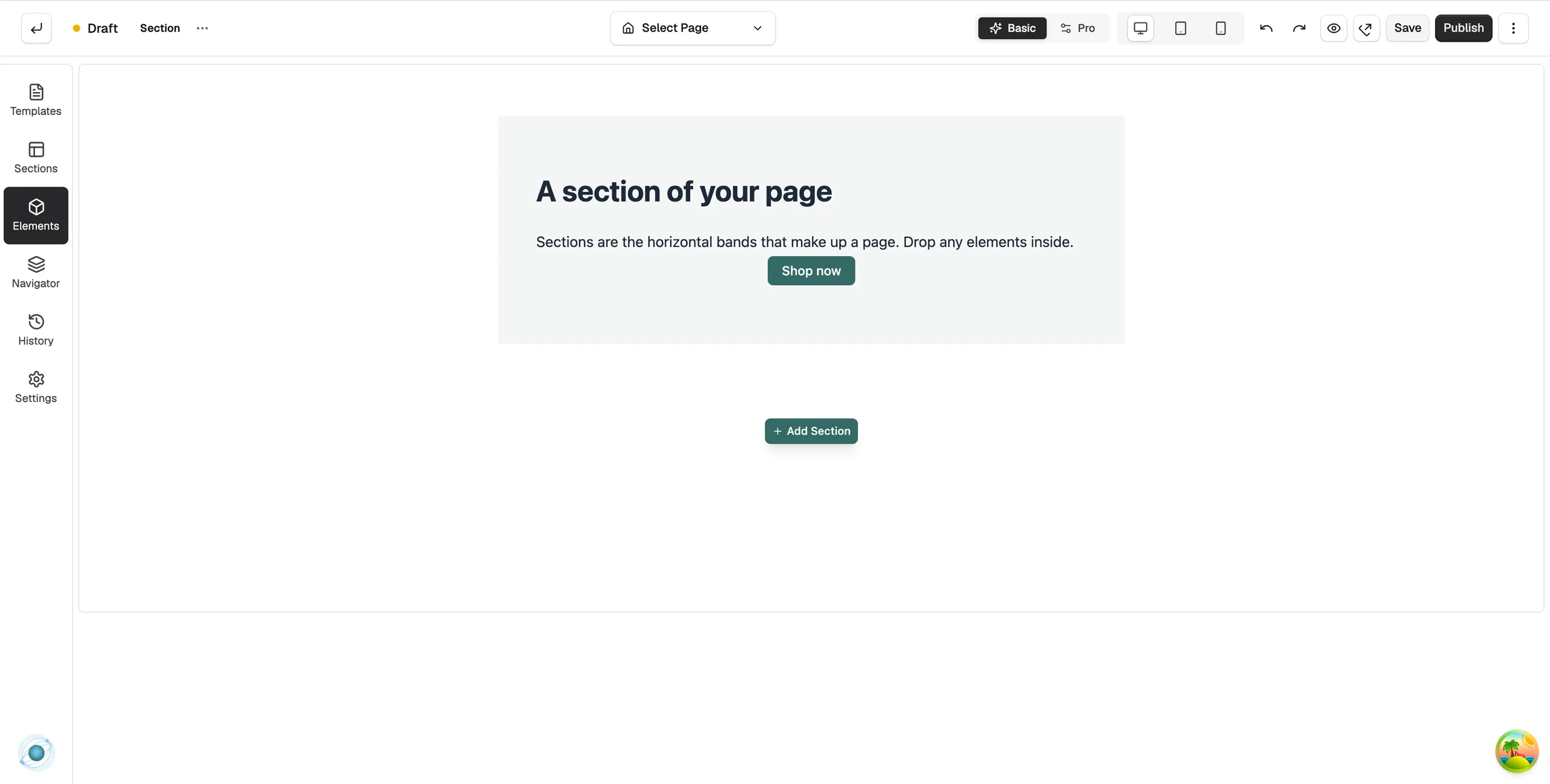
A Section is a full-width band that holds other elements. A page is a stack of sections: a hero, a row of features, a call to action. Most elements sit inside one.
Considerations
- The Section element lives in the Structure group, which only shows in Pro mode. Switch from Basic mode to Pro mode with the toggle in the toolbar.
- In Basic mode you rarely need to add one. Drop any element at the bottom of a page and Orbit wraps it in a section of its own.
- A Section has no content of its own. Its first settings tab is called Layout, not Content.
Add the element
- Open the page in the page builder. For your homepage, go to Storefront, then Themes, and click Customize.
- Switch to Pro mode using the toggle in the toolbar.
- In the toolbox on the left, click Elements.
- Open the Structure group and find Section, or search for it.
- Drag it onto the canvas and drop it where you want it.
- Drag other elements into it, such as headings, text, images and buttons.
Layout settings
Click the section to open its settings. Under Layout:
- Type: Default follows the theme, Boxed limits the content to a set Width, Full Width spans the page.
- Height Type: Auto fits the content, Min Height sets a least height, Fit to Screen fills the screen.
Under Alignment, Horizontal Align and Vertical Align place the content inside the section: Stretch, Start, Center, End, Space Between or Space Around. These can be set per device.
Design settings
The Design tab has groups for Background (a colour or image), Border, Shadow and Spacing. Use them to make each band on the page look distinct. For the tabs in full, see Using the element settings panel.
Related guides
Was this helpful?
0 people found this helpful