Using the Navigator
Open the Navigator to see your page as a tree, then select, reorder, hide, rename or delete any section, column or element from it.
The Navigator lists every section, column and element on your page as a tree. Use it to select things that are hard to click on the canvas, to move them, and to hide, rename or delete them. It is most useful on long pages with lots of nested columns.
Open the Navigator
- Open the page in the page builder.
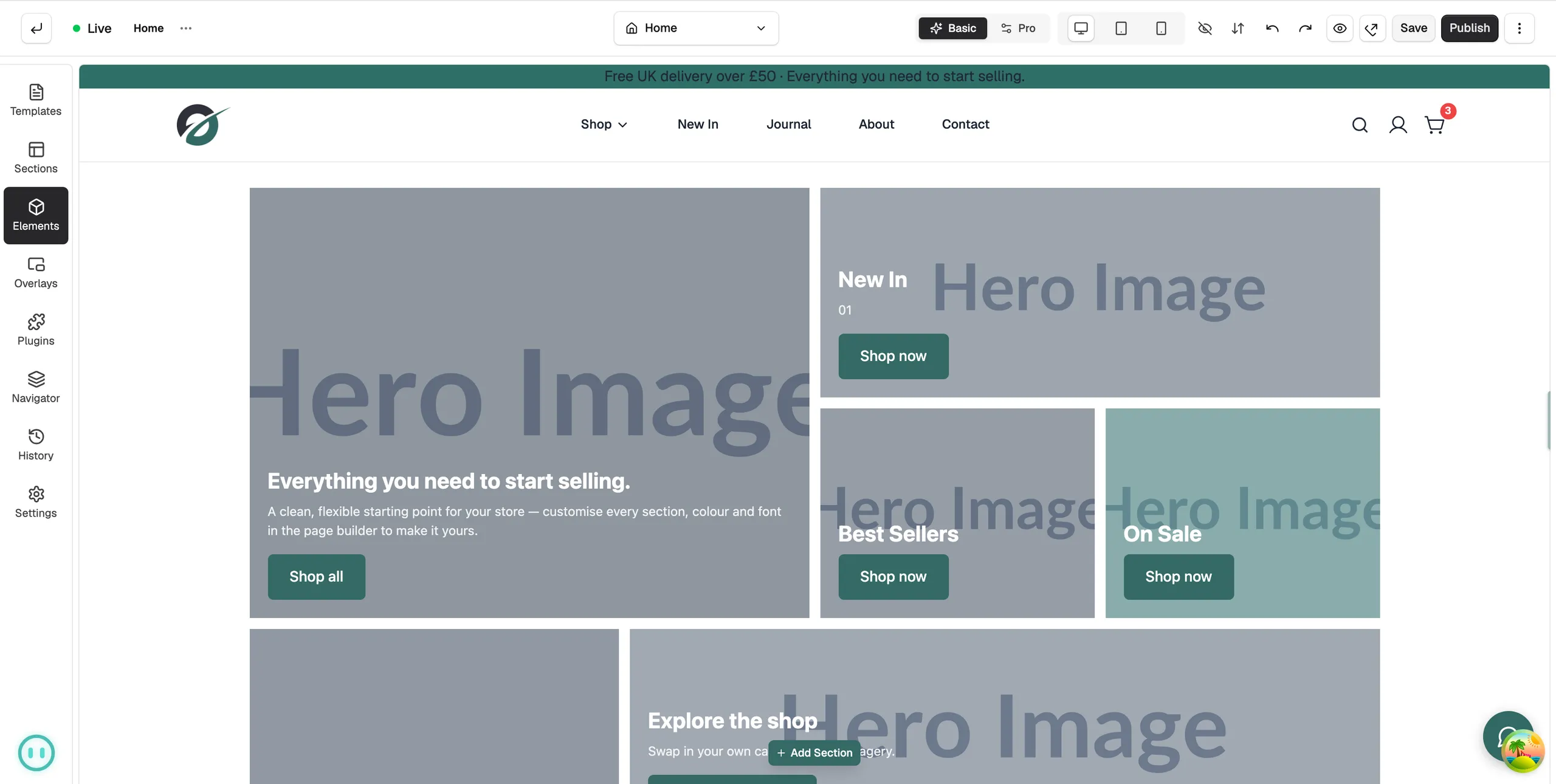
- In the toolbox on the far left, click Navigator. The Page Structure panel opens.
The tree matches your page. Sections sit at the top level, columns inside them, and elements inside those. Click the arrow next to an item to open or close it. A small badge shows how many items are inside.
- Expand All and Collapse All: the two buttons at the top right open or close every branch.
- Search: type part of a name to show only matching items. Matches are highlighted. Click the × to clear the search.
Select an element
- In the tree, click the name of the item.
- It is selected on the canvas and its settings open on the right.
Tip: Use this to pick a section background or an empty column. On the canvas those are easy to miss.
Reorder elements
There are two ways to move an item.
- Drag: hover the item. A grip handle appears on its left. Drag it up or down the tree, or into another section or column. A green line shows where it will land.
- Keyboard: click the item, then press Ctrl+↑ or Ctrl+↓ to move it up or down. On a Mac, use Cmd.
You cannot drop an item inside one of its own children.
Hide, rename, duplicate or delete an element
Hover an item in the tree. Two controls appear on its right.
- Hide element from canvas (the eye): hides the item on the canvas while you work. Its name shows crossed out. Click the eye again to show it.
- More actions (the three dots): opens a menu with Edit, Duplicate, Rename and Delete.
- To rename an item, click Rename, type the new name and press OK.
- To remove an item, click Delete, then confirm. You can bring it back with Undo if you change your mind.
Note: You cannot delete the only column in a row. Delete the row instead.
Related guides
Was this helpful?
0 people found this helpful