Adding and arranging elements
Open the Elements panel, drag an element onto the canvas, select it, and move it up, down or into another section.
Elements are the parts you build a page from: headings, text, buttons, images, product grids and more. You add them from the toolbox in the page builder, then arrange them on the canvas.
Considerations
- The page builder opens in Basic mode. Basic hides the Structure and Advance groups, and search will not find the elements in them. Click Pro at the top to switch modes.
- In Basic mode you cannot drag an element that is already on the page. Use Move up and Move down instead, or switch to Pro.
- Some groups only appear on the template they belong to, such as Single Product on a product template and Cart Page on a cart template.
Open the Elements panel
- Open the page in the page builder.
- In the toolbox on the far left, click Elements. The panel opens over the canvas, headed Add elements.
- Click a group to see what is in it, or type in Search elements... to find one by name.
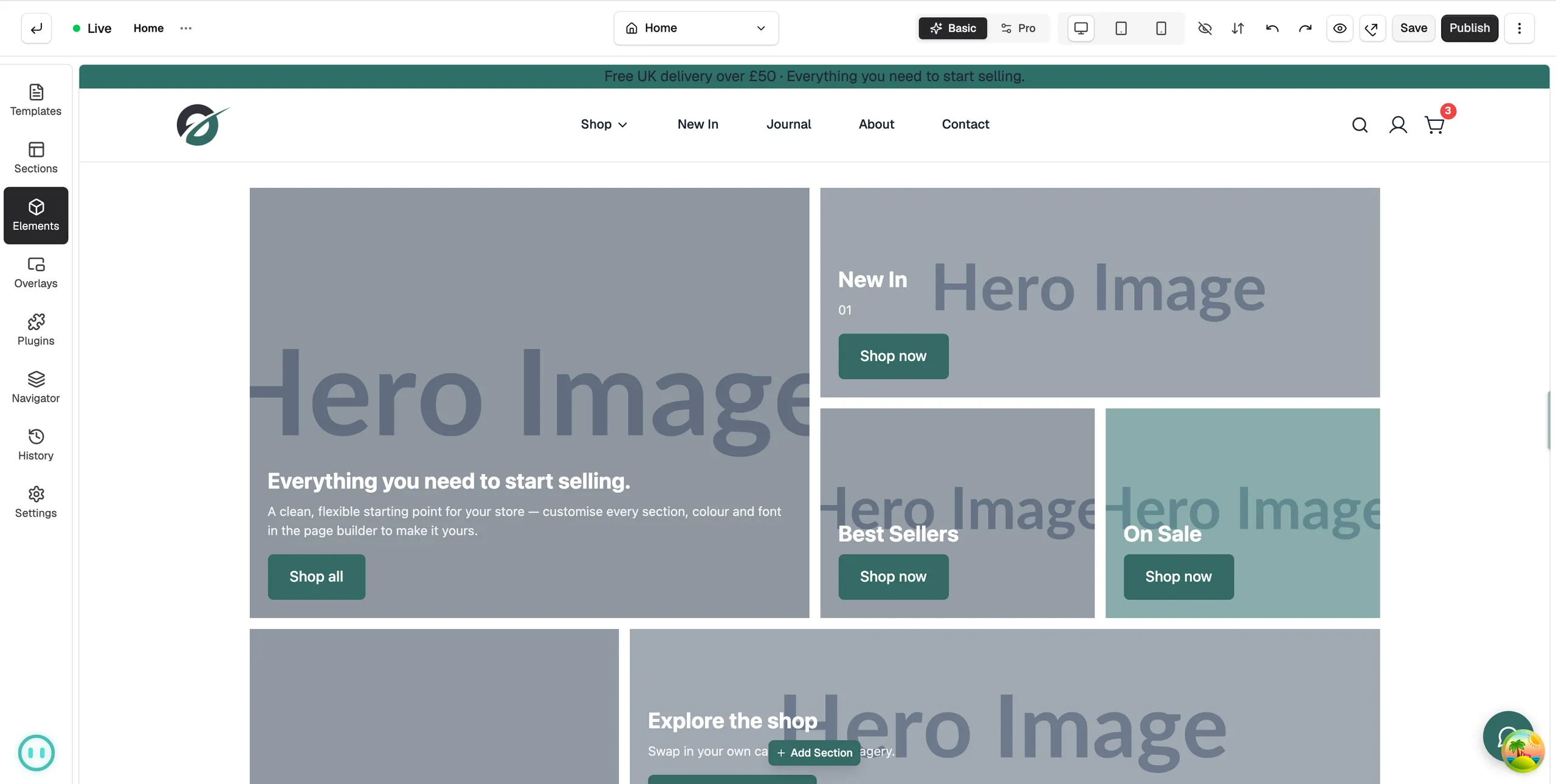
The groups are:
- Basic: everyday parts such as Heading, Text, Button, Image, Icon, Video, Divider and Spacer.
- Structure: Section and Columns, which hold your other elements. Pro mode only.
- Advance: richer parts such as Slider, Accordion, Tabs, Countdown Timer and Google Map. Pro mode only.
- Ecommerce: shop parts such as Product Grid, Category Grid, Search and Mini Cart.
Add an element to the page
- Find the element in the panel.
- Drag its tile onto the canvas. The builder shows where the element will land as you move it.
- Let go to drop it in place. The panel closes on its own.
You can also click a tile instead of dragging it. The element is added after whatever you had selected. Dropped at the bottom of the page, an element is wrapped in a Section of its own, so you do not need to add a section first.
Select an element
- Click the element on the canvas. It gets an outline and a small toolbar.
- The settings panel opens on the right, headed Editing and the element's name. Until you select something, the panel is not there at all.
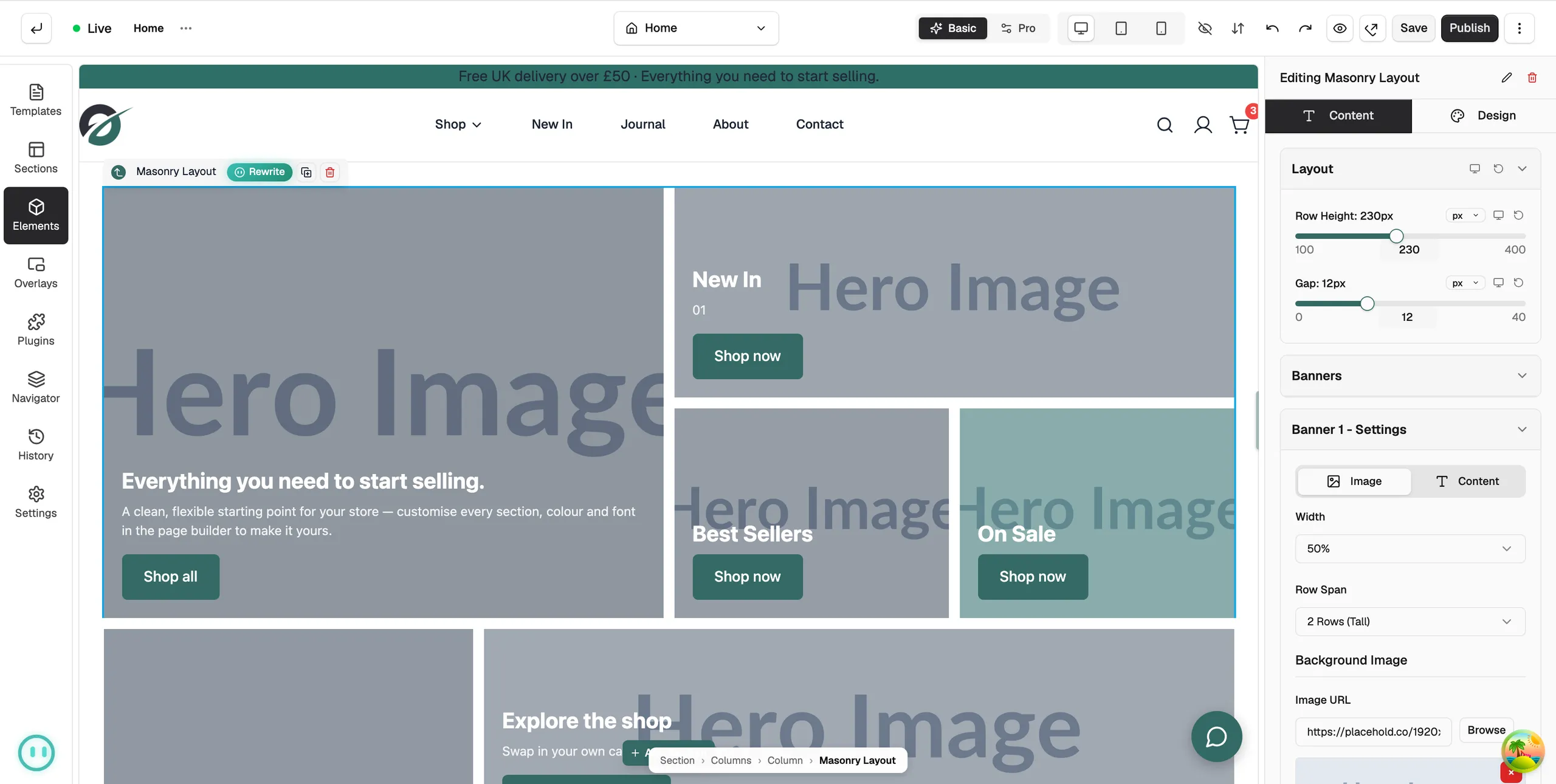
The toolbar holds:
- Go to parent: select the section or column that holds the element.
- Duplicate: make a copy directly below.
- Move up and Move down: swap the element with the one above or below it.
- Delete: remove the element from the page.
- A drag handle for moving the element by hand. Pro mode only.
Arrange elements
- Click Move up or Move down on the toolbar. These work in both modes.
- In Pro mode, drag the element by its handle to another place, section or column.
- Click Navigator in the toolbox to see the whole page as a list, then drag rows to reorder. This is the quickest way to reach an element that sits inside another one.
Tip: If you remove something by mistake, click Undo in the toolbar at the top of the editor.
Related guides
Was this helpful?
0 people found this helpful