Using Nebula AI in the page builder
Build sections from a prompt, rewrite the copy on any element, and apply the colours and fonts from a website, all from the Nebula panel.
Nebula AI is the AI assistant built into Orbit. In the page builder it can build new sections from a short brief, rewrite the copy on any element, and take the colours and fonts from a website you name. You open it from the orb at the bottom of the toolbox.
Considerations
- Every Nebula request uses part of your AI allowance. See Managing your Nebula AI usage and add-ons.
- Nebula changes the page you have open. Nothing reaches your shoppers until you publish it.
- Read what Nebula writes before it goes live. AI can get names, prices and claims wrong.
- Nebula's changes go through the normal undo. Press Ctrl+Z, or Cmd+Z on a Mac.
Open Nebula in the page builder
- Open your page in the page builder.
- At the bottom of the toolbox on the far left, click the Nebula orb. Its tooltip reads Nebula AI. The Nebula panel slides in from the right.
- Type your request in the message box, then press Enter.
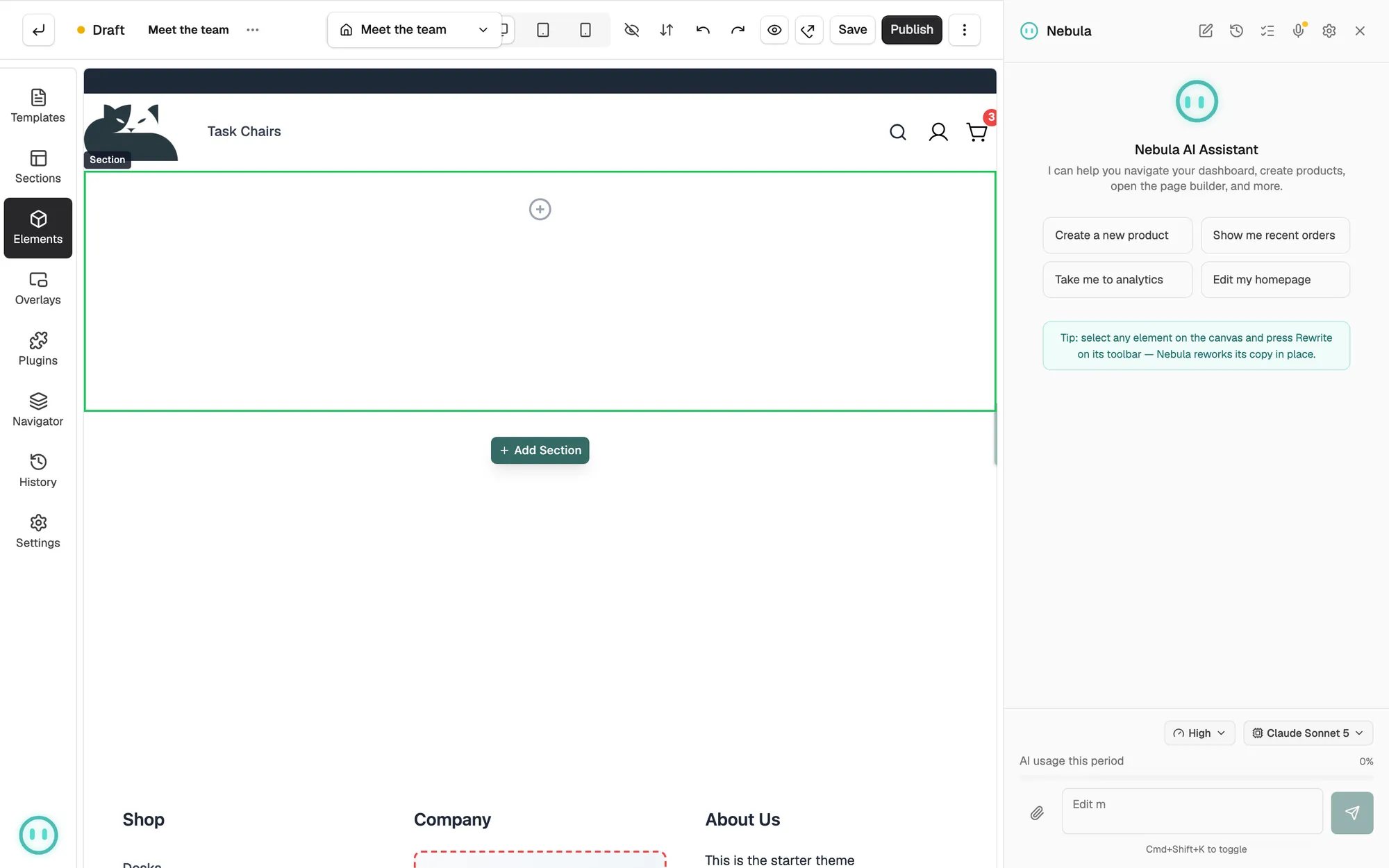
Cmd+Shift+K also opens and closes the panel. New chat starts a fresh conversation, and History lists your past ones. With an element selected on the canvas, you can ask Nebula to restyle it, for example "make this navy", or to duplicate, move or remove it.
Generate a section from a prompt
- Open the Nebula panel.
- Describe the sections you want. Name them, for example "hero, product grid, testimonials, CTA". Add what you sell and the tone you want.
- Press Enter. Nebula shows Building sections while it works.
- The sections are added to the canvas. Nebula replies with a line such as Added 3 sections to the canvas. and tells you to scroll down.
- If the sections have image slots, Nebula fills them with images it generates, and shows Generating image 1 of 3 as it goes. A slot it cannot fill stays as a placeholder.
- Edit the new sections the same way as the rest of the page.
If the reply says it could not generate sections from your brief, ask again with more detail.
Note: To take out what Nebula added, press Ctrl+Z, or click Undo in the editor toolbar. See Undoing changes and restoring versions.
Rewrite text on the canvas
- Click the element you want to change on the canvas.
- On the toolbar above the element, click Rewrite. The Rewrite with Nebula box opens beside it.
- Read the line under the title. It names the element and counts what it can change, such as 6 editable text fields. If it reads This element has no editable text, pick another element.
- Click one of the quick options, or type your own instruction in the box and press Enter.
- Nebula shows Nebula is rewriting…, then the text changes field by field on the canvas. The layout and the styling stay as they are.
- To put the old text back, click Undo under Nebula's reply. If the rewrite touched more than one element, click Undo all, or the button for a single element.
The quick options are Improve writing, Shorter, Longer, More professional and More playful. Each keeps the meaning of your copy and changes the length or the tone.
To see options first, click ×3 next to the message box before you send. Nebula writes three versions and changes nothing until you click Apply on the one you want. The other two then show Superseded.
Tip: Three versions use three times the allowance of one rewrite. The button says so: Rewrite as 3 variants (3× cost).
Set your brand voice
Click the microphone in the rewrite box header to open Brand voice. Fill in What kind of business is it?, What do you do?, Who are your customers?, Tone of voice, Words to use and Words to avoid, then click Save. Nebula uses it for rewrites and for the copy in new sections.
Apply a brand from a website
Nebula can read a website and take its colours and fonts.
- In the Nebula panel, ask Nebula to use the brand from a website. Include the web address.
- Nebula builds a brand kit and opens Brand kit preview. It shows a Palette and a Typography line with the heading and body fonts it found.
- Check the contrast line. It reads Contrast checks pass, or it counts the warnings. A warning means text and background are too close in colour.
- Click Apply to my store to use the kit, or Discard to drop it.
Applying the kit sets the primary, secondary and accent colours on your active theme, plus its heading and body fonts. Only the ones Nebula found change. The rest stay as they are. These are theme settings, so they apply across your shop, not only to the page you have open. If the kit has expired, ask Nebula for a fresh one.
Check Nebula's work before you publish
Nebula writes a first draft, not a finished page. Read every line before it goes live. Correct anything wrong about your products, prices, delivery or claims. Check the images it made, and swap any that do not fit what you sell. See Saving, previewing and publishing a page.
Related guides
Was this helpful?
0 people found this helpful