Using AI bulk tools
Ask AI to rewrite a whole column in the Bulk editor from a plain English request, then check the preview before you apply and save it.
You can ask AI to rewrite a whole column in the Bulk editor from a plain English request, such as "increase all by 10%". The AI works out a new value for each product or variant. You check the results before anything is applied, and nothing reaches your store until you save.
Considerations
- AI tools live inside the Bulk editor. You open it from the Products page after you tick the products you want to change. See Bulk editing products.
- An AI transform runs on every product or variant loaded in the editor, not only the rows you can see. The dialog tells you how many before you start.
- Only some columns have an AI button, the sparkle icon next to Edit. The rest have Edit only.
- Nothing is written to your catalogue until you click Save changes and then Close. A transform you do not like can be discarded.
What the AI can change
Each column that supports AI has an AI button, a sparkle icon, next to its Edit button in the column heading. Point at it to see Use AI to transform this column. These columns have one:
- Price, Compare at and Cost: round prices, raise or lower them by a percentage or an amount, or set a rule such as prices under £5 to free.
- SKU: rewrite stock codes across many variants.
- Qty: change stock quantities.
- Weight, Shipping class, Taxonomy, Tags, SEO title and SEO desc: set or rewrite these fields from a request.
Status, Barcode, Track inventory, Inventory policy, Brand, Custom type, Tax class, Charge VAT and Search visibility do not have an AI button. Use Edit on those columns instead.
Run an AI transform
- From your Orbit dashboard, go to Products.
- Tick the products you want to change, then click Bulk edit. The Bulk editor opens.
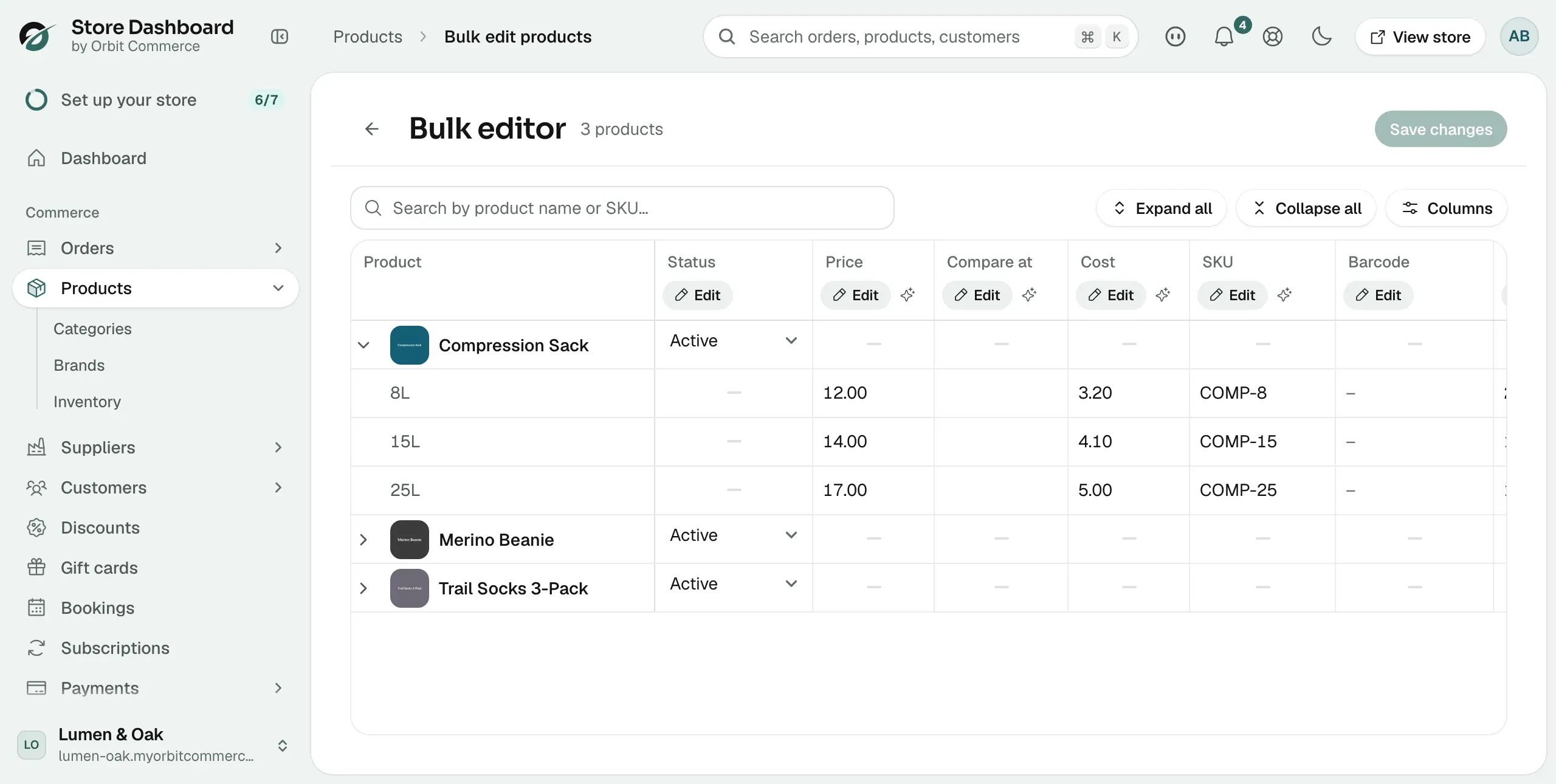
- Click the sparkle icon under the column heading, for example under Price. The AI Transform: Price dialog opens. Under the title it tells you how many variants will be processed.
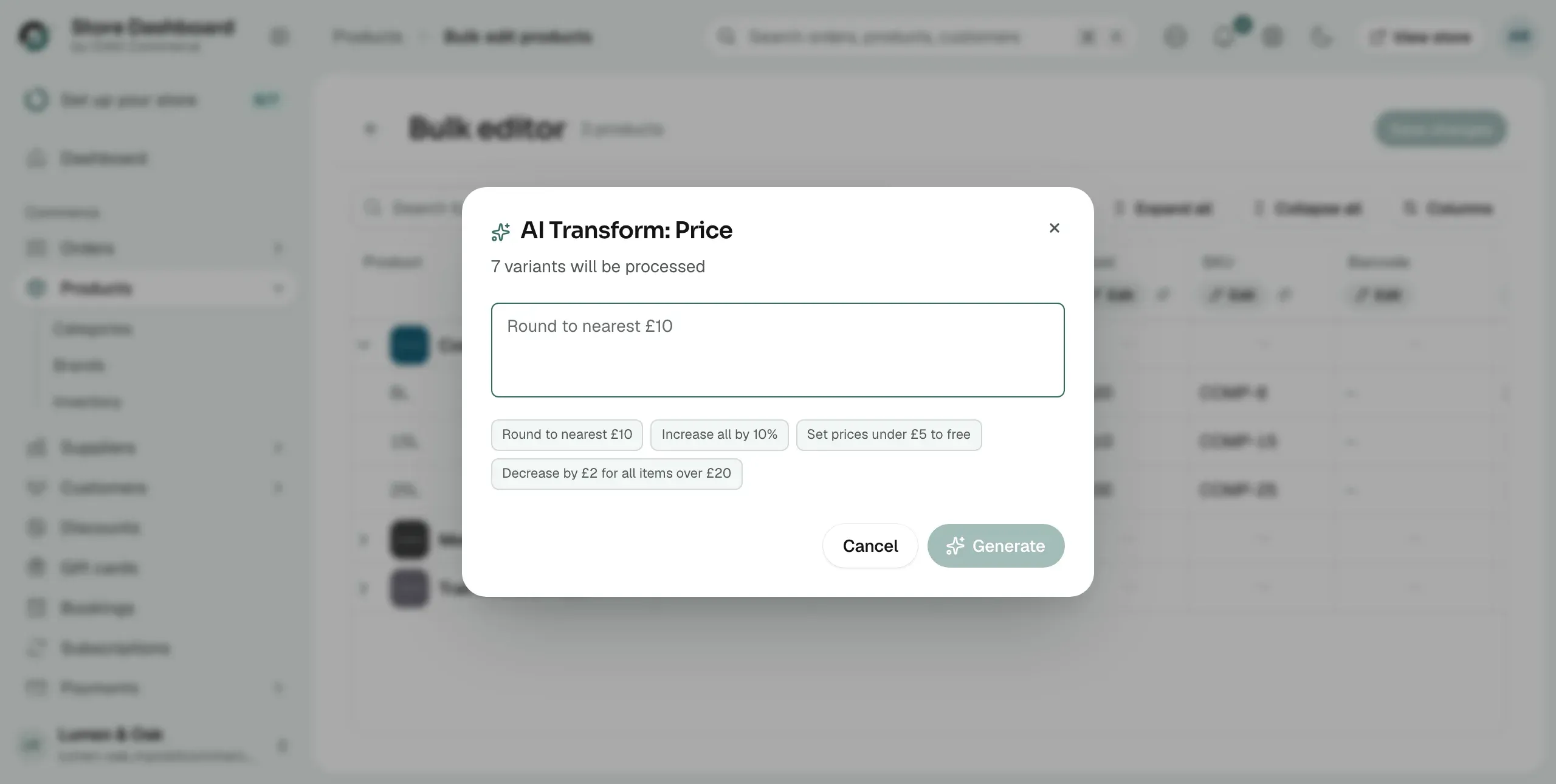
- Type what you want in plain English, or click a suggestion such as Round to nearest £10 or Increase all by 10%.
- Click Generate. The AI works out a new value for each row.
- Check the preview. It lists each Product with its Current value and its New value.
- Click Apply to put the new values into the grid. The button shows how many changes it will make. Click Cancel to close the dialog without changing anything.
The changed cells are highlighted, and the header shows how many changes are waiting to be saved.
Tip: Be specific. "Increase prices by 10% and round to the nearest £1" gives a better result than "make prices higher".
Review and save
An AI transform is an unsaved edit like any other. Check it before you save.
- Look through the highlighted cells. Use the Search by product name or SKU box to find a product.
- To fix one value, click the cell, type the new value and press Enter.
- Click Save changes. The button shows the number of changes in brackets.
- When the dialog reads Save complete, click Close. The highlights clear and the grid shows the saved values.
If you do not want to keep the transform, click Discard changes in the header. It clears every unsaved edit in the editor at once, with no confirmation step.
Related guides
Was this helpful?
0 people found this helpful