Managing your Nebula AI usage and add-ons
Check how much of your AI allowance you have used, upgrade your store plan, and add or cancel a Scale AI add-on for more capacity.
Nebula AI is the AI built into Orbit. It writes product descriptions, bulk-edits product titles and descriptions, and builds page builder pages and emails. The Nebula AI page in Settings shows how much of your AI allowance you have used this period. It is also where you add more.
Considerations
- Your AI allowance comes with your store plan. A higher plan includes a larger allowance.
- Scale AI add-ons are billed monthly on top of your store subscription. You can cancel at any time. A cancelled add-on stays active until the end of the billing period.
- When you use up your allowance, Nebula AI tells you that you have reached your usage limit. Upgrade your plan or add a Scale add-on to carry on.
Open the Nebula AI page
- From your Orbit dashboard, go to Settings.
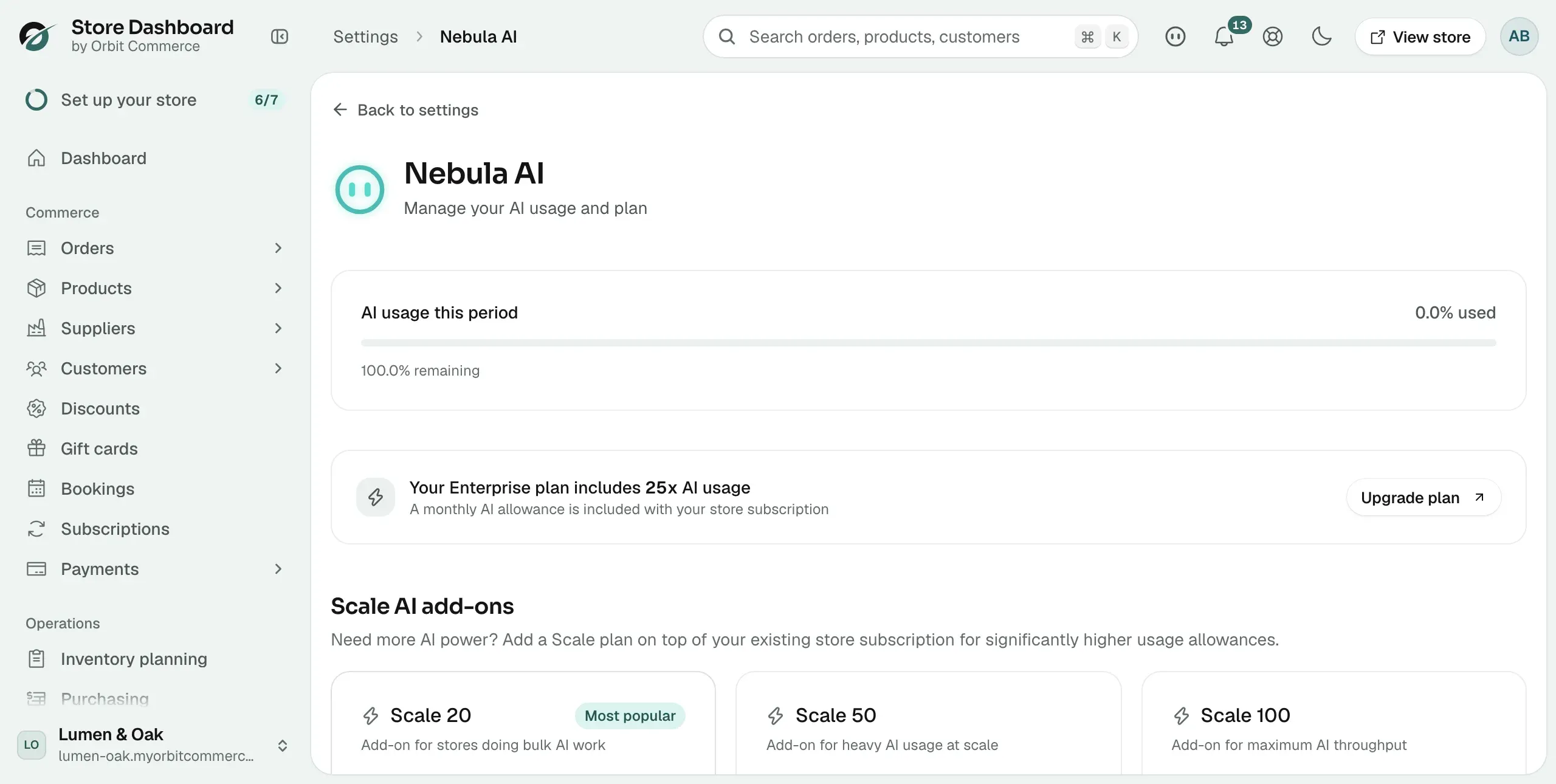
- Under Plan, click Nebula AI. The page shows your usage this period, what your plan includes, and the Scale AI add-ons.
Check your usage
The top of the page has two cards.
- AI usage this period: a meter that shows the percentage of your allowance used and the percentage remaining. It resets each billing period.
- Your plan card: a line such as Your Pro plan includes 5x AI usage, and the monthly AI budget included with your store subscription.
Tip: Check the meter before a big job, such as writing descriptions for a whole catalogue. If you are close to the limit, add capacity first so the job does not stop part way.
Upgrade your store plan
A higher store plan gives you a larger base allowance every period.
- On the Nebula AI page, click Upgrade plan. If you have no active store plan yet, the button reads View plans.
- Choose a plan on the plan selection page. See Understanding and changing your plan.
Add a Scale AI add-on
If you need more AI than your plan includes, add a Scale AI add-on. Each add-on multiplies your usage.
- On the Nebula AI page, scroll to Scale AI add-ons.
- Read each card. It shows the add-on name, the multiplier (for example 20x usage), the monthly price, and what that allowance covers, such as how many products you can create with AI or titles you can bulk edit.
- Click Add to plan on the add-on you want.
- In the Add AI Scale plan window, choose a Payment method. To use a new card, click + Add new payment method.
- Click Subscribe. The add-on is billed monthly. Its card now shows Active.
The add-ons are:
- Scale 20: £40 a month, 20x usage. Create up to around 4,000 products with AI, bulk edit around 30,000 titles or 15,000 descriptions, and generate around 55 page builder pages.
- Scale 50: £100 a month, 50x usage. Create up to around 10,000 products with AI, bulk edit around 75,000 titles or 37,500 descriptions, and generate around 138 page builder pages.
- Scale 100: £200 a month, 100x usage. Create up to around 20,000 products with AI, bulk edit around 150,000 titles or 75,000 descriptions, and generate around 275 page builder pages.
Cancel a Scale AI add-on
- Under Scale AI add-ons, find the card marked Active.
- Click Cancel add-on. The message AI add-on cancelled appears. The add-on stays active until the end of the billing period.
Other Nebula settings on this page
Further down the page you can set Brand voice (what your business does, who your customers are, tone of voice and words to use or avoid), Personality & calibration (how Nebula talks to you), Notification sound, Memory (what Nebula remembers about you), Skills (saved prompts you rerun by typing / in the chat), Pulse insights and Help improve Nebula. Click Save in the Unsaved changes bar after you change one.
Related guides
Was this helpful?
0 people found this helpful