Undoing changes and restoring versions
Undo and redo edits in the page builder, open the Revision History panel, and restore or delete a saved version of a page.
The page builder tracks every change you make while you edit. You can undo and redo with the toolbar buttons or the keyboard. Each time you save, Orbit also keeps a version of the page. The History panel lets you go back to one.
Considerations
- Undo and redo only cover the current editing session. When you open a page, both start empty.
- Saved versions are kept on the server. They are still there when you come back later.
- Restoring a version reloads the page builder. Save your work first, or you lose unsaved changes.
Undo and redo a change
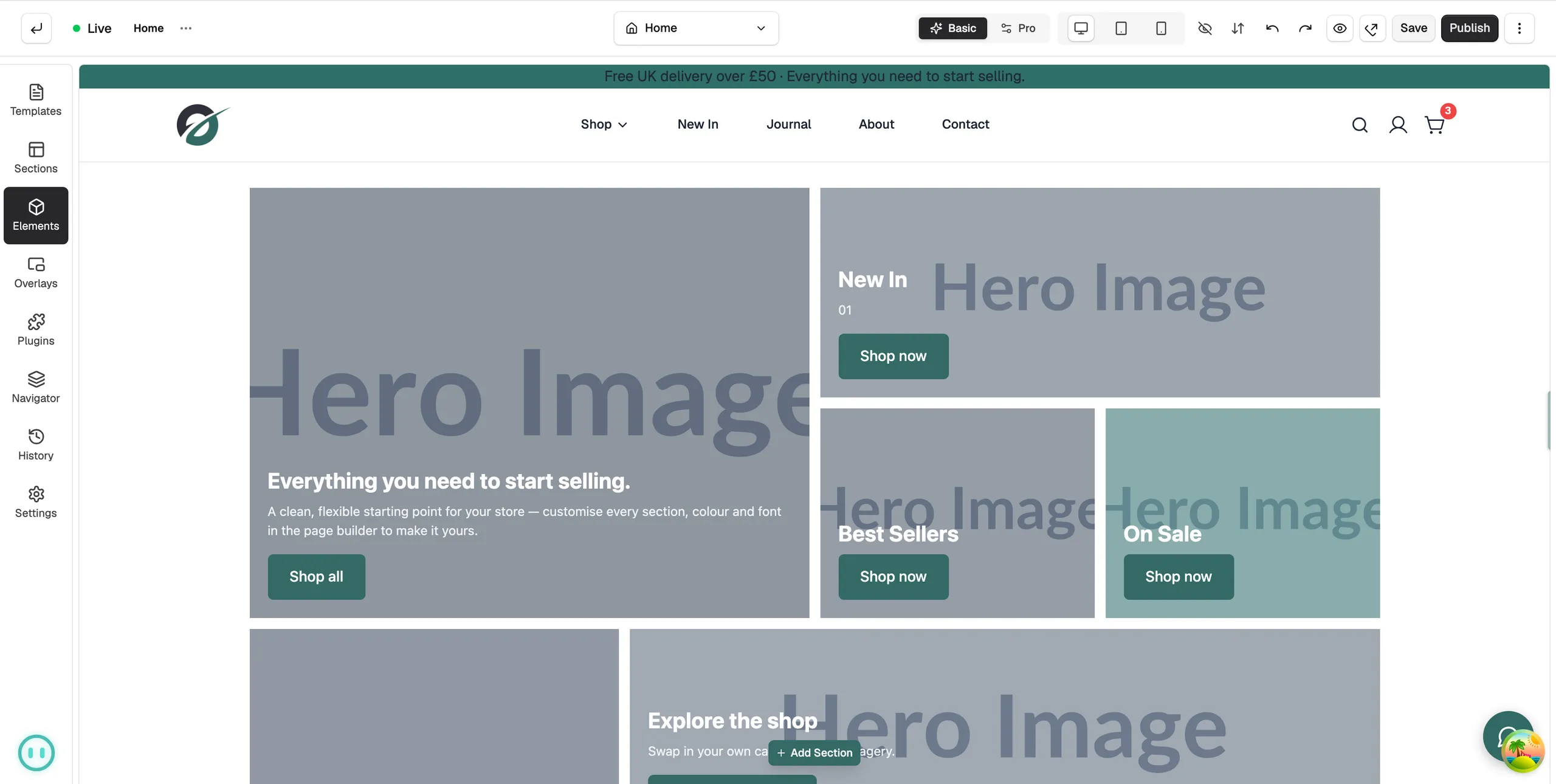
- In the toolbar at the top of the editor, click Undo. Your last change is reversed. Click it again to go further back.
- Click Redo to put back a change you have undone.
You can also use the keyboard: Ctrl+Z to undo and Ctrl+Y or Ctrl+Shift+Z to redo. On a Mac, use Cmd in place of Ctrl. Both buttons are greyed out when there is nothing to undo or redo.
Note: The keyboard shortcuts do not work while you are typing in a text box. Click the canvas first.
Open the History panel
- In the toolbox on the far left, click History. The Revision History panel opens.
- Each card is a saved version. It shows a badge for the type of version, its number such as v3, its title, when it was made and who made it. The badge reads Manual Save for a version you saved, Published for one made when you published, or Backup for a copy Orbit kept on its own. The version you are working from has an Active badge.
- If the panel reads No versions saved yet, click Save once to create the first version.
When there are many versions, use Previous and Next at the bottom of the panel to page through them.
Restore an earlier version
- In the Revision History panel, find the version you want.
- Click the three dots next to its version number.
- Click Restore to this version.
- In the Restore Version box, click Restore. Orbit creates a new version based on the one you picked, then reloads the editor.
The restored version shows a Restored from label with the number it came from. The active version has no menu, so you cannot restore or delete it.
Delete a version
- Click the three dots next to the version.
- Click Delete version.
- In the Delete Version box, click Delete.
Warning: Deleting a version cannot be undone. The version is removed for good.
Versions for headers, footers and templates
Templates keep versions in the same way. Open a header, footer or page template in the page builder, then click History. The list, the badges and the three dots menu work as they do for a page. If the panel reads Select a page or template to view revision history, nothing is open in the builder yet. Go to Storefront, then Pages or Templates, and open one for editing.
Versions and your live page
Every save makes a new version, but a save does not change what shoppers see. Your live page only changes when you click Publish. This means you can restore and try things without touching your shop. See Saving, previewing and publishing a page.
Related guides
Was this helpful?
0 people found this helpful