Printing, voiding and cancelling shipping labels and fulfilments
Print or download a shipping label from the Fulfilments card, open its customs form, void a label bought by mistake, and cancel a fulfilment made by hand.
Every shipment on an order shows in the Fulfilments card on the order page. From there you print or download a shipping label, open its customs form, void a label you bought by mistake, or cancel a fulfilment you made by hand. Voiding and cancelling are the only ways to undo a fulfilment.
Considerations
- An order placed through your storefront arrives with Fulfilment #1 and a Pending badge. Fulfilling fills it in.
- Print label, Download PDF and Void label only show where Orbit bought the label. A fulfilment with a tracking number you typed in reads No shipping label on this fulfilment. and offers Cancel fulfilment instead.
- Voiding and cancelling cannot be undone. To send the parcel afterwards, fulfil the items again.
- Orbit does not email the customer when you void or cancel. If they already have a tracking number, tell them a new one is coming.
Find the Fulfilments card
- From your Orbit dashboard, go to Orders.
- Click the order number to open the order.
- Scroll to the Fulfilments card. Each fulfilment has a box of its own.
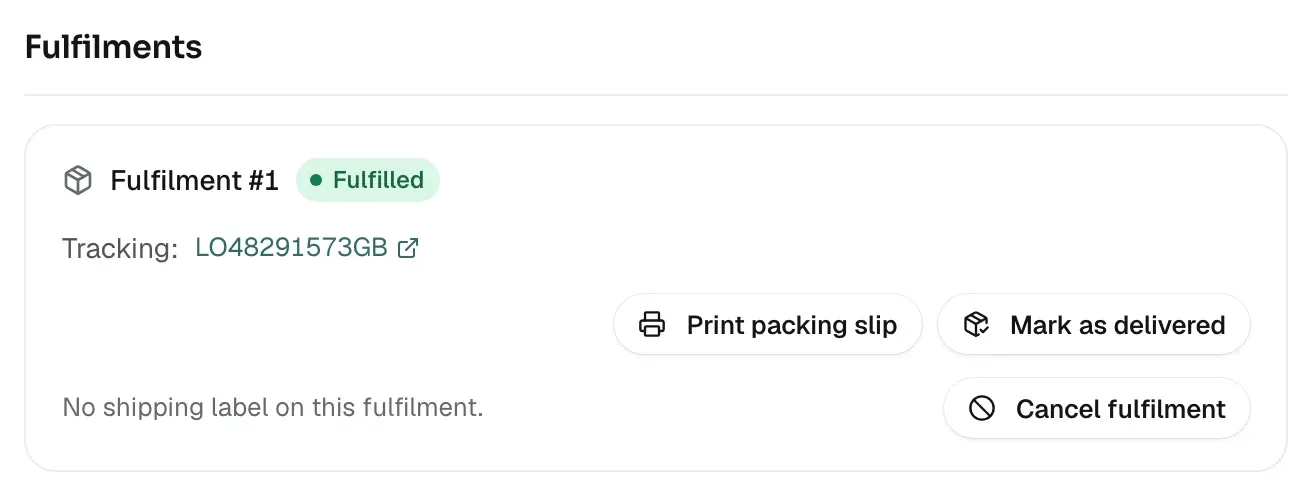
Each box shows:
- Fulfilment #1: the fulfilment number, with a badge reading Pending, Fulfilled, Delivered, On hold or Cancelled.
- Label cost: what the label cost, when Orbit bought it. The carrier and service sit under it.
- Tracking: the tracking number, as a link when the carrier has a tracking page. More than one parcel lists Tracking #1, Tracking #2 and so on.
- Provider references: the Shipment and Label IDs the carrier uses, with a copy button. Quote these if you contact support.
Print or download a label
- In the fulfilment's box, click Print label. The label PDF opens in a new tab. Print it from there.
- To save the file instead, click Download PDF.
Tip: Print label in the order header opens the first label on the order.
Print the customs form
An international label often comes with a separate customs form. When it does, a third button appears.
- Click Customs form (CN22/CN23). The form opens in a new tab.
- Print it and attach it to the parcel next to the label. Without it the parcel may be held or returned.
Some carriers print the customs details on the label itself. Then there is no button. See Completing a customs declaration.
Void a label you bought by mistake
Void a label when it was bought for the wrong service, the wrong address, or an order that is not going ahead.
- In the fulfilment's box, click Void label.
- Read the Void this shipping label? message. Orbit asks the carrier to cancel the shipment. The cost is credited back once the carrier confirms, which can take a few minutes.
- Click Void label, or Cancel to keep the label.
- The message Label voided. The label cost is credited back to your shipping billing. appears. The badge turns Cancelled and the button now reads Voided.
Voiding also does the following:
- The fulfilment: marked Cancelled. Print label and Download PDF are greyed out, and the units go back onto the order's list of items still to send.
- The order: the fulfilment badge in the header goes back to Unfulfilled or Partially fulfilled.
- Your stock: the units the fulfilment took out of stock are put back.
- Your shipping bill: the cost comes off your balance if it has not been billed yet, or goes on as credit if it has. The credit is used up before your card is charged again.
To check the credit, go to Settings, then Shipping, click Courier integrations, then Orbit Shipping. On the History tab the line has the type Void refund. See Paying for shipping labels.
Warning: A voided label cannot be printed again or brought back. If the carrier has already accepted the parcel, the carrier can refuse the void. Orbit then shows an error and the label stays as it was.
Cancel a fulfilment you made by hand
Use this to undo a fulfilment with no courier label. The button shows while the fulfilment is Pending or Fulfilled.
- In the fulfilment's box, click Cancel fulfilment.
- Read the Cancel fulfilment #1? message. The items become available to fulfil again, and this cannot be undone.
- Click Cancel fulfilment, or Keep fulfilment to back out.
- The message Fulfilment cancelled. Its items can be fulfilled again. appears. The badge turns Cancelled.
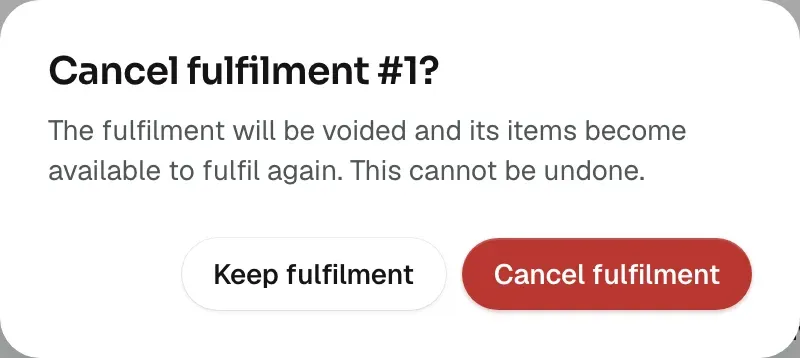
As with a void, the units go back into stock and onto the order, and the order's fulfilment badge steps back. To send the items, click Fulfil items at the top of the order page. See Fulfilling an order and adding tracking.
Note: A fulfilment with a label has no Cancel fulfilment button. Void the label instead. A fulfilment that is On hold has no cancel button either. Release the hold first. See Putting an order on hold.
Related guides
Was this helpful?
0 people found this helpful