Putting an order on hold
Pause an order while you check a payment, an address or your stock, then release it. Held orders cannot be fulfilled until you do.
A hold pauses an order while you check something. A held order cannot be fulfilled and drops out of the dispatch queue until you release it. Nothing is sent to the customer.
Considerations
- You cannot hold a draft order, or one that is cancelled, refunded or completed.
- You can still cancel an order that is on hold. Holding is often the step before cancelling.
- The review date is a reminder. Nothing releases the hold for you.
- The hold and its release are both written to the order's activity timeline.
- Orbit puts a paid order on hold by itself when the time booked for a service on it was taken by another booking before the payment completed. No booking is made for that time, and the hold reason asks you to arrange a new time with the customer or refund them.
Put an order on hold
- From your Orbit dashboard, go to Orders.
- Open the order.
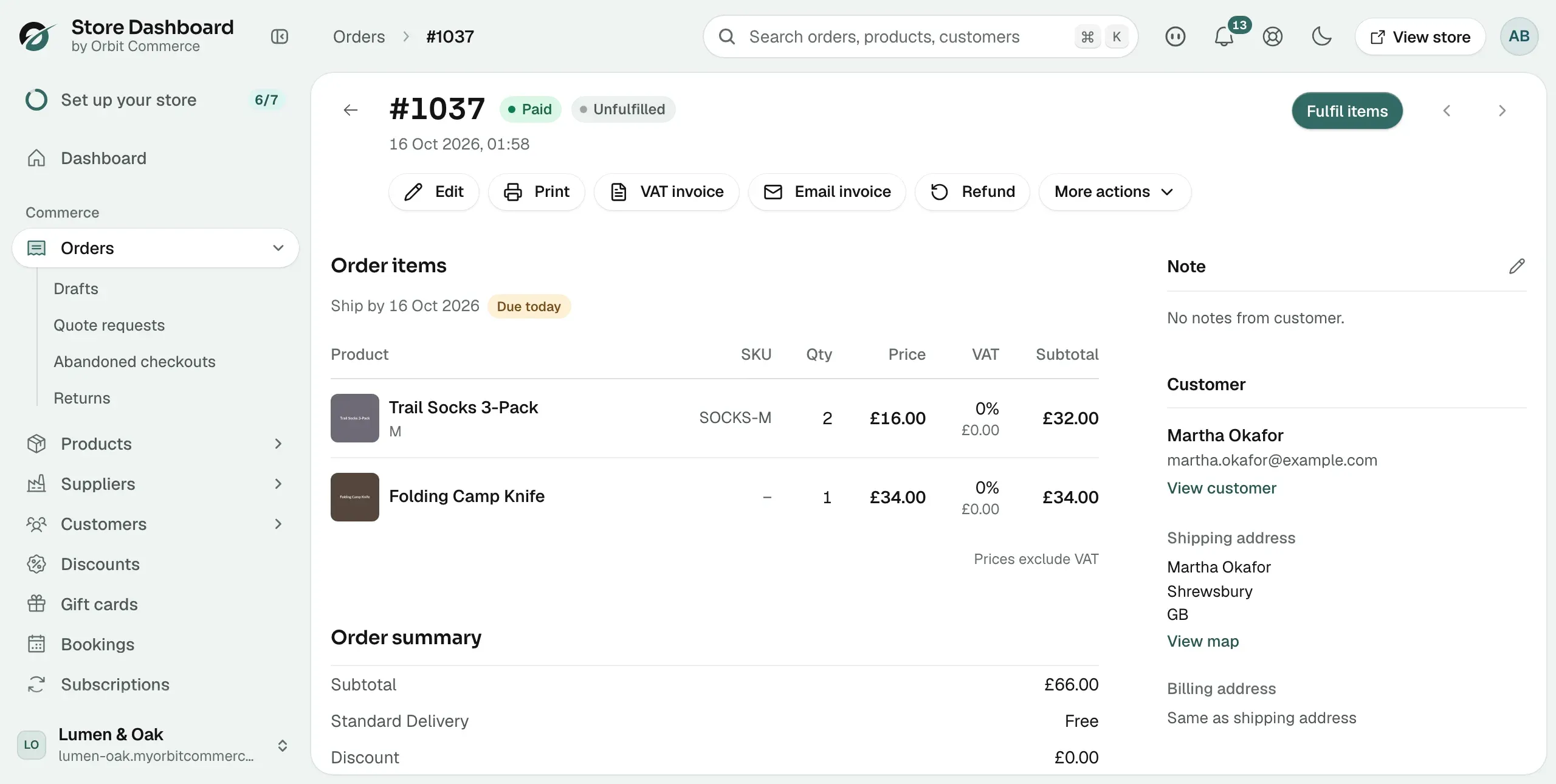
- Click More actions at the top of the page.
- Click Hold order.
- In Reason, type why you are holding it, such as the customer asking to change the address. This is optional.
- In Review by (optional), pick a date you want to look at it again.
- Click Hold order. The message Order placed on hold appears.
Tip: Always type a reason. It shows on the order and in the activity log, so the next person to open it starts with the story.
What a hold does
- An amber On hold banner sits at the top of the order. It carries your reason, the date you held it, and a Release hold button.
- Fulfilment is blocked. The order leaves the dispatch queue.
- An On hold badge appears next to the Ship by date.
- Once the review date passes, the banner turns green and says the hold is ready to release. It does not release itself.
Release a hold
- Open the order.
- Click Release hold on the banner. You can also open More actions and click Release hold there.
- The message Hold released appears. The order goes back into the dispatch queue and you can fulfil it again.
Orbit holds an order itself when the customer paid after its stock reservation ran out and the stock has gone in the meantime. Its reason starts Paid after its stock reservation expired. Releasing that hold reserves the stock first. If the stock is still not there, Could not release the hold appears and the order stays on hold. Restock the items or refund the customer, then release it.
Find your held orders
- Go to Orders.
- Click Add filter.
- Choose Hold, then On hold. The list shows held orders only.
- Click Save view, name it, and save. Your held orders are then one click away.
When to hold an order
- Risk review: the payment needs a second look before you ship. Start from the Order risk card on the order.
- Customer requests: an address change, an item swap, or a request to hold dispatch until a set day.
- Operational checks: confirming stock on a large order, or checking a trade account's terms.
Note: A hold is a pause, not a decision. If the answer is that you will not ship the order, cancel it and refund instead.
Related guides
Was this helpful?
0 people found this helpful