Completing a customs declaration
Save HS codes, countries of origin and customs descriptions on your products, then check and certify the declaration before Orbit buys an international label.
When an order is going to another country and you buy the label through Orbit, the fulfil panel adds a customs declaration. Orbit fills it in from your products and your international settings. You check each item, confirm the details are true, and buy the label.
Considerations
- The declaration only appears when Use courier integration is on and the delivery address is in a different country from your store address. Adding tracking by hand does not need one.
- Every item needs a customs description, an HS code, a country of origin, a declared value and a weight. The panel does not ask for weight. Set it on the product or variant first, or the label will not be bought.
- Digital products and services are left out. A fulfilment with no physical item cannot have an international label.
- A customs declaration is a legal document. Understating the value, or marking a sale as a gift, can get the parcel seized and lead to fines.
- Orbit Shipping labels are always DDU or DAP: your customer pays import duties on delivery. For DDP, connect your own carrier account.
- Contents type, what happens if delivery fails, the signer and your EORI or IOSS numbers come from your settings. See Setting customs defaults, EORI and IOSS numbers.
Save customs details on a product
Do this first, so every order starts filled in.
- From your Orbit dashboard, go to Products.
- Click the product to open it.
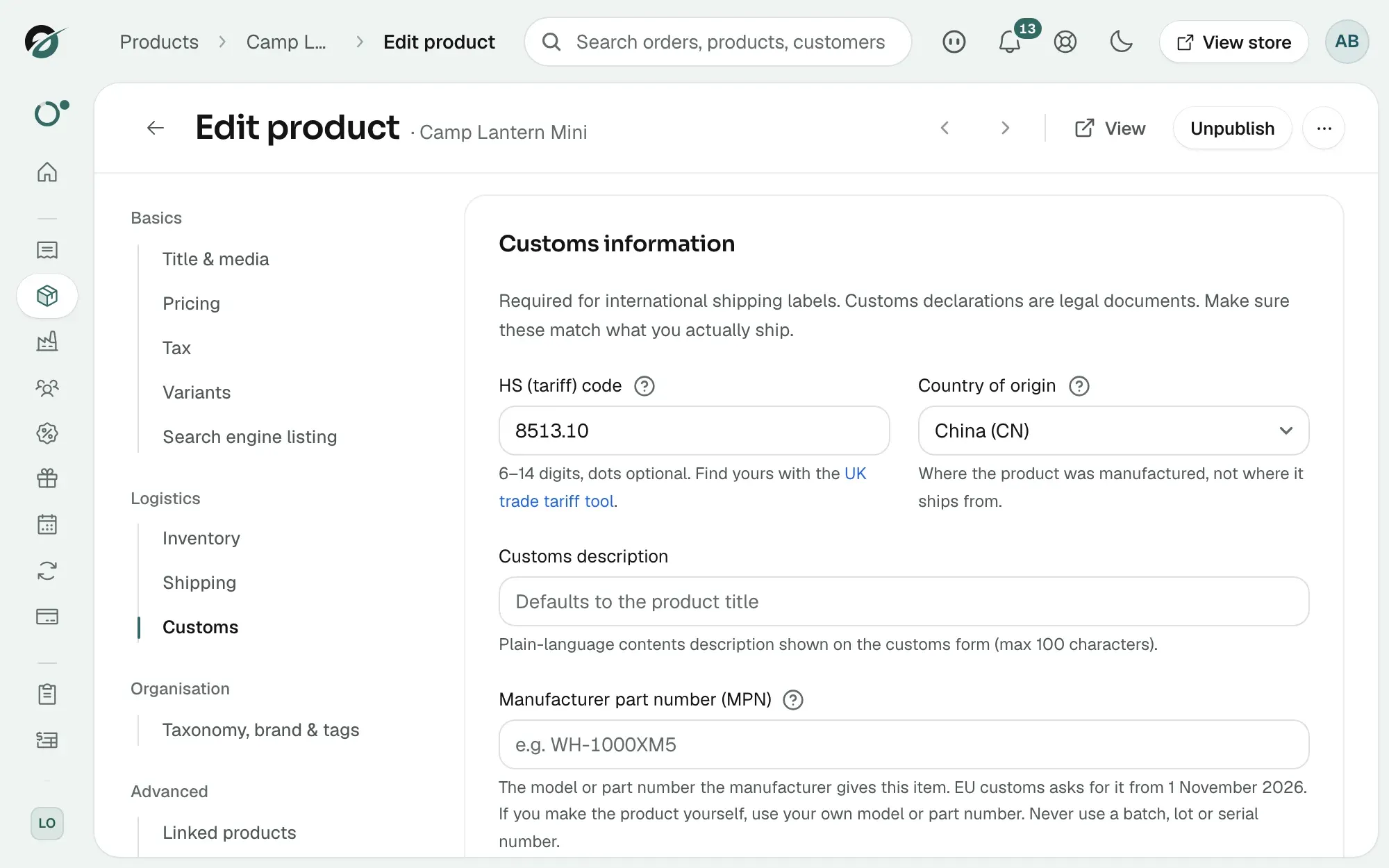
- In the left-hand menu, under Logistics, click Customs. The Customs information card opens.
- Type the HS (tariff) code, for example 6109.10.00. Click UK trade tariff tool under the field to look yours up on gov.uk.
- Under Country of origin, pick where the product was made, not where you ship it from. Leave it on Use store default to use the default country from your settings.
- Under Customs description, type what the item is, up to 100 characters. Be specific: men's cotton t-shirt, not clothing. Leave it empty to use the product title.
- If you ship to customers in the EU, type the Manufacturer part number (MPN): the model or part number the manufacturer gives the item. If you make the product yourself, use your own model or part number. Never use a batch, lot or serial number. A product with variants shows a note here instead, because each variant has its own part number.
- Click Save in the Unsaved changes bar.
Only physical products have customs fields. If one variant is made somewhere else, open the product, click Variants, then click the variant's name. Fill in its Customs section and click Save variant. A blank field on the variant falls back to the product.
Tip: To add codes to many products at once, export them, fill the HS Code, Country of Origin and Customs Description columns, and import the file back. See Importing and exporting products.
Complete the declaration when you fulfil
- From your Orbit dashboard, go to Orders and click the order to open it.
- Click Fulfil items at the top of the page. The Fulfil order panel opens under the Order items table.
- Check the quantities under Items in this fulfilment.
- Turn on Use courier integration and pick a Courier service.
- A section headed International shipment: customs declaration appears. It shows the country code you are shipping to, such as FR. Each physical item is listed with its quantity and four fields, described below. Check them all.
- Read the Incoterm line. On Orbit Shipping it is fixed: the recipient pays import duties. On your own carrier account it shows that account's setting, or your store default.
- Leave Save customs details back to the products ticked. What you type is written to the product or variant, so the next order is filled in for you.
- Tick I certify this customs information is true and correct.
- Click Fulfil. Orbit buys the label. The panel closes and the fulfilment badge changes to Fulfilled.
The four fields on each item:
- Customs description: filled from the product, or the product title. Up to 100 characters.
- HS code: filled from the variant or the product. If none is saved, the label reads (required) in amber. Type the code.
- Country of origin: filled from the variant, the product, or your default country of origin. Pick one if it is empty.
- Declared unit value: what the customer paid for one unit after discounts, in the order's currency. The label shows the currency, for example Declared unit value (GBP). If the item was free, type a value.
Note: If the certify box is not ticked, a message asks you to confirm the customs information first. If something is still missing, such as a weight, no label is bought and the message lists each problem by item. Fix them and click Fulfil again.
If the panel warns about IOSS
If you ship into the EU from outside it with no IOSS number saved, an orange notice reads No IOSS configured for this EU shipment. You can still buy the label. From 1 July 2026 the EU ends its €150 duty exemption and charges duty per item on parcels sent into the EU. Without an IOSS number, your customer pays import VAT and duty on delivery. To add one, see Setting customs defaults, EORI and IOSS numbers.
If the panel warns about EU product IDs
When you ship to a customer in the EU from outside it, each item also shows an EU product IDs line with its SKU and barcode, and a Manufacturer part number field. From 1 November 2026 EU customs expects the SKU, the manufacturer part number and the barcode, where one exists, for every item. If any of them is missing, an orange notice reads EU product IDs missing for some items, and the item says what is missing, such as No SKU or No manufacturer part number. You can still buy the label, but customs may hold the parcel. To fill the gaps for future orders, add a SKU and barcode to the product and fill in Manufacturer part number (MPN) in its Customs section. If the product has variants, add the part number on each variant.
Print the customs form
Once the label is bought, the Fulfilments card on the order shows these buttons:
- Print label and Download PDF: the shipping label.
- Customs form (CN22/CN23): the declaration as a separate document. Print it and attach it to the parcel next to the label. Without it the parcel may be held or returned.
- Void label: cancel a label you bought by mistake. See Paying for shipping labels.
Some carriers print the customs details on the label itself. Then there is no separate form and no button.
Related guides
Was this helpful?
0 people found this helpful