Editing an order
Change quantities, add items, apply a discount, set delivery and switch currency on an order that is already placed.
A customer rings about the wrong size, or wants one more item, or a different delivery. You can change an order after it is placed. Open it from Orders, click Edit, and make every change on one page.
Considerations
- Edit is greyed out once an order is both paid and sent. Change it before you fulfil it, or handle it as a return afterwards.
- A quantity you change is saved the moment you click away from the box, before you press Save Changes. Cancel does not undo it.
- An item you add is not saved until you click Save Changes.
- If the total goes up, take payment for the difference before you send the goods.
Open the order editor
- From your Orbit dashboard, go to Orders.
- Click the order you want to change.
- Click Edit in the row of buttons at the top. The editor opens on one page, with Products and Payment on the left and Notes, Customer, Markets and Tags on the right.
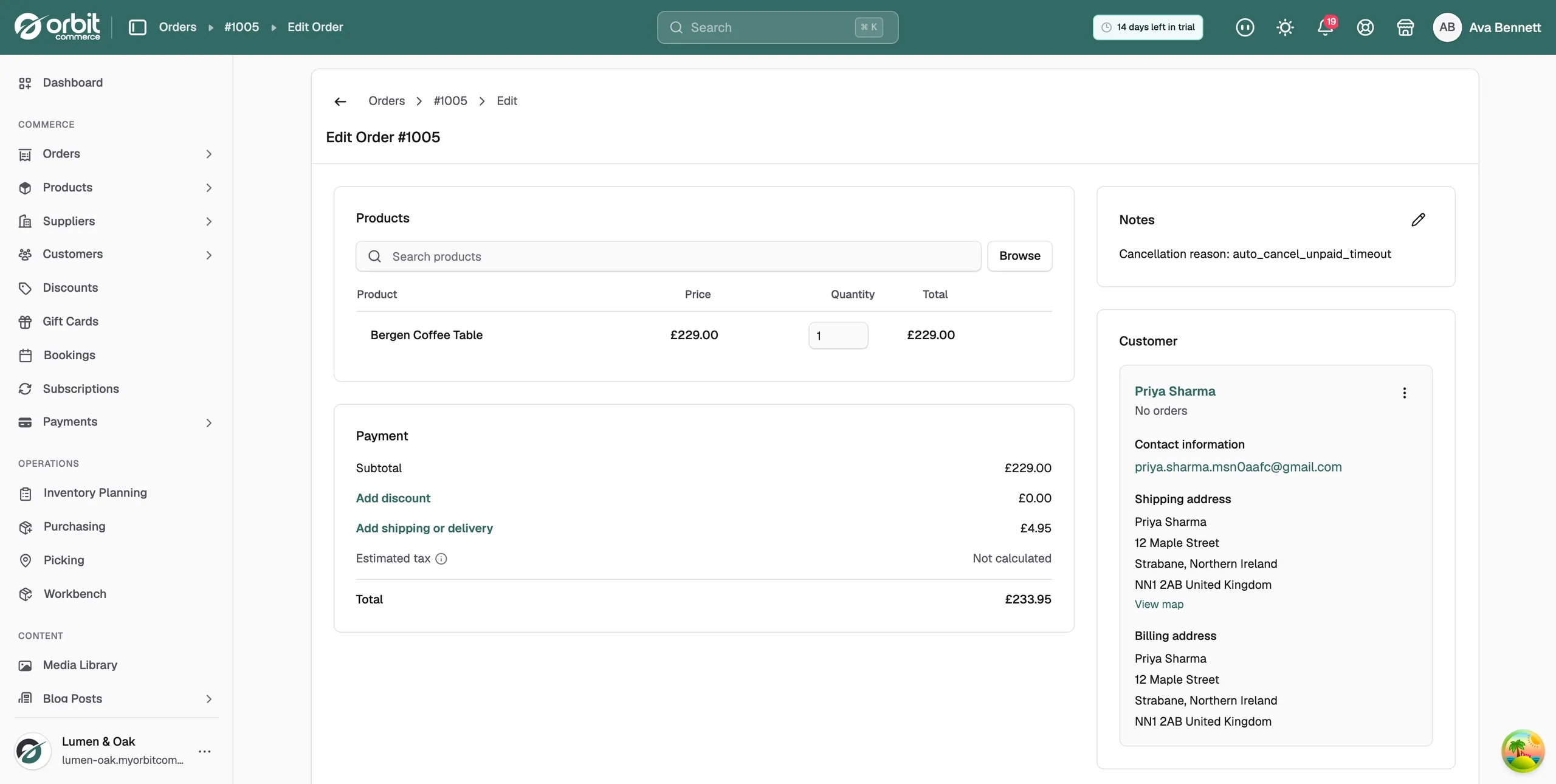
Change a quantity
- In the Products card, find the line you want to change.
- Type the new number in its Quantity box.
- Click anywhere outside the box. The line total, the Subtotal and the Total all move, and the change is saved.
Note: A quantity saves on its own, so there is nothing to undo if you type the wrong number. Type the right one and click away again.
Add an item
- In the Products card, type part of a product name in Search products.
- Click Browse. The picker opens on what you searched for, so you land on that product's own variants.
- Tick the size, colour or other variant you need. The counter at the top shows how many you picked.
- Click Add. The line is added to the bottom of the table at a quantity of 1.
- Change the quantity if you need more than one, then click Save Changes.
Ticking a variant that is already on the order adds to that line instead of making a second one.
Add a discount or a delivery charge
- In the Products card, click Add discount.
- Enter a discount code and click Validate, or switch to Custom discount and set a Discount type and a Value.
- Click Apply discount.
- To set or change delivery, click Add shipping or delivery and enter the amount.
Once a discount is on the order, Edit discount and Remove discount replace the button.
Sell in another currency
- Scroll the right-hand column to the Markets card. It sits below Customer.
- Click the currency box. Your shop's currency sits at the top under Market currency, with Other currencies below it.
- Click the currency you are selling in. Every price, line total, discount, delivery charge and total converts at your shop's rate.
If your store only has one currency, the box reads No other currencies.
What the Payment card shows
- Subtotal: the lines added up.
- Discount: anything you took off.
- Shipping: the delivery charge on the order.
- Estimated tax: this reads Not calculated in the editor.
- Total: items plus delivery, less any discount. It carries no VAT.
The VAT your store is charging is on the order page, not in the editor. Check it there before you ask for more money.
Change the customer details or notes
- The Customer card holds Contact information, the Shipping address and the Billing address. Use Edit contact information, Edit shipping address and Edit billing address to change them.
- Add note in the Notes card records why you made the change, so whoever picks the order up next can see it.
- Add tags in the Tags card labels the order.
Save your changes
- Scroll to the bottom of the page.
- Click Save Changes. The button reads Saving... while it works.
- The message Order updated successfully appears and you stay in the editor. Carry on editing, or click Back to order to return to the order page.
Tip: Every edit is recorded on the order's timeline, so months later the order still says who changed what. See Adding notes and reading the timeline.
Related guides
Was this helpful?
0 people found this helpful