Taking payment on an order
Copy a payment link, mark an order as paid, charge the balance on a deposit order, and see what your customer sees when a balance is still due.
When an order is not yet paid, you take payment from the order page. This covers draft orders, orders waiting on a bank transfer or cash payment, and deposit orders with a balance still owed. You can copy a payment link for the customer, or record that the money has arrived.
Considerations
- Copy Payment Link copies a link to your clipboard. It does not send anything. You paste it into your own email or message.
- Mark as Paid records that payment arrived. It does not take any money. You cannot undo it from the order page.
- On a draft, Mark as Paid needs at least one item, a customer email and a shipping method. If any is missing, Orbit tells you what to add.
Where the payment buttons are
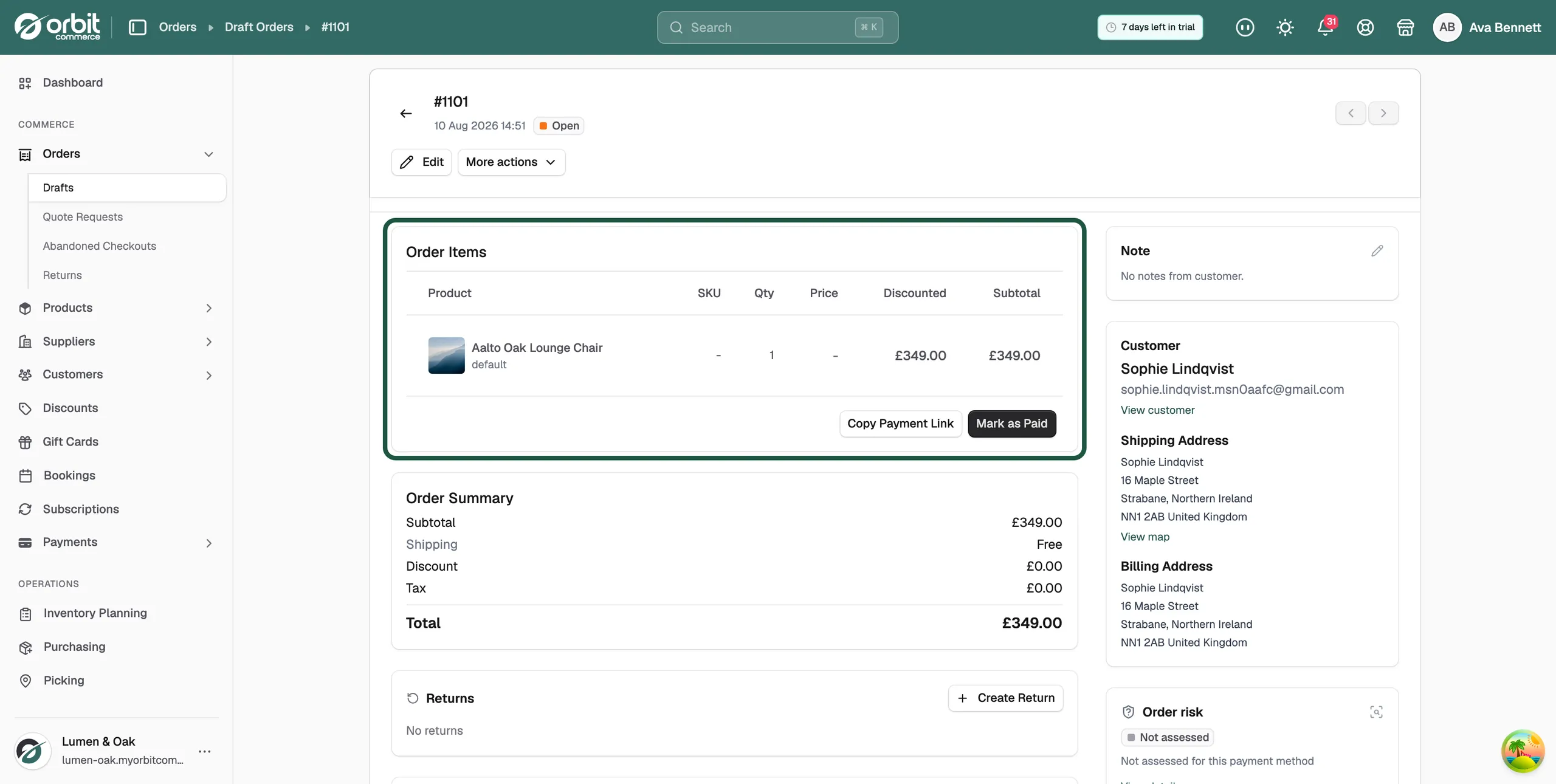
- Draft order: Copy Payment Link and Mark as Paid sit under the Order Items table. The header shows one badge, Open.
- Order awaiting a manual payment (bank transfer, cash on delivery, cheque or a custom method): Mark as Paid appears in the same place.
- Paid order: the row under the items holds Fulfill Item(s) instead. The header shows Paid and the fulfilment badge.
Send the customer a payment link
- From your Orbit dashboard, go to Orders, then Drafts.
- Open the draft.
- Check the Order Summary. It shows Subtotal, Shipping, Discount, Tax and Total. The customer pays the total.
- Click Copy Payment Link. The button greys out while Orbit fetches the link, then the message Payment link copied to clipboard appears.
- Paste the link into an email or message to the customer. They pay through the link.
Mark an order as paid
Use this when the money has already arrived, for example by bank transfer or in cash.
- Open the draft or the order.
- Click Mark as Paid under the items table.
- Read the Mark Order as Paid message. It records that payment was received, sends the customer a confirmation, and cannot be undone here.
- Click Mark as Paid to go ahead, or Cancel to go back.
- The message Order marked as paid appears. A draft becomes a real order and opens on its order page. The header now shows Paid and Unfulfilled, with Fulfill Item(s) under the items.
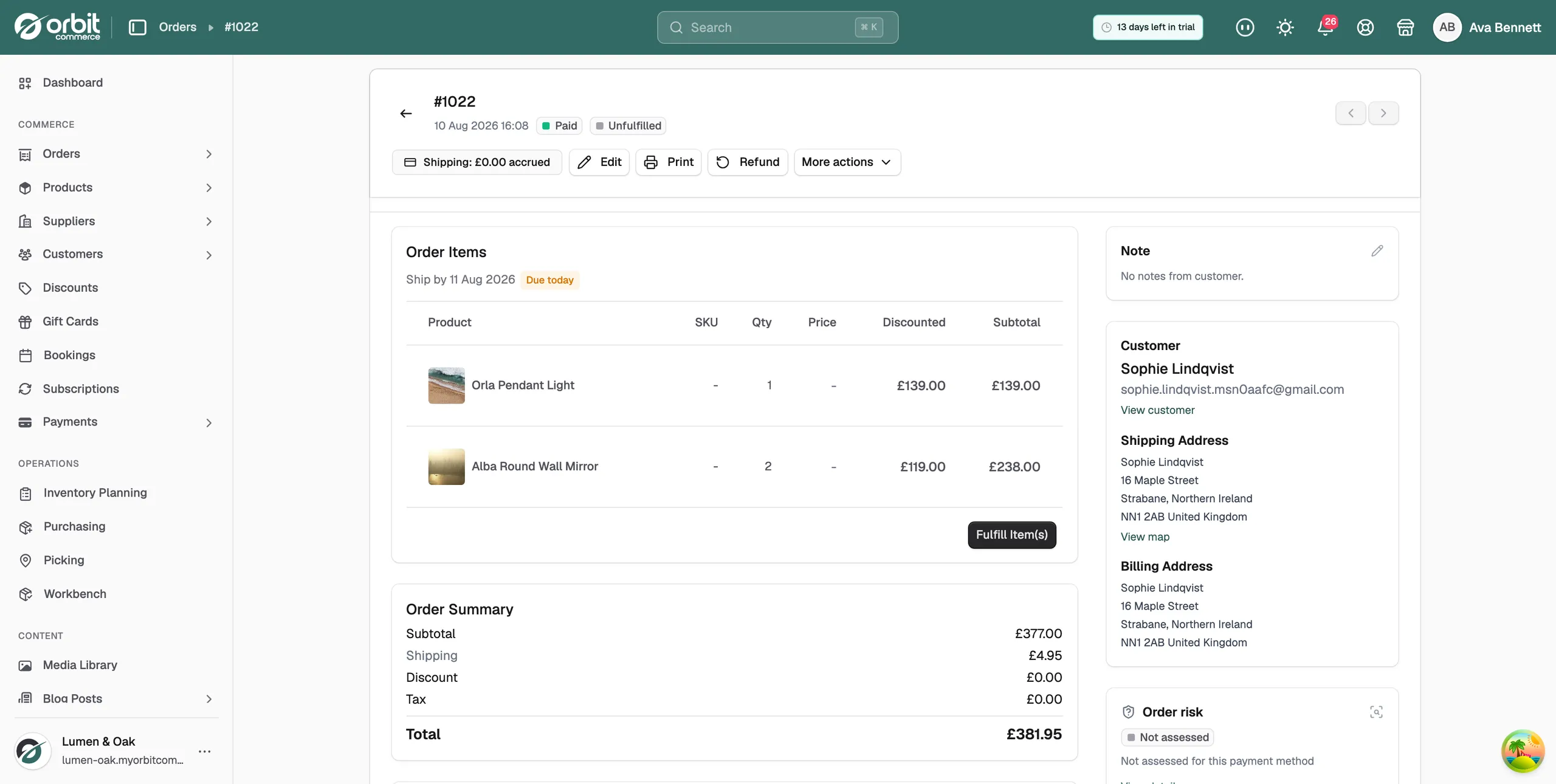
Note: Once an order is paid, Print, VAT invoice, Email invoice and Refund appear in the header. They are not available on a draft.
Charge the balance on a deposit order
If the customer paid a deposit at checkout, the order shows Deposit collected and the Remaining amount, with Balance due by and a date.
- Open the order.
- Click Charge Balance. Orbit charges the customer's saved card.
- When the payment goes through, the order shows Balance settled.
Collect a balance after editing an order
If you add items or raise quantities on an existing order, the total goes up. The Order Summary shows the new figures. To collect the difference, email the customer an invoice from the order and ask them to pay. See Sending an invoice. If they pay by bank transfer, use Mark as Paid when the money lands.
Tip: Check the Order Summary before you fulfil an edited order, not after. Collect what is owed first.
What your customer sees when a balance is due
Your customer sees what is owed in two places: the order status page from their order link, and the order page in their account. See Letting customers track an order without an account.
On the order status page
- A notice at the top gives the amount owed: Payment of £75.00 is outstanding for this order.
- A Pay now button sits lower down the page. It opens your secure payment page.
- If the amount owed is less than the order total, there is no button. The page reads Please contact the store to settle the outstanding balance on this order.
Note: A part-paid deposit order falls into that last case: the payment page can only charge the full total. Use Charge Balance in your dashboard instead.
On the account order page
A deposit order shows a Deposit order panel under the order summary:
- Order total: the full price of the order.
- Deposit collected: what they have paid so far.
- Balance: what is still owed.
- Balance due by: the date, if the order has one.
The panel shows the figures but does not take the payment itself. To collect the balance, charge it from your dashboard or send a payment link, as described above.
After your customer pays through a payment link
They land back on the order status page. It shows Confirming your payment while Orbit checks with the provider, then Payment Successful and a note that a confirmation email is coming. The outstanding notice and the Pay now button both go. If Orbit cannot confirm the payment at once, the page says the order will update shortly.
If the balance is paid or the link has expired
- Already paid: the status page shows Payment Successful and no pay button. The deposit panel shows Balance has been settled.
- Link expired: an order not paid at checkout counts down under Time remaining to complete payment. After that, the page shows Payment Link Expired and your customer clicks Pay now to start a fresh payment. Nothing has been charged.
Related guides
Was this helpful?
0 people found this helpful