Adding notes and reading the timeline
Save a note on an order, read the record of what happened to it, and leave a comment for your team or for the customer.
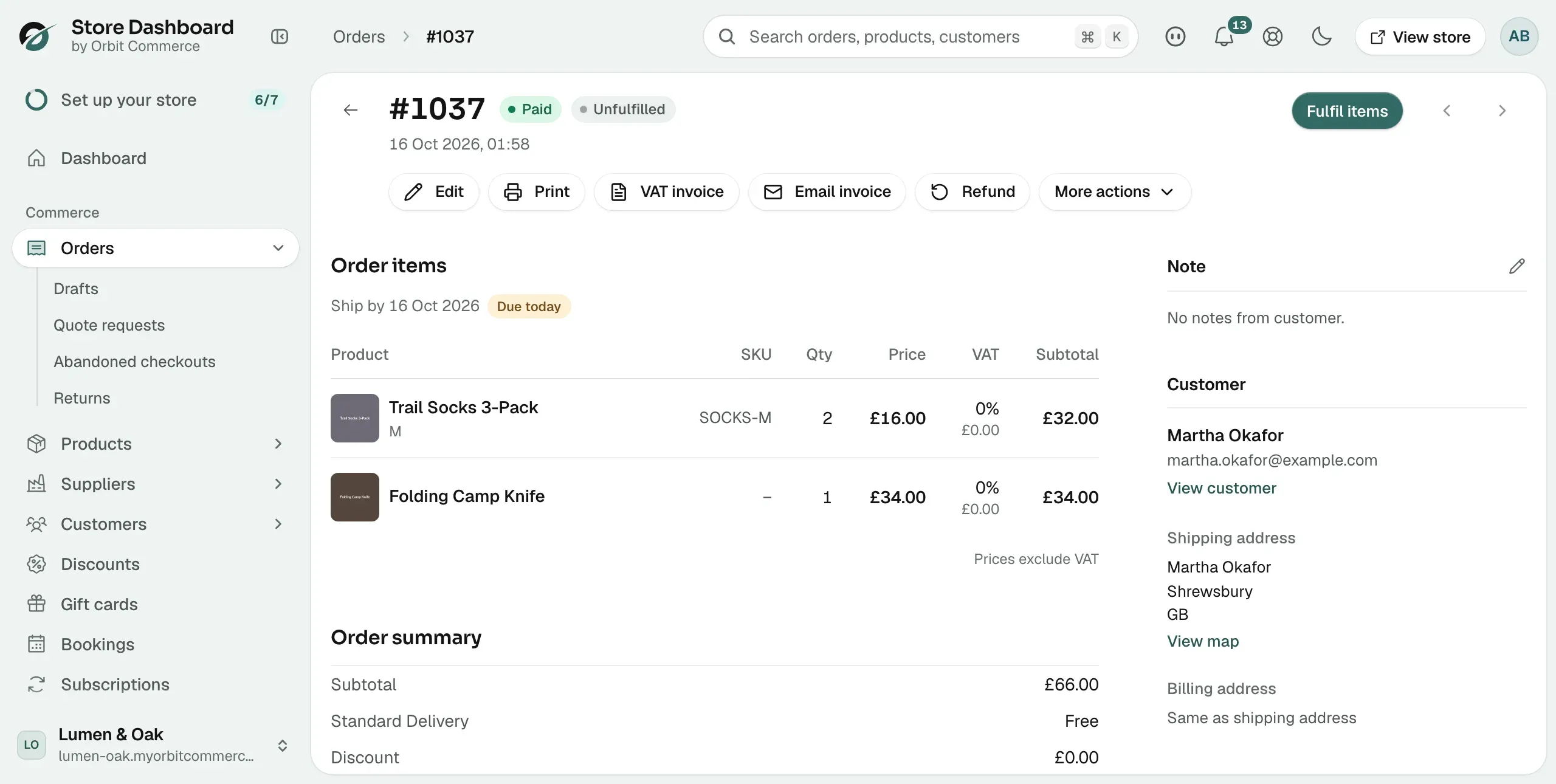
Every order page carries two places to record what happened: a Note card for the short version, and a Timeline that keeps a running record of the order. Between them, anyone who picks the order up later can see who did what and why.
Add a note to an order
The Note card sits at the top of the right-hand column on the order page. Use it for the one thing the next person needs to know, such as a gate code or a requested delivery day.
- From your Orbit dashboard, go to Orders and open the order.
- Click the pencil on the Note card.
- Type your note in the box.
- Click the tick to save it. The message Note saved appears.
To change a note, click the pencil again. To back out without saving, click the cross.
Read the timeline
The Timeline card sits further down the page, below Returns. It records what happened to the order and when, grouped by day, with Today and Yesterday at the top of the newest groups. Events Orbit records for you are marked System.
Weeks later, when someone asks whether an order was refunded or who changed the address, the timeline answers without anyone having to remember. A new order with nothing on it yet reads No activity yet.
Tip: Read the timeline before you refund. If a colleague has already done it, the entry is right there.
Leave a comment on the timeline
A comment is for a conversation with your team, or a message you want the customer to get.
- Open the order and find the Timeline card.
- Click the Leave a comment... box. It opens out and shows its options.
- Type your comment.
- To send it to the customer as well, tick Notify customer. A line appears confirming the customer will receive an email. Leave it unticked to keep the comment between your team.
- Click Post, or press Ctrl and Enter.
A comment that went to the customer is marked Customer notified on the timeline.
Warning: Notify customer sends a real email as soon as you post. Check what you wrote before you click Post.
Edit or delete your own comment
- Find your comment on the timeline.
- Click Edit to change it, then Save. Click Cancel to leave it as it was. Edit is there for 5 minutes after you post.
- Click Delete to remove it. Orbit asks you to confirm.
You can only edit and delete comments you wrote yourself. A deleted comment cannot be brought back, and recorded events cannot be edited or deleted at all.
Related guides
Was this helpful?
0 people found this helpful