Managing draft orders
What the Drafts list and draft order page show: columns, tabs, search, sort and filters, the payment buttons, and how to duplicate, archive or delete drafts.
A draft order is an order you build yourself that has not been paid yet. Use drafts for phone orders, custom pricing, or an order you need to check with the customer before it goes ahead. The Drafts page under Orders lists them. This guide explains what the list and the draft page show. To build one, see Creating a manual order.
Considerations
- A draft becomes a real order when the customer pays through the payment link, or when you mark it as paid. It then moves to your Orders list.
- Deleting a draft cannot be undone. Archive it instead if you might need it again.
Open the Drafts page
- From your Orbit dashboard, go to Orders.
- Click Drafts. The list of draft orders opens.
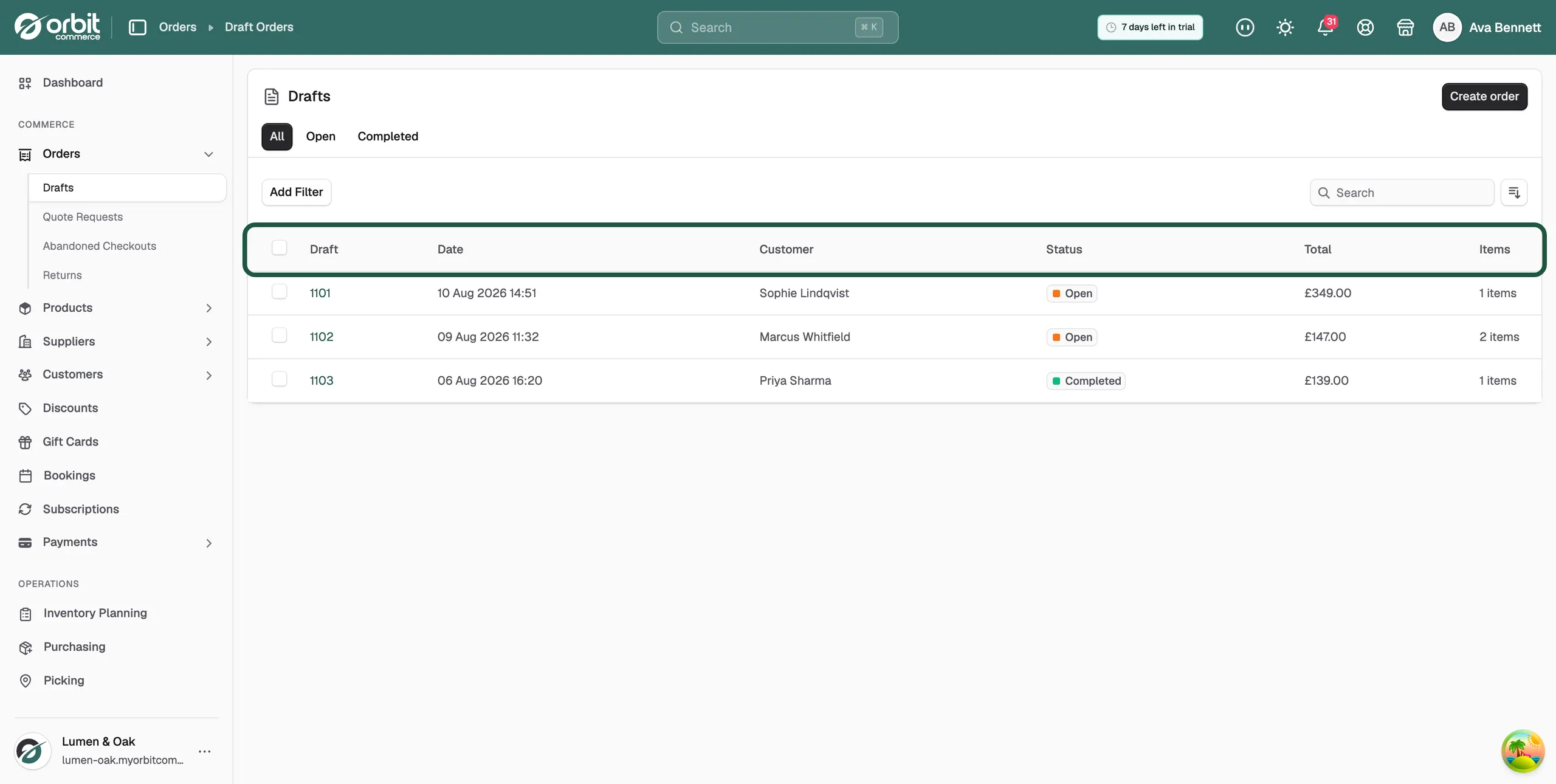
What the list shows
- Draft: the draft number. Click it to open the draft.
- Date: when the draft was created.
- Customer: the customer attached to the draft.
- Status: Open for a draft still in progress, Completed once it has become an order.
- Total: the value of the draft.
- Items: how many items are on it.
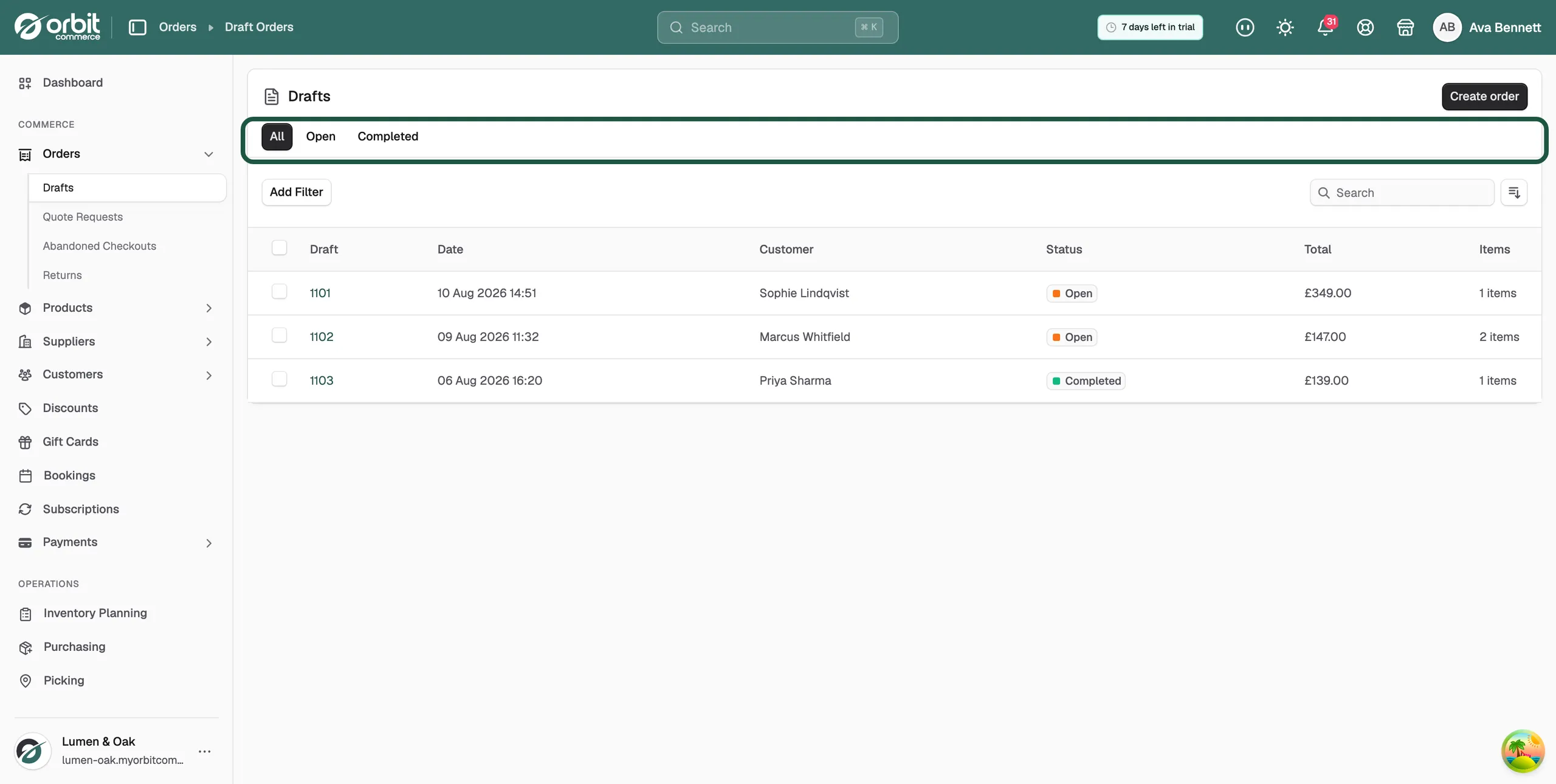
Use the tabs at the top to switch between All, Open and Completed. This separates drafts still in progress from those already turned into orders.
Search, sort and filter drafts
- Type in the Search box to find a draft.
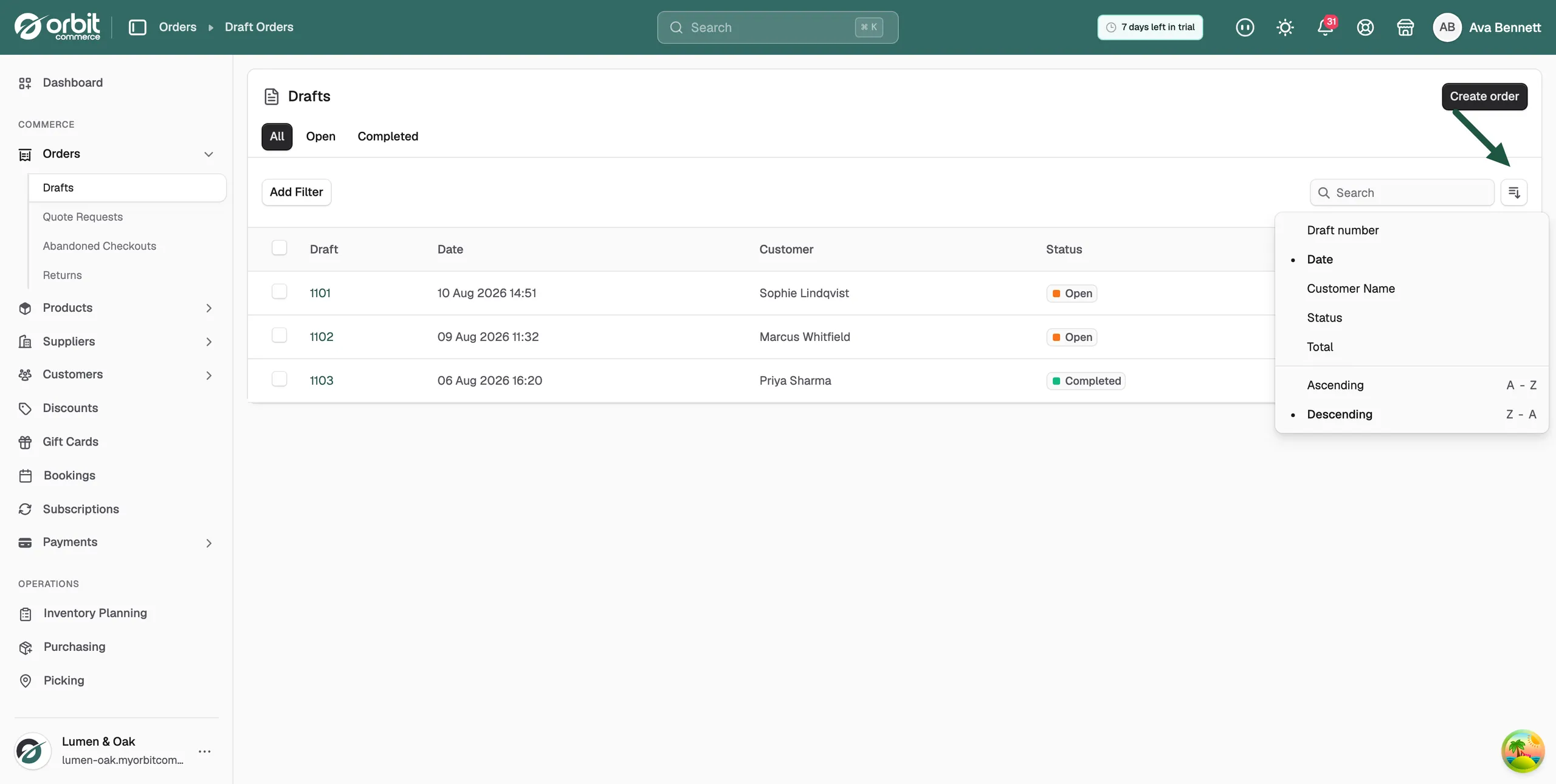
- Click the sort control to order the list by Draft number, Date, Customer Name, Status or Total, in Ascending or Descending order.
- Click Add Filter to narrow the list by Date (Today, Last 7 Days, Last 30 Days, Last 90 Days) or Status (Open, Completed). Click Clear all to remove the filters.
Open a draft
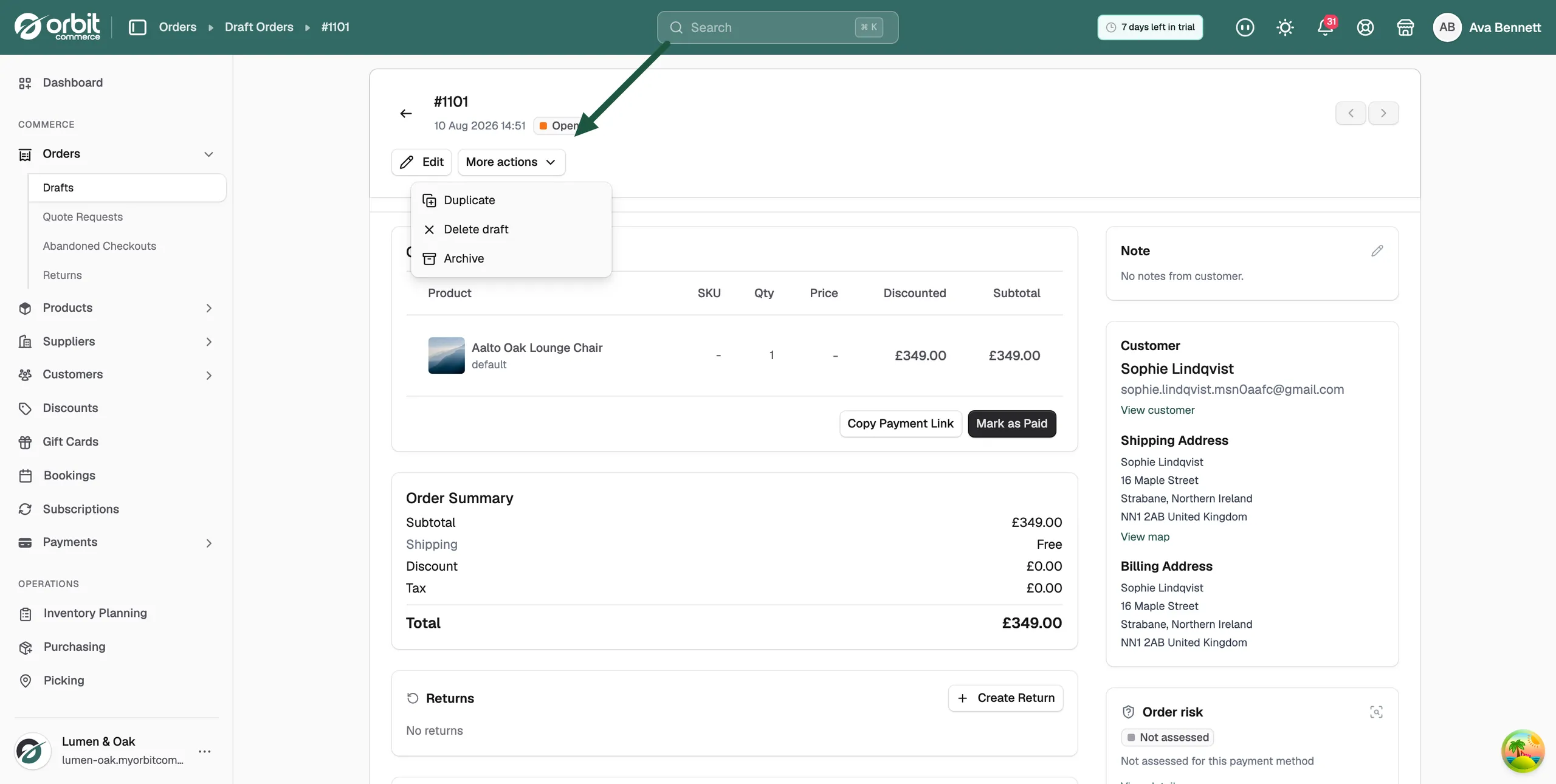
Click the draft number to open it. The draft page shows an Open badge in the header, with Edit and More actions beside it.
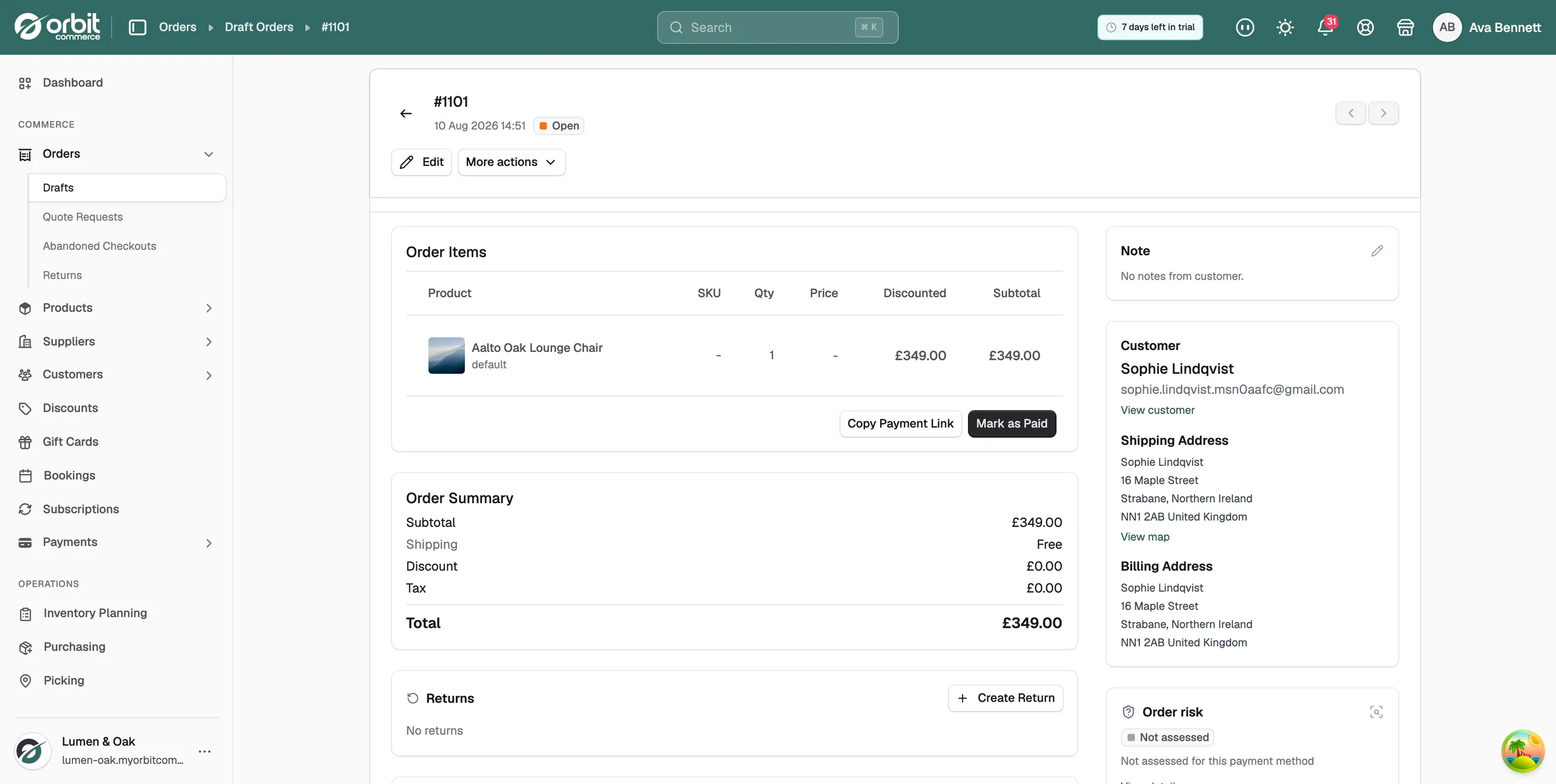
Order Items
Each line shows the Product, SKU, Qty, Price, Discounted price and Subtotal. Under the table are two buttons:
- Copy Payment Link: copies a link the customer can pay through. Paste it into your own email or message.
- Mark as Paid: records that you have received the money, for example by bank transfer. The draft becomes a real order.
For the steps, see Taking payment on an order.
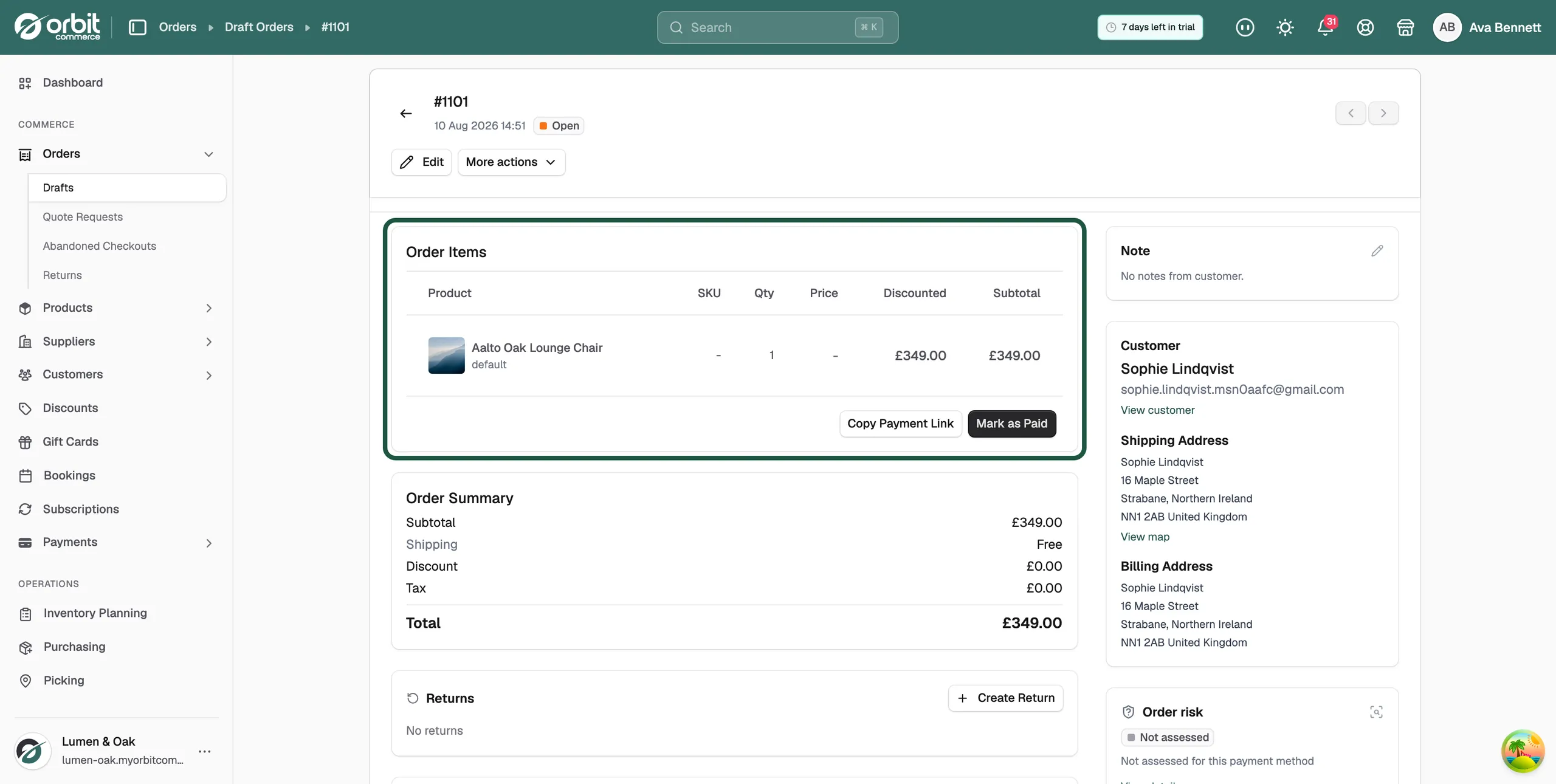
Order Summary
The Subtotal, Shipping, Discount, Tax and Total. Check this before you take payment.
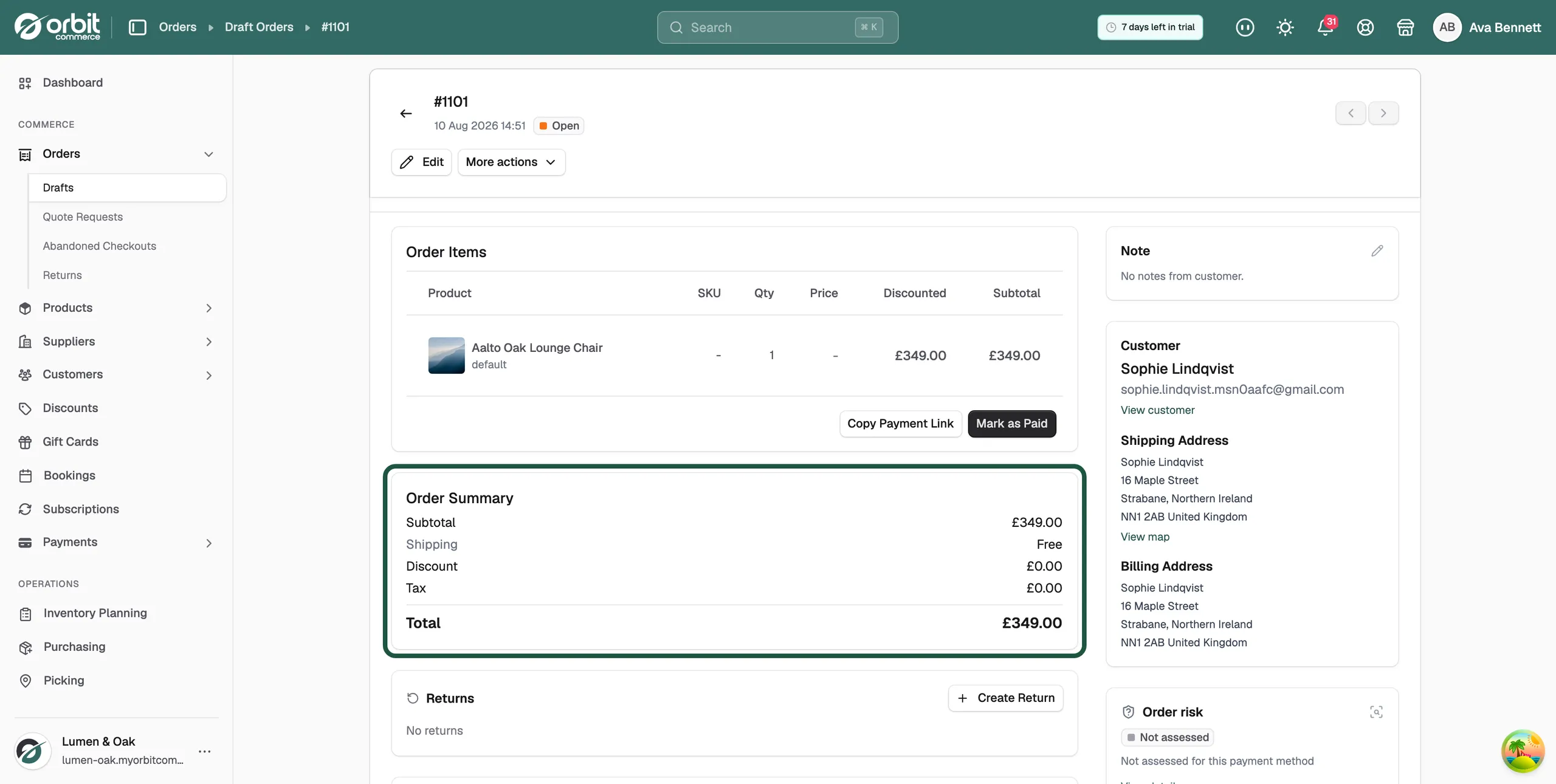
Customer
The customer's name, email, Shipping Address and Billing Address. Click View customer to open their record, or View map to see the address on a map.
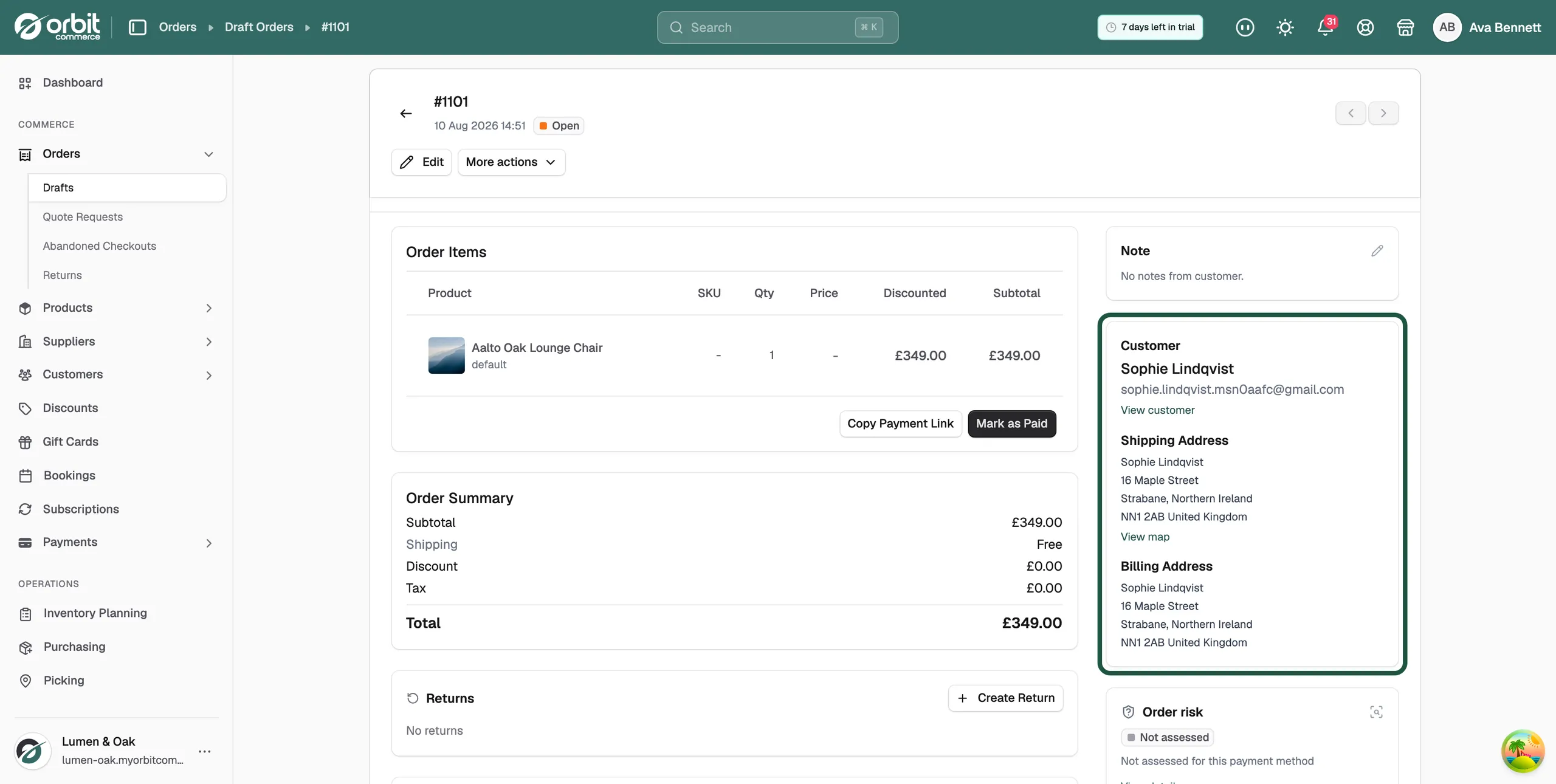
Note, Tags and Custom Fields
- Note: click the pencil to add or change the note.
- Tags: any tags on the draft. It reads No tags if there are none.
- Custom Fields: any custom fields you have set up for orders. If you have none, Orbit says no custom fields are defined. See Adding custom fields.
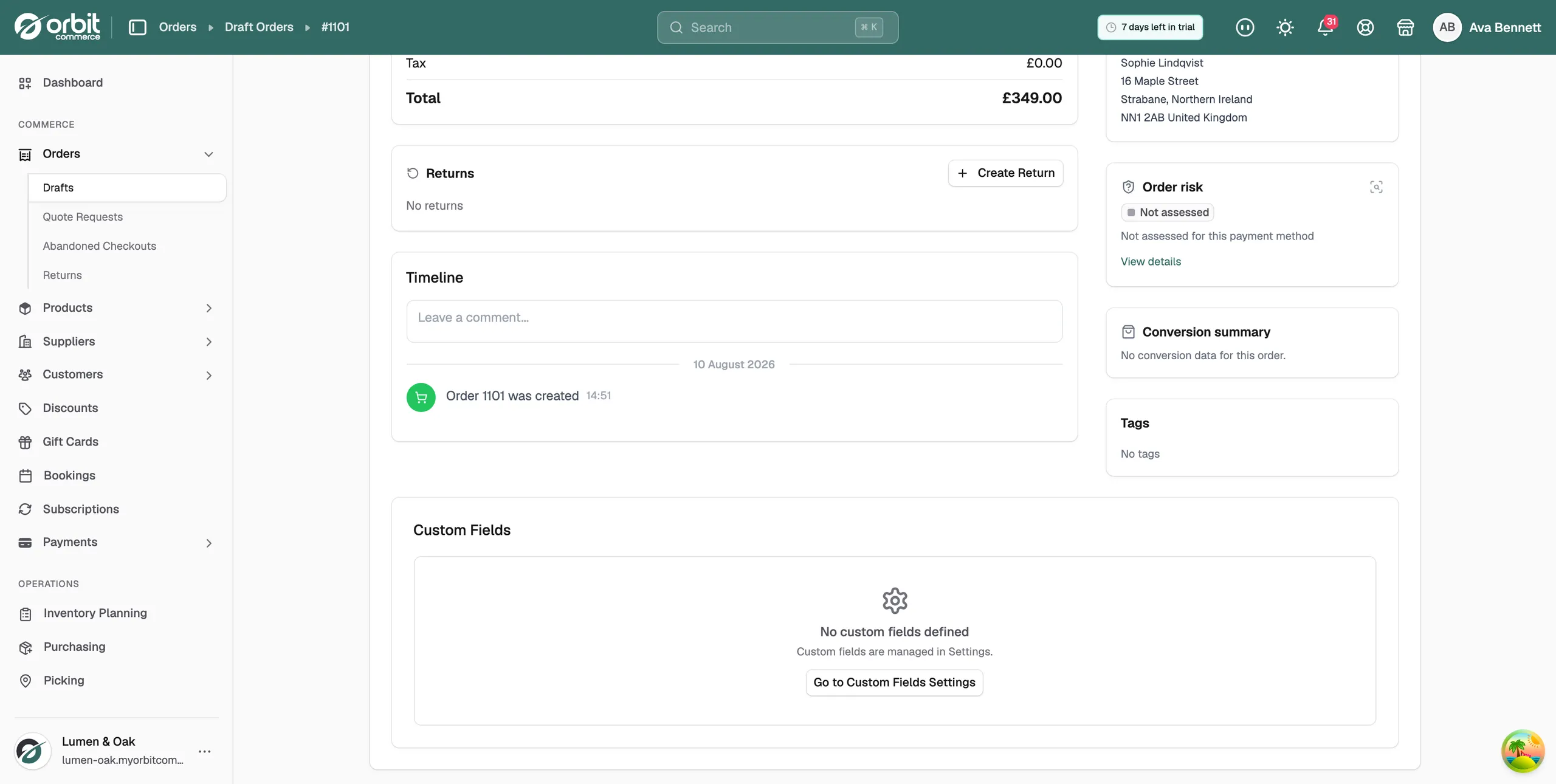
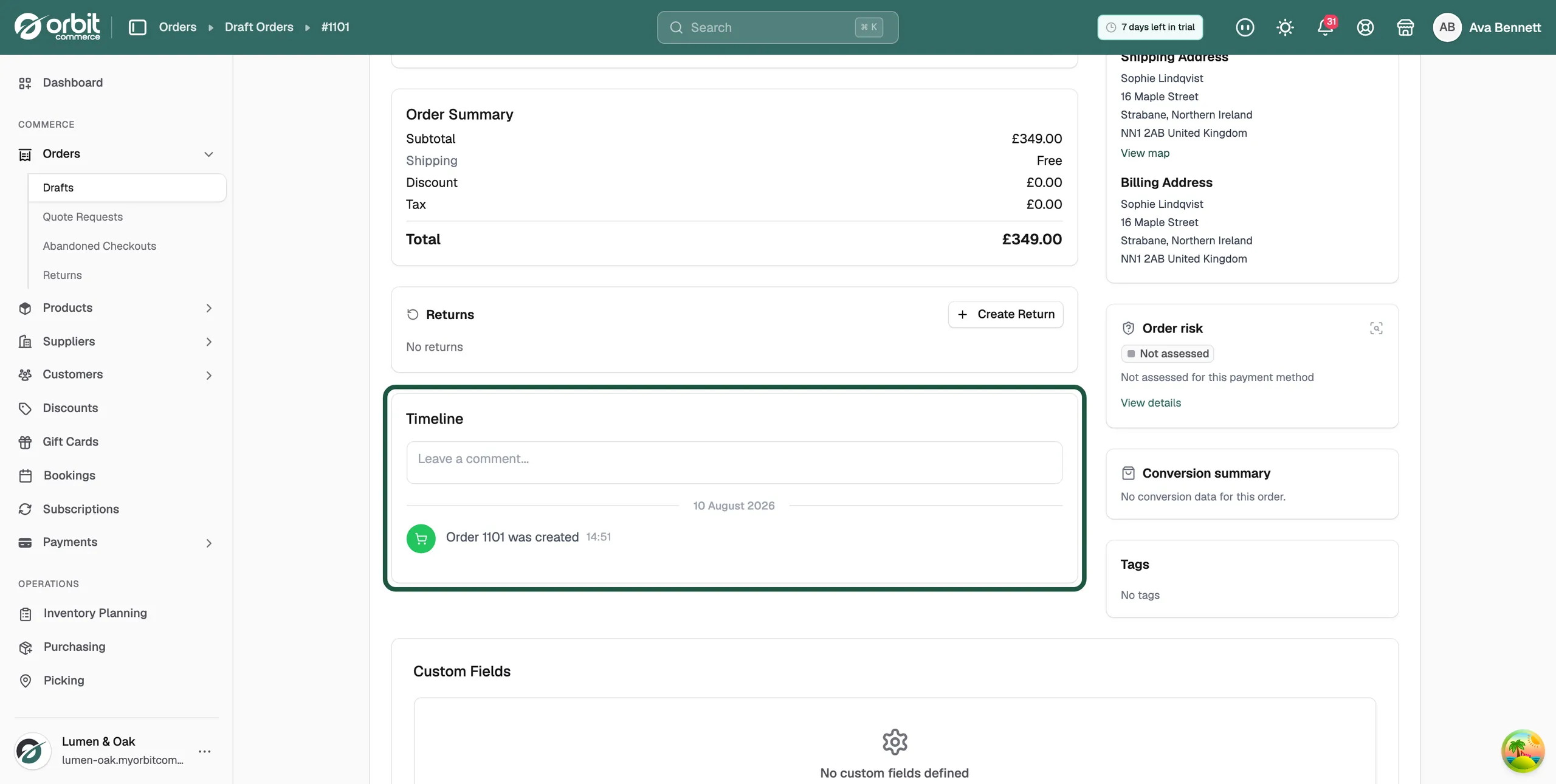
Timeline
The Timeline records what has happened to the draft, such as when it was created. You can add a comment here to leave a record for your team.
Duplicate, archive or delete a draft
- Open the draft.
- Click More actions in the header.
- Click Duplicate to make a copy, Archive to move it out of the main list, or Delete draft to remove it.
- For Delete draft, confirm by clicking Delete Draft in the message. The message Draft deleted successfully appears.
Warning: Deleting a draft cannot be undone.
Act on several drafts at once
- On the Drafts page, tick the box next to each draft. The header shows how many are selected.
- Click Duplicate, Archive or Delete draft.
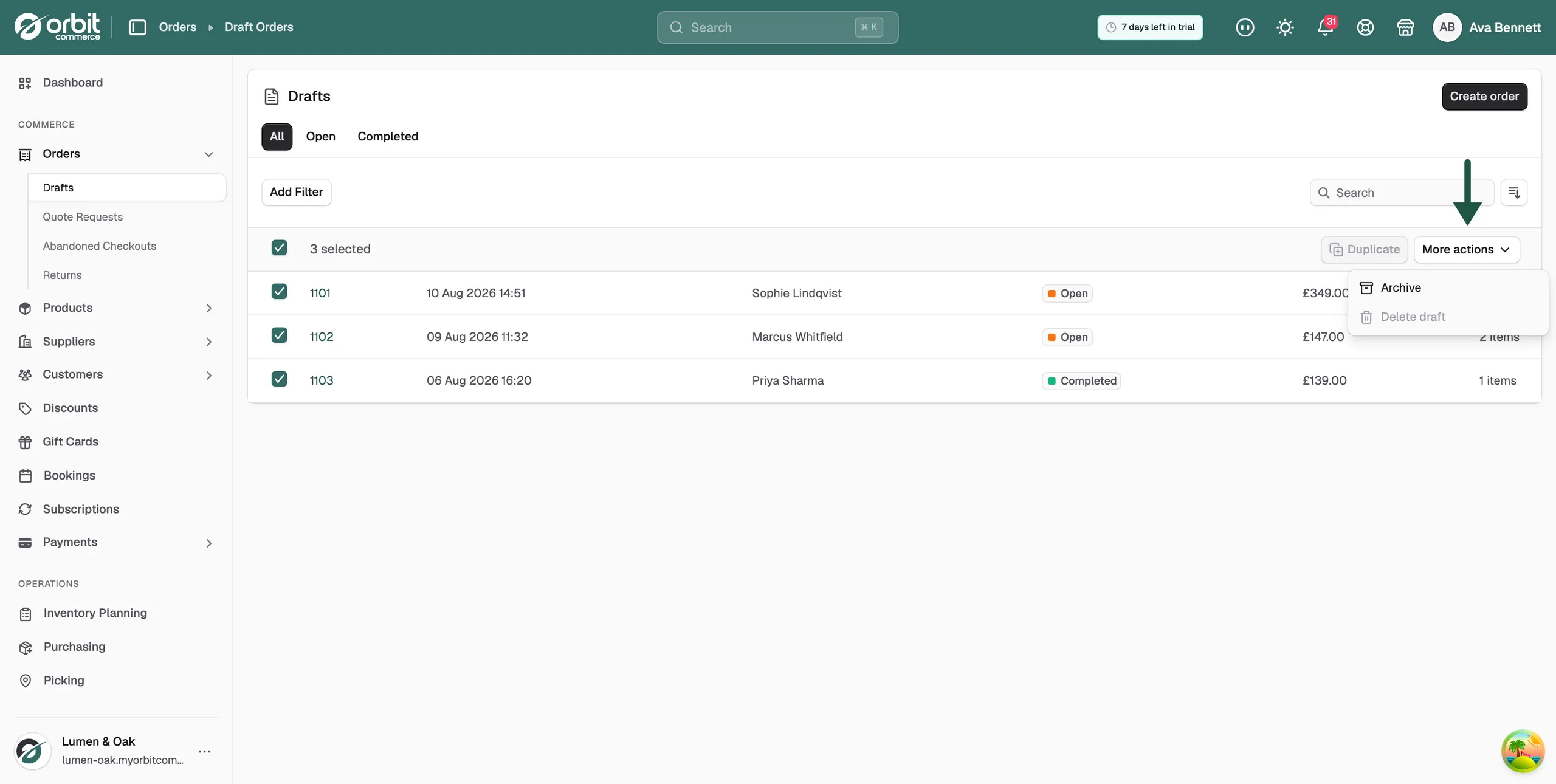
Note: Duplicate and Delete draft work on one draft at a time. Archive works on many, as long as they are all active or all archived. Archived drafts show Unarchive instead.
Related guides
Was this helpful?
0 people found this helpful