Sending an invoice
Download a VAT invoice, email one to the customer, chase an unpaid order with a payment link, and print an order from the order page.
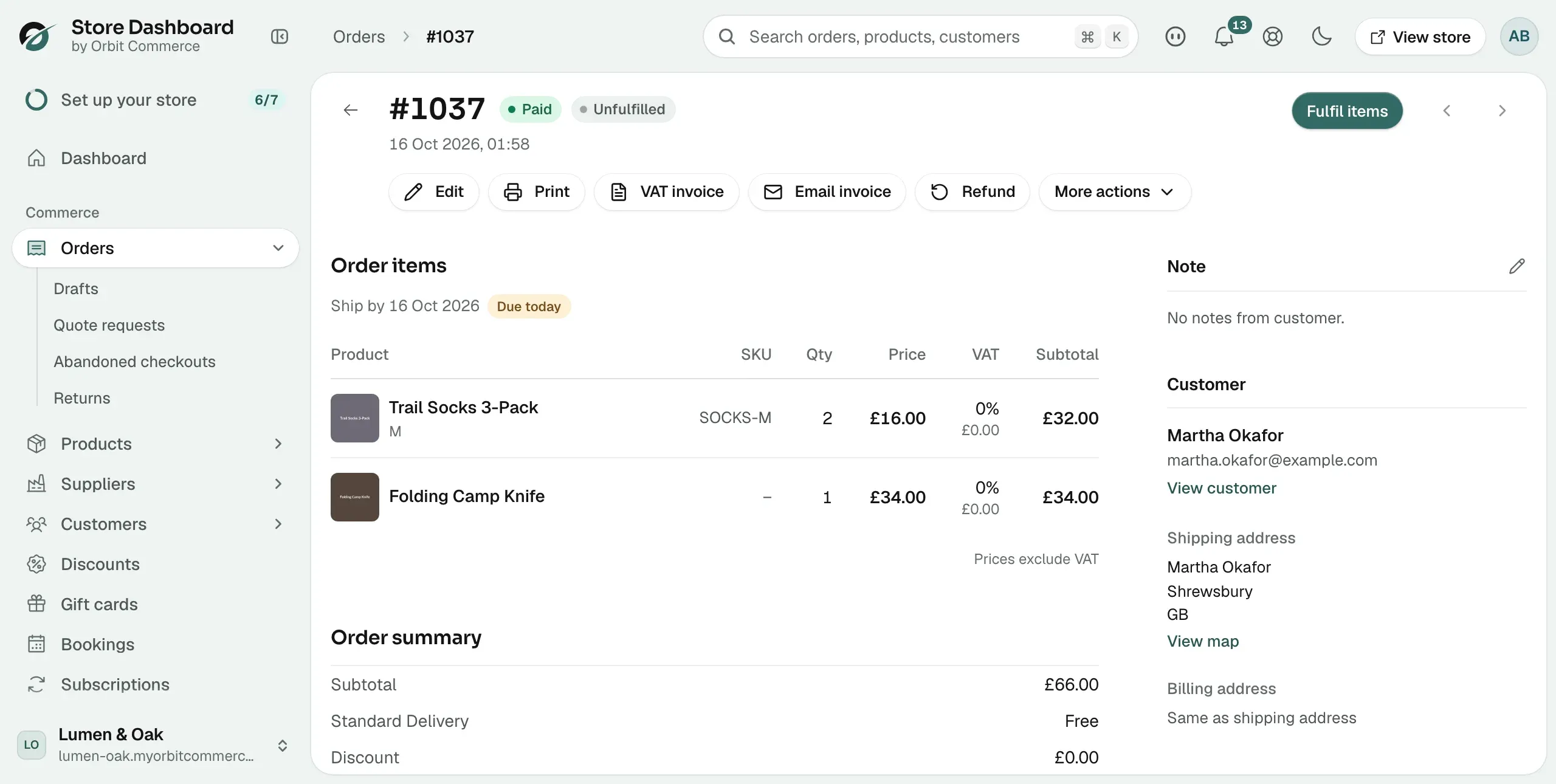
Customers ask for invoices all the time, for expenses, for their own books, or as proof of purchase. Everything you need is in the row of buttons at the top of the order page in your Orbit dashboard.
Considerations
- VAT invoice and Email invoice only appear on a paid order, including one with no VAT charged. A draft order or an unpaid order never shows them.
- The invoice carries your VAT registration number when your store has one set. Without one, Orbit issues a plain invoice with no VAT registration line.
- Customers on payment terms get net-terms invoices instead. Those live under Customers, then Invoices.
Download a VAT invoice
- From your Orbit dashboard, go to Orders.
- Open the order.
- Click VAT invoice at the top of the page. A PDF downloads, named after the order.
Note: If the PDF reads INVOICE rather than VAT INVOICE, your store has no VAT registration number. Set it in your store settings, then download it again.
Email the invoice to the customer
- Open the order.
- Click Email invoice.
- Orbit sends the invoice and tells you the address it went to.
This is the quickest answer to "can I have an invoice?". The email carries the full itemised document, so there is nothing to attach yourself. To change its wording, edit Order Invoice on your Customer email templates tab. See Editing your customer email templates.
Chase an order that is not paid yet
An order with money still owed carries more buttons, further down the page next to the payment total.
- Click Send invoice to email the customer a request for payment with a link to pay.
- Or click Copy payment link and paste the link into your own reply. The link opens the customer's order and payment page without them logging in.
- When the money arrives outside Orbit, click Mark as paid to record it.
Tip: A payment link can expire. If a customer says the link no longer works, copy a fresh one from the order.
Print the order
- Open the order.
- Click Print. That order's packing slip opens in a new tab, ready to print.
To print paperwork for several orders at once, tick them on the Orders list instead. See Printing packing slips and pick lists.
Related guides
Was this helpful?
0 people found this helpful