Letting customers track an order without an account
How the order status page works for guest shoppers, what the link in the confirmation email does, and what to do when a link has expired.
Your customer does not need an account to follow their order. Every order gets its own status page on your store, and the link to it sits in the order confirmation email. This guide covers what your customer sees on that page, what changes it as you work the order, and what to do when a link stops working.
Considerations
- The link carries a private code. Open the page without it and your customer sees Tracking Link Required and nothing else.
- The link lasts 7 days from the moment the order is placed. On an order you raised with payment due later, it lasts 30 days.
- Anyone holding the link can see the order, including the delivery address. Treat it as private.
- The page covers one order. Customers with an account can see all of theirs under My Orders in your store.
What your customer sees
The page opens with the order number, the date the order was placed and a status chip. Under that sit four cards.
- Payment Information: the Payment Status, the Payment Method, the Transaction ID and the Amount.
- Shipping: this card appears once you have fulfilled the order. Each parcel is listed with its tracking, so an order sent in two parcels shows two lines.
- Shipping Address: the address the order is going to.
- Order Items: each line with its quantity and price, then Subtotal, Shipping, Tax, Discount and Total.
Two buttons sit with the order. Refresh Status checks the order again straight away. Copy Link (shown as Share Order Link on a paid order) copies the page address so your customer can save it or send it on.
How your customer gets the link
Orbit puts the link in the emails it sends about the order.
- The order confirmation email has a Track Your Order button that opens the page.
- The email for an order that is waiting for payment opens the same page, and repeats the link as View Order in the footer.
There is no other way in. Your customer cannot look the page up by typing an order number.
What happens in your dashboard
Everything on the page comes from the order in your dashboard. While money is still owed, the page checks for changes every 30 seconds, so your customer sees your work without pressing anything.
- Take the payment and the page shows Payment Successful.
- Fulfil the order and add a tracking number, and the Shipping card appears. See Fulfilling an order and adding tracking.
- Cancel the order and the page says the order has been cancelled and that no payment is due.
- Refund the order and the page shows Order refunded, or Order partially refunded for part of it.
Orders that still need paying
The page also asks for money when there is money outstanding.
- An order that went through checkout but was never paid shows a countdown, Time remaining to complete payment, with a Proceed to Payment button.
- Once that countdown runs out, the page shows Payment Link Expired. Pay now starts a fresh payment. Nothing has been charged at that point.
- An order you raised yourself shows the amount outstanding and a Pay now button. Its payment status reads Payment pending.
- If part of the money is already in, for example a deposit, the page does not offer to take the rest. It asks your customer to contact you instead.
When a link has expired
An expired link, or one that was only half copied, opens a page headed Link expired with a Send new link button. It emails a new link to the address used at checkout, and the page then reads Email sent. The email is Order Link on your Customer email templates tab.
Note: If a new link was asked for in the last few minutes, the page reads No email sent instead. You can also send a working link from the order, as below.
On an order that is not paid yet, Send invoice or Copy payment link gives your customer a working link again. A link that has run out is replaced with a new one, and one close to running out keeps working for longer. Either way it lasts 30 days. See Sending an invoice.
Change the email that carries the link
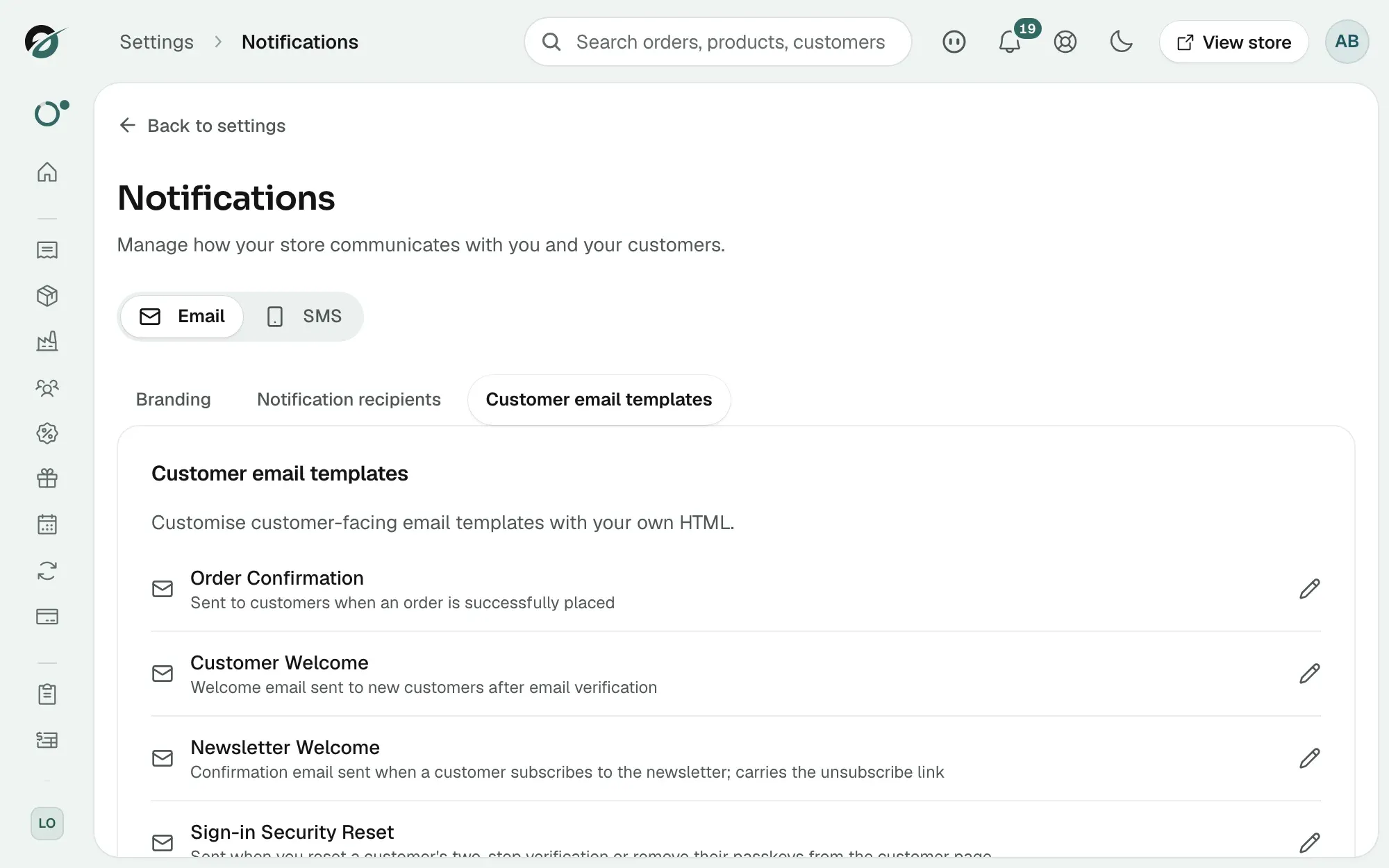
- From your Orbit dashboard, go to Settings.
- Under Insights & tracking, click Notifications.
- Stay on the Email tab, then click Customer email templates.
- Click the pencil icon on the Order Confirmation row.
- Edit the wording around the button, then save. Leave the tracking link itself in place, or your customer loses the way in.
Related guides
Was this helpful?
0 people found this helpful