Fixing theme changes that do not show
You edited a page or a theme and your live store looks the same. Publish state, previews, caching and the wrong theme, in order of likelihood.
You changed a page in the page builder, or swapped a theme, and your live store looks the same as before. Work down this list. The causes are in the order they are most likely.
You saved but did not publish
This is the cause nine times out of ten. Save keeps your work as a draft. Publish puts it on your store. They are two separate buttons.
- Open the page in the page builder.
- Look at the header for an Unpublished changes tag. If it is there, your work is saved but not live.
- Click the tag, or click Publish.
- Click Save & publish in the box that opens.
- The tag disappears. That is your only confirmation. Publishing raises no message.
The status at the top left reads Live with a green dot when a page is published, or Draft when it is not.
You are looking at the preview, not the live store
The builder's preview shows your draft. Your storefront shows the published version. They are meant to differ while you work.
- In the page builder header, click Open on live site, the arrow icon next to the eye. This is what shoppers see right now.
- Compare that tab with the eye icon, Toggle preview mode, which shows your draft.
- If the live tab is missing the change and the preview has it, you have not published. Go back to the first cause.
Your browser is showing an old copy
Browsers hold on to storefront styles and images. Rule this out before you dig any deeper.
- Hard refresh the page. Press Ctrl and Shift and R on Windows, or Cmd and Shift and R on a Mac.
- If nothing changes, open the same address in a private window.
- If the private window is right, it was only your browser. Nothing is wrong with your store.
Your store has not caught up yet
Your storefront can take up to a minute to pick up a change.
- Wait a minute.
- Refresh the page.
- If it is still wrong after a few minutes, the delay is not the cause. Carry on down this list.
A different theme is active
You can edit a theme that is not the one your shop is using. Only one theme is active at a time.
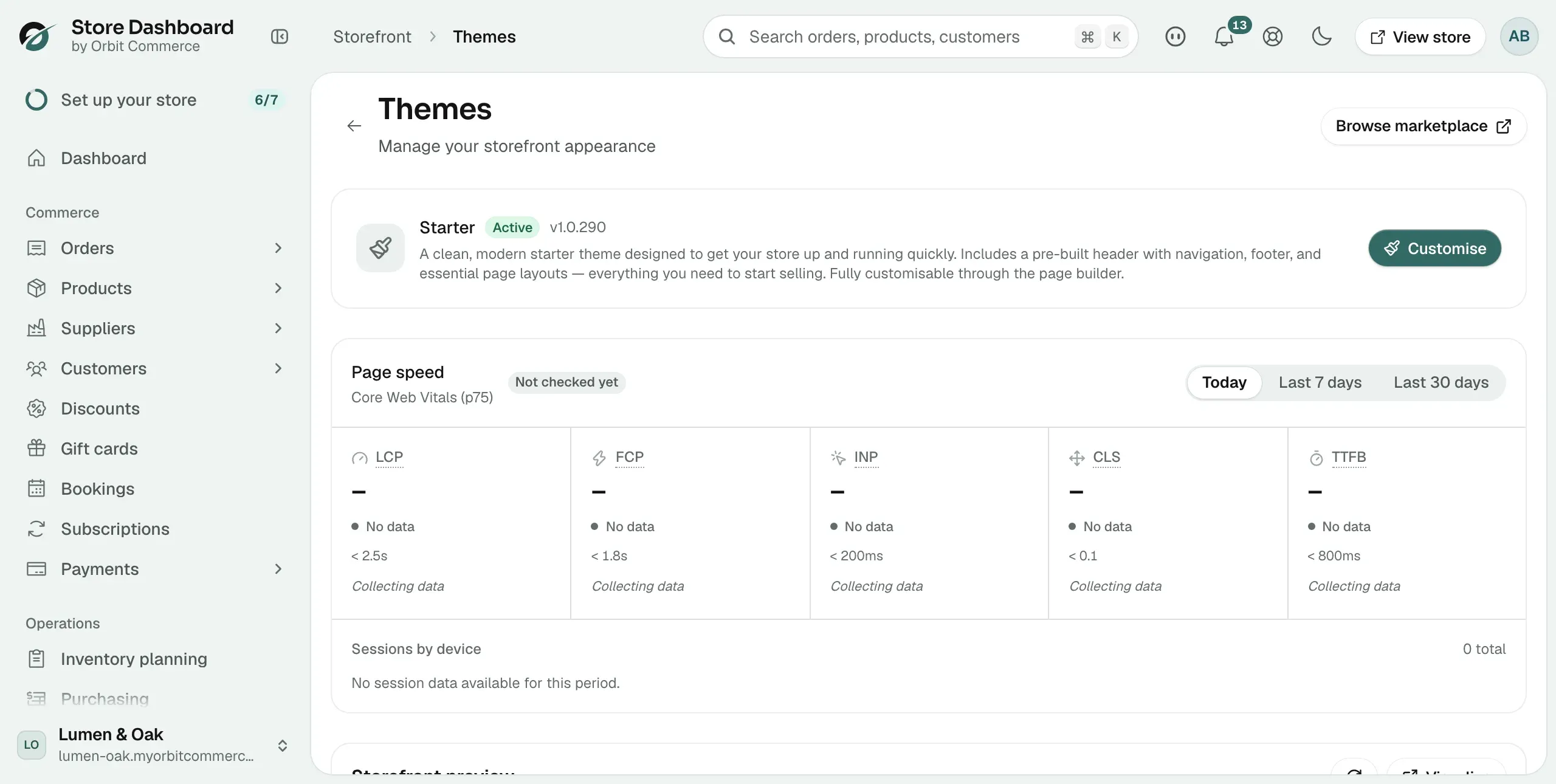
- From your Orbit dashboard, go to Storefront, then Themes.
- The theme at the top with the green Active badge is the one shoppers see.
- Check that it is the theme you have been editing.
- To edit the right one, click Customise on the active theme's card.
You edited a template that is not the primary one
Each page type can have several templates. Shoppers only see the one marked primary.
- Go to Storefront, then Templates.
- Click the tab for the type you edited, such as Products.
- Look at the Primary column. Only one template per type has it switched on.
- Check the Visibility column too. A template set to Draft is not on your store.
- Either edit the primary template, or turn on Primary for the one you worked on.
You edited a lookalike page
Activating a theme can leave you with two similar pages. When a theme's templates clash with pages you already have, the Page conflicts detected box asks you to pick Overwrite existing page, Create new page or Skip this page for each one. Choosing Create new page leaves both versions in your store.
- Go to Storefront, then Pages, or Templates for a built-in page type.
- Look for two entries with the same or similar names.
- Check which one your menu links to, and which one is published.
- Edit that one, and delete or unpublish the spare.
If it still does not work
Open the live page in a private window on a different device, on mobile data rather than your own wi-fi. If your change is there, the problem was always caching on your own machine.
If it is still missing, contact support at support@orbitcommerce.net. Send the address of the page, what you changed, and what you expect to see.
Related guides
Was this helpful?
0 people found this helpful