Fixing a payout that is missing or late
Your customers have paid but the money is not in your bank. Check the payout status, the schedule, bank holidays, refunds and holds on your payment account.
Your customers have paid, but the money has not reached your bank. Most missing payouts turn out to be one of five ordinary things. Start by reading the payout's own status, then work down the list.
Check the payout first
- From your Orbit dashboard, go to Payments.
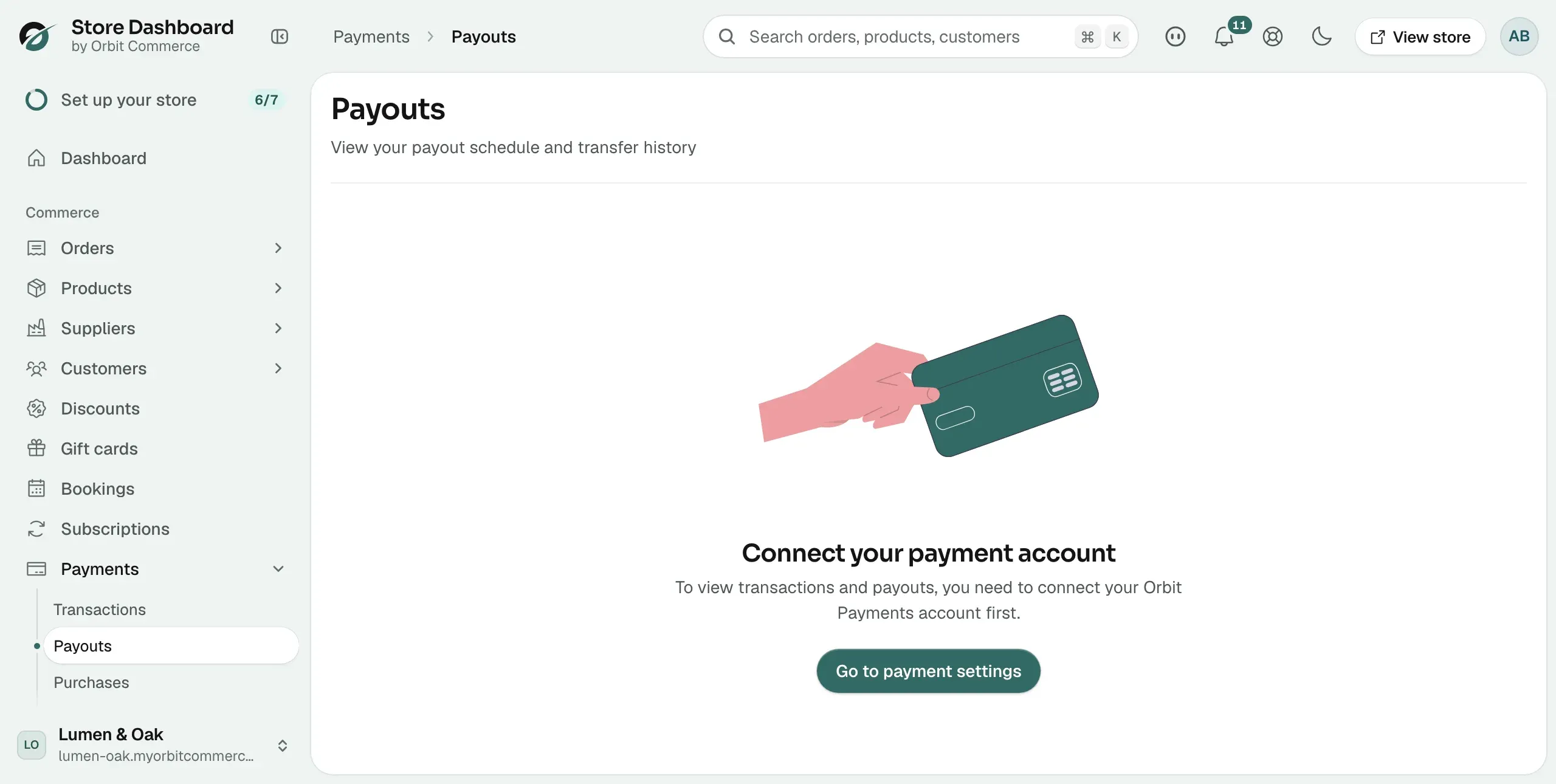
- Click Payouts. The page shows your payout schedule and your transfer history.
- Click the payout you are waiting on. The detail view shows the amount, the status, the arrival date and what the payout covers.
It is on its way, on schedule
Payouts follow your account's schedule and land on banking days. A payout with an arrival date of Tuesday looks missing on Monday night, but it is in transit. Read the arrival date on the payout before doing anything else.
Your first payout after connecting takes longer than the ones that follow, because the account is still finishing its checks.
A weekend or a bank holiday moved it
Banks do not move money at weekends or on public holidays, so arrival dates shift around them. The status on the payout shows the new date.
Fees and refunds made it smaller than you expected
- Card processing fees come off before a payout, so a payout is always less than the payments it covers.
- A refund is taken off a later payout rather than pulled back out of an earlier one. A large refund in a quiet week can shrink the next transfer to very little, or to nothing.
- Open the payout and read what it covers.
- Compare that period against the Transactions page.
- Take off the processing fees and any refunds from the same period. The figures should then agree.
A check on your account has paused payouts
An outstanding requirement on your payment account pauses payouts until it is cleared. Nothing you do on the Payouts page will restart them.
- From your Orbit dashboard, go to Settings, then Store settings.
- Click the Payment settings tab and read the badge on the Orbit Payments card.
- If it does not say Connected, see Fixing payment verification that is stuck.
You changed your bank details recently
A payout account you changed in the last few days can hold transfers back for a short time while the new details are checked. Open Manage account on the Orbit Payments card and check the account number and sort code are right.
Note: A payout that shows as arrived has left Orbit. From that point the money is with the banks, and neither you nor Orbit can speed it up.
If it still does not work
If the payout shows as arrived and the money is not in your account two banking days later, contact your bank first with the transfer date and the amount. If the bank cannot find it, contact support with the payout reference from the Payouts page. That order finds it fastest.
Related guides
Was this helpful?
0 people found this helpful