Fixing payment verification that is stuck
Orbit Payments still not ready to take cards? Check for an unfinished setup form, details that do not match your company record, and documents waiting on you.
You connected Orbit Payments but the account is not ready to take cards. The badge still reads Setup required or Complete your setup, and no money is moving. Card processing is regulated, so your business is checked before it starts. Most checks pass in minutes. When one stalls, it is nearly always one of the causes below.
Where to look
- From your Orbit dashboard, go to Settings.
- Open Store settings.
- Click the Payment settings tab and find the Orbit Payments card. The badge on it tells you where the account has got to.
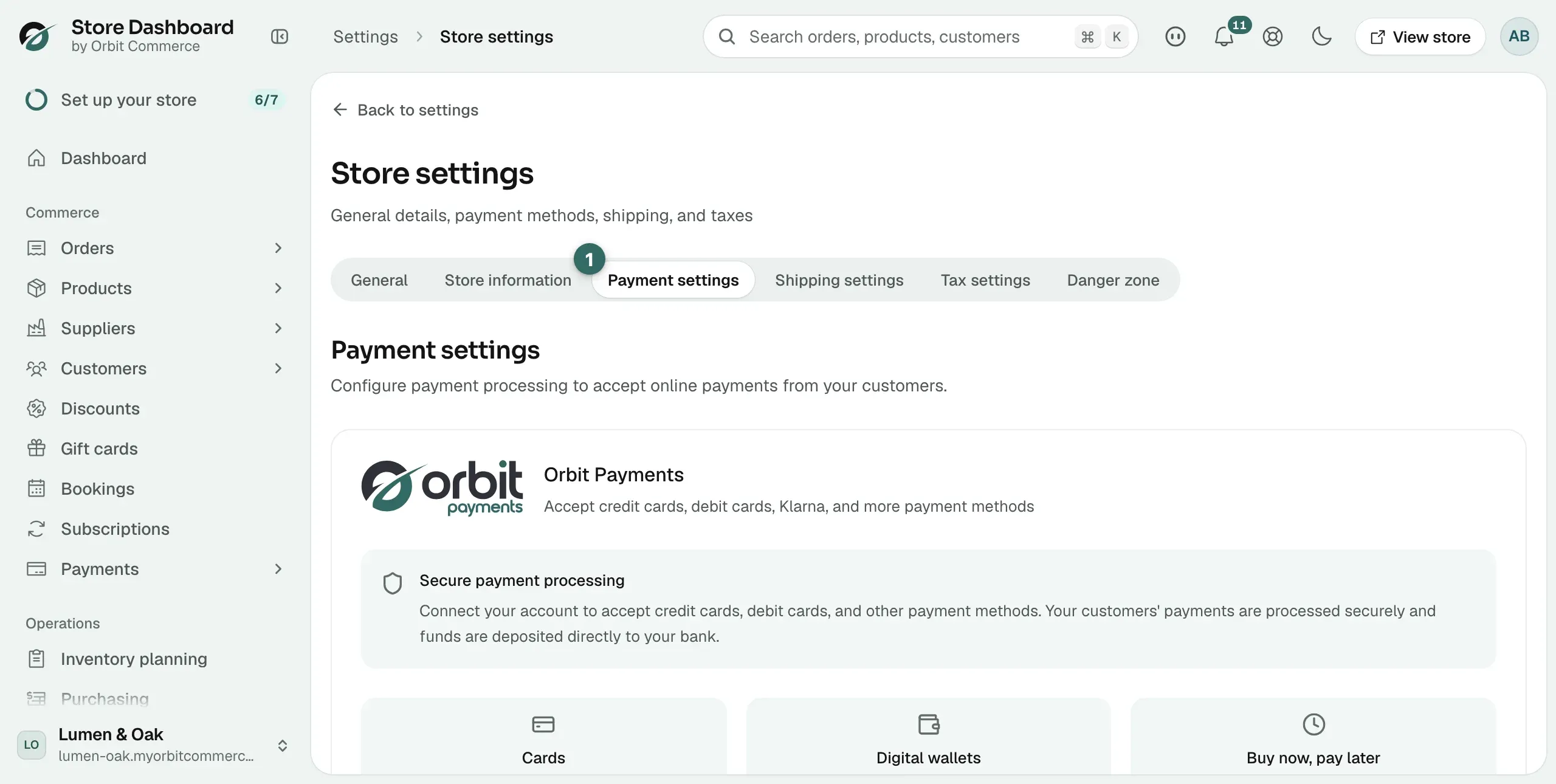
Warning: Setup required is a green badge, the same colour as Connected. Read the words, not the colour. You cannot take card payments until it says Connected.
The setup form was never finished
This is the most common cause. Clicking Cancel in the form keeps your progress but leaves the account incomplete.
- On the Orbit Payments card, look for Complete your setup.
- Click Continue setup. The form reopens where you left off.
- Work through to the end. Have photo ID and your bank details to hand.
- When the checks pass, the card shows a green Connected badge and Ready to accept payments.
The card is showing an old status
If you finished the form some time ago, the card may not have caught up.
- On the Orbit Payments card, click Check status.
- Wait for the message Status synced successfully.
- Read the badge again.
Your details do not match your official record
The legal business name, the registration number and the registered address have to match your company registry entry exactly. "Lumen & Oak Ltd" and "Lumen and Oak Limited" are not the same thing, and a difference that small holds the account up.
- Open your entry at Companies House, or the equivalent registry for your country.
- Click Manage account at the bottom of the Orbit Payments card.
- Compare every field in the Manage payment account panel against the registry record, not against your memory.
- Correct anything that differs, then click Done.
The same applies to the person responsible for the account. Their name and date of birth have to match their ID. A shortened first name is enough to stall it.
A document has been asked for and not sent
A request for photo ID or a bank statement goes to your email. If weeks have gone by with no movement, the request is probably sitting unread.
- Search your inbox, and your spam folder, for the request.
- Open Manage account and check whether anything is outstanding there.
- Send exactly what is asked for, in the name the account is registered in.
- Allow a couple of working days for a document to be reviewed.
The payout bank account does not match the business
The name on the bank account has to match the business the account is registered to. A personal account on a company account fails review. Change it under Manage account.
You cannot see the option at all
Only team members with the payment setup permission can connect or change payment processing. If Connect payment account or Manage account is not there, ask the store owner to do it, or to give you access from Team in Settings.
Note: If the message Add your business address first appears, the account cannot be created yet. Save your business address, including the country, under Settings, Store settings, Store information. Your payment account is registered in that country and cannot be moved later.
Keep trading while you wait
You can carry on building the store, and manual payment methods work straight away. Bank transfer, cash on delivery, cheque and custom methods all sit under Manual payment methods on the same tab, so a launch does not have to wait for card payments.
If it still does not work
Contact support with your store name and the exact wording of the requirement that is outstanding. Your business details are held by Stripe rather than by Orbit, so the wording is what lets support tell you what is missing.
Related guides
Was this helpful?
0 people found this helpful