Refunding an order
Send back the whole order or part of it from the Refund button, and see what that does to the money, your stock and the order.
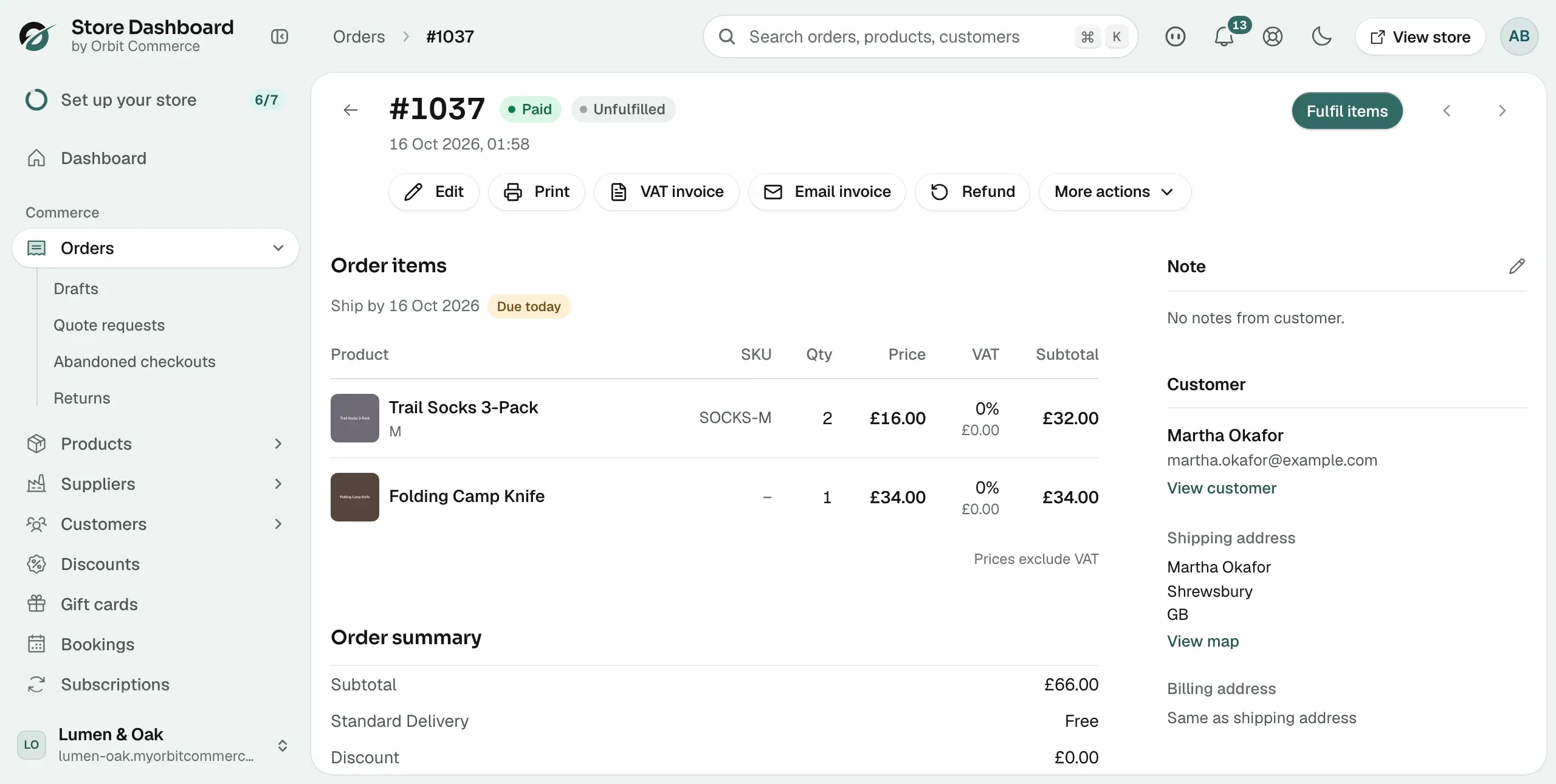
You refund an order from the Refund button on the order page. You can send back the whole amount or part of it. The button shows on a paid order, whether or not anything has shipped.
Considerations
- Orbit moves the money for card payments taken through Orbit Payments. For bank transfer, cash on delivery, cheque / money order and custom methods, the refund is recorded on the order and you send the money yourself.
- Available to refund is the most you can send back on this order.
- A card refund does not change your stock. To take items back, use a return.
- You cannot cancel an order after you have part refunded it. Refunding and cancelling are alternatives, not a sequence.
Issue a refund
- From your Orbit dashboard, go to Orders.
- Open a paid order.
- Click Refund. The Refund order page opens.
- Check Order total and Available to refund in the Summary.
- Under Refund items, set Qty against each line you are refunding. Every line starts at 0. Refund all fills in every line.
- To send the delivery charge back too, use the Delivery refund card. Tick Refund delivery and set the Delivery amount to refund.
- Refund amount adds up as you go. Type over it to refund a different figure, or click Set max for the most you can refund. If you type a figure that does not match the lines you picked, the refund is recorded against the order as a whole and the lines are not marked as returned.
- Pick a Reason: Requested by customer, Fraudulent, Duplicate, Product not received, Not as described or Other. On a card payment, choosing Fraudulent shows a warning and a tick box, Block this card and email address on Orbit Payments. Only tick it if you want future purchases from that card and email address refused.
- Under Notes (optional), write what happened. The note is kept with the refund and stays inside your team.
- Check the Refund method. It reads Original payment for a card payment, Bank transfer from your account for a Pay by bank payment, and Manual payment otherwise.
- Click the Refund button under the amount. It shows the amount, for example Refund £16.00. There is no second confirmation, unless the same amount was refunded on this card payment in the last few minutes. Then Refund this amount again? asks you to check the order's refunds first. Click Don't refund if the first refund is there, or Refund again if the customer is owed the amount twice. A message such as Refund of £16.00 issued appears and you return to the order.
Tip: A partial refund settles most complaints without losing the sale. Refund the damaged item, and the rest of the order stays paid and fulfilled.
Refunding a manual payment
Two extra controls appear when the order was paid by bank transfer, cash on delivery, cheque / money order or a custom method. A card refund does not show them.
- Restock returned items: puts the refunded items back into stock. Turn it off for anything you will not sell again. Once you set a quantity, a reason list appears below it: Restock, Customer return, Damaged or Other.
- Notify customer via email: sends the refund email. Leave it off to keep the refund to your books.
Warning: A manual refund is recorded and marked as succeeded straight away. Orbit does not move the money. You have to pay the customer yourself.
What happens after a refund
- Money: a card refund goes back to the card the customer paid with. How long it takes to show is up to their bank, usually a few working days.
- Stock: a card refund never changes stock. To put items back, start a return and choose Restock on Receive items.
- The order: a full refund moves the order to refunded. After a part refund the payment badge reads Partially refunded and the Refund button stays, so you can refund more later. If a gift card paid part of the order, it stays Partially refunded after you refund the rest, because a refund does not put money back on a gift card.
- Downloads: refunding a digital product turns off its download links and licence keys. After a part refund, the customer keeps the downloads and keys for the units still paid for. The order's timeline says what was turned off.
- Bookings and subscriptions: a full refund cancels any booking on the order, and any subscription the order started, at once. A part refund cancels a booking only when its own line is refunded in full.
- Your books: every refund is written to the order's activity timeline, and a refund comes off a later payout rather than pulling back one you have had.
Note: If the goods are coming back to you, start from Orders, then Returns. That way the item tracking is right, and you refund from there.
Related guides
Was this helpful?
0 people found this helpful