Fixing a discount code that does not work
Seven reasons a code is refused at checkout, in the order they usually happen, with the field to check for each one.
A customer says your discount code does not work. The cause is nearly always one of the seven below. Open the code first: from your Orbit dashboard, go to Discounts and click the code they used.
The code is not active
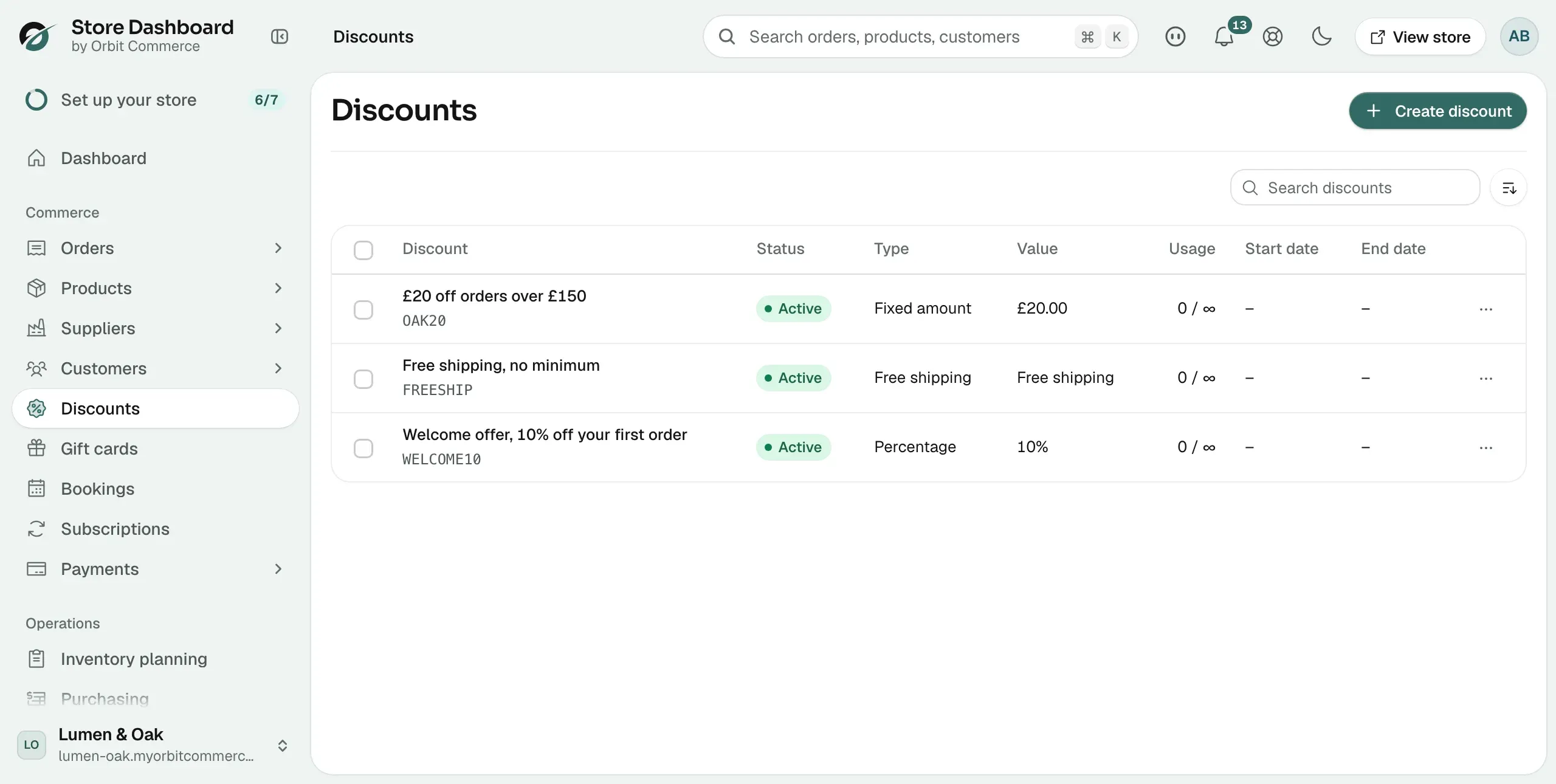
The Status column on the Discounts list tells you this in one look.
- Find the code in the list and read its status.
- Draft and Inactive codes never apply. Open the code, set the status dropdown to Active, then save.
- Scheduled means it has not started yet. Expired means it has finished.
The active dates rule it out
A start date in the future or an end date in the past switches the code off with no message to the customer.
- Open the code and look at Active dates.
- Check the Start date against today.
- Check the End date. Dates run in your store's timezone, set under Settings. An end date of midnight has already passed for a customer in a timezone ahead of yours.
The usage limit is used up
- Read the Usage column on the Discounts list. It shows how many times the code has been used.
- Open the code and check Usage limits. There are two: a total limit, and a limit of one use per customer.
- A per customer limit also catches the same person ordering under a new email address, because it matches on the customer account.
The basket does not meet the minimum
A code set to take £20 off orders over £150 does nothing to a basket of £149.95, and the customer is not told why.
- Open the code and check Minimum purchase requirements.
- Compare the customer's basket with the Minimum purchase amount or the Minimum quantity of items.
- The amount is checked against the basket subtotal. Shipping does not count towards it. Gift cards in the basket count towards neither the amount nor the quantity.
The basket is outside what the code applies to
- Open the code and check Applies to. A code limited to Specific products, Specific collections or Specific variants does nothing to a basket without them.
- Check Customer eligibility. If it is set to Specific customers or Specific customer segments, the shopper has to be signed in as one of them.
Another discount is already on the basket
Checkout takes one discount code per order. If the customer has already applied a code, a second one is refused. The Combinations tick boxes on a discount do not change this yet.
- Ask the customer whether another code is already on the basket.
- Ask them to remove it, then apply the code that gives the bigger saving.
The customer typed it wrong
- Ask them to copy and paste the code rather than retype it.
- Check for a trailing space, a letter O against a zero, and a capital I against a lower case l.
If it still does not work
Build the customer's exact basket in your own storefront and apply the code. If it works for you, the difference is in their basket or their account, and the checks above will find it. If it fails for you too, contact support with the code, the basket contents and a screenshot of the checkout.
Related guides
Was this helpful?
0 people found this helpful