Combining discounts and setting usage limits
Cap how often a code can be used, cap what a percentage discount gives away, and choose which discounts are allowed to run together.
Usage limits cap how often a code can be used. A cap holds down what a percentage discount gives away. Combinations records which other discounts a code may run alongside. All three sit on the discount's own page in your Orbit dashboard.
Considerations
- Checkout takes one discount code per order.
- Limits are checked when the shopper uses the code. Once a total limit is reached, the code stops working for everyone.
- Limit to one use per customer needs the shopper to be signed in, so the store can tell who they are.
- Changing these settings does not affect orders that already used the code.
Limit how many times a code can be used
- From your Orbit dashboard, go to Discounts.
- Click the discount's row to open it.
- In the list on the left, click Usage limits.
- Tick Limit to one use per customer to give each shopper one go.
- Tick Limit number of times this discount can be used in total, then type the number in the box that appears, for example 200.
- Click Save on the Unsaved changes bar.
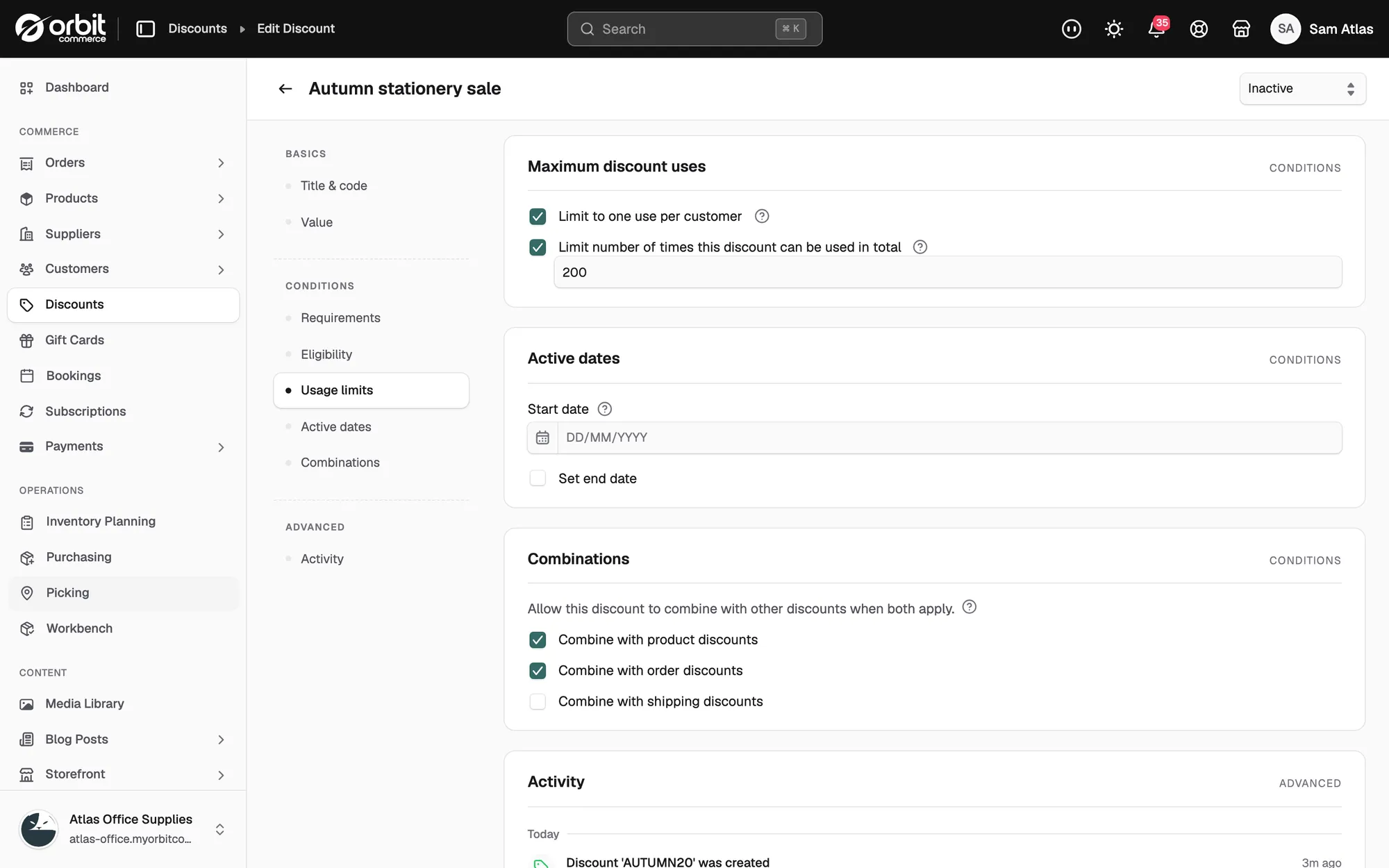
The two settings do different jobs:
- Limit to one use per customer: one welcome offer per person, rather than one per order.
- Limit number of times this discount can be used in total: a cap across your whole store, which suits a first come, first served offer.
Note: Leave the total limit unticked and the Usage column on the Discounts list shows the sign for no limit, ∞.
Cap a percentage discount
A percentage grows with the basket, so 20% off costs you more on a large order than a small one. A cap stops that.
- On the discount, click Value in the list on the left.
- In Maximum discount amount (optional), type the most the discount can take off one order, for example 150.
- Save the discount.
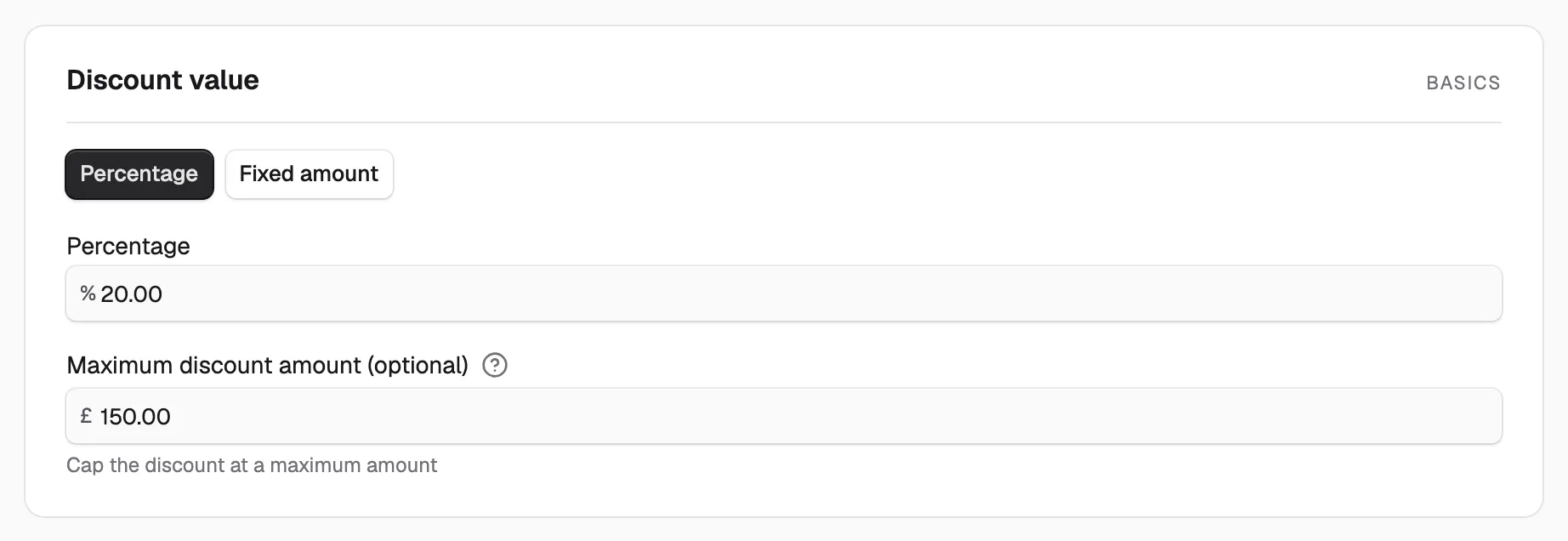
The hint under the box reads Cap the discount at a maximum amount. Leave the box empty and it reads No limit. The field is only on percentage discounts, so it is not there for Fixed amount, Free shipping or Buy X Get Y.
Set which discounts can combine
- On the discount, click Combinations in the list on the left.
- Tick each kind of discount this one may run alongside.
- Click Save on the Unsaved changes bar.
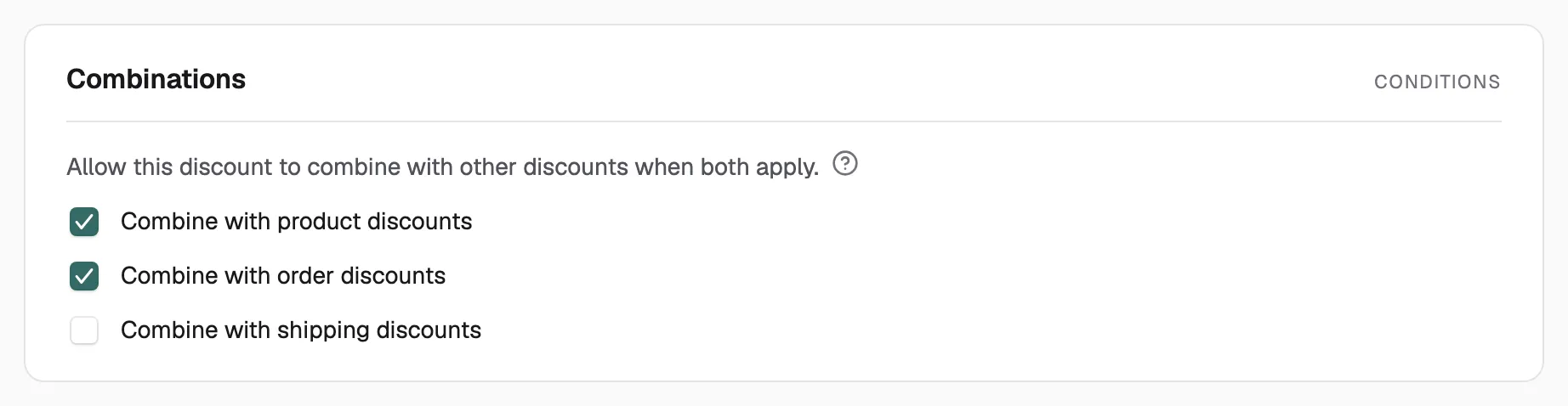
The card reads Allow this discount to combine with other discounts when both apply. The three boxes are:
- Combine with product discounts: discounts that reduce chosen items.
- Combine with order discounts: discounts that reduce the whole basket.
- Combine with shipping discounts: discounts that reduce the delivery charge.
Both discounts have to allow the pairing. Ticking a box here does nothing unless the other discount allows this one on its side. Leaving every box unticked is the safe setting.
Warning: Checkout takes one code per order today, so shoppers cannot type two codes together. Work out your worst case basket before you turn combinations on.
Related guides
Was this helpful?
0 people found this helpful