Managing discounts
Read the discounts list, find a code, edit it, switch it between active and inactive, delete the ones you no longer need, and see who changed one.
The Discounts page lists every discount in your store. From here you can see what each one does and how often it has been used, open one to change it, switch it off, or delete it.
Open the discounts list
- From your Orbit dashboard, go to Discounts.
- The list opens with the newest discount at the top.
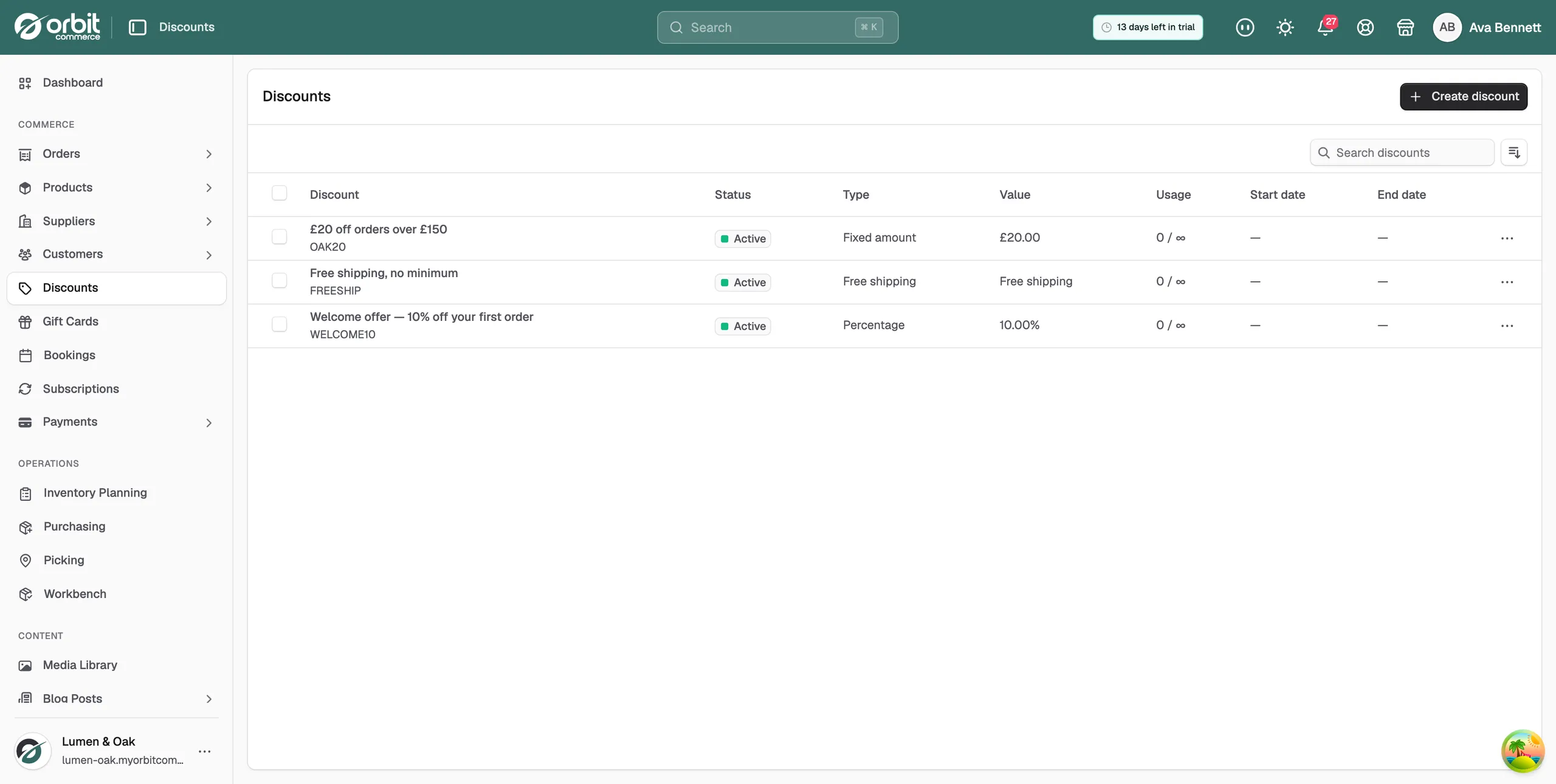
Each row is one discount, and the columns are:
- Discount: the title, with the code underneath it.
- Status: whether the discount is working at checkout.
- Type: how the discount is worked out, such as Percentage, Fixed amount, Free shipping or Buy X Get Y.
- Value: the amount taken off, for example 10.00% or £20.00.
- Usage: how many times the code has been used, then the limit. An infinity sign means there is no limit.
- Start date: the date the discount becomes available, or a dash if you did not set one.
- End date: the date it stops, or a dash if it has no end date.
What each status means
- Active: live, and customers can use it now.
- Inactive: switched off and cannot be used.
- Scheduled: set to start on a future date and not yet live.
- Expired: the end date has passed and the code no longer works.
- Draft: created but never made active.
Find a discount
- Type a title or a code into Search discounts above the table.
- To change the order, click the sort button to the right of the search field.
- Sort by Created, Code or Type, then choose Ascending or Descending.
Edit a discount
- Click anywhere on the discount's row. The whole row is the link, so there is no Edit button in the table.
- Change what you need. Use the left-hand menu to jump between Title & code, Value and the Conditions sections.
- The Unsaved changes bar appears as soon as you change a field, and follows you down the page.
- Click Save to keep your changes, or Discard to put every field back to how it loaded.
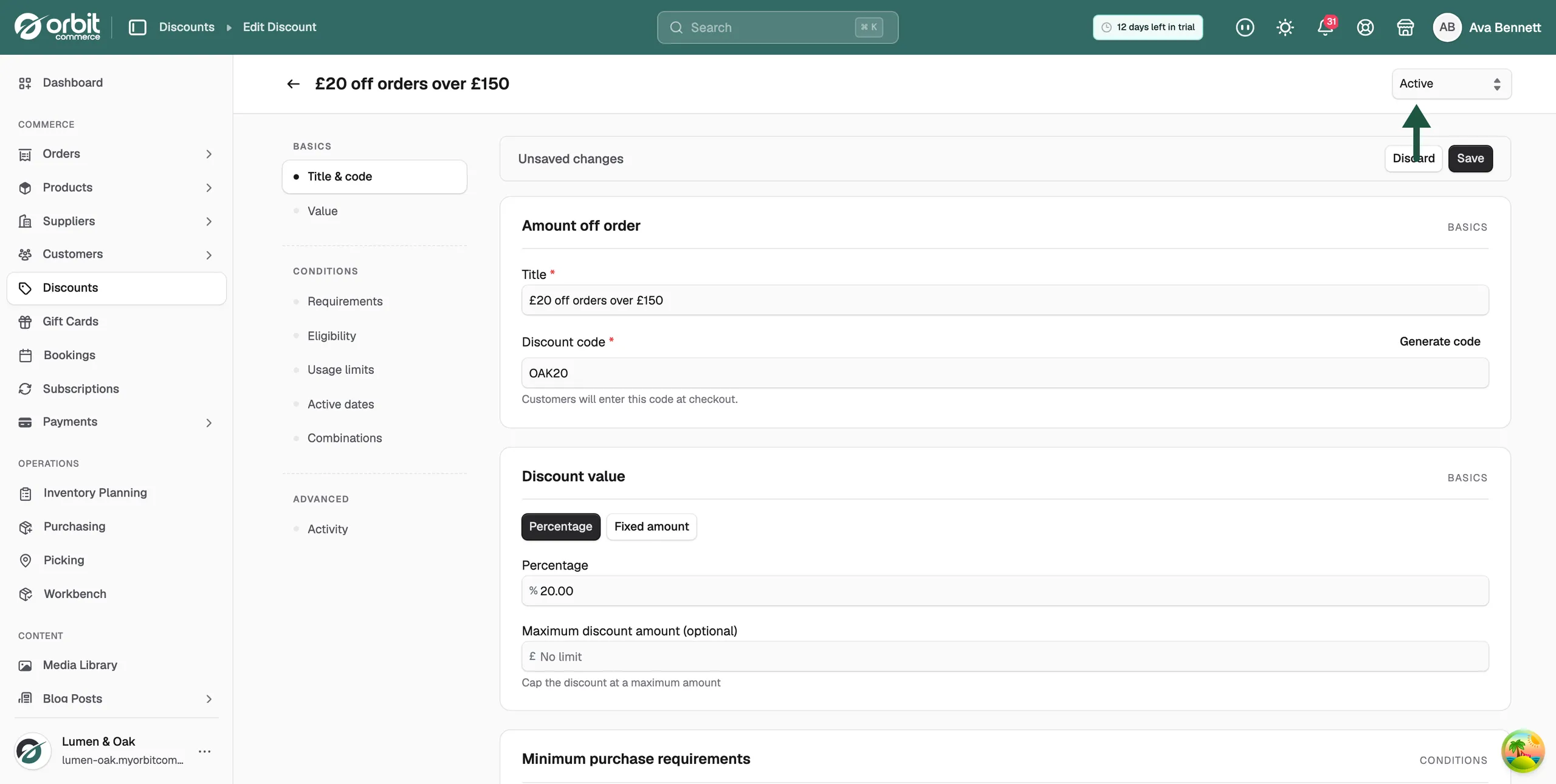
Note: The edit page has an extra Activity section under Advanced. It records when the discount was created and updated.
Turn a discount on or off
- Open the discount.
- At the top right, set the status list to Active to let customers use the code, or Inactive to stop it.
- Click Save.
Inactive beats every date and every limit. The code stops working as soon as you save.
Delete a discount
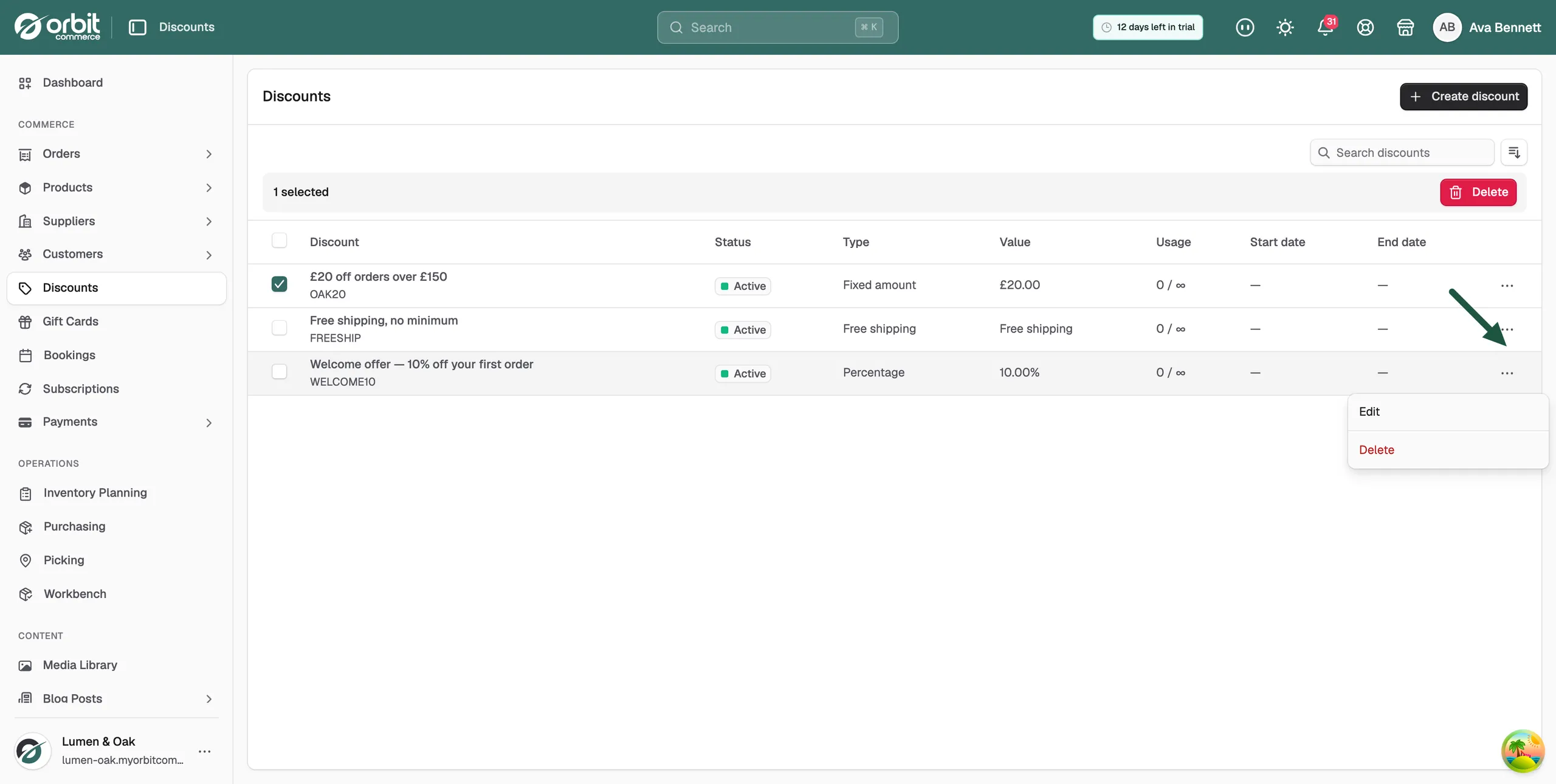
- In the list, click the actions menu at the end of the discount's row.
- Click Delete.
- Read the message, then confirm.
To remove several at once, tick the box next to each discount, then click Delete in the bar that appears above the table and confirm.
Warning: Deleting a discount cannot be undone. To stop a code for now and keep it, set it to Inactive instead.
See who changed a discount
Every discount keeps a record of what was done to it. Use it to check who changed a code and when.
- From your Orbit dashboard, go to Discounts.
- Click the discount's row to open it.
- In the left-hand menu, under Advanced, click Activity.
- Read the list. Entries are grouped by date, with Today and Yesterday at the top.
- Click Show details on an entry to see the fields that changed, under the headings Field, From and To.
- Click Show more to load older entries, ten at a time.
Each entry shows what happened, how long ago it happened, and who did it. Hover over the time to see the full date and time. The name under each entry tells you who made the change:
- Staff: someone signed in to your dashboard, shown with their name.
- App: a connected app, shown with the app's name.
- Support access: Orbit support, signed in on your behalf.
- System: Orbit itself, with no person involved.
Orbit keeps activity for 180 days by default, so older changes drop off the list.
Related guides
Was this helpful?
0 people found this helpful