Creating a discount
Pick a discount type, set the title and code, choose the value and the products it covers, then save the discount as a draft or start it now.
You create discount codes from the Discounts page in your Orbit dashboard. A code takes money off an order when the customer enters it at checkout. There are four types, and the type you pick decides which fields you get.
Considerations
- You choose the type when you create the discount. A discount cannot be changed into a different type later.
- Codes are always stored in capitals. Only letters, numbers, hyphens and underscores are allowed, and anything else you type is dropped.
- A customer can use one discount code per order.
- Discounts never apply on their own. The customer has to type the code at checkout.
Choose a discount type
- From your Orbit dashboard, go to Discounts.
- Click Create discount. The Select discount type window opens.
- Click the type you want. The create page opens with the fields for that type.
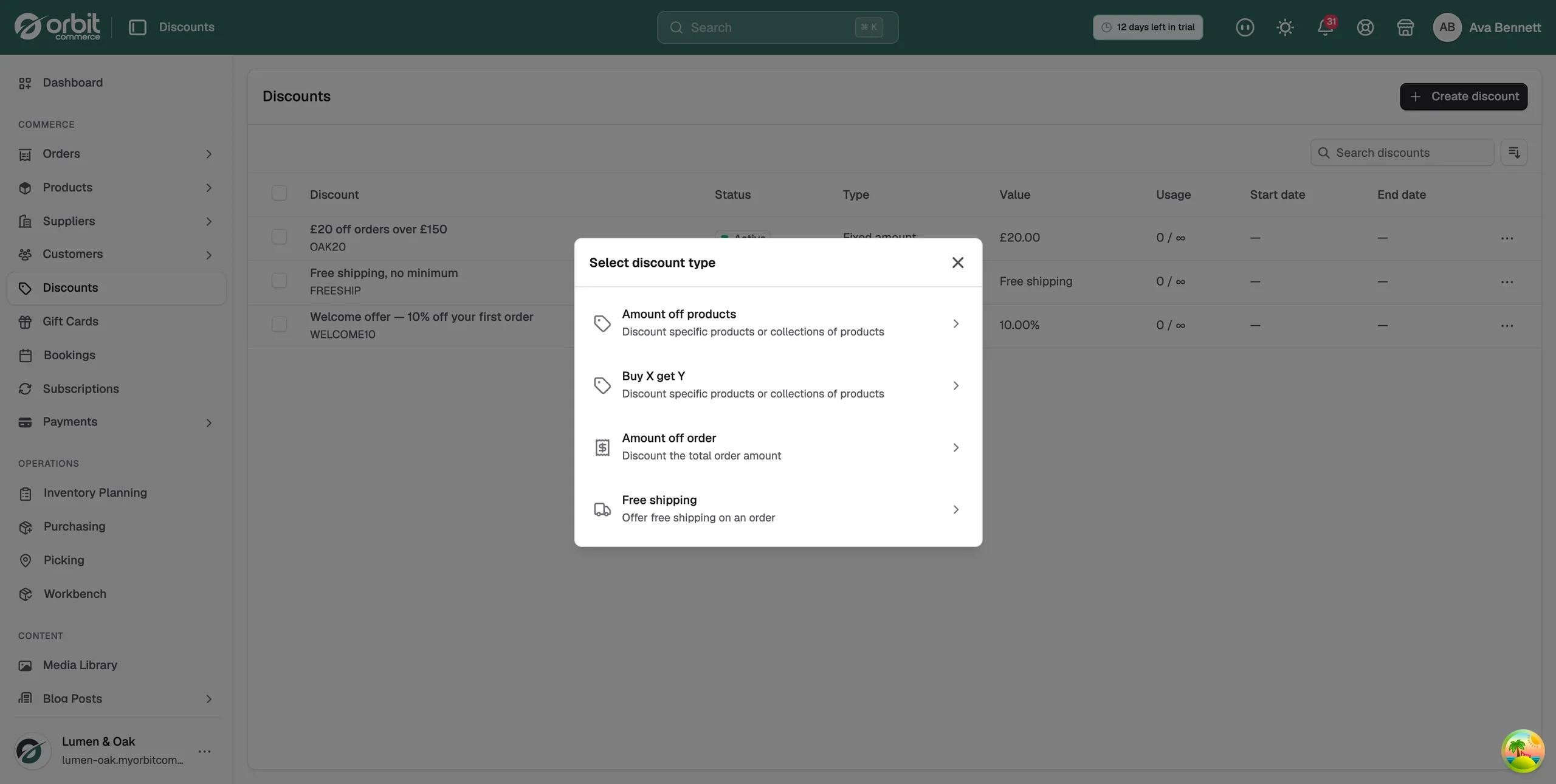
- Amount off products: discounts specific products or collections of products.
- Buy X get Y: discounts one set of items when the customer buys another.
- Amount off order: discounts the total order amount.
- Free shipping: offers free shipping on an order.
Add a title and a code
- In the first card, type a Title, such as Summer Sale 20% Off. This is the name you see in your own dashboard. Customers do not see it.
- In Discount code, type the code customers will enter at checkout, such as SAVE20.
- To use a random code instead, click Generate code. Orbit writes eight letters and numbers into the field. You can still edit it.
Tip: Short codes in capitals are easier to read out and type. The field upper-cases everything for you.
Set the discount value
This section is called Discount value. It is not shown for Free shipping, and Buy X get Y has its own fields.
- Click Percentage to take a share off, or Fixed amount to take a set sum off. Percentage is chosen when the page opens.
- Type the figure in the field below. The label reads Percentage or Amount, depending on your choice.
- For a percentage discount, you can also fill in Maximum discount amount (optional). This caps what a single order can take off. Leave it blank for no cap.
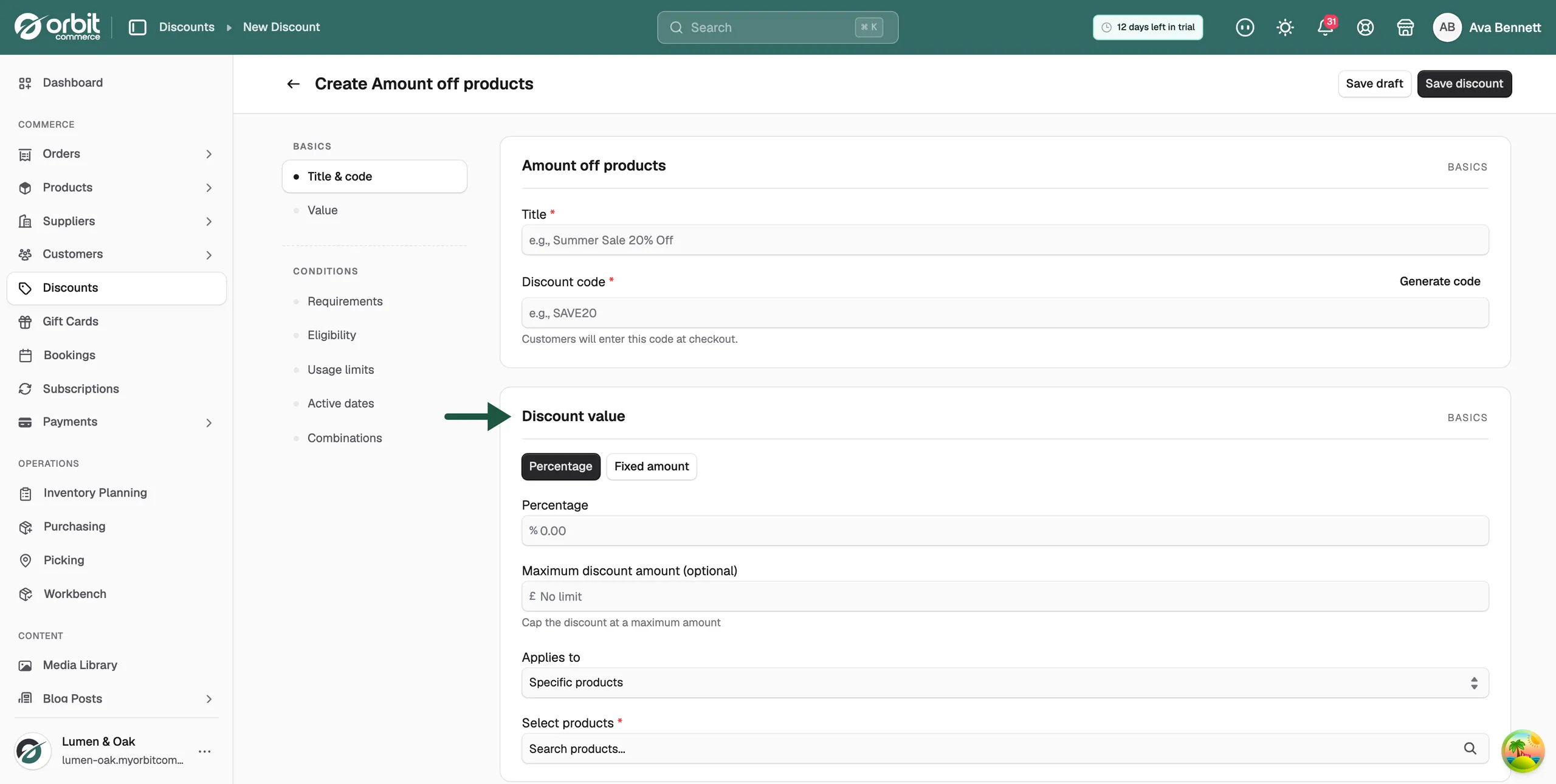
Note: Maximum discount amount (optional) belongs to percentage discounts. Click Fixed amount and the field disappears.
Choose what the discount applies to
For Amount off products and Buy X get Y, the Applies to list controls which items are reduced. It starts on Specific products.
- Specific products: the products you pick, every variant included.
- Specific collections: everything in the collections you pick, including products you add to them later.
- Specific variants: single sizes or colours from the products you pick.
- Choose an option from Applies to.
- Click the search field below it, such as Select products, and type part of a name.
- Tick each item you want. A line under the field counts what you picked, for example 2 product(s) selected.
Warning: Changing Applies to clears the items you have already picked. Choose the option first, then pick the products.
Amount off order and Free shipping have no product picker. They apply to the whole order.
Save the discount
- To finish later, click Save draft at the top right. The discount is saved as inactive and customers cannot use it.
- To start the offer now, click Save discount. The message Discount created successfully appears.
- Orbit opens the discount's edit page, where you can change any setting or switch it between Active and Inactive.
Conditions such as a minimum spend, customer eligibility, usage limits and active dates are set in the same form, below the value. They are covered in Setting conditions and limits.
Related guides
Was this helpful?
0 people found this helpful