Helping a customer who cannot sign in
A customer cannot sign in to your storefront. Check whether they have an account, then work through wrong passwords, missing reset emails, two-factor codes and hCaptcha.
A customer says they cannot sign in to your store. Work down this list. The causes are in the order they are most likely. If it is your own dashboard login that fails, see Fixing sign-in and two-factor problems instead.
They do not have an account yet
Guest orders and imports create a customer record but no login.
- From your Orbit dashboard, go to Customers and click the customer's name.
- Look at the Account row on the Contact information card. Anything other than Active means their login is not set up yet.
- Click the three dots menu, then Send account invite, then Send invite. The customer gets an email with a link to activate their account.
- They choose a password and click Activate account. That also confirms their email.
If the address already has a login from another Orbit store, registering is refused with This email already has a login. They sign in with that login's password instead, and their account on your store is set up then.
The password is wrong
- Check their address matches Email on the Contact information card. Invalid email or password covers both.
- Tell them to click Forgot password? instead of guessing.
After six wrong attempts from one browser, the page changes to Reset your password and offers Email password reset. Nothing is locked: other devices still work, and the block clears after an hour.
The reset email has not arrived
- Ask them to check spam and junk.
- Check the address they typed. Forgot Password shows Check Your Email whether or not the address is on an account.
- Wait a minute before clicking Send Reset Link again. Only one request a minute goes through, and the page does not warn you.
- If the account was never verified, the reset email still goes out. Setting a new password from it confirms their email too.
- If your sender domain is not verified, the email comes from Orbit's address. See Fixing emails that land in spam.
Note: Orbit sends the password reset email with its own wording, using your logo, colours and store name. It is not one of your editable templates, so the reset link is always in it.
The reset link does not work
- A link works once, within an hour, and only the newest one counts. An old link shows Invalid Link. Click Request New Link.
- On the Reset Password page the new password needs at least 8 characters, with an uppercase letter, a lowercase letter, a number and a symbol, and must match Confirm New Password. Password reset successful! appears, then the sign-in page.
Their two-factor code is refused
Customers turn on two-factor themselves, on the Security tab of their account settings. At sign-in they see Verify Your Identity.
- Check their phone sets its clock automatically. Authenticator codes depend on the time.
- Wait for a fresh code, type all six digits into Authenticator Code or SMS Verification Code, and click Verify. Resend code sends another text.
- Five wrong codes bring up Too many failed attempts. Please wait 15 minutes before trying again. The screen expires after five minutes, so click Back to login and start again.
- Without their phone, they click Use a backup code and type one of the eight-character codes saved at setup. Each works once.
You cannot switch off a customer's two-factor yourself. With no phone and no backup codes, contact support.
The hCaptcha check was skipped
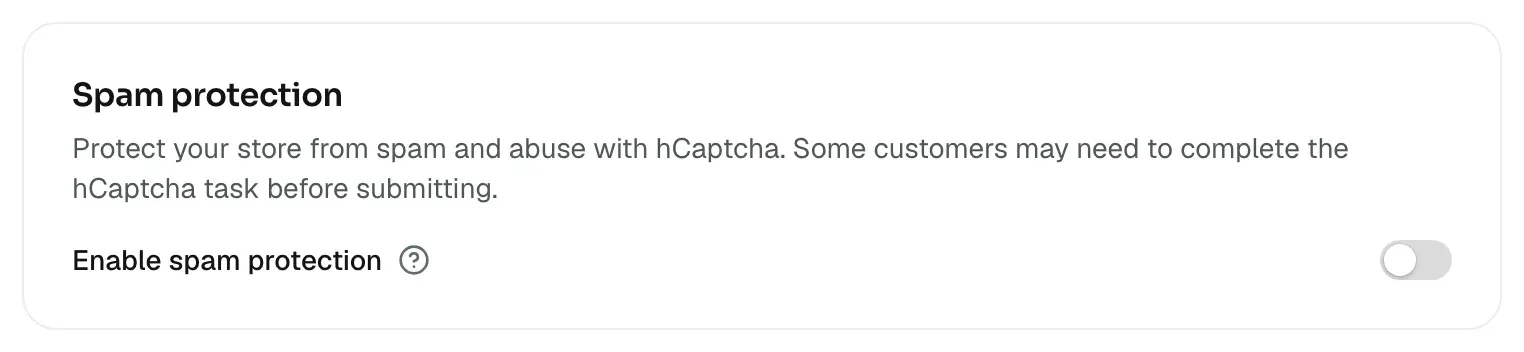
If spam protection covers your account pages, skipping the puzzle gives Please complete the captcha verification. To take it off sign-in, go to Storefront, then Preferences. Under Spam protection, switch off Enable spam protection and click Save.
You are testing with your own login
Your dashboard login does not work on the storefront. The page shows Store owners cannot login as customers. Please use the vendor dashboard., or similar for staff. Create a test customer with another email address.
If it still does not work
Contact support at support@orbitcommerce.net with the customer's email address, the exact message on screen and the time they last tried.
Related guides
Was this helpful?
0 people found this helpful