Connecting to a supplier
Search the supplier directory, read a supplier profile, and connect to an Open, Password or Approval required supplier from your Orbit dashboard.
Connecting to a supplier lets you browse their whole catalogue, import their products, and keep stock, prices and product details up to date. You connect from the Suppliers page in your Orbit dashboard. How you connect depends on the supplier's access mode.
Considerations
- The directory lists suppliers Orbit has approved. A supplier you are already connected to drops off the Available tab.
- Connecting does not import any products. You choose what to import afterwards.
- Sync settings and pricing are set after you connect, on the connection page.
- You can disconnect later. Products you have imported stay in your store.
Find a supplier in the directory
- From your Orbit dashboard, go to Suppliers.
- The page opens on the Available tab. Each supplier you can connect to is shown as a card.
- To narrow the list, type in the search field. It matches the supplier name, their categories and their description.
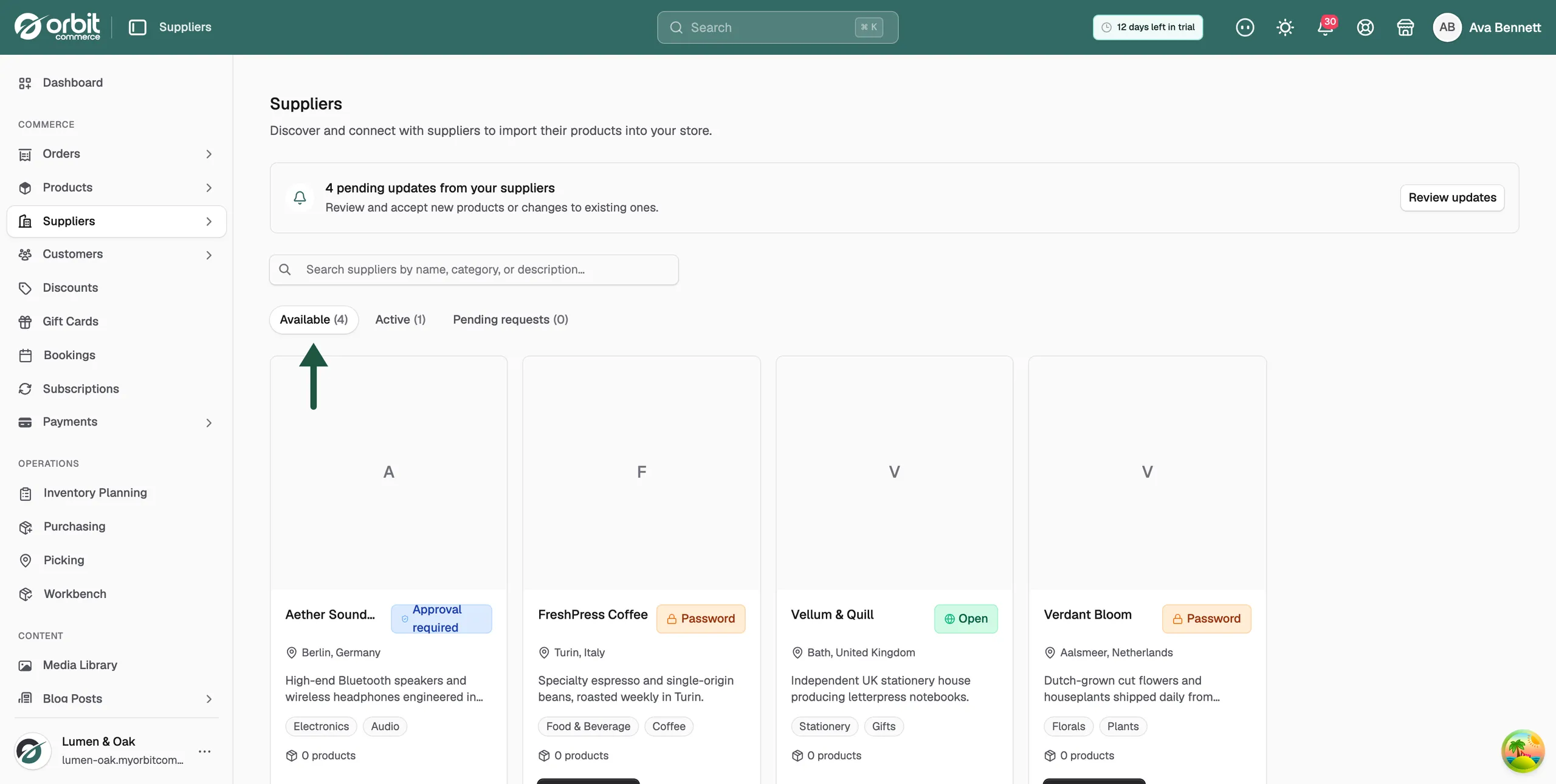
The page has three tabs, each with a count beside its name.
- Available: suppliers you can connect to but have not connected to yet.
- Active: suppliers you are connected to.
- Pending requests: suppliers you have asked for access and are waiting on.
Note: The counts beside the tab names do not change when you search. Only the cards are filtered.
What a supplier card shows
- Name and logo: who the supplier is.
- Access mode badge: how they accept new partners.
- Location: their city and country.
- Description: a short line about what they supply.
- Categories: up to three of the categories they sell in.
- Products: how many products they have published.
Clicking the picture, name or description opens the supplier's profile. The button at the bottom of the card is the one that connects you.
The three access modes
Each supplier chooses how they accept new partners. The badge on the card tells you which applies, and it decides what the button says.
- Open: connect straight away, with no approval. The button reads Add supplier.
- Password: enter a password the supplier has given you. The button reads Enter password.
- Approval required: ask for access and wait for the supplier to approve you. The button reads Request access.
Connect to an Open supplier
- On the supplier's card, click Add supplier.
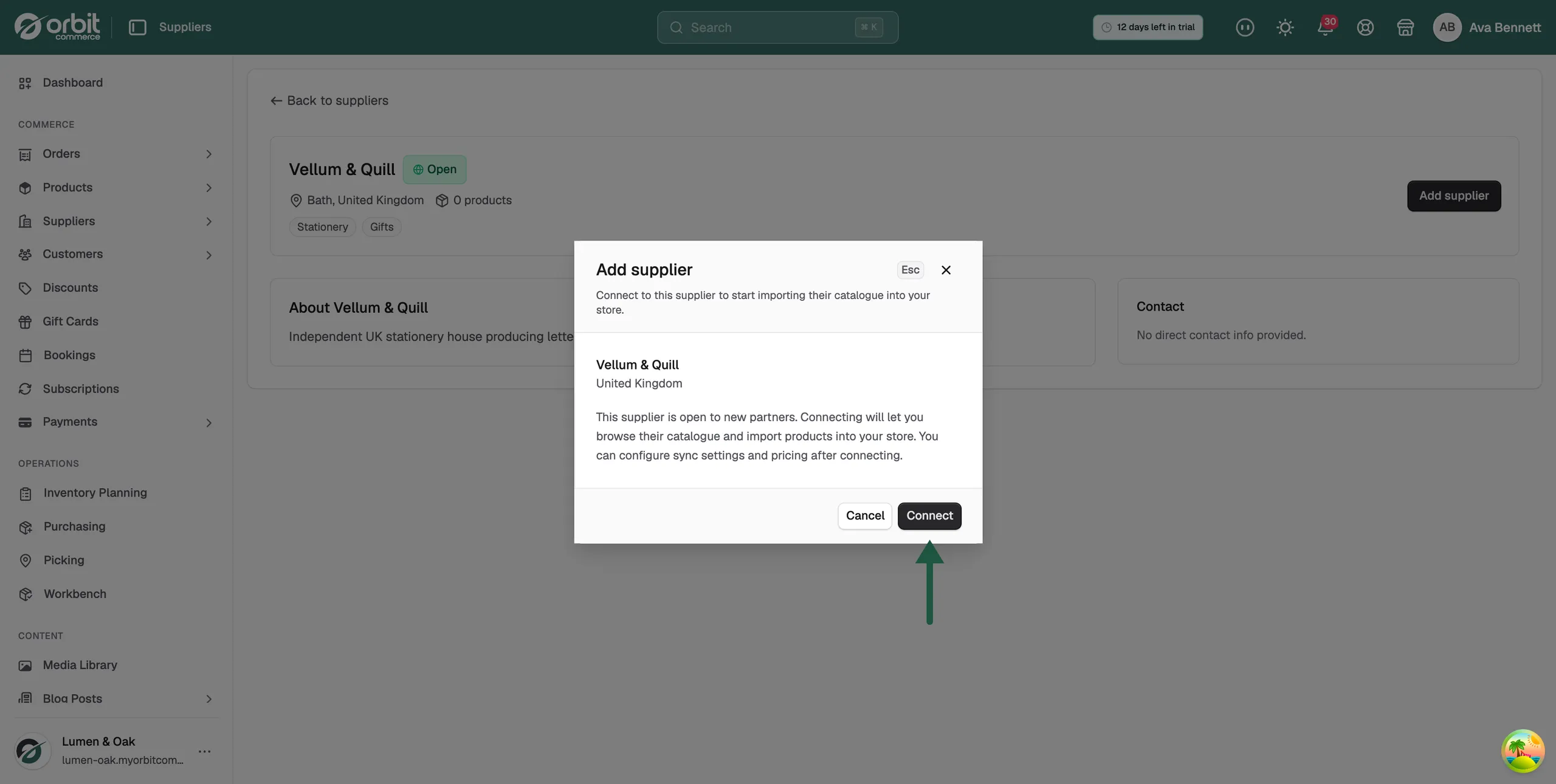
- Read the window. It shows the supplier's name and country and confirms they are open to new partners.
- Click Connect.
- A message confirms you are connected. The supplier leaves the Available tab and appears on Active.
Connect to a Password supplier
- On the supplier's card, click Enter password.
- In the Password field, type the access password the supplier gave you.
- Click Connect.
If you do not have a password, click Request password and the supplier is asked to send you one.
Ask an Approval required supplier for access
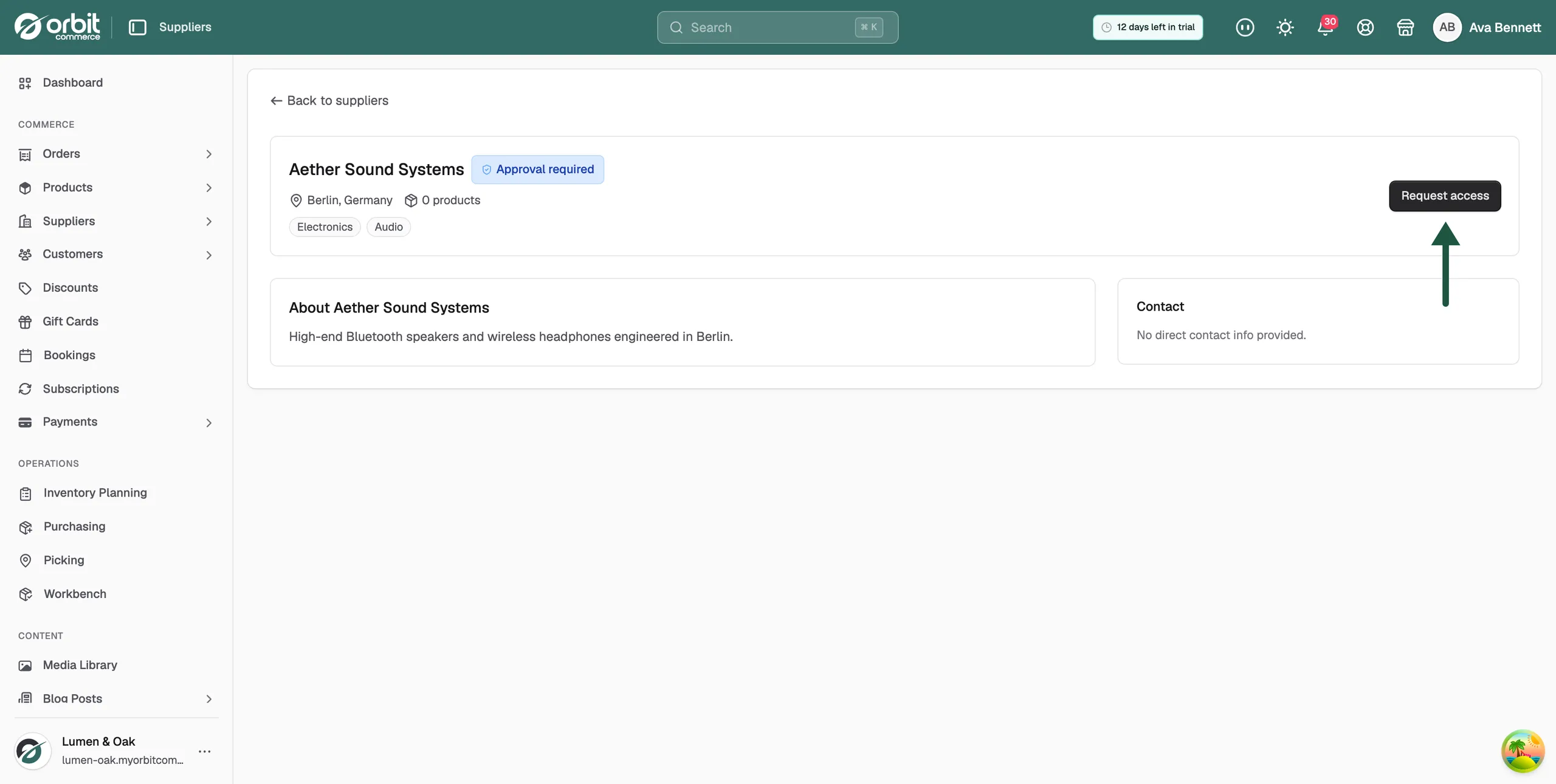
- On the supplier's card, click Request access.
- In Message to the supplier, write a short note about your store and the products you want. The message is optional and holds up to 500 characters.
- Click Submit request.
- The supplier appears on the Pending requests tab and its button reads Request pending until they decide.
Open a supplier's profile
- From your Orbit dashboard, go to Suppliers.
- Click the picture or name on a supplier's card.
The profile shows the supplier's name, access mode badge, location, the year they were established and their product count. Below that you can find:
- About: what the supplier says about themselves.
- Gallery: photos the supplier has provided.
- Sample products: a small selection of what they sell.
- Contact: their email, phone number and website, where given.
- Links: any other pages the supplier has listed.
The button at the top right connects you in the same way as the card. Once you are connected, a green Connected badge appears next to the supplier name and the button changes to Manage connection.
Open your connection settings
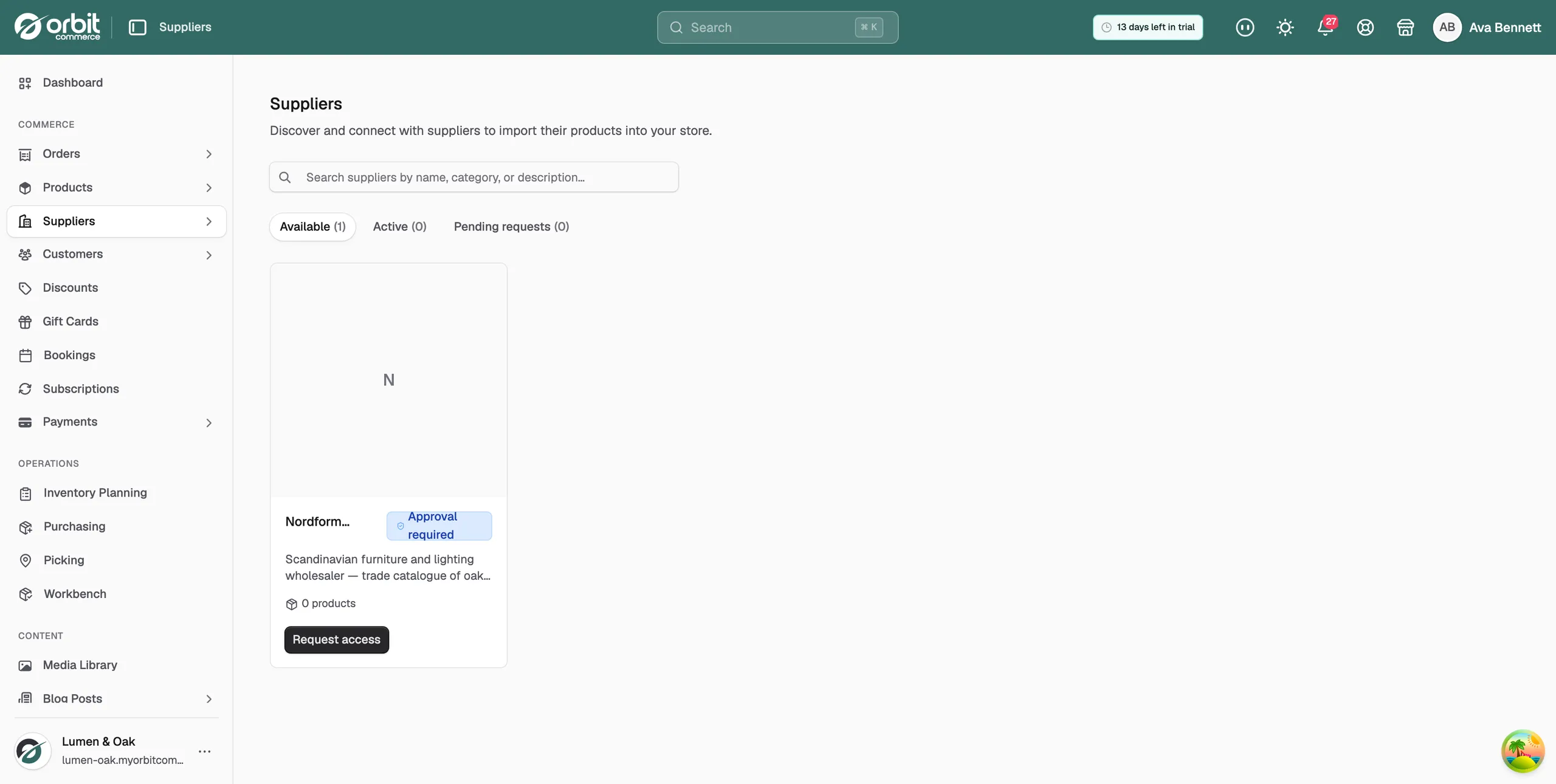
Connecting does not take you anywhere. To reach the connection page:
- From your Orbit dashboard, go to Suppliers.
- Open the Active tab.
- On the supplier's card, click Manage. You can also click Manage connection on the supplier's profile.
The connection page shows the supplier's name, a green Active badge and the date you connected, with a Resync from supplier button on the right. It has four tabs.
- Settings: which fields stay in sync, automation and pricing rules.
- Products: the supplier's catalogue, and what you import from it.
- Mapping: where the supplier's brands and categories land in your store.
- Orders: purchase orders you have raised with this supplier.
Related guides
Was this helpful?
0 people found this helpful